

Pause social publishing for a feed, a channel, or everything
You asked and we delivered: social media admins can now pause publishing for a single feed, an entire channel, or every connected account at once, and resume it whenever they’re ready.
Breaking news changes the tone of a day in minutes. When a major story hits, the last thing you want is a cheerful scheduled post or an Autopilot share going out in the middle of it. Until now, stopping that meant pulling scheduled posts one by one across dozens of feeds. Now you hit the brake for exactly the scope you need: Autopilot, the Queue and scheduled posts stop going out for anything paused, while posts already published stay live and drafts are kept. Social media admins can still publish manually when a post needs to go out.
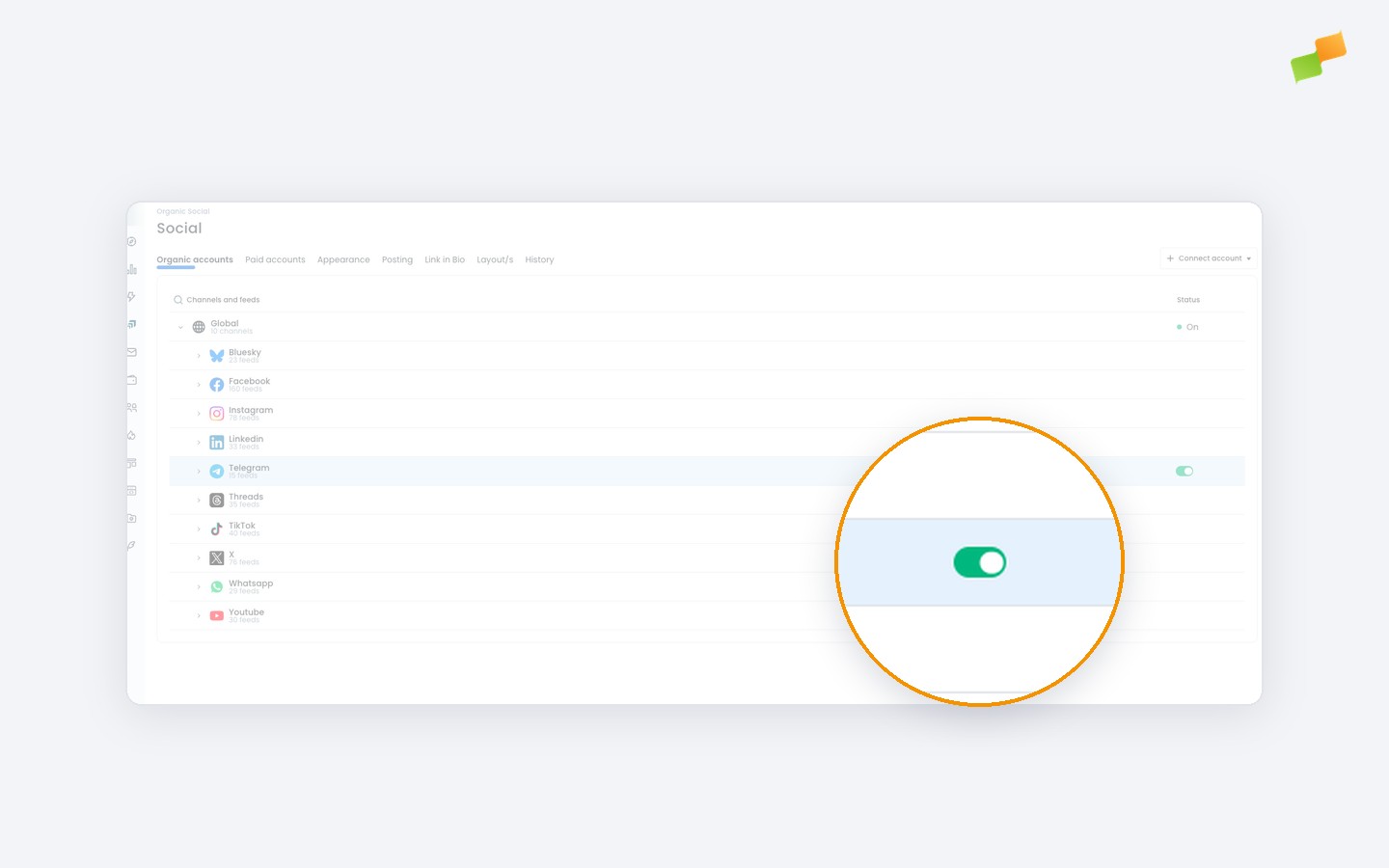
Here’s how you can get started:
- Open Organic accounts in Amplify’s settings to see every connected channel and feed, each with its own publishing status
- Pause everything at once, a whole channel, or a single feed: a more specific level always overrides the broader one
- Confirm each pause with a hold-to-confirm step, so it never happens by accident
- Hit the brake from your phone too: pausing and resuming work on mobile
- Search across your channels and feeds to find the one you need to pause or resume
- Spot paused channels and feeds at a glance: they carry a badge wherever they show up, and a banner on the channel page reminds you publishing is on hold
- Tell a deliberate pause from a real error: posts held back by a pause show as Paused, not Failed
- Stay in the loop: Social media admins and managers get notified every time publishing is paused or resumed, at any level, along with who made the change. Feed admins hear about changes to their own feeds too, so nobody is left wondering why posts stopped going out
One switch to stop everything. Resume when the moment has passed.
Learn more in the Connect social media accounts in Amplify guide