

Connect social media accounts in Amplify
You can connect social media accounts to Marfeel in two ways:
- Contextually, while creating your posts
- From the Account Management panel
Contextually
Section titled “Contextually”-
Accounts can be connected directly from within Amplify when you are creating your social posts.
-
At any step of using Amplify, whether you are selecting an account or profile to send your post from or writing your post in the editor, you can choose to connect a new social media account.
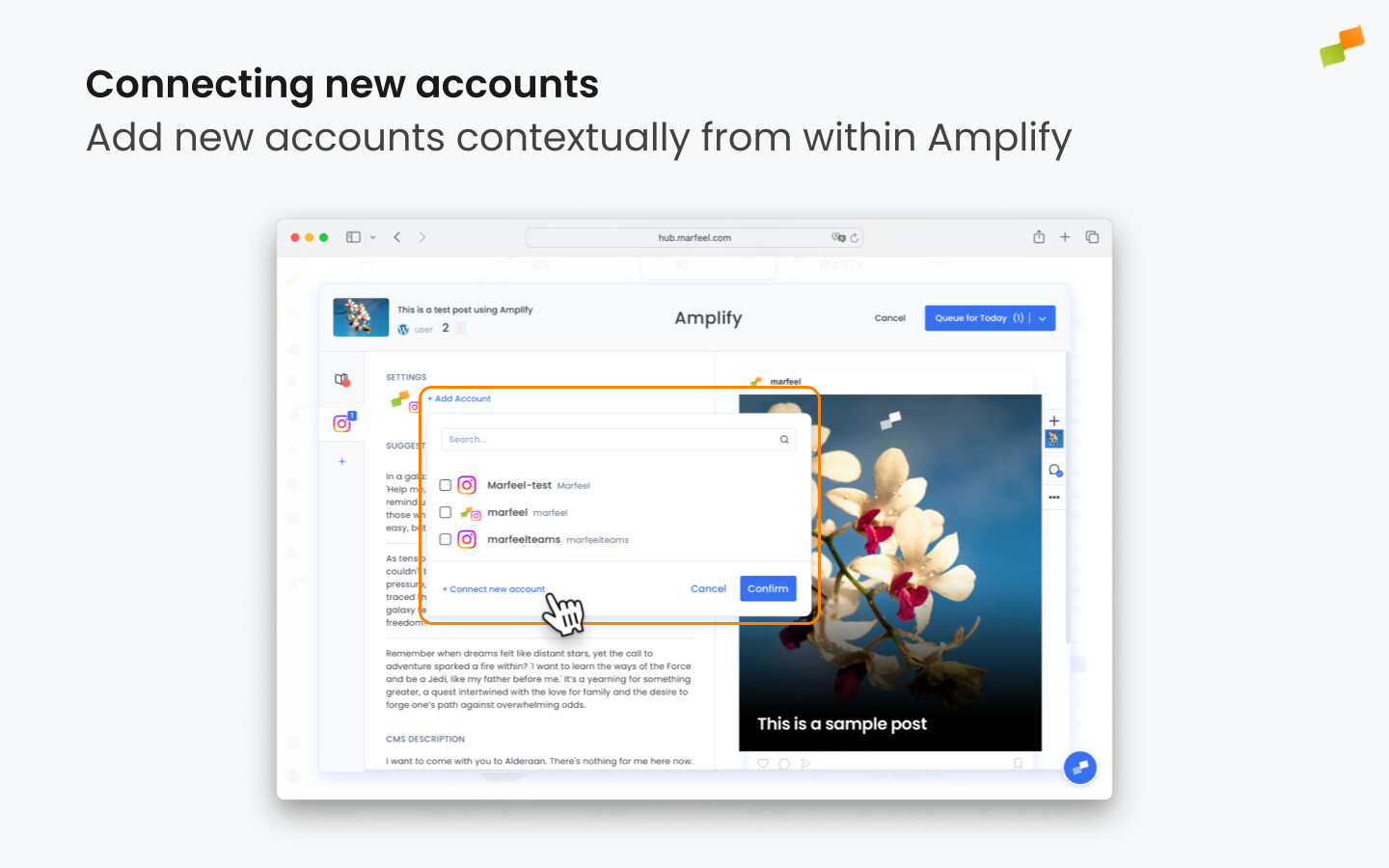
- You will be taken through a simple wizard where you select and authenticate the new account you want to use.
Through account management
Section titled “Through account management”To connect your social accounts outside of the post creation flow, or to manage accounts that are already connected, use the left sidebar menu and navigate to Social Settings > Accounts. You will see a list of available social channels and be able to add new ones. You can also configure channel defaults and other preferences from the Amplify settings panel.
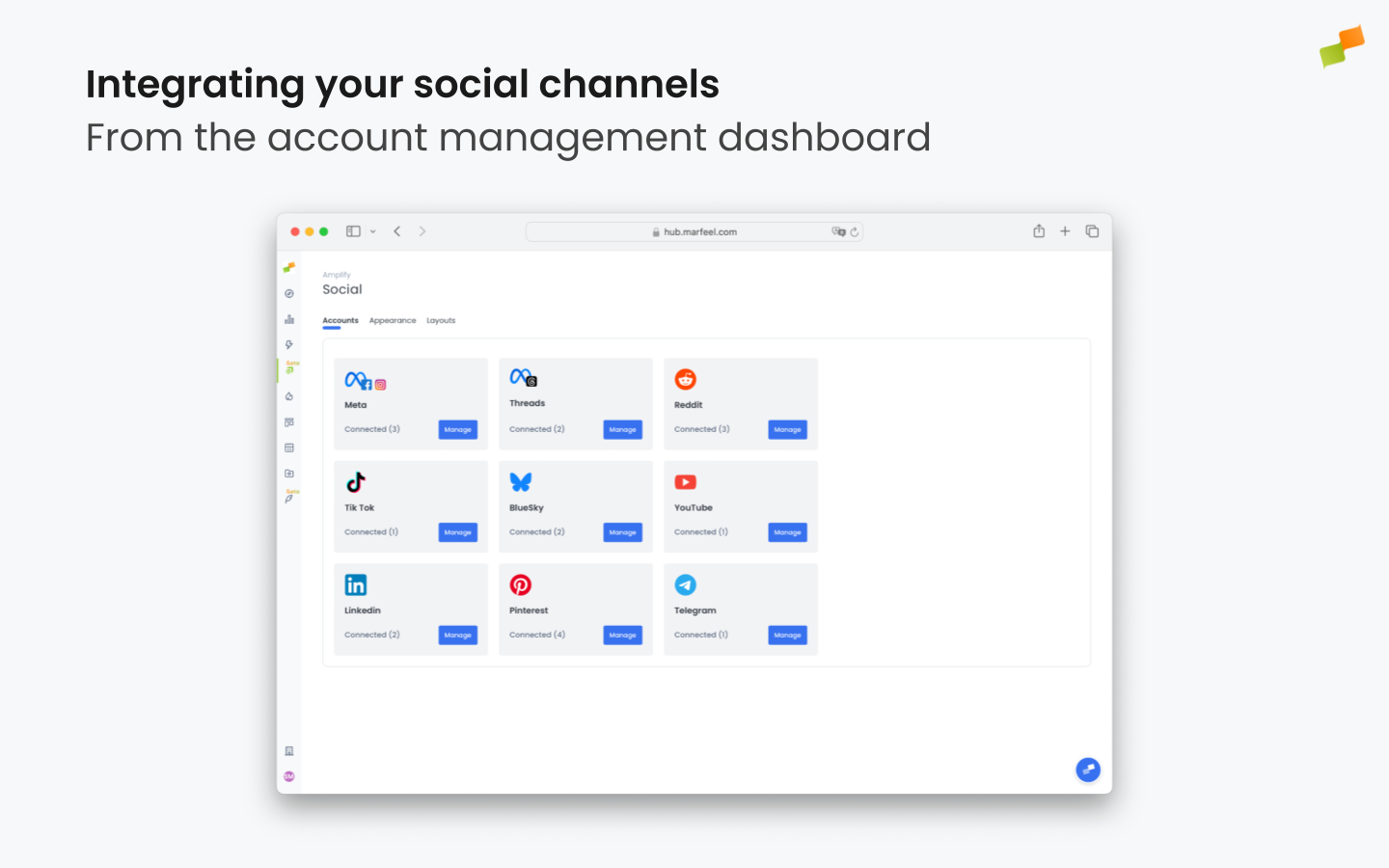
You can find more detailed information on connecting different social media accounts here.
🎓 Become a Marfeel Amplify expert 📣 Learn how to publish smarter, automate sharing, and optimize your social strategy with our Marfeel Amplify Course.
✅ Workflow-focused training ✅ Automation strategies ✅ Certificate of completion included
🧠 Start now on Marfeel Academy.
Reconnection warnings
Section titled “Reconnection warnings”Amplify displays a reconnection warning whenever the connected account is missing required permissions or for security reasons. When that happens, a warning appears next to the account name:
⚠ Missing permissions. Reconnect now.
Click on the link and authenticate your account again through the wizard. For Meta accounts specifically, the Facebook and Instagram integration guide covers the full authentication flow and required permissions.
Keeping all your accounts properly authenticated is essential. If an account loses permissions, your scheduled posts will not be published and Marfeel will not be able to retrieve data from that social media account.
What are the two ways to connect social media accounts in Amplify?
You can connect accounts contextually while creating a post inside Amplify, or from the Account Management panel under Social Settings > Accounts in the left sidebar menu.
Why does Amplify ask me to reconnect a social media account?
Amplify displays a reconnection warning when the connected account is missing required permissions or for security reasons. Click the link in the warning and re-authenticate through the wizard to restore access.
What happens if I don't reconnect a social media account that shows a warning?
If you leave an account with a missing-permissions warning, your scheduled posts will not be published and Marfeel will not be able to retrieve data from that social media account.