

Marfeel Copilot CMS integration step by step
Marfeel Copilot integrates directly with the editor you already use, whether that is Google Docs, Microsoft Word, an in-house CMS, a commercial platform, or Marfeel Writer. The Chrome extension detects your content automatically and delivers AI-powered assistance right where you write.
How to use Marfeel Copilot in your CMS
Section titled “How to use Marfeel Copilot in your CMS”Marfeel Copilot is natively integrated with major systems and works out of the box.
- Install the Marfeel Chrome extension.
- Browse to your CMS.
- Marfeel Copilot will autodetect your content and execute prompts contextually.
- The append and replace actions work immediately without additional configuration.
How Marfeel Copilot integrates with your CMS
Section titled “How Marfeel Copilot integrates with your CMS”When you browse to a webpage, the Marfeel Chrome Extension analyzes it to identify text and input blocks following this detection chain:
- Commercial text editor fields:
- Google Docs
- Microsoft Word
- CKEditor 5
- TinyMCE
- ProseMirror
- WordPress Gutenberg
- PlateJs
- Lexical
- Discourse
- Generic text input elements:
contentEditableelements- TextArea
- Identify text blocks via a Reader view.
Diagnose the integration of Marfeel Copilot with your CMS
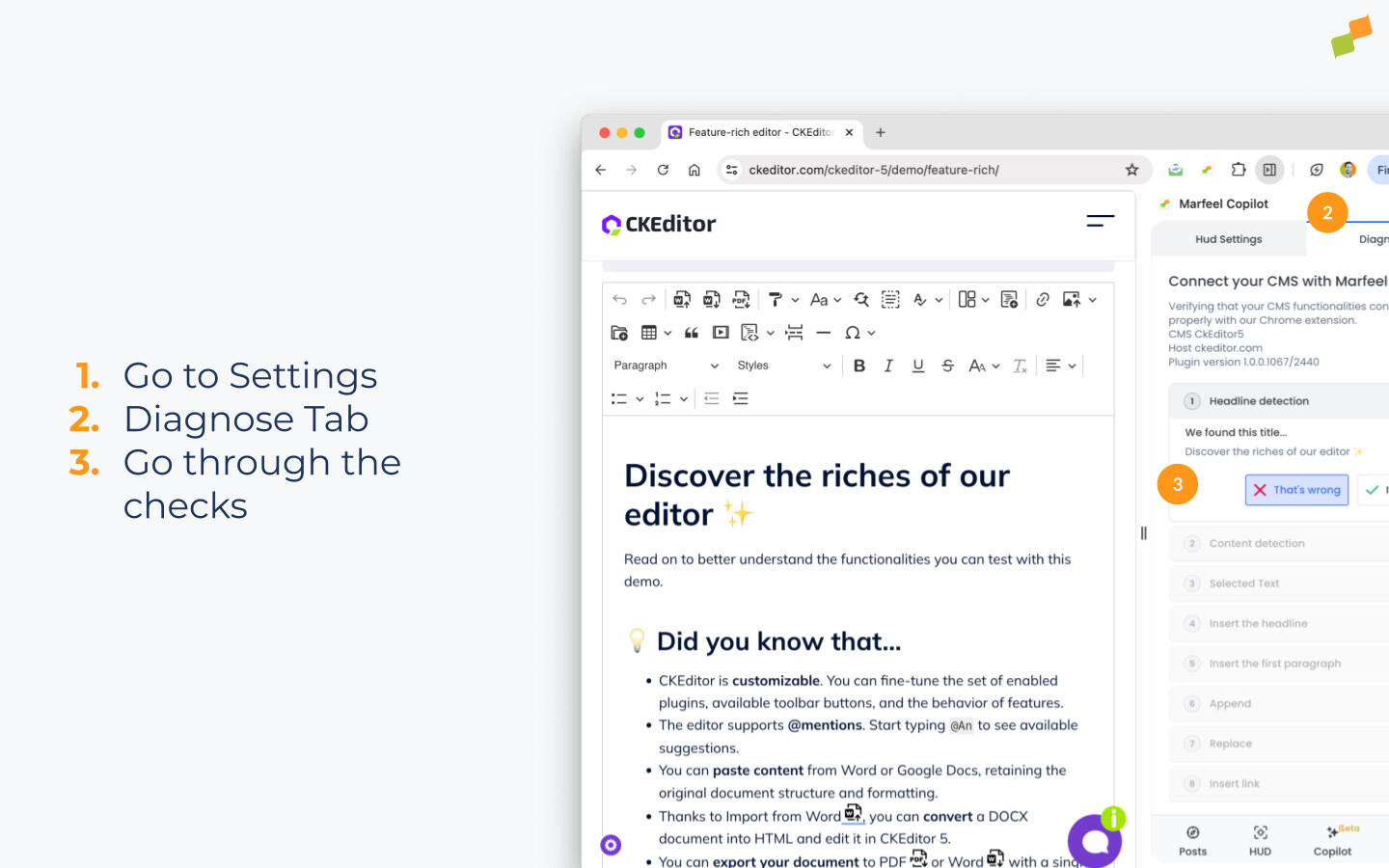
Section titled “Diagnose the integration of Marfeel Copilot with your CMS”The Marfeel Copilot extension provides a built-in Diagnose tool that validates each integration point with your CMS. To run diagnostics:
- Open the Chrome Extension
- Go to Settings
- Open the Diagnose tab
- Execute the different checks that will validate everything is working as expected detecting selections and manipulating texts.
While widely used CMS platforms are natively integrated, different versions or custom setups may affect feature availability.
CMS integration setup
Section titled “CMS integration setup”Admin users can configure several aspects of the automatic CMS integration from Organization > Copilot.
Title field
Section titled “Title field”Some CMS platforms have a separate field for the title, distinct from the main article body. You can provide a CSS selector that identifies the title field so title replacement actions work properly.
Document body
Section titled “Document body”If the Marfeel Copilot extension is not correctly identifying the article body field, you can provide a CSS selector that overrides automatic detection. The extension will use it with precedence.
CMS host
Section titled “CMS host”You can restrict Copilot to detect text inputs only on the domain where your CMS is hosted.
MIME type
Section titled “MIME type”When Marfeel Copilot identifies the main body as a TextArea, it uses the MIME type field to define the format expected by your CMS — markdown, HTML, or plain text.
How Marfeel Copilot detects the language
Section titled “How Marfeel Copilot detects the language”Marfeel Copilot infers the language of its responses based on what the user is doing:
- In edit mode, when a text editor or CMS is detected, Copilot detects the language based on the content.
- In read mode, when analyzing articles, it uses the account language as defined in the account settings.
Which CMS editors does Marfeel Copilot support?
Marfeel Copilot supports Google Docs, Microsoft Word, CKEditor 5, TinyMCE, ProseMirror, WordPress Gutenberg, PlateJs, Lexical, Discourse, as well as generic contentEditable elements and TextArea fields.
How do I diagnose Marfeel Copilot CMS integration issues?
Open the Chrome Extension, go to Settings, open the Diagnose tab, and run the checks. If errors appear, send the Diagnose report and the support or product team will assist you.
How does Marfeel Copilot detect the language of content?
In edit mode, when a text editor or CMS is detected, Copilot detects the language based on the content. In read mode, when analyzing articles, it uses the account language defined in the account settings.