

Marfeel Writer — AI-powered writing tool for editorial teams
Marfeel Writer is a writing tool that combines the simplicity of a word processor with native built-in Marfeel Copilot assistance, ensuring a seamless journey in crafting engaging stories.
You can start working on a new document by clicking ‘New’ from the documents manager.
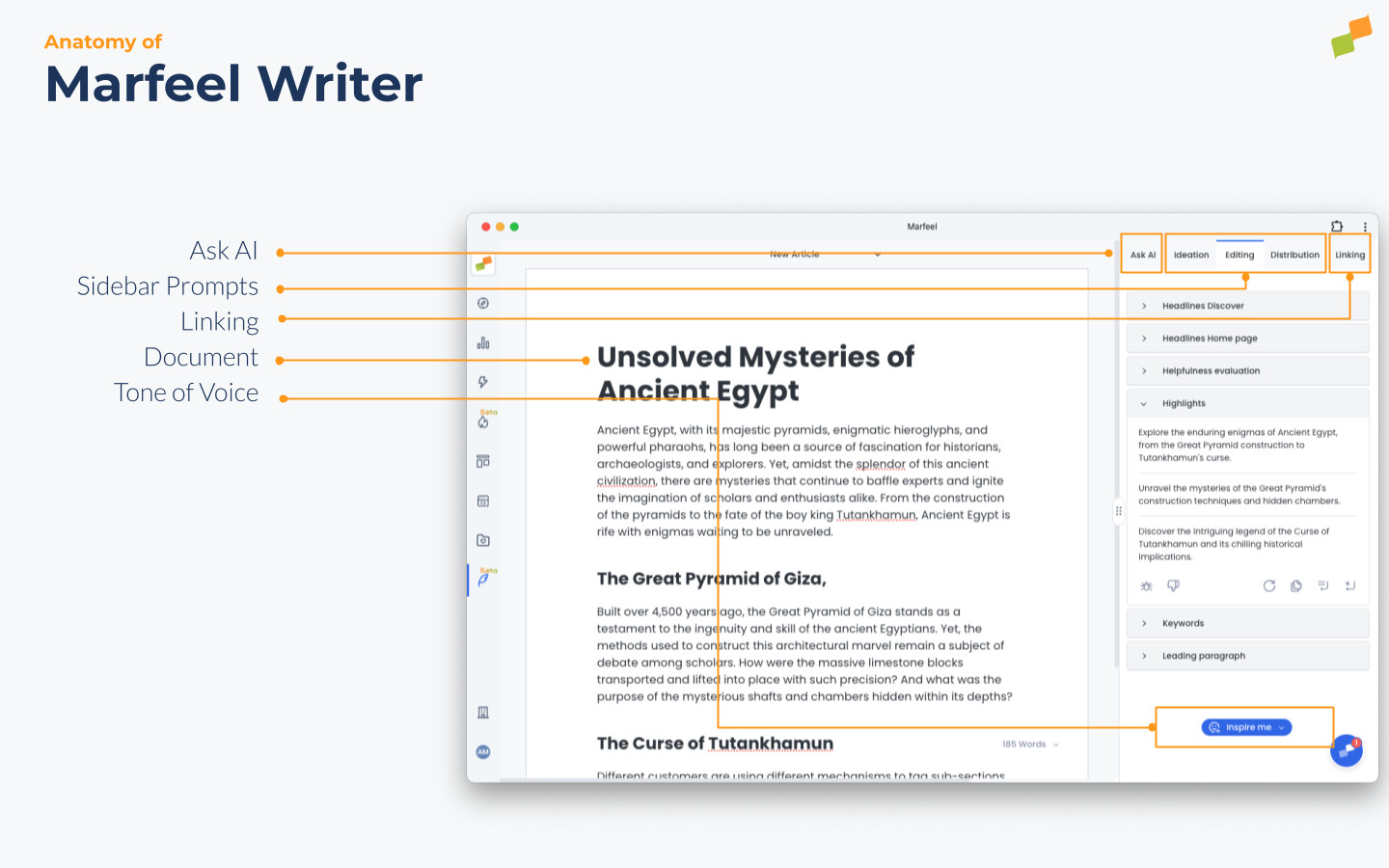
The Marfeel Writer UI consists of these primary elements:
- Document: The central area where you create and edit your content.
- Sidebar AI Suggestions: Quick access to different Marfeel Copilot+ Suggestions and tools for seamless document editing and writing.
- Linking: Lists relevant articles to potentially include as hyperlinks within your narrative.
- Ask AI: Execute custom AI questions based on contextual needs to enhance your document creation experience. All prompt responses are saved in chat format at the document level.
- Selection Bar: Select any text within the document to format it, access custom AI questions, or find relevant linking opportunities.
- Tone of Voice: Dropdown to select the tone of voice that Marfeel Copilot will use to assist you in crafting your stories.
Ask AI
Section titled “Ask AI”Ask AI lets you perform Marfeel Copilot+ AI queries and integrate new content blocks directly into your document. It operates in a chat-style format so you can track all interactions in one place.
Ask AI can be accessed through various methods:
- Selecting any text through either mouse clicks or keyboard shortcuts and pressing
ESC. - Pressing the
ESCkey within an empty block. - Pressing the
ESCkey to select a text block, which opens and focuses the Ask AI module. - Clicking on the Marfeel Copilot+ icon located on the left margin of the document or in the Selection Bar.
- Clicking on “Ask AI” at any given moment within the Sidebar AI Suggestions.
You can type any question to the LLM or you can press cmd/ctrl + K with a text selection active to see linking options.

Style your writing
Section titled “Style your writing”Marfeel Writer includes all the text styling features you expect from a word processor, plus a few extras. Formatting can be applied in one of three ways:
- Keyboard shortcuts. All the usual shortcuts apply.
- Markdown shortcuts for quick formatting.
- Highlight any text and open the formatting options on the Selection Bar.
Here’s a summary table of the supported shortcuts:
| Style Shortcuts | Markdown | Keyboard |
|---|---|---|
| Bold | **Bold** | cmd/ctrl + B |
| Italic | *Italic* | cmd/ctrl + I |
| Underline | _underline_ | cmd/ctrl + U |
| Inline code | ` | - |
~Strikethrough~ | cmd/ctrl + shift + S | |
| Highlight | ^^Highlight^^ | cmd/ctrl + shift + H |
| Bullet list | * | - |
| Numbered list | 1. | - |
| To-Do checkbox | [] | - |
| Normal text | - | ctrl + 0 |
| H1 | # | ctrl + 1 |
| H2 | ## | ctrl + 2 |
| H3 | ### | ctrl + 3 |
| Select block | - | ESC |
| Move block up / down | - | cmd/ctrl+ shift + arrow keys |
Markdown style
Section titled “Markdown style”Markdown style allows you to format text using simple symbols and characters, making it easier to structure and style your writing without needing to know complicated code. While typing:
- Type
**on either side of your text to bold. - Type
*on either side of your text to italicize . - Type
_on either side of your text to underline. - Type ` on either side of your text to create
inline code. - Type
~on either side of your text to strikethrough. - Type
^^on either side of your text to highlight
At the beginning of any new line or existing block of content, try these:
- Type
*,-, or+followed byspaceto create a bulleted list. - Type
[]to create a to-do checkbox, followed byspace. (There’s nospacein between.) - Type
1.,a., ori.followed byspaceto create a numbered list. - Type
#followed byspaceto create an H1 heading. - Type
##followed byspaceto create an H2 sub-heading. - Type
###followed byspaceto create an H3 - Type
>followed byspaceto create a toggle list. - Type
"followed byspaceto create a quote block. - Type
---followed byspaceto create a divider. (Three dashes in a row.)
Keyboard shortcuts
Section titled “Keyboard shortcuts”All the usual keyboard shortcuts apply:
- With text selected, press
cmd/ctrl+Bto bold text . - With text selected, press
cmd/ctrl+Ito italicize text . - With text selected, press
cmd/ctrl+Uto underline text. - With text selected, press
cmd/ctrl+shift+Sfor strikethrough. - Press
cmd/ctrl+shift+Hto apply the last text or highlight color you used. - With text selected, press
cmd/ctrl+Kto add a link. You can also paste a URL over selected text to turn it into a link usingcmd/ctrl+V.
For all of these content creation shortcuts, cmd + option is the combination for Mac, and ctrl + shift is the combination for Windows and Linux:
- Press
cmd/ctrl+option/shift+0to create text. - Press
cmd/ctrl+option/shift+1to create an H1 heading. - Press
cmd/ctrl+option/shift+2to create an H2 heading. - Press
cmd/ctrl+option/shift+3to create an H3 heading.
Edit & move blocks
Section titled “Edit & move blocks”- Press
ESCto select the block you’re currently in. Or to toggle Ask AI visibility. - Hold
cmd/ctrl+shift+arrow keysto move a selected block around.
How do I access Ask AI in Marfeel Writer?
You can access Ask AI by selecting text and pressing ESC, pressing ESC within an empty block, clicking the Copilot+ icon on the left margin or Selection Bar, or clicking “Ask AI” in the Sidebar AI Suggestions.
What text formatting options does Marfeel Writer support?
Marfeel Writer supports bold, italic, underline, inline code, strikethrough, highlight, bullet lists, numbered lists, to-do checkboxes, and headings (H1-H3). Formatting can be applied via keyboard shortcuts, Markdown syntax, or the Selection Bar.
Can I use Markdown formatting in Marfeel Writer?
Yes. Marfeel Writer supports Markdown shortcuts for quick formatting. For example, type ** for bold, * for italic, # for headings, and * or - followed by a space for bullet lists.