

How to set up the no-code recirculation experience
The no-code recirculation experience lets you define named modules on your homepage and section pages so you can track exactly where internal traffic originates. Setting it up is a prerequisite for using the Heads Up Display.
The recirculation experience allows you to:
- Use the HUD, where you can:
- View link performance in context.
- Identify opportunities to optimize internal and affiliate links.
- Run A/B tests on titles and images on the homepage and section pages.
- Track link performance per module for precise results. Break down data for a link appearing multiple times on the same page according to the modules where it appears.
- Disambiguate internal traffic according to specific modules. Filter traffic by modules in real-time and historically. Learn more here.
The recirculation experience also saves developers time because non-technical team members can implement it without writing any code. Follow the steps below to set it up.
Recirculation experience setup
Section titled “Recirculation experience setup”- Go to ⚡️Experiences > Tag Experiences
New experience>Recirculation- Add a title (this is for internal use only).
- Set up key value pairs:
- Copy and paste the CSS selector for the module.
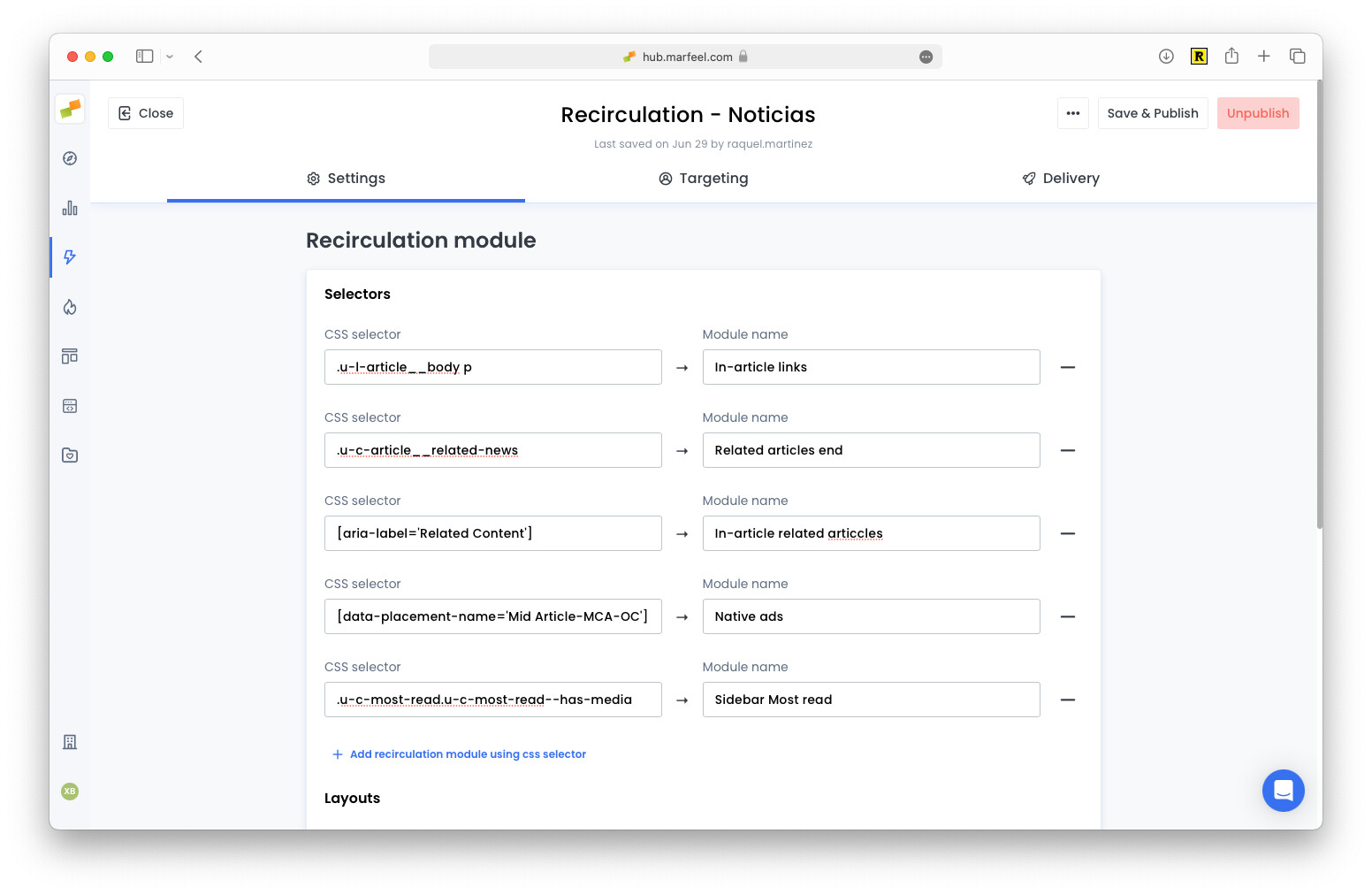
- Pair it with a module name. Choose something descriptive, as this name will be used throughout the platform where the module appears as a traffic source, including the HUD:
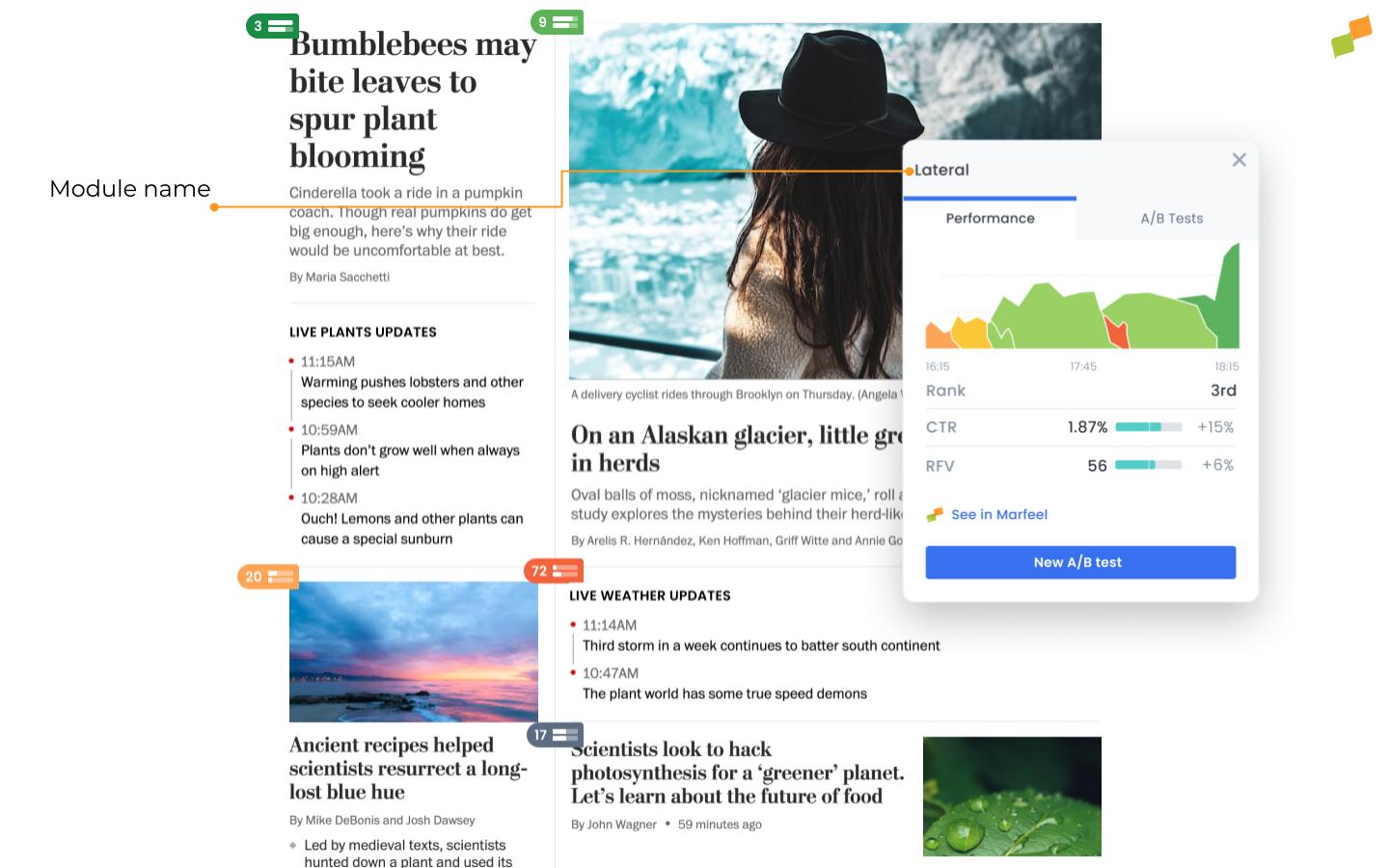
- Copy and paste the CSS selector for the module.
- Repeat steps 2-5 for as many homepages and section pages as you would like to name.
- Repeat steps 2-5 for additional modules such as Most Read, Latest News, and other sidebars.
- Repeat steps 2-5 for articles where you want to track recirculation and/or affiliate links. Remember, you won’t have data for in-article links unless you create a specific tag experience for them.
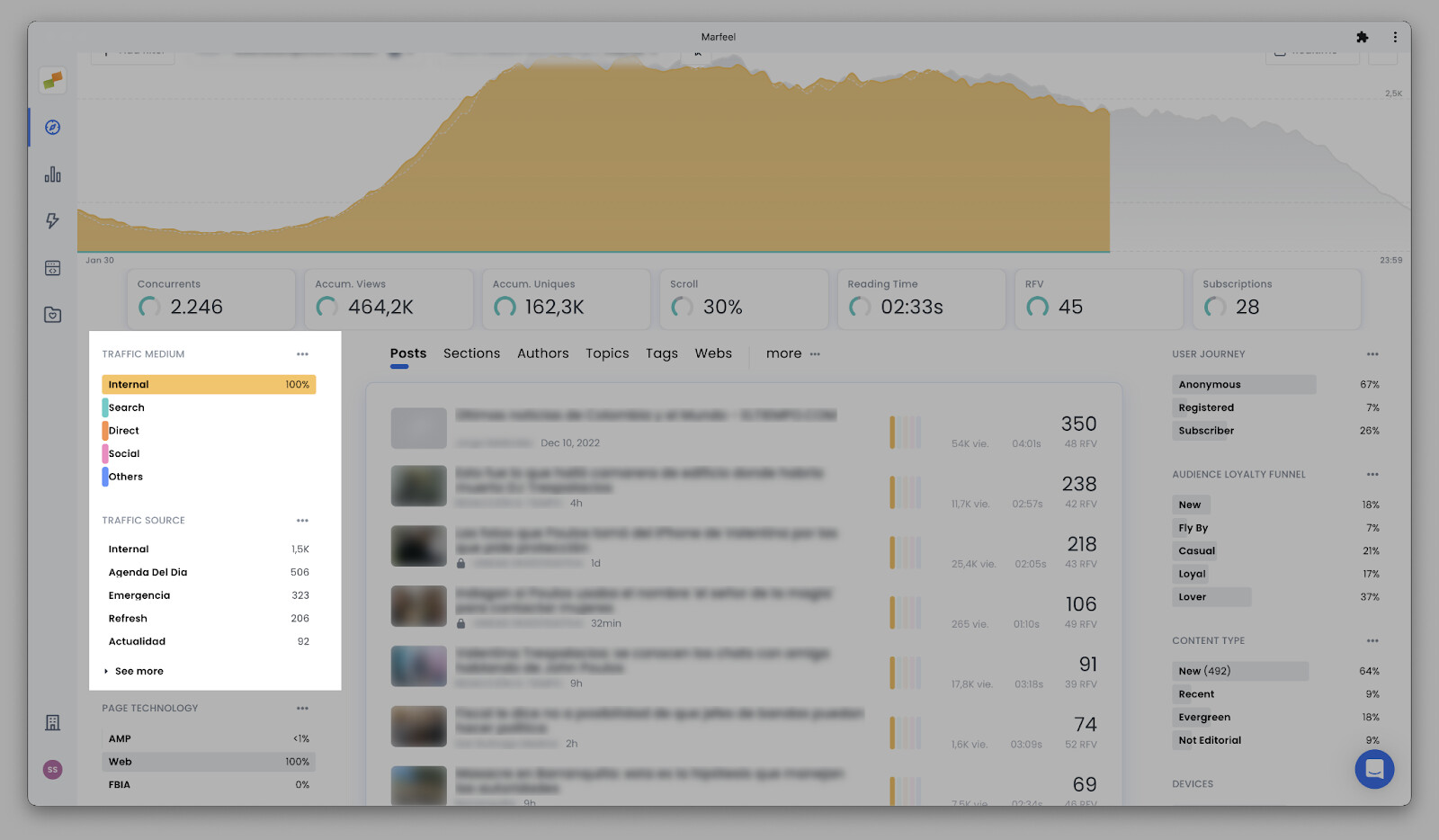
After setting up the different module names and selectors you will be able to see the named internal traffic in Compass view when filtering Internal traffic:
Track links behind a redirection domain
Section titled “Track links behind a redirection domain”Sometimes links are added to articles via a redirection domain. This is a common practice in affiliation where links point to an intermediate endpoint owned by the publisher that redirects to the store or product page. These endpoints are normally responsible for tracking clicks. Some of these links might look like:
https://yourdomain.com/redirect?url=amazon.com/xyzhttps://redirect.yourdomain.com/?u=amazon.com/xyz
If not properly configured, Marfeel will track outgoing clicks to yourdomain.com or redirect.yourdomain.com and will not be able to report the actual amazon.com product receiving the clicks.
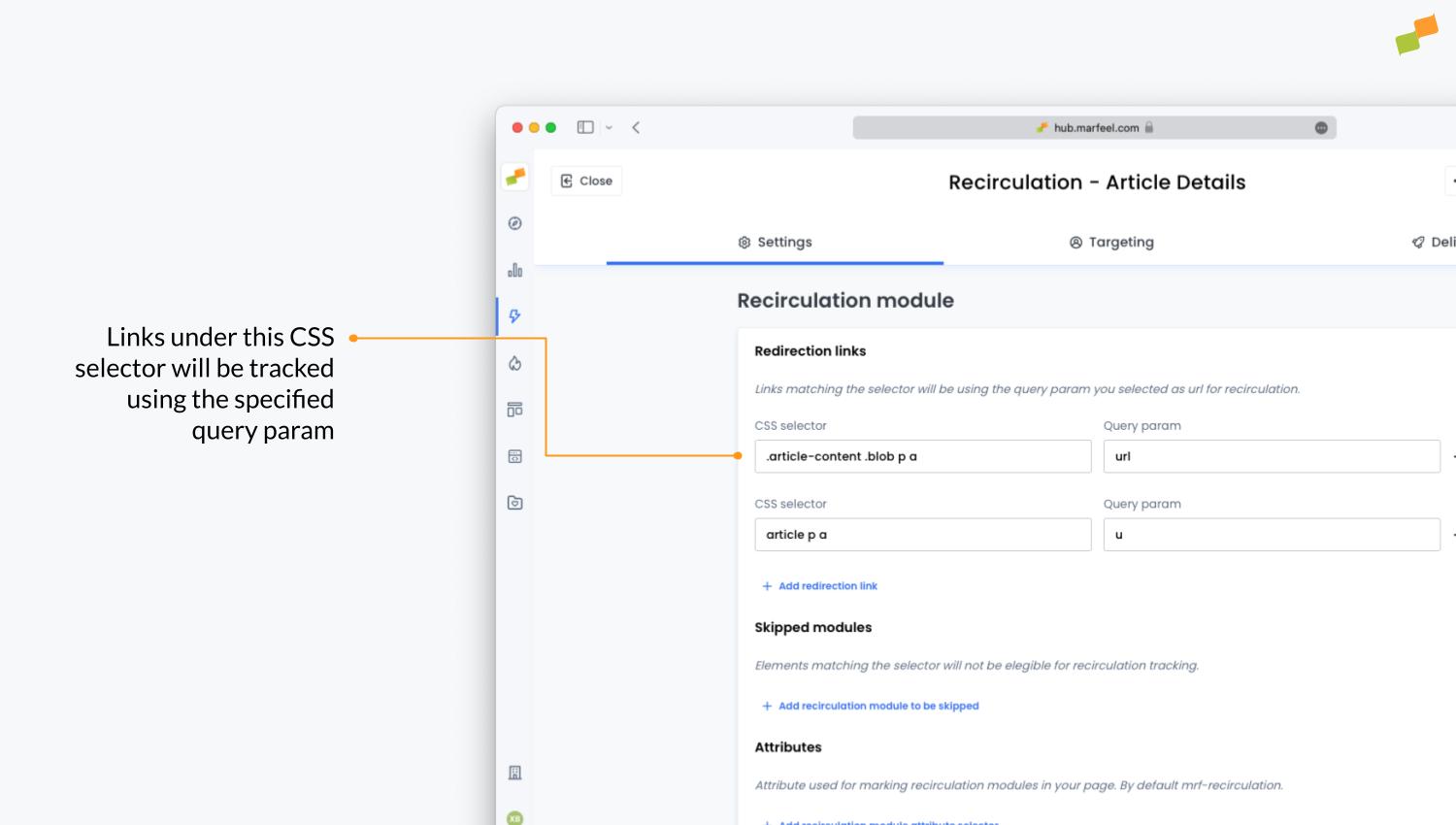
To track the real destination link, specify that links under a certain CSS selector should use a designated query parameter:
Set up with SDK
Section titled “Set up with SDK”The instructions above represent the no-code solution for the recirculation experience. There is also an SDK for developers who need more control, which you can find here.
What does the recirculation experience allow you to do?
The recirculation experience lets you use the Heads Up Display (HUD) to view link performance in context, run A/B tests on titles and images, and track link performance per module. It also disambiguates internal traffic by module, so you can filter traffic sources in real-time and historically.
How do you track affiliate links behind a redirection domain?
In the recirculation experience setup, specify a CSS selector for the affiliate link container and configure a query parameter that identifies the real destination URL. This ensures Marfeel reports clicks to the actual product page instead of your redirect domain.
Is there an SDK alternative to the no-code setup?
Yes. If you need more control, you can use the HUD and recirculation modules tracking SDK instead of the no-code tag experience.