

Which outgoing links are users clicking next?
Outgoing link tracking shows which links users click to move from one page to the next. Marfeel provides this data so content creators can evaluate in-article internal linking, spot underperforming links, and make informed editorial decisions to keep users engaged.
Internal linking is the practice of linking to other related articles within an article. It improves the user experience by providing additional contextual information and relevant content, keeping users engaged and on the site longer.
Marfeel lets you review outgoing link performance in two ways:
- From the article details page in Compass, where you can compare link metrics side by side
- From the Heads Up Display (HUD), where you see link data overlaid on the live article for visual context
From article details
Section titled “From article details”To understand how links are performing:
- Open Compass view
- Click on an article to open its details page
Recirculation rate
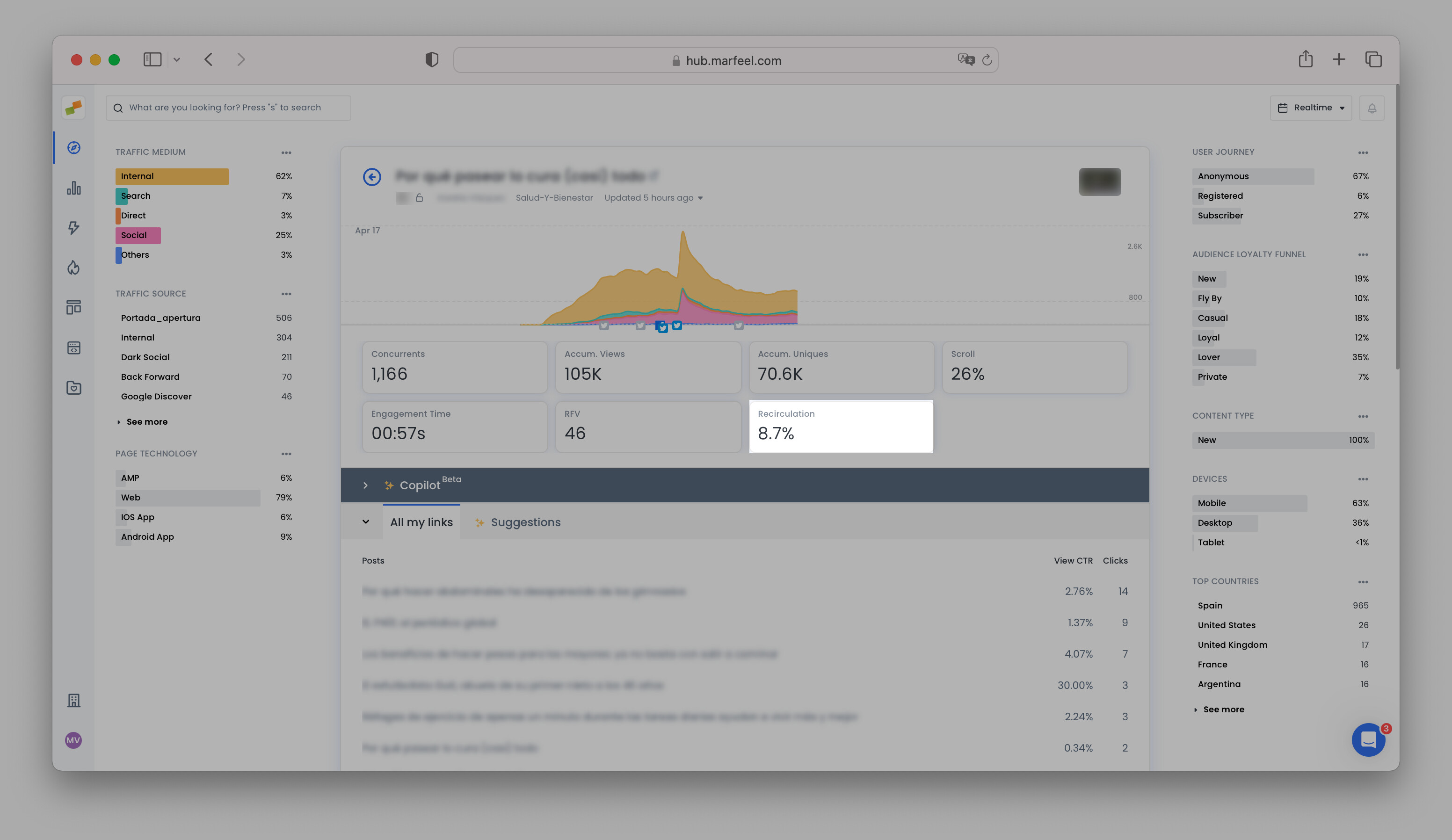
Section titled “Recirculation rate”The recirculation rate measures how actively readers follow links from an article. View the real-time recirculation rate of each post in the Compass article view, as above.
The Recirculation Rate is calculated by dividing the total number of clicks by the number of concurrent users. It is an important KPI indicating how interested readers are in what a publication has to offer. For a full breakdown of how this metric fits into the broader recirculation data model, start with the overview.
A recirculation rate above 7% can be considered good.
You can use the internal traffic percentage to approximate bounce rate, which Marfeel does not expose as a direct metric:
Bounce Rate ≈ 100% − Internal Traffic %
For example, if your internal traffic percentage is 23%, your approximate bounce rate is 77%. Find the internal traffic percentage in the Traffic Medium report in Explore, filtered to your desired time period.
Recirculation data is re-calculated from raw data even when applying filters.
On articles with little traffic or clicks, the recirculation data might fluctuate. Bear in mind that you can increase the time window to today or any date range you need.
Viewable CTR and clicks
Section titled “Viewable CTR and clicks”Under How are my links performing, you can see the list of internal and external URLs that are linked within the text of the article and elsewhere on the same page.
Monitor individual link performance for each URL in terms of the total number of Clicks and the Viewable CTR, which refers to the number of clicks on a link divided by the number of users who scroll far enough to see it (the number of times it enters the viewport). See full definition here.
More advanced users, such as those on Product and Analytics teams, can dive deeper in the Recirculation module.
How to use recirculation data
Section titled “How to use recirculation data”Ideally, content creators will follow up on the link performance of the articles they publish. This is critical for top of the funnel content aimed at traffic acquisition. High traffic acquisition articles need to be optimized to recirculate, minimize bounce rate, and increase internal traffic.
- If a link is not generating many clicks: Try changing the text of the backlink or replace it with an article getting a lot of engagement elsewhere on the site.
- If a link is generating lots of clicks: Consider adding it to other pieces where it makes sense from an editorial perspective.
- If a link with a high viewable CTR is located lower on the page: Consider moving it higher up the viewport to boost its performance. This works well for internal articles and affiliation links.
- Allow writers to gauge reader interest: Journalists often create links for their pieces, but they will not know if those links are of real interest to readers unless they see the recirculation data.
- Improve user loyalty: If users have nothing interesting to click on, they will not read more content, which is a missed opportunity.
Once recirculation is optimized, publishers tend to see user engagement scores (RFV, Recency, Frequency, Volume) increase. RFV, in turn, is a highly predictive KPI for subscriptions. The higher their RFV, the more likely readers are to subscribe. Better recirculation leads to more subscribers.
From the Heads Up Display (HUD)
Section titled “From the Heads Up Display (HUD)”The HUD can be activated on any page of the domain, including article pages, where it has valuable applications for recirculation and affiliation.
When you activate HUD on an article page, you can view article recirculation data from Compass in context. The HUD lets you see internal link performance within the article itself so you can understand why internal links are performing the way they are.
For example, say an article is gaining traction and you want to make sure internal links are optimized to capitalize on the increase in traffic. Open the article in Compass:
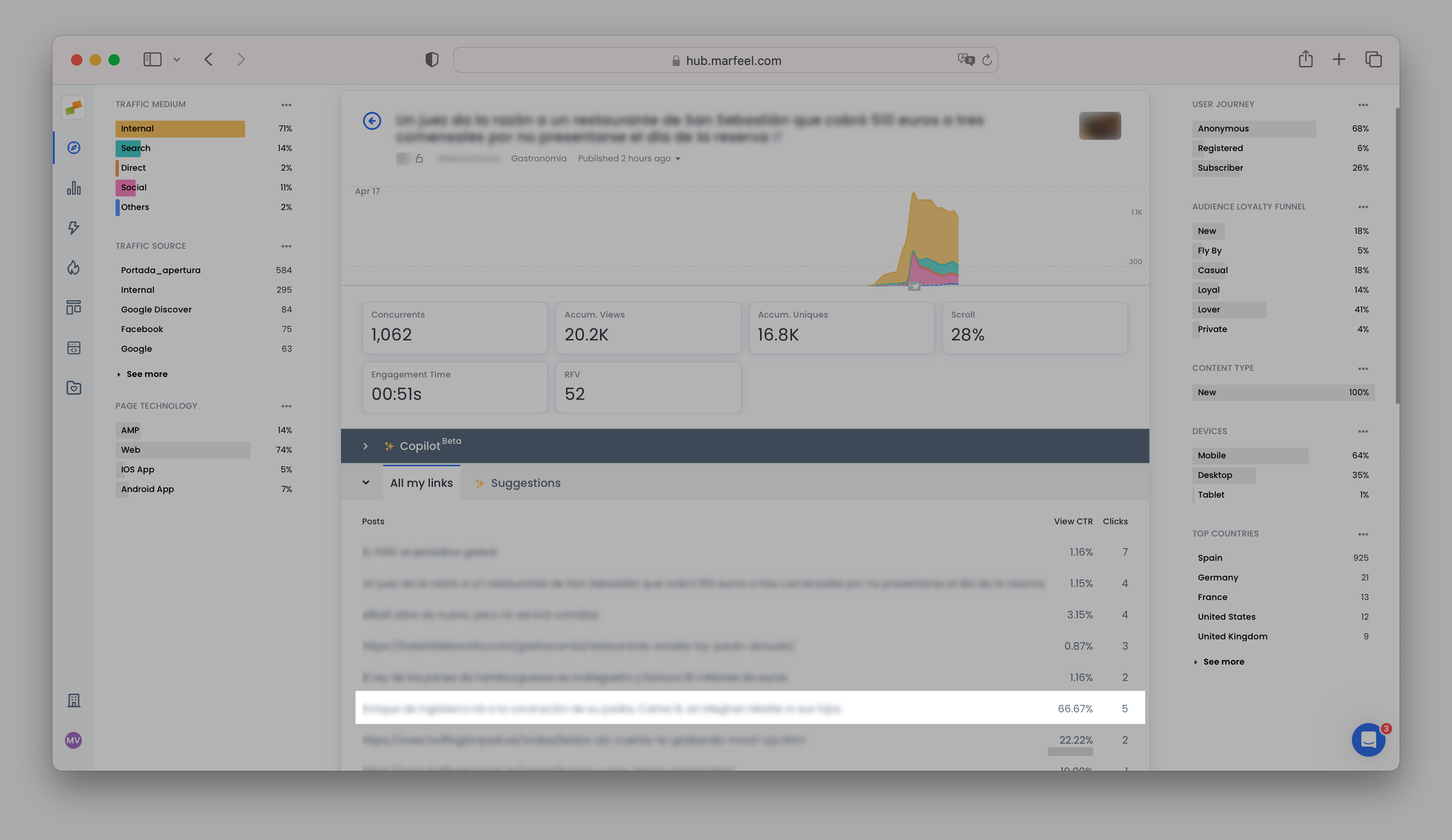
You see that the sixth link down has a high viewable CTR compared to other links, but relatively few clicks, meaning there is interest in the link among those who have seen it. However, you need more visual context before deciding on the best course of action. That is where the HUD comes in.
Open the article. The HUD should overlay automatically if it is already activated. You can locate the link using the List function in the HUD toolbox or simply scroll until you find it. Now you can see the link in its native context.
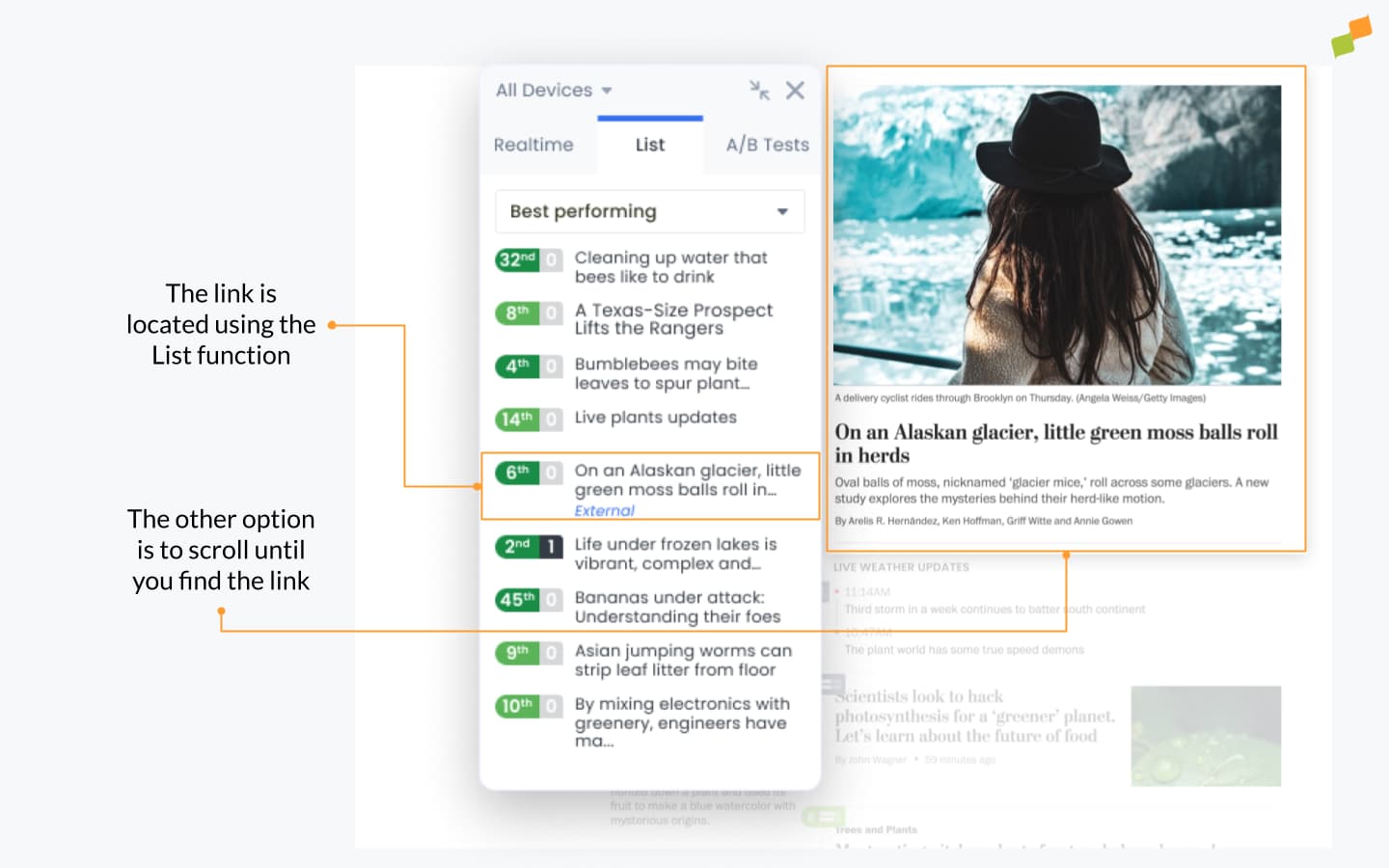
Now it is an editorial decision whether to:
- Move the link higher up the page or increase its visibility in some other way.
- Move underperforming links down the page or run an A/B test to find out if it is possible to increase their impact.
Affiliation
Section titled “Affiliation”Find real-time data for affiliate links in the article details in Compass to determine if there are any opportunities for optimization. If so, open the article with the HUD overlay activated to view the links in context.
For example, for an article about the top 10 hair products on Amazon, say product #8 has a high viewable CTR but relatively few clicks. You open the article with the HUD overlay activated to view the links in context and see that product #8 is near the bottom of the page. Based on the viewable CTR, a high percentage of readers who scroll far enough down the page to see it will end up clicking on the affiliate link.
Depending on the context, this might be an opportunity to change the order in which the products are reviewed to increase the visibility of the link with greater potential to send traffic to Amazon. By cross-referencing the scroll percentage in the HUD toolbox, you can see how far down most people scroll and make sure that the popular product is placed above that cut-off point.
What is recirculation rate and what counts as good?
Recirculation rate is calculated by dividing the total number of link clicks by the number of concurrent users. A recirculation rate above 7% is considered good.
How can I see which links users are clicking in an article?
Open the article in Compass to view link performance data including clicks and viewable CTR, or activate the Heads Up Display (HUD) on the article page to see link metrics in visual context.
How should I act on outgoing link performance data?
If a link gets few clicks, change its anchor text or replace it with a higher-performing article. If a link with high viewable CTR sits low on the page, move it higher to increase visibility. These optimizations improve recirculation and, over time, boost engagement scores like RFV.