

How to use the Heads Up Display (HUD)
The Marfeel HUD (Heads Up Display) gives homepage editors the real-time metrics they need to put the right content in the right place. Use it to track viewable CTR, click volume, subscriptions, scroll depth, and reader loyalty directly on your live homepage.
See the Overview for instructions on how to activate or here for troubleshooting ideas. The article on A/B testing includes instructions on how to test headlines and images.
In this article, you’ll find definitions of each of the metrics most relevant to optimizing the home page and using the HUD. These are followed by an explanation of each of the HUD elements, such as the list of articles that generated the most subscriptions and AI-powered headline suggestions.
HUD Metrics
Section titled “HUD Metrics”The HUD provides several real-time metrics that enable editors to make data-driven decisions and increase engagement. The following metrics serve as the foundation for homepage optimization and content testing.
Viewable CTR
Section titled “Viewable CTR”Viewable CTR is the real click-through rate, calculated by dividing the number of clicks on a given link by the number of times the link enters the user’s viewport. A link at the bottom of the page will never garner as many clicks as the top headline. By calculating only the clicks of users who actually viewed the link, Marfeel eliminates position bias and makes it possible to compare links regardless of placement.
Historical CTR
Section titled “Historical CTR”Historical CTR is the average viewable CTR for links in the same position during the same four-hour window on the same day of the previous week. The HUD uses this benchmark to show whether a link is outperforming or underperforming relative to its historical average.
Number of clicks
Section titled “Number of clicks”The number of clicks is the total clicks on a given link, representing the absolute volume of recirculated traffic going to that link.
Number of subscriptions
Section titled “Number of subscriptions”Subscriptions in the HUD are attributed to the last editorial hit, meaning the last article read by a user before subscribing. The count can refer to total subscriptions for the publication, subscriptions attributed to articles linked on the home page, or subscriptions from an individual article.
Time on homepage
Section titled “Time on homepage”Time on Homepage measures how long a specific article has been displayed on the publisher’s homepage, with a breakdown of the different homepage modules where it has appeared and how long it has been featured in each of them. This gives homepage editors at-a-glance visibility of story exposure and provides another data point for making optimization decisions about homepage content.
RFV is a loyalty score attributed to each individual user based on how often they frequent the site, how recently they did so, and how much content they consume. Users with an RFV over 35 are considered “loyal”; those with an RFV over 60 are considered “lovers.”
If a story is getting a lot of recirculated traffic from loyal customers, that is a strong indication that the content aligns with the interests of your most valuable readers. It could also signal that the article would perform well behind a paywall, where it would encourage highly engaged users to subscribe.
HUD Elements
Section titled “HUD Elements”Each HUD element surfaces the above metrics at a glance. For Viewable CTR and RFV, the HUD also shows how performance compares with the previous week during the same four-hour window.
HUD toolbox
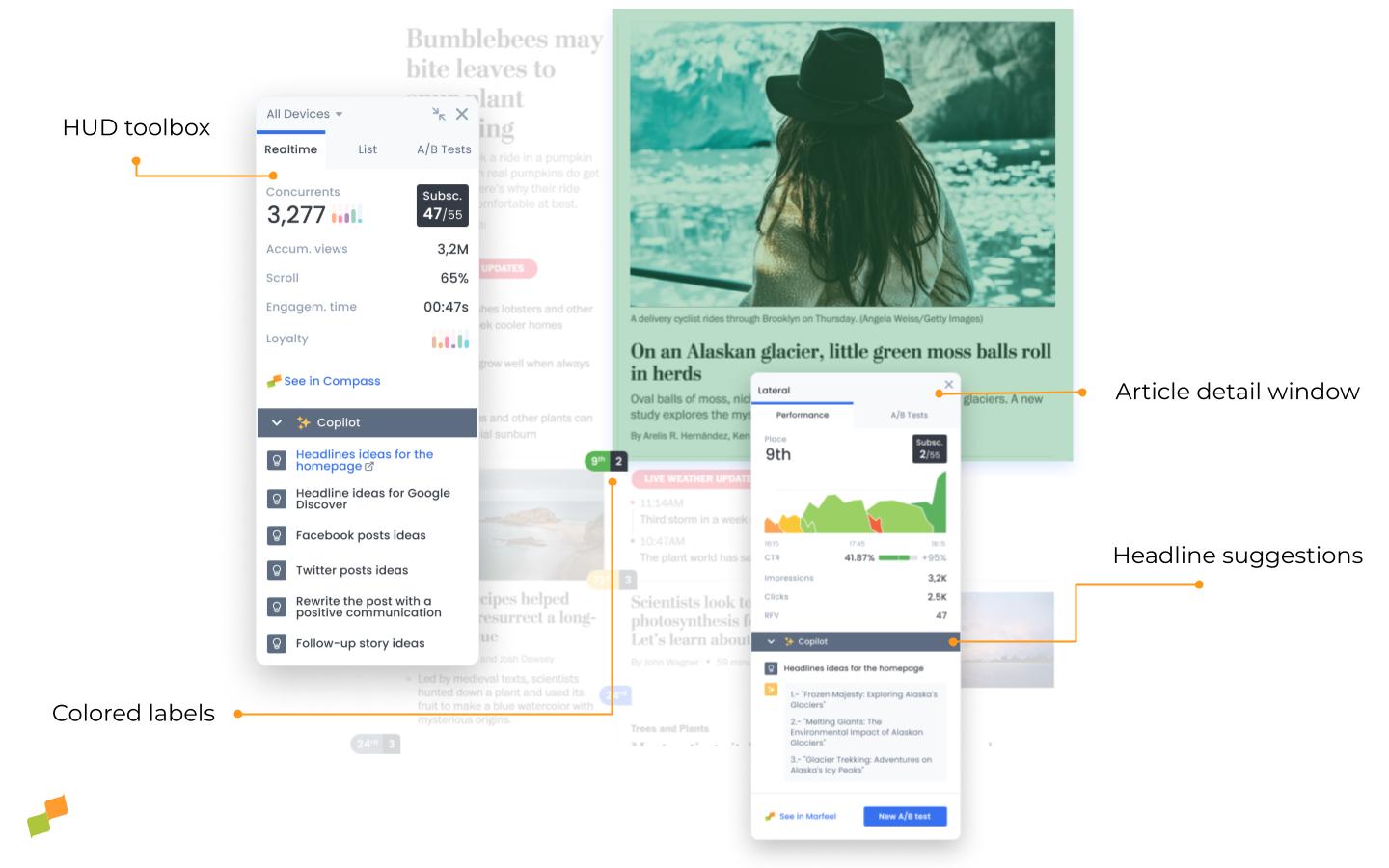
Section titled “HUD toolbox”The toolbox is a pop-up menu that can be dragged around the screen. It contains three tabs across the top, each providing a different view of homepage performance.
Device type
Section titled “Device type”Expand the drop-down menu in the top-left corner of the toolbox to filter by mobile, desktop, or tablet, or leave as-is to see results for all devices.
Real-time metrics
Section titled “Real-time metrics”The first tab provides the following metrics in real time for the page as a whole:
-
Concurrents: the number of current users on the page
-
Subscriptions: the number of subscriptions attributed to articles on the home page vs the publication as a whole
-
Scroll: the average portion of the page the user navigates to before leaving the page
-
Engagement time: the average amount of time the user spends on the page
-
Clicks per minute: the average number of clicks per minute for all positions
-
Accum. views: the total number of pageviews since 00:00
-
Loyalty: the histogram shows the breakdown of users according to their average RFV
Choose one of the following lists from the drop-down menu. Click on any list item and the page will automatically scroll to the exact location of the link so you can see it in context:
- Most Clicked: orders all the links on the page by total number of clicks
- Best performing: orders links by the percentage difference in viewable CTR compared to the historical CTR, from highest to lowest
- Worst performing: orders links by the percentage difference in viewable CTR compared to the historical CTR, from lowest to highest
- Most subscriptions: orders links by the number of subscriptions attributed to each article across the entire publication. This includes articles that are not linked on the home page so that editors can give high-converting content more visibility on the home page if they choose.
- Time on homepage: orders homepage articles by the time in minutes/hours they have been displayed on the page. Also includes the ranking of most clicked stories, so you can contrast time on page to performance.
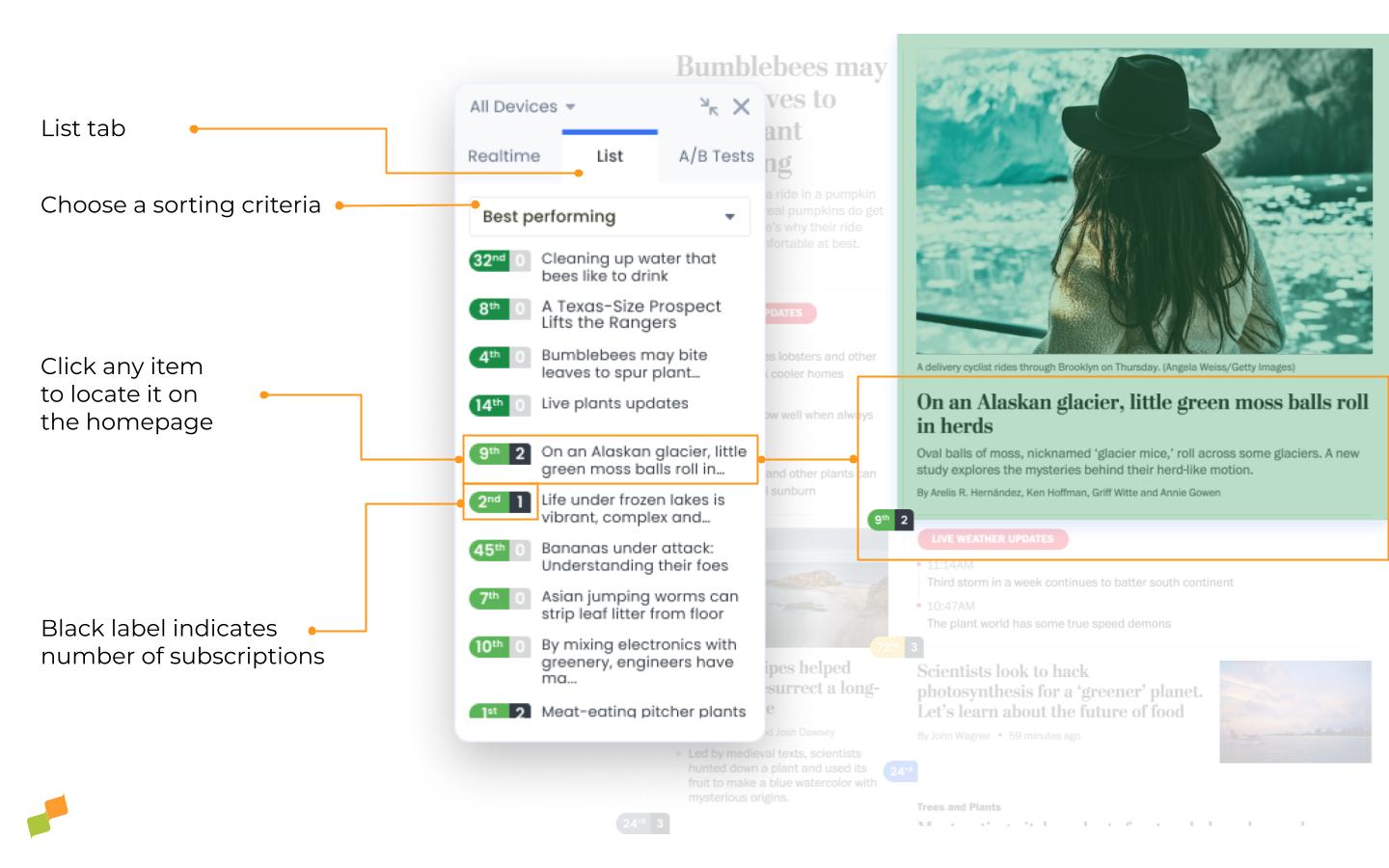
Access ongoing and archived A/B tests for titles and images. Read more about A/B testing here.
Colored labels
Section titled “Colored labels”Colored labels answer the question “Is this link performing well?” by comparing the current viewable CTR for a given placement and article position to the average viewable CTR for the same placement and position over the previous 4 weeks during the same 4-hour window. The color scale works as follows:
- Darkest green: > 150%
- Other greens: 150% to 5%
- Gray: 5% to -5%
- Yellow: -5% to -20%
- Orange: -20% to -50%
- Red: < -50%
- Blue: A/B test in progress
Label Metric
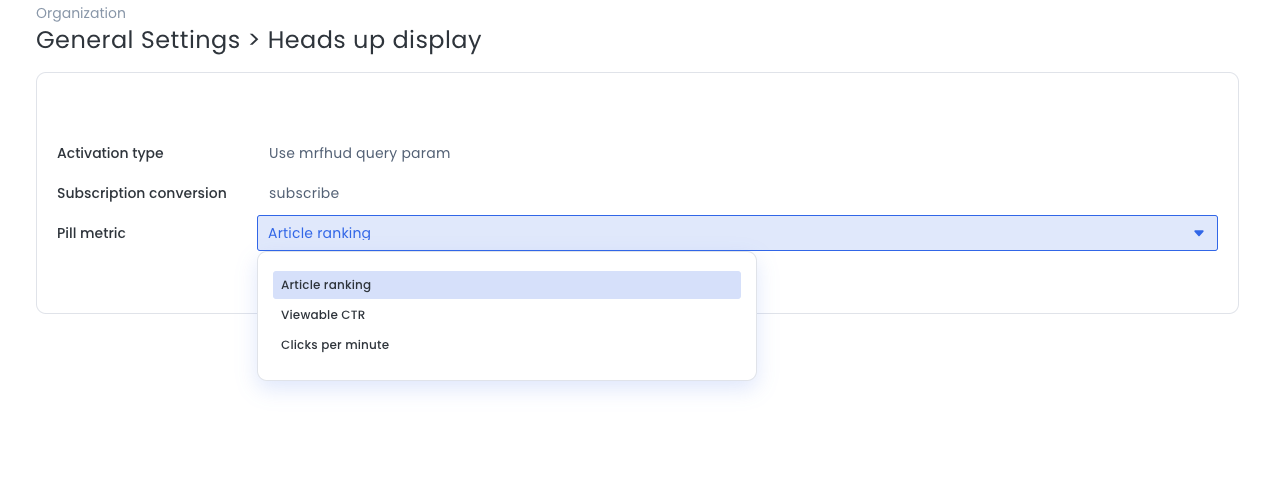
Section titled “Label Metric”The main colored number on each label is configurable via HUD Settings to choose which metric to display:
- Article ranking (default value): the link’s rank in terms of total number of clicks. An article displaying
2means it is the 2nd most clicked article on the page. - Viewable CTR: the ratio of clicks to the number of times the article is actually displayed and fully visible to users. An article showing
3%means that it gets 3 clicks for every 100 times it becomes visible in the viewport. - Clicks per Minute: the rate at which users engage with content by clicking on elements. An article showing
6.7means that it gets 6.7 clicks every minute.
A black number displayed on a colored label indicates the number of subscriptions attributed to that article. Read more about subscriptions on the Heads Up Display here.
Article detail window
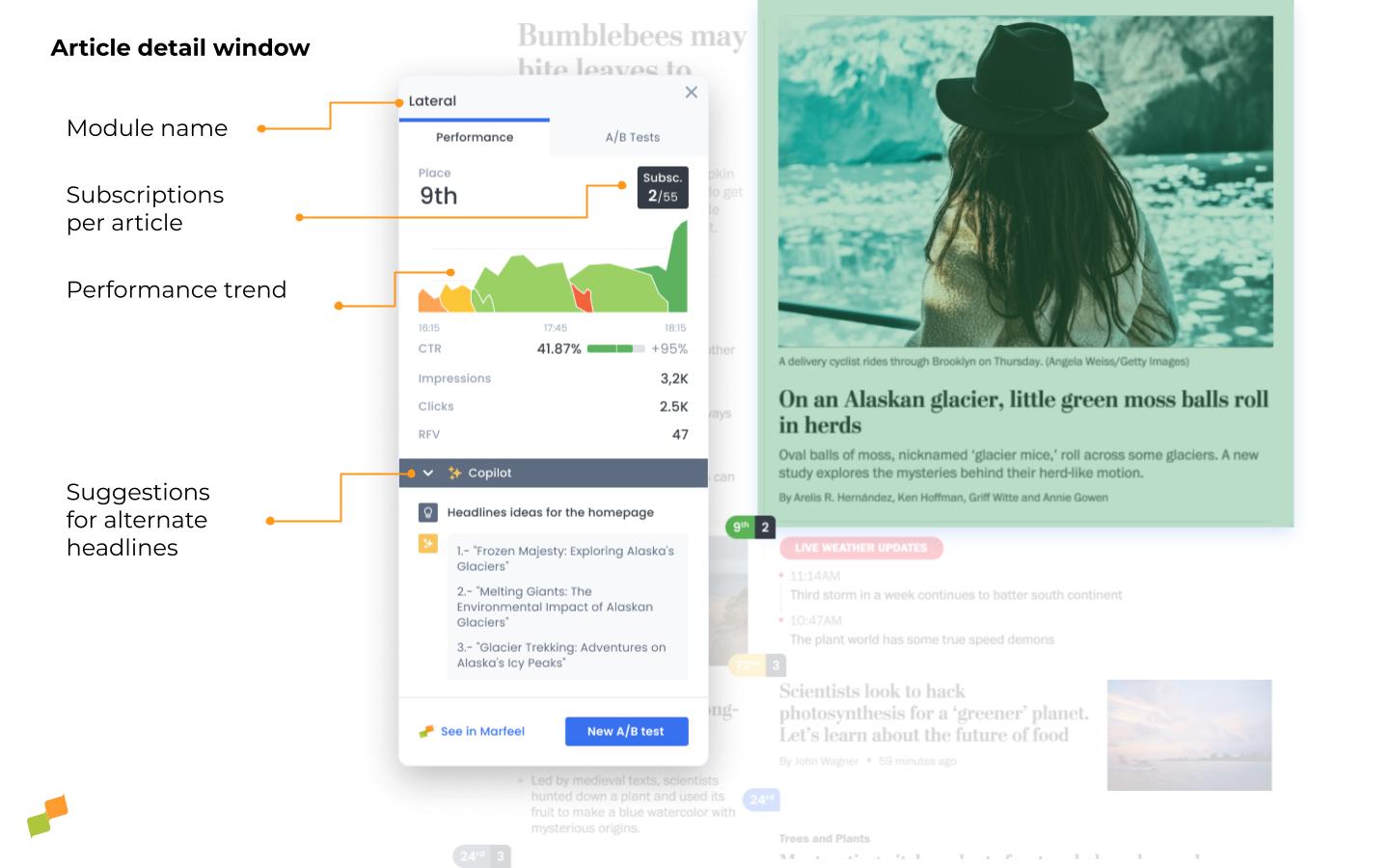
Section titled “Article detail window”Click on any colored label to open the article detail window, which provides a detailed breakdown of that link’s performance.
Module name
Section titled “Module name”The module name appears at the top of the article detail window. The module is the region of the homepage that hosts the link, such as “Opening” or “Opinion panel”. This is a recirculation module or “named source” that is set up by an admin.
Modules are an internal traffic source on the platform, with all related data available at the warehouse level, meaning it’s possible to drill down further into any module to track performance. Learn more about module naming in the No-Code Recirculation Experience guide.
Inside the article detail window, you’ll find two tabs: Performance and A/B tests. Under the performance tab, you’ll find the following elements:
Rank reflects the link’s position in terms of total click volume. If a link is ranked first, it has the highest total number of clicks compared to every other link on the page.
Subscriptions
Section titled “Subscriptions”The number of subscriptions attributed to the article.
The link’s viewable CTR and the percentage difference compared to the historic CTR, which is the average viewable CTR during the same four-hour window the previous week. The color of the bar is green if the viewable CTR is outperforming the historic CTR and red in the opposite case.
The link’s average RFV, calculated from the RFV of users that have clicked on the link, and the percentage difference compared to the same four-hour window the previous week (the historic RFV).
Placement trend
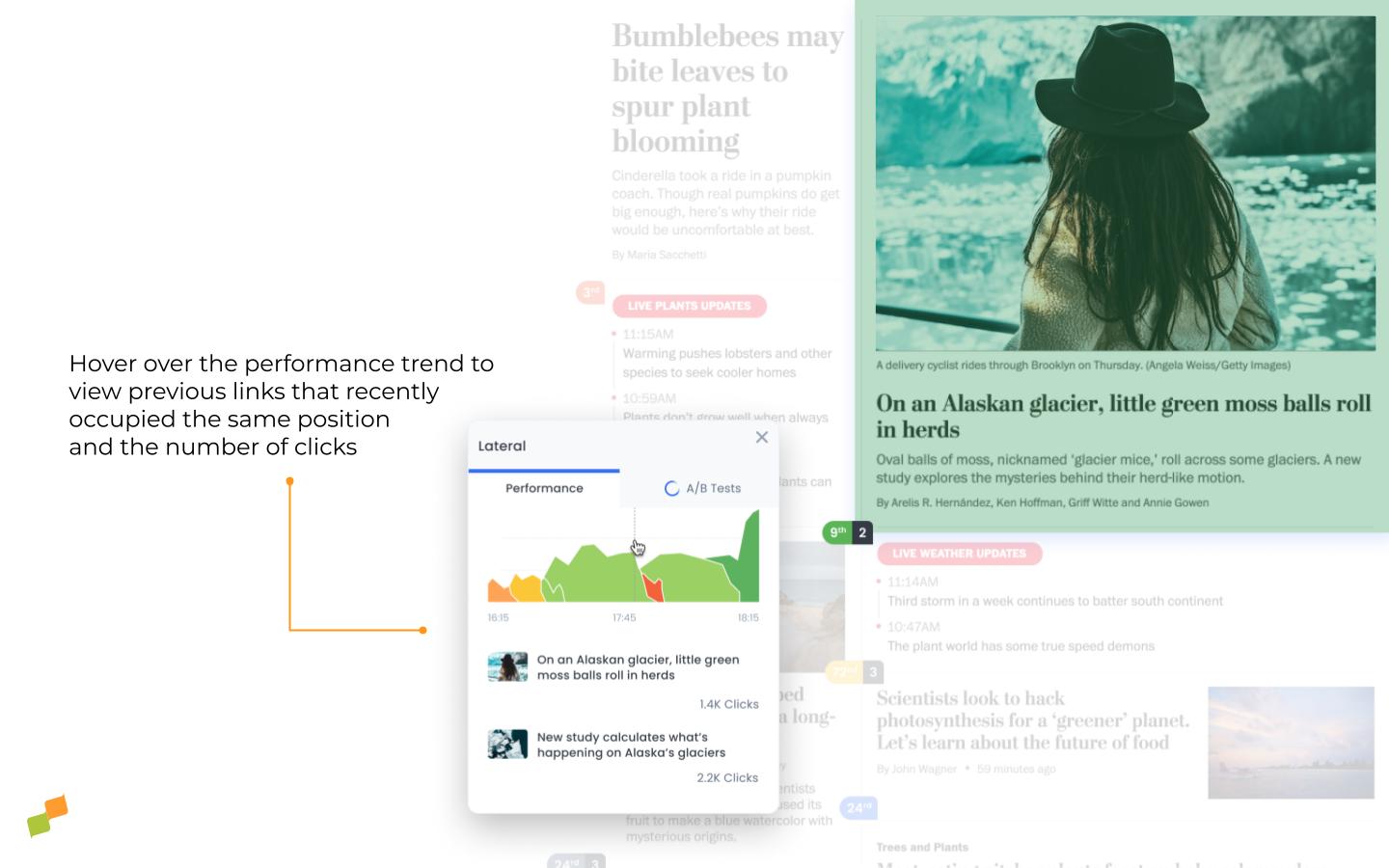
Section titled “Placement trend”The graph shows the performance trend for links in that same position over the previous three hours. Hover over the graph to see the number of clicks for each of the links that occupied that position during the preceding 4 hours.
Article trend
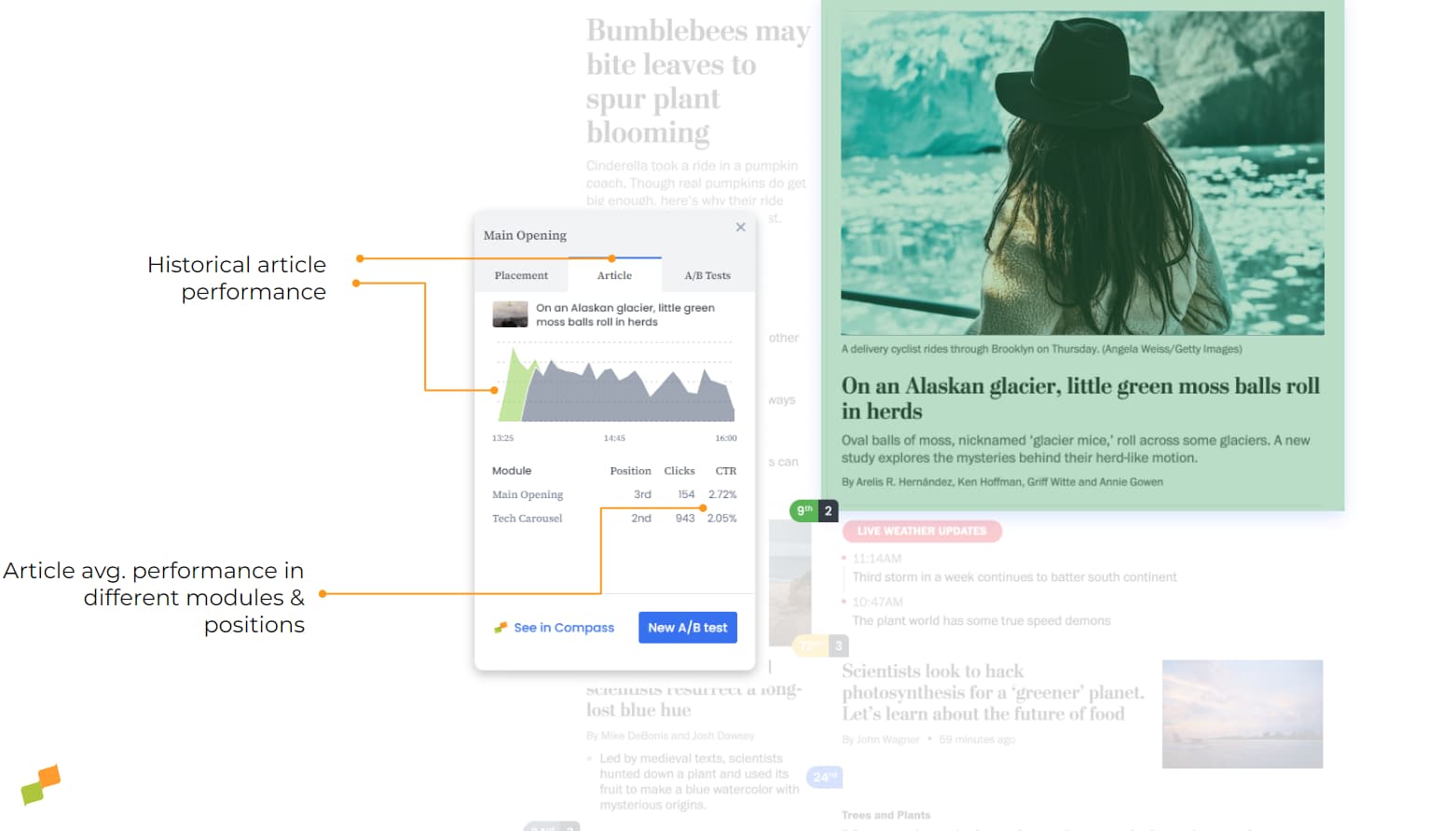
Section titled “Article trend”The graph shows the historical trend of the article’s CTR based on the number of active users viewing the homepage. This is especially useful for deciding which placement will maximize the number of clicks on a specific article.
Homepage article performance
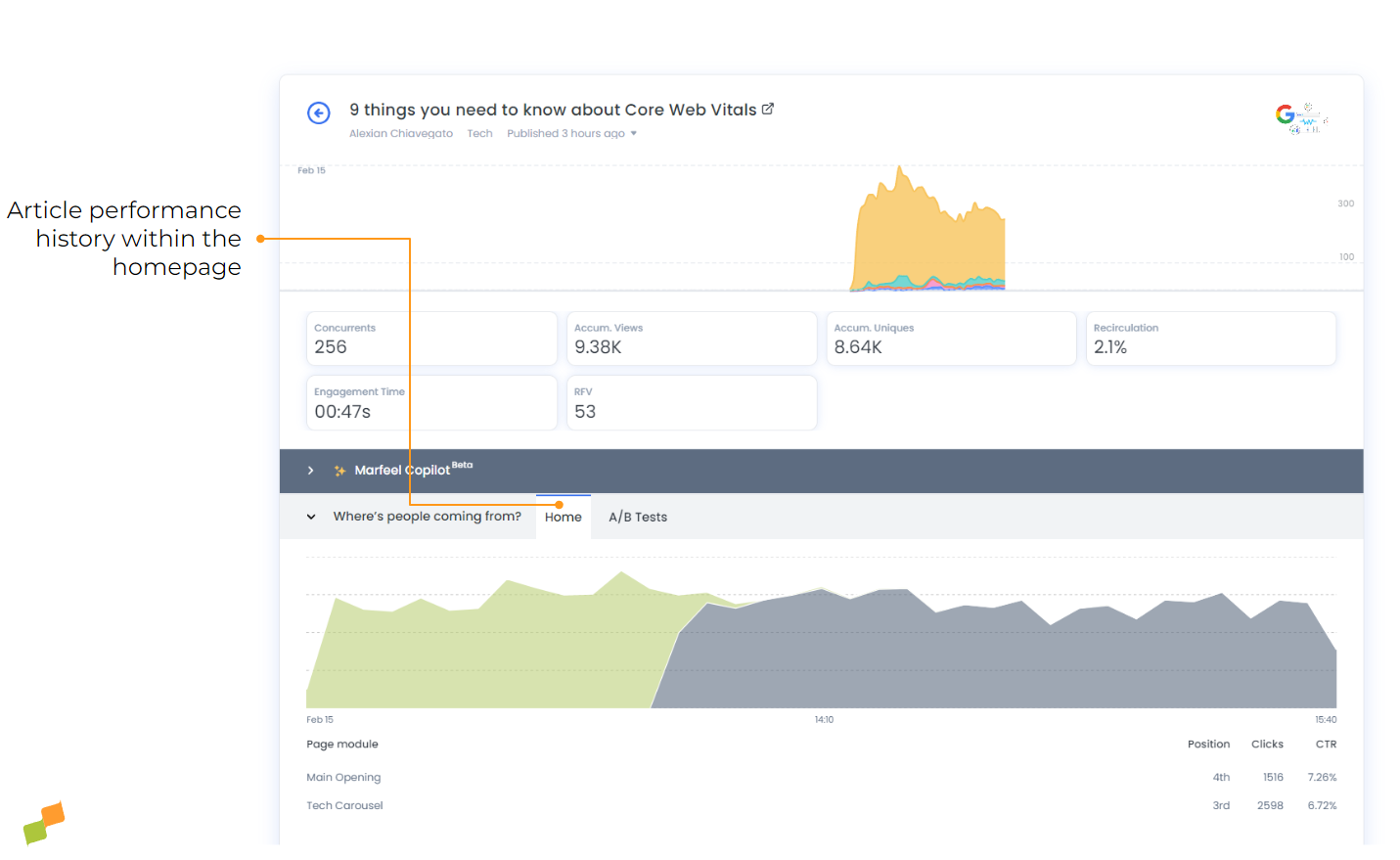
Section titled “Homepage article performance”When accessing the item detail in Marfeel Compass, details of the article’s performance are displayed on the homepage according to the position and historical placement it has had in the selected period.
Article trendlines
Section titled “Article trendlines”Some article pills feature small arrows next to them, which indicate the Click-Through Rate (CTR) trend. These arrows help you quickly identify whether the CTR of an article is increasing or decreasing over the past hour.
-
Direction of Arrows:
- Upward Arrow: the CTR of the article is trending upwards (increasing).
- Downward Arrow: the CTR of the article is trending downwards (decreasing).
-
Arrow Variations:
- Simple Arrow: a moderate change in the CTR.
- Double Arrow: a significant change in the CTR.
Only articles with a clear trend over the last hour will display these arrows.
Scroll histogram
Section titled “Scroll histogram”The scroll histogram shows real-time data on average user scrolling behavior on the analyzed page. Homepage editors can use it in three ways:
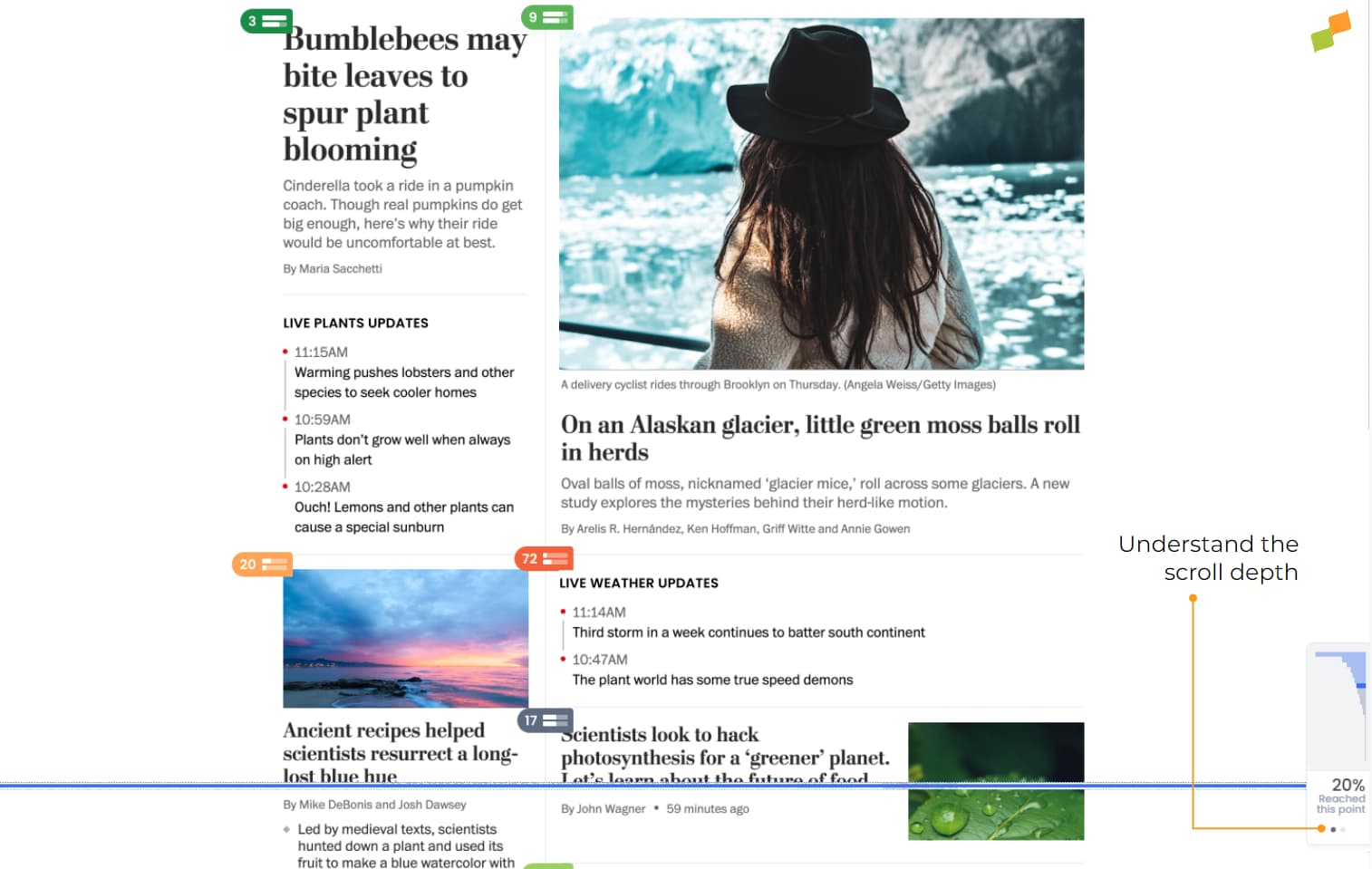
- Detect exit points where users abandon the page, then analyze whether a specific element is causing the drop-off.
- Identify the parts of the page with the highest number of readers and reinforce that area with strategic elements, such as a video or a summary of the most valuable information.
- Understand the visibility of editorial elements that are not being seen, such as surveys, recirculation elements, calls to action, or high-priority multimedia.
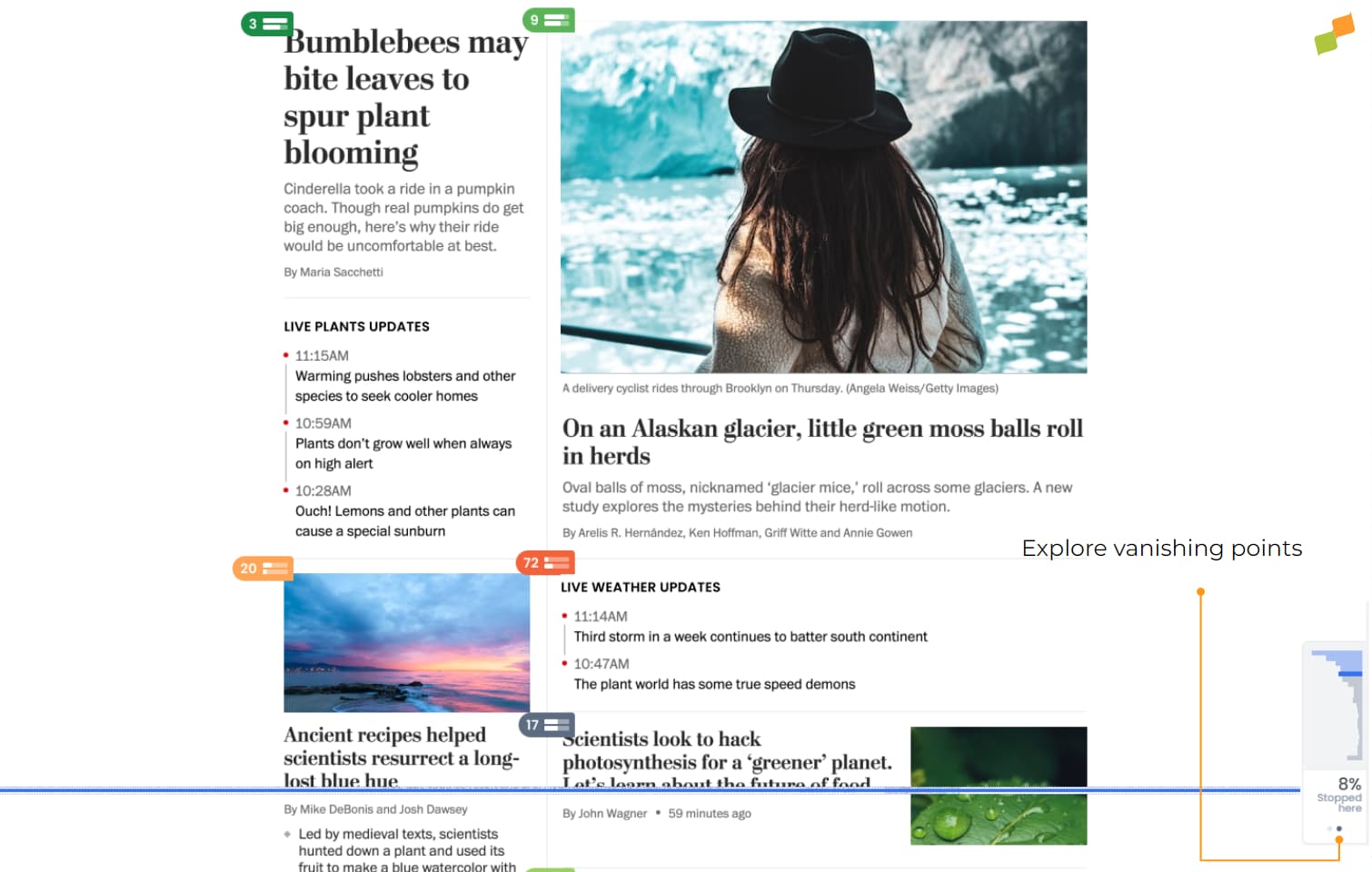
Scroll depth also plays a critical role for homepage editors, who need to understand which positions have the most readers in view.
The scroll histogram allows them to analyze in real time where opportunities exist to place pieces that have particular editorial and strategic value.
User-customized panel
Section titled “User-customized panel”Marfeel HUD allows account administrators to customize the experience at the account level in a way that these settings are applied to all homepage editors. However, there are circumstances where different Marfeel users need different perspectives.
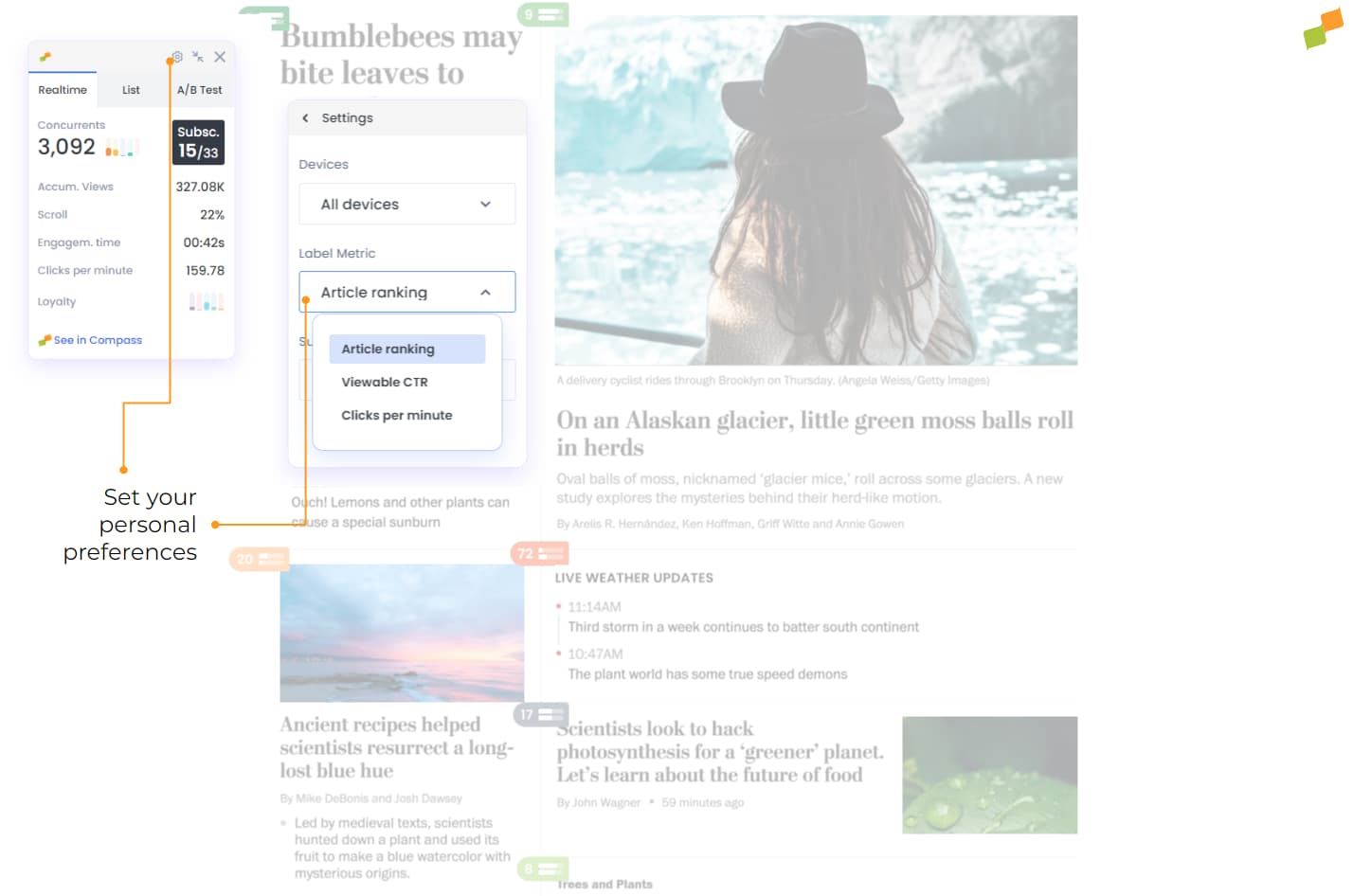
Each user can customize the way they view the metrics and data displayed within HUD:
- Devices: configure the data source based on the device that readers use. Especially useful for managing positions according to the needs of desktop, mobile, or tablet users individually.
- Label Metric: select the metric you want to set for the labels that appear in each position. Choose from Article Ranking, Viewable CTR, or Clicks per Minute.
- Subscription Conversion: select the name of the conversion that will be taken into account in the black labels.
Copilot
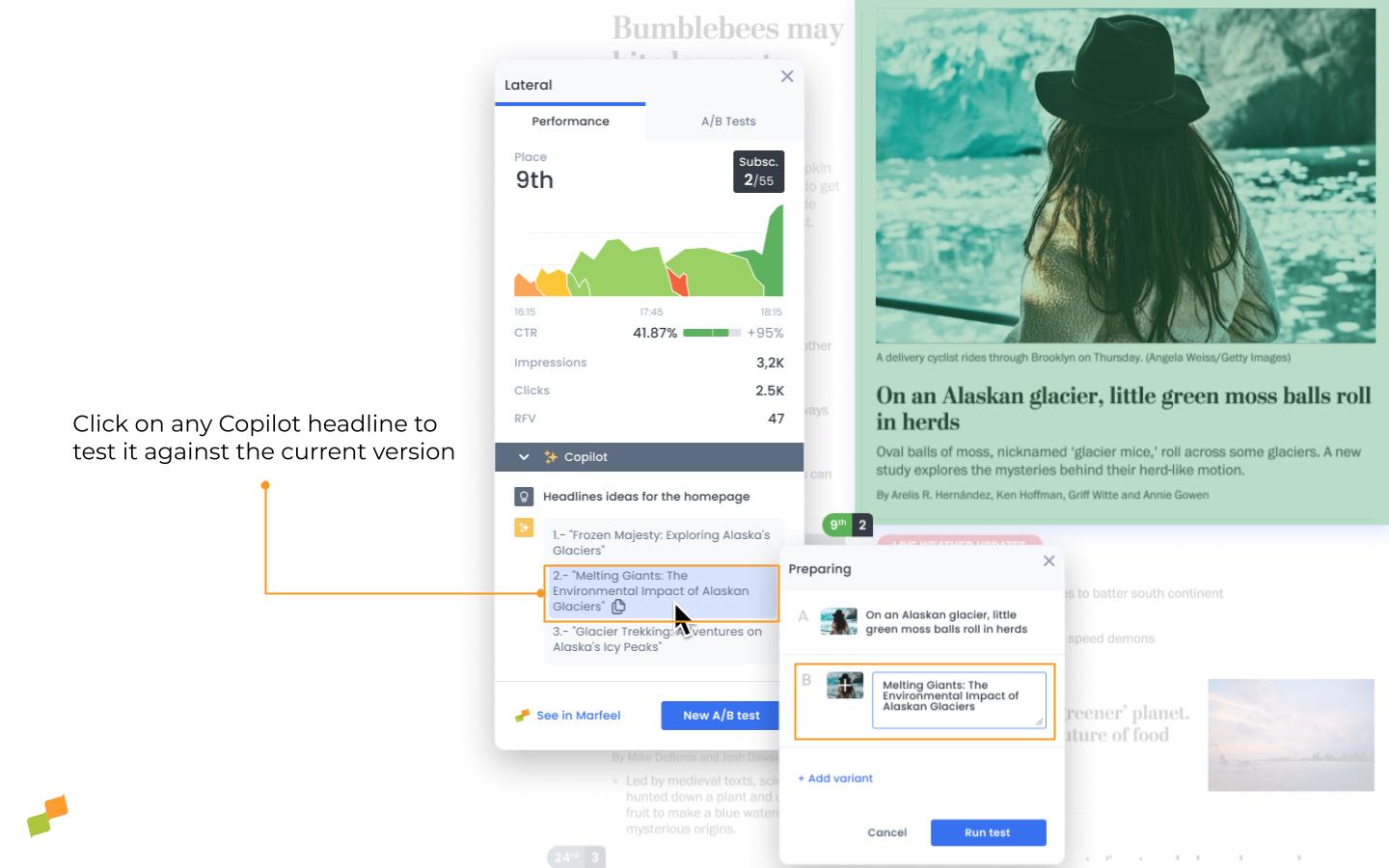
Section titled “Copilot”Copilot uses AI to provide alternative headlines based on what has previously worked well on the home page. These suggestions are tailored to each publication’s tone of voice because they are based entirely on its own data. Click on any of the headlines to create a new A/B test with that title.
Learn more about A/B testing here.
What is viewable CTR in the Marfeel HUD?
Viewable CTR is the real click-through rate, calculated by dividing the number of clicks on a link by the number of times the link enters the user’s viewport. This eliminates position bias and makes it possible to compare links regardless of where they sit on the page.
What do the colored labels on the HUD mean?
Colored labels compare the current viewable CTR for a link’s position to the average viewable CTR for the same position over the previous 4 weeks during the same 4-hour window. Darkest green means over 150% of the benchmark, red means less than -50%, and blue indicates an A/B test in progress.
How does the scroll histogram help homepage editors?
The scroll histogram shows real-time data on how far users scroll on the analyzed page. Editors can detect exit points where users abandon the page, identify high-readership zones for placing strategic content, and understand the visibility of editorial elements like surveys or calls to action.