

Set up image A/B testing with Google Cloud Storage
Marfeel’s no-code A/B testing solution lets editors run A/B tests on images without writing any code. With image A/B testing activated, editors can determine which images make the most impact and communicate the urgency behind their stories. Run image A/B tests on any page where the no-code solution is active.
Home page editors can upload and edit images through the HUD UI. The images are uploaded to the publishers’ origin and served via your CDN. Marfeel offers pre-built connectors to origins such as Amazon S3, Google Cloud Storage, or Cloudflare R2.
During trial periods, Marfeel serves images from its Fastly CDN for convenience.
Activate image A/B testing
Section titled “Activate image A/B testing”To activate image A/B testing, follow the same process as for headline A/B testing. Find those instructions here.
In order to run A/B Tests on images via the HUD, you need to have Google Cloud Storage integrated.
Configure image origins
Section titled “Configure image origins”When a home page editor uploads an image, Marfeel stores it in the storage bucket of your preference and serves it from there.
Set up Google Cloud Storage
Section titled “Set up Google Cloud Storage”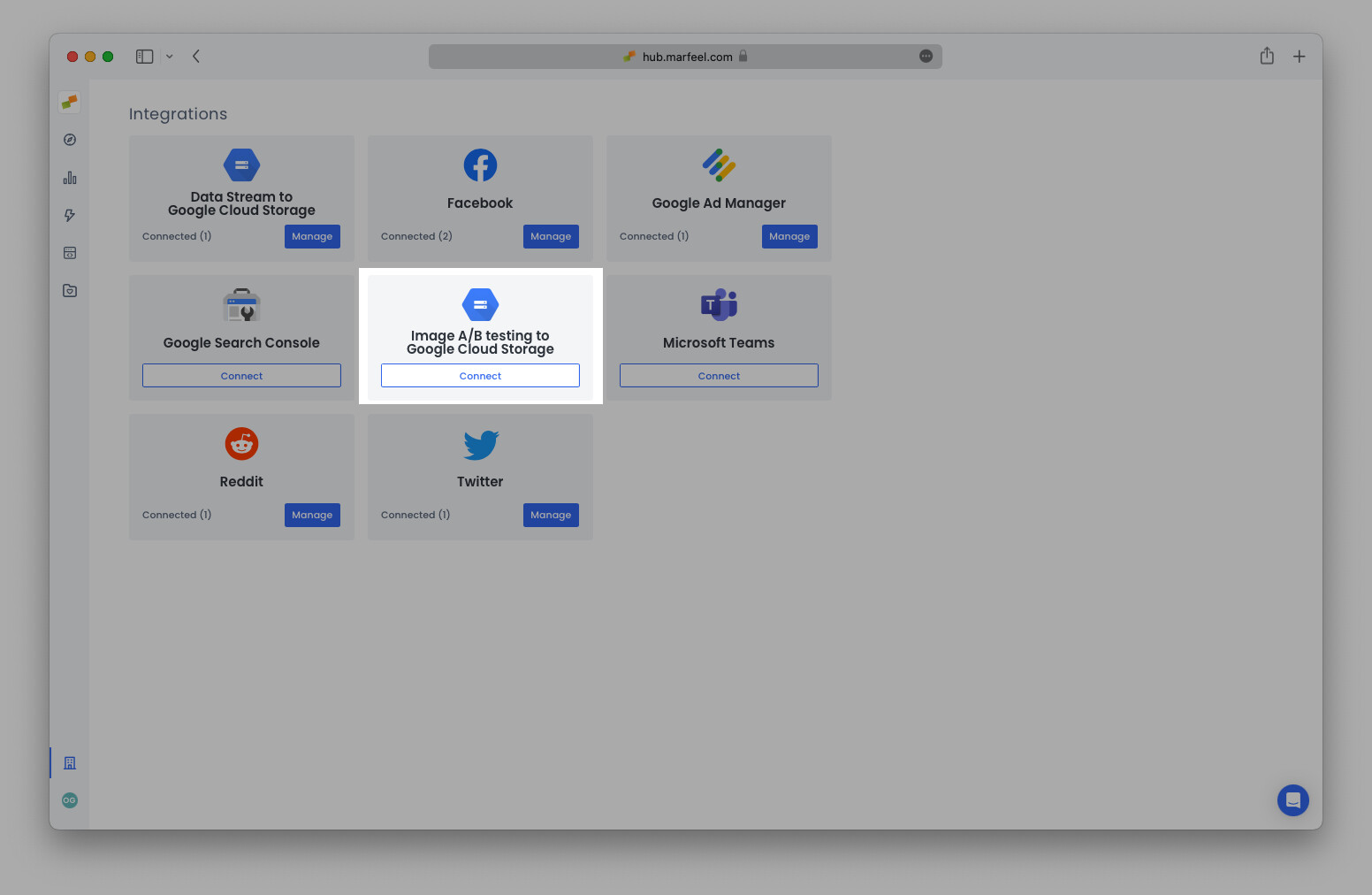
- Go to Integrations > Image A/B testing Google Cloud Storage.
- Click
Connectand populate the fields with the following information: - Integration name: Enter any name here (for internal purposes only).
- Bucket name: the name of the bucket in the GCS service where images will be stored. More on buckets here.
It’s also possible to use a folder structure, as in
<bucket_name>/folder1/folder2/ - Origin host: the URL where images can be retrieved once stored in GCS. For example, requests like
https://images.domain.com/my-image-path-name.jpgwould be responded to with a file named my-image-path-name.jpg. - Private key: your authentication credential. More on how to obtain a GCS account key here.

Serving images via your CDN
Section titled “Serving images via your CDN”Google Cloud Storage
Section titled “Google Cloud Storage”Here are some tutorials for setting up an optimal image server for your site: