

Content curations configuration for Marfeel Recommender
Content curations let editors manually select specific articles to feature within Marfeel Recommender modules. While the recommender uses feeds and algorithms to suggest content, curations add a human editorial layer by highlighting articles that align with editorial goals, special events, or campaigns.
This guide covers how to set up curations in a recommender, including configuring maximum curations, setting priorities, managing performance safeguards, and understanding how curations are selected and displayed over time. For a step-by-step walkthrough of the actual curation process, see how to curate an article.
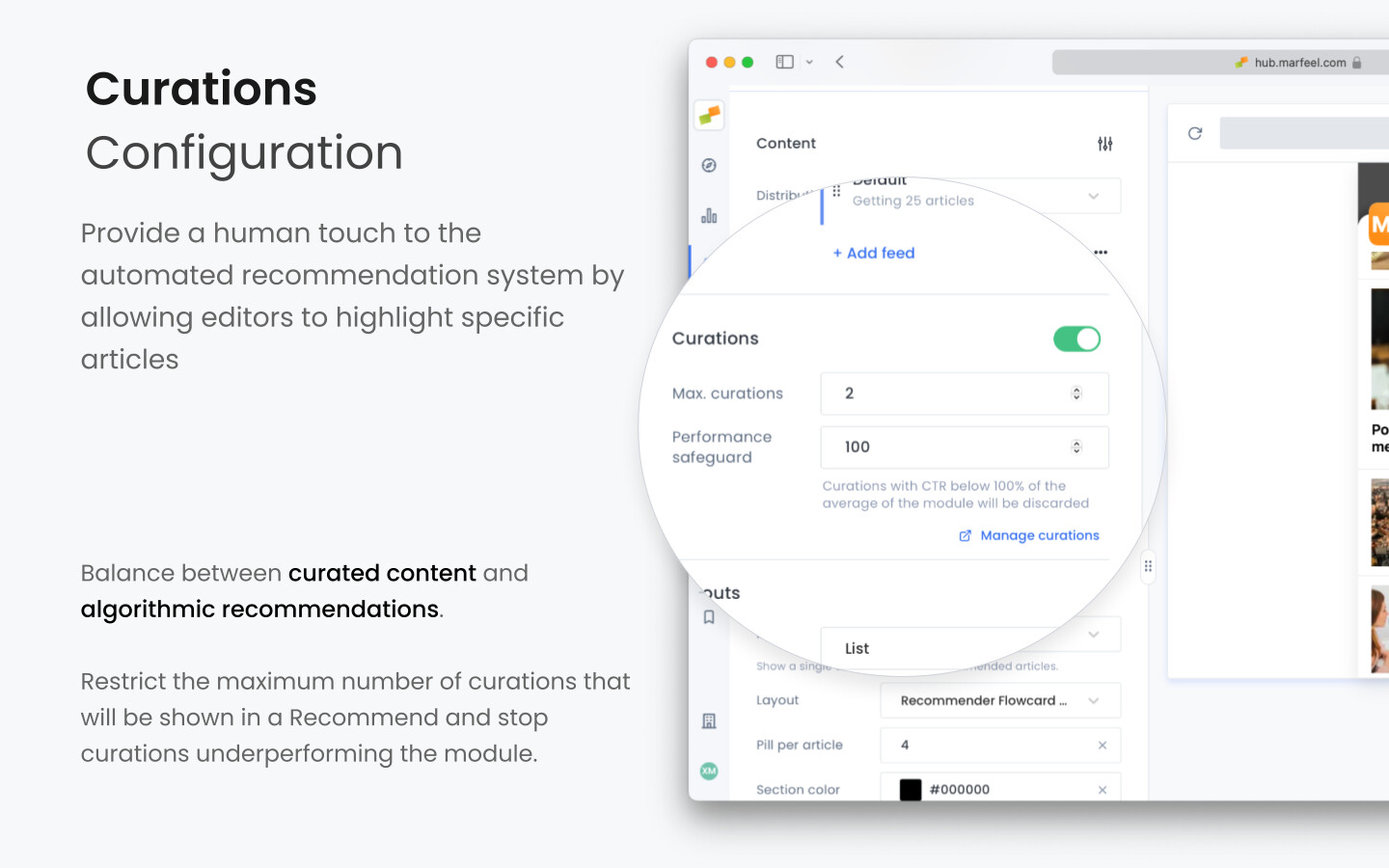
Enabling curations
Section titled “Enabling curations”Every Recommender Experience has a curations toggle in its Content tab. When the toggle is active, the experience appears in the dropdown menu when setting up curations. Keep it off if you want the experience to run on automated mode only.
Configuring max curations
Section titled “Configuring max curations”The Max Curations setting controls the maximum number of curated articles that can appear in a recommendation module. Remaining slots are filled by algorithmically recommended articles from your feeds.
Example
Section titled “Example”- Total articles in module: 5
- Max curations: 2
- Result: Up to 2 curated articles can appear, with the remaining 3 slots filled by feed recommendations.
Considerations
Section titled “Considerations”- If there are no active curations, all recommendation slots are filled based on the feeds.
- Setting an appropriate Max Curations value helps maintain a balance between editorial control and automated recommendations.
- If there are more active curations than the maximum allowed, the system rotates them randomly by priority.
Setting up the performance safeguard
Section titled “Setting up the performance safeguard”The performance safeguard (also known as stop-loss) monitors the click-through rate of curated articles. If a curation’s CTR falls below a specified percentage of the module’s average CTR, it is automatically removed from recommendations. This prevents underperforming curations from reducing overall user engagement.
The safeguard threshold is set as a percentage of the module’s average CTR. For example, setting the threshold at 80% means any curation performing below 80% of the average module CTR will be discarded.
Benefits of setting a performance safeguard:
- Maintains module effectiveness: Keeps the recommendation module performing optimally by removing low-engagement content.
- Protects user experience: Ensures that users see content that is engaging and relevant.
Regardless of the threshold, each curation receives a minimum number of impressions before it becomes eligible for removal. This ensures the performance data is statistically relevant and prevents premature discarding due to insufficient exposure.
Curation priorities
Section titled “Curation priorities”Curations support four priority levels: Sponsorship, High, Normal, and Low. When there are more curations than available slots, the recommender selects which ones to display based on priority:
- Sponsorship curations: Reserved for branded and paid content. These take precedence over all other priorities and are exempt from the performance safeguard.
- High priority curations: Considered first after sponsorship and fill available slots before normal or low priority.
- Normal priority curations: Selected after all high-priority curations have been allocated.
- Low priority curations: Only displayed if slots remain after higher-priority curations have been placed.
If there are more curations than available slots within the same priority level, the selection is made randomly among those curations of equal priority.
Example
Section titled “Example”- Max curations: 2
- Active curations:
- 3 High priority curations
- 2 Normal priority curations
- Result: The 2 curation slots are filled by 2 of the 3 high-priority curations, selected randomly.
Curation duration and archiving
Section titled “Curation duration and archiving”Editors can specify how long a curation should remain active. By default, a curation is set to run for 2 hours, after which it is archived. A curation can have one of these statuses:
- Active period: During the specified time, the curation is eligible to appear in the recommendation module, subject to priority and performance safeguards.
- Archived: After the active period ends, the curation is archived and no longer selected as a curated recommendation.
- Continued appearance: Even after archiving, the article may still appear in recommendations if the algorithmic feeds select it based on relevance and performance.
Editors can set a custom duration to align with editorial needs or campaign timelines. They can also schedule curations to start and end at specific times and dates to coincide with events or promotions.
Curated articles are also subject to user history filtering. If a user has already read a curated article, it is excluded from their recommendations to promote new content discovery.
What does the Max Curations setting control?
Max Curations sets the maximum number of curated articles that can appear in a recommendation module. Remaining slots are filled by algorithmically recommended articles from your feeds.
How does the performance safeguard work for curations?
The performance safeguard monitors each curation’s click-through rate relative to the module’s average CTR. If a curation falls below the configured threshold, it is automatically removed. Each curation receives a minimum number of impressions before the safeguard can trigger. Sponsorship-priority curations are exempt from this safeguard.
What are the curation priority levels and how are they ordered?
Curations have four priority levels: Sponsorship (highest, exempt from performance safeguard), High, Normal, and Low. The recommender fills slots starting with sponsorship, then high, then normal, then low. Within the same priority level, curations are selected randomly.