

How to curate articles in Marfeel Recommender
Curations let editors manually select and highlight specific articles in Marfeel Recommender modules, giving you direct control over what your audience sees. This guide walks you through each step of curating an article, from setting priorities and durations to configuring targeting options and customizing the article’s appearance.
What are curations?
Section titled “What are curations?”Curations are manually selected articles that you choose to feature prominently in recommendation modules on your site. They enable you to:
- Promote specific content that aligns with editorial goals, campaigns, or special events.
- Target recommendations based on the reader’s current context, such as the section they’re browsing.
- Optimize the appearance of recommended articles by editing titles, descriptions, and images to enhance engagement.
By using curations, you can apply the same editorial strategies used on homepages and section fronts directly within the recommender system.
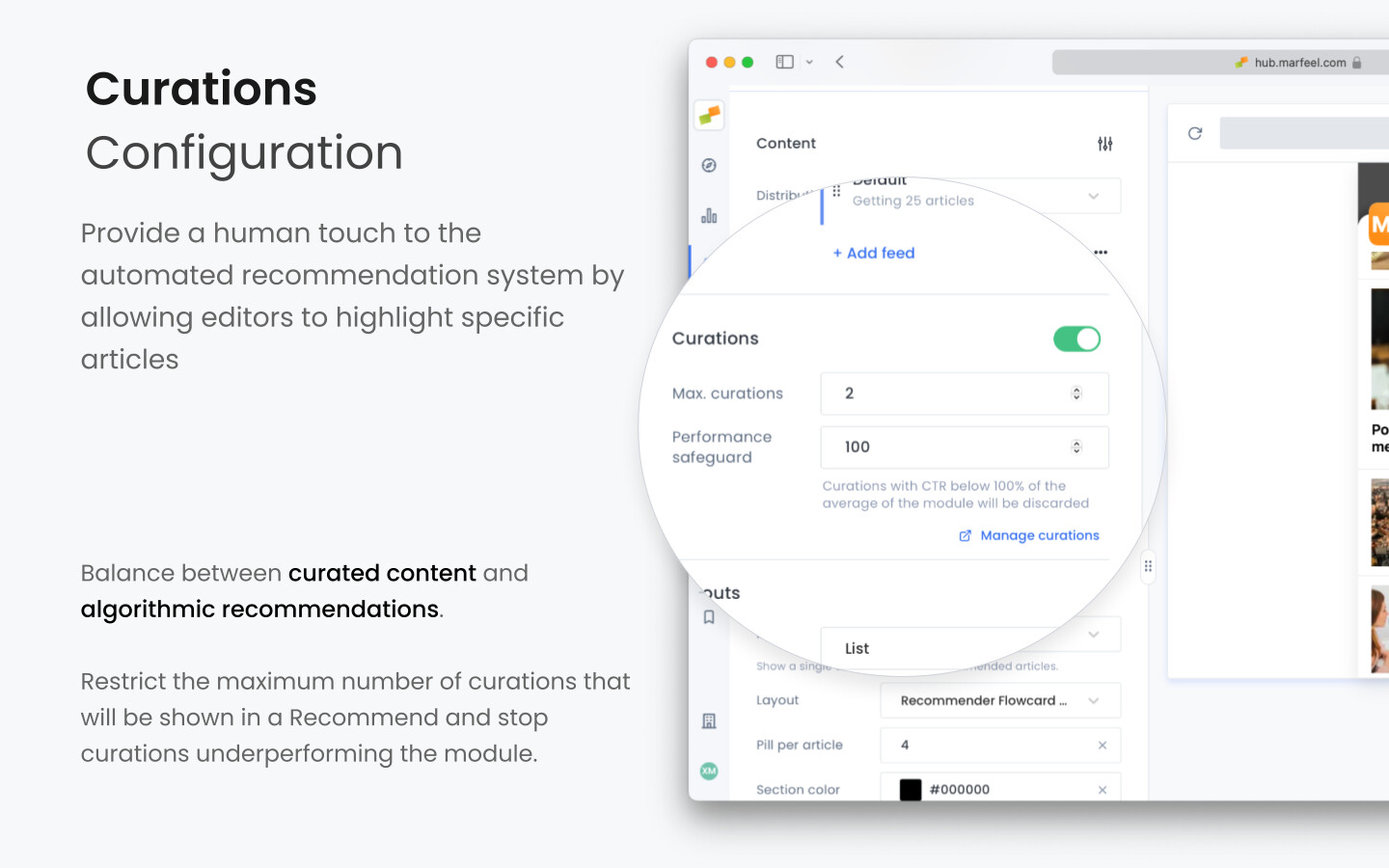
You can enable curations and restrict them from within any recommender experience configuration, in the Content tab. Read more.
Step 1: Initiate the curation via Amplify
Section titled “Step 1: Initiate the curation via Amplify”- Find the article: Browse or search for the article you want to curate.
- Launch Amplify: Within the article, locate the “Amplify” option in the multi-action button group.
Step 2: Choose the recommendation module
Section titled “Step 2: Choose the recommendation module”- Select Recommender: Choose the Recommender destination on the sidebar.
- Select module: Choose the recommendation module where you want the curated article to appear. This could be a specific module on your site, such as “Related Articles” or “Editor’s Picks.”
Step 3: Set the priority level
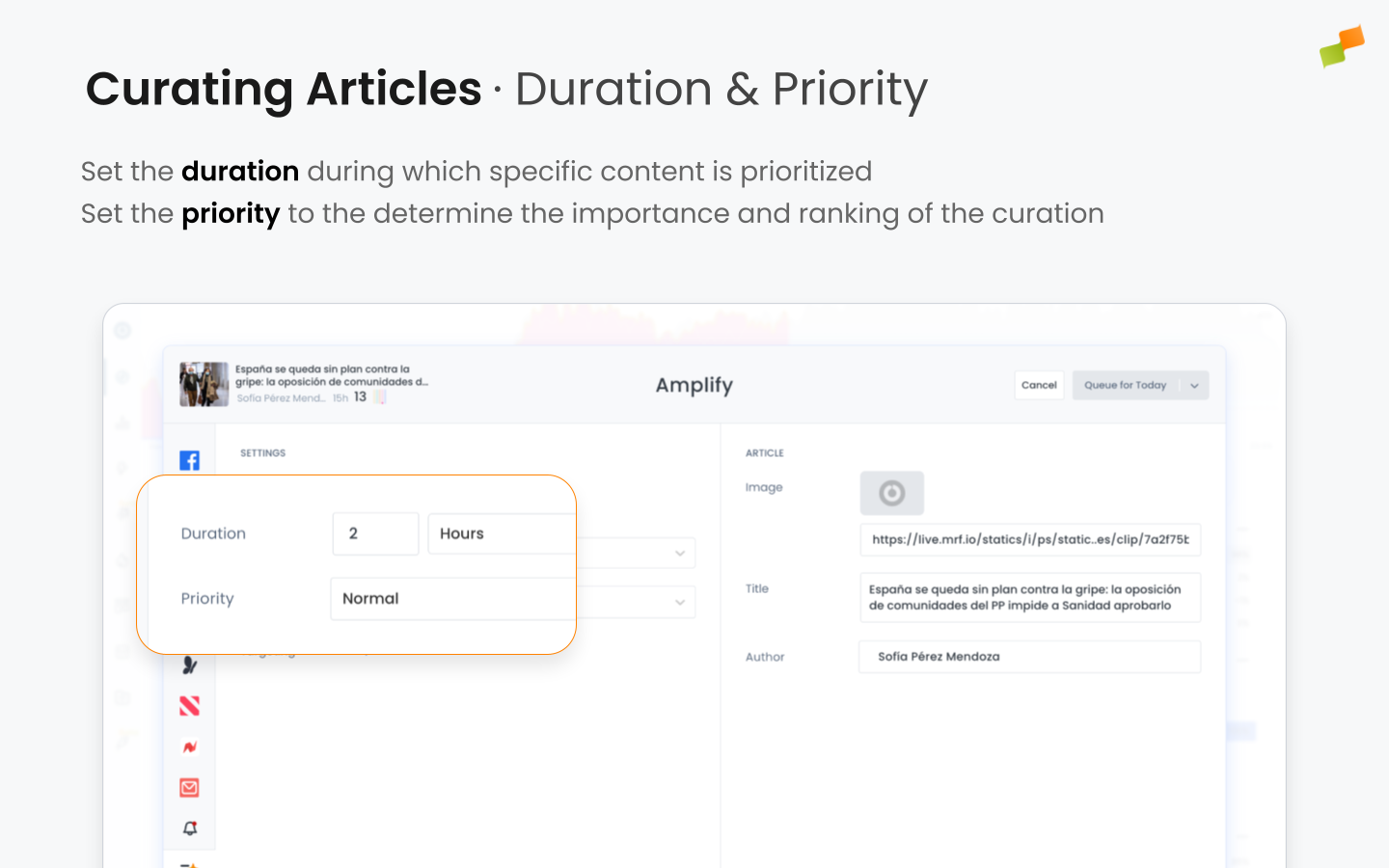
Section titled “Step 3: Set the priority level”Each curation has a priority level that determines how likely it is to appear when multiple curations compete for limited slots. The three options are:
- High: The article is more likely to appear in the recommendation module. Use high priority sparingly for the most critical content.
- Normal: The standard level, where the article competes equally with other normal-priority curations.
- Low: The article is less likely to appear if higher-priority curations are available.
Choose the priority based on how important it is for the article to be featured.
Step 4: Set the duration
Section titled “Step 4: Set the duration”By default, curations display for two hours. You can customize the duration by specifying the start and end times when the curation should be active. Consider aligning the duration with events, promotions, or the relevance period of the content. For example, you might set a curation to run during a conference or a product launch to maximize its impact.
Step 5: Configure targeting options
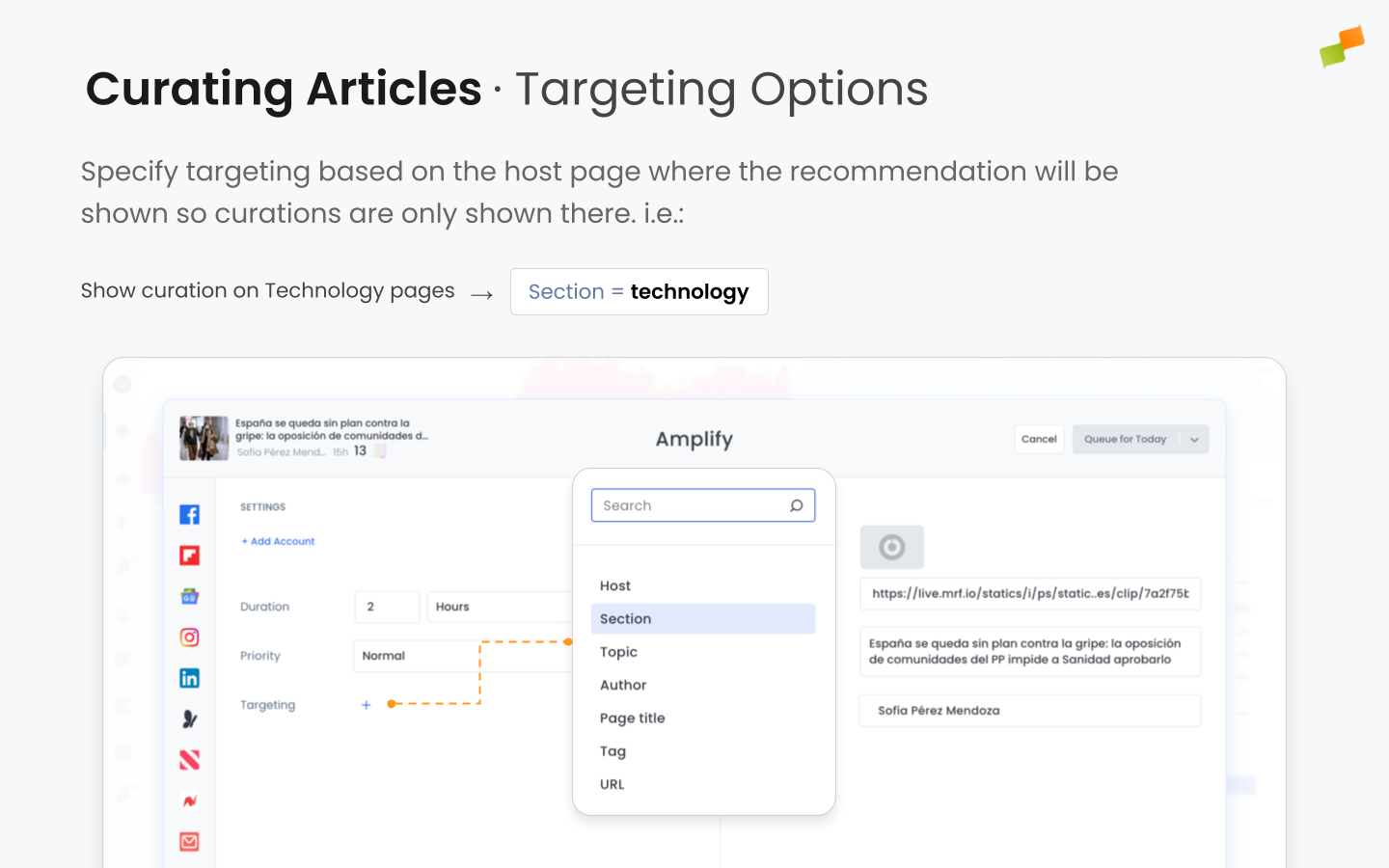
Section titled “Step 5: Configure targeting options”Targeting controls which readers see your curated article based on the host page where the recommendation appears. The curated article will only display if the reader is browsing content that meets your specified criteria.
For instance, you can choose to display the curated article only when the reader is on an article within a specific section, such as “Technology.” This approach is ideal for recommending content based on proximity and affinity, and it is particularly useful for promoting branded content or giving priority to certain topics.
Additional targeting options include selecting specific topics or keywords, targeting readers of articles by certain authors, or focusing on user segments such as new visitors, loyal readers, or subscribers. These options allow you to fine-tune who sees your curated content, enhancing its relevance and effectiveness.
Step 6: Customize the article’s appearance
Section titled “Step 6: Customize the article’s appearance”To optimize engagement, you can customize how the curated article appears in the recommendation module. This includes editing the title to make it more engaging or to fit the context of the module. For example, you might change “New Study Reveals Shocking Health Benefits of Tea” to “Discover How Tea Boosts Your Health.” You can also select a different thumbnail or feature image that is more eye-catching or relevant to the curated context.

Step 7: Save and activate the curation
Section titled “Step 7: Save and activate the curation”After configuring module selection, priority, duration, targeting, and appearance, save and activate the curation. The Marfeel Recommender provides several activation options:
- Queue for Today: Schedules the curation to start as soon as possible today.
- Queue for Tomorrow: Schedules the curation to begin tomorrow.
- Schedule: Allows you to set a specific future date and time for the curation to start.
- Save as Draft: Saves your curation without scheduling it, allowing you to make further edits before activating.
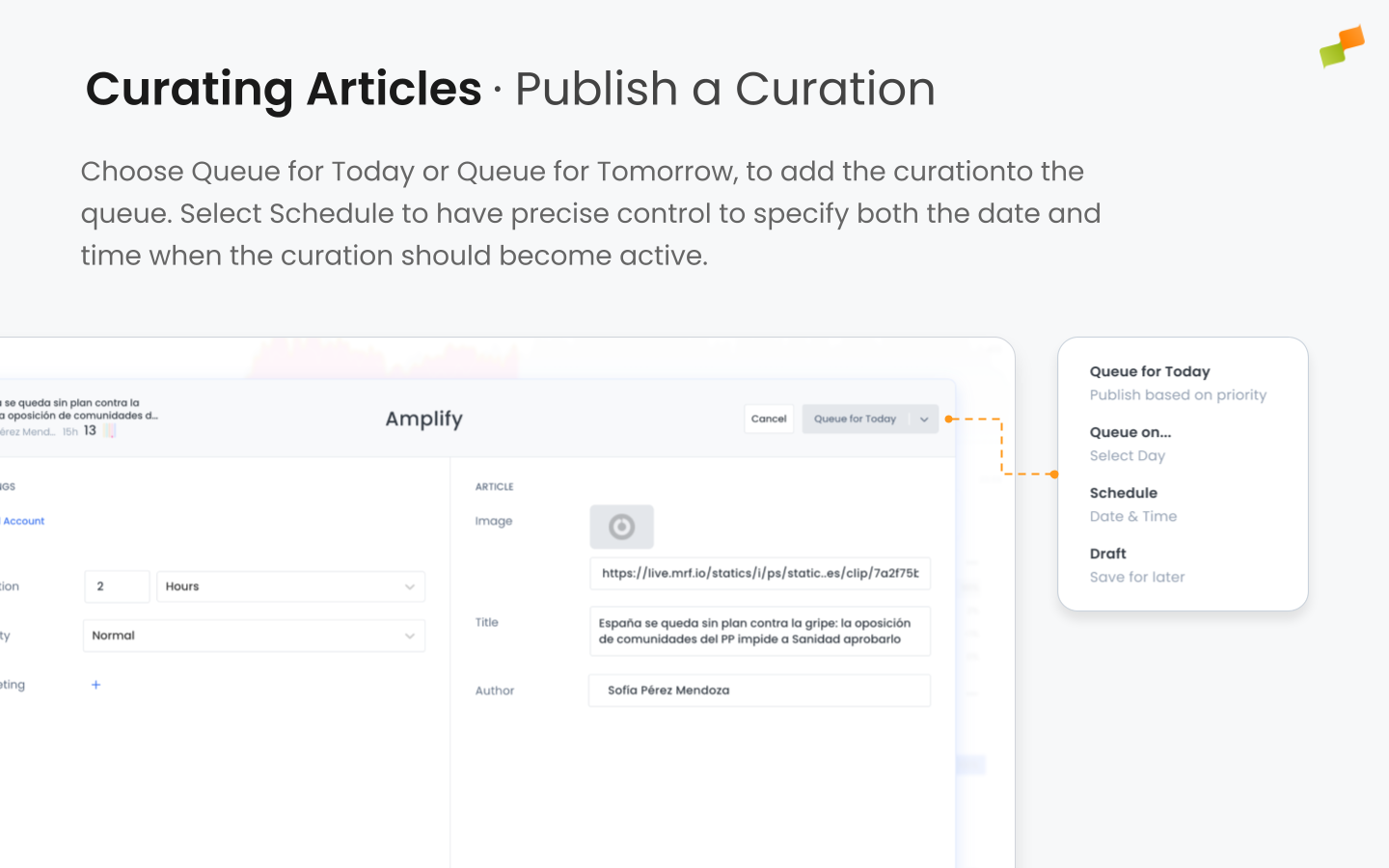
When you choose Queue for Today or Queue for Tomorrow, the curation is added to the queue and will be activated accordingly. Selecting Schedule gives you precise control by letting you specify both the date and time when the curation should become active.
Once you have scheduled or queued your curation, the system implements a one-minute delay before activation. This brief waiting period allows you to undo the action in case of any errors or last-minute changes. If you need the curation to go live immediately, an information toast notification will appear offering a “Publish Immediately” option. Clicking this bypasses the waiting period and activates the curation right away.
Conclusion
Section titled “Conclusion”Curating articles within the Marfeel Recommender empowers you to directly influence what content your readers see, enhancing engagement and supporting your editorial objectives. By selecting articles thoughtfully, customizing their presentation, and strategically targeting your audience, you can maximize the impact of your curations. Monitor performance and adjust as needed to ensure your curated content continues to resonate with your readers. If a curation is underperforming, the performance safeguard can automatically remove it to protect module effectiveness.
What are curations in Marfeel Recommender?
Curations are manually selected articles that editors choose to feature prominently in recommendation modules. They let you promote content aligned with editorial goals, campaigns, or special events, target recommendations based on the reader’s current context, and customize titles, descriptions, and images to enhance engagement.
How does curation priority work in Marfeel Recommender?
Curations support three priority levels: High, Normal, and Low. High-priority articles are more likely to appear when multiple curations compete for limited slots. Normal-priority curations compete equally with each other. Low-priority curations only appear when no higher-priority curations are available. Use high priority sparingly for the most critical content.
What targeting options are available for curations?
You can target curations based on the host page where the recommendation appears. Options include targeting by section, specific topics or keywords, article author, or user segments such as new visitors, loyal readers, or subscribers. This ensures curated content reaches the most relevant audience.