

MarfeelPass setup for Apple Pay, Stripe, and CMP consent
MarfeelPass integration takes a few minutes and requires four steps:
- Upload the Apple Pay merchant file to authorize Marfeel to process payments on your domains.
- Connect your Stripe account to Marfeel to enable payment processing.
- Choose a MarfeelPass Experience:
- No-code CMP experience: adds a MarfeelPass button to your existing CMP notice popup without development resources.
- MarfeelPass CMP Notice experience: replaces your CMP notice popup entirely to prevent visual flickers and deliver a complete user experience.
- AMP configuration: enables the MarfeelPass CMP Notice on your AMP pages once the web version is set up.
- Review your site configuration following best practices.
1. Upload Apple Pay merchant file
Section titled “1. Upload Apple Pay merchant file”Apple Pay Merchant is a service that allows businesses to accept payments within their apps and websites using Apple Pay. The MerchantId associated with the Marfeel Developer must be uploaded to a specific server location to authorize Apple Pay transactions.
Upload the Marfeel MerchantId file apple-developer-merchantid-domain-association (8.9 KB) to this server location:
domain.com/.well-known/apple-developer-merchantid-domain-associationDon’t change any part of the location. Upload it to the root of your domain indicated as domain.com in the example above.
2. Connect your Stripe account to Marfeel
Section titled “2. Connect your Stripe account to Marfeel”MarfeelPass directs user payments to your connected Stripe Account, giving you complete visibility and straightforward transaction management.
To connect your Stripe account to MarfeelPass, follow the Stripe onboarding guide.
3. Choose a MarfeelPass Experience
Section titled “3. Choose a MarfeelPass Experience”3.1. Create a Marfeel CMP No Code experience
Section titled “3.1. Create a Marfeel CMP No Code experience”The no-code mode adds or removes action buttons by manipulating the Didomi notice HTML in the DOM. This makes it ideal for quick experimentation and testing. Keep in mind that using the no-code layout might cause visual flickers and could break if Didomi notice CSS selectors change.
Follow the steps below to create a no-code Marfeel Experience:
- Go to Experience Manager
- Click on
Create Experience - Choose
MarfeelPassfrom the popup’s side bar - Create a
MarfeelPass CMP No Codeexperience
In the Content tab of the experience you can configure:
- Amount to charge users to reject consent
- Reject button text
- If rejection payment should be shared across subdomains or not
3.2. Create a MarfeelPass CMP Notice Experience
Section titled “3.2. Create a MarfeelPass CMP Notice Experience”Once you have tested MarfeelPass via the no-code option, replace your CMP notice popup with the native MarfeelPass notice. This approach:
- Allows MarfeelPass to appear whenever users change the CMP configuration and completely or selectively reject a Purpose.
- Prevents visual flickers caused by adding the MarfeelPass button in the DOM.
MarfeelPass only replaces the UI notice from your CMP. It delegates consent management to the underlying CMP using generic TCF or vendor-specific APIs. Learn more about how MarfeelPass integrates with CMPs.
Follow these steps to create a MarfeelPass CMP Notice Experience:
- Go to Experience Manager
- Click on
Create Experience - Choose
MarfeelPassfrom the popup’s side bar - Create a
MarfeelPass CMP Noticeexperience
3.2.1. Choose a Layout
Section titled “3.2.1. Choose a Layout”Once created, choose one of the two out-of-the-box responsive layouts:
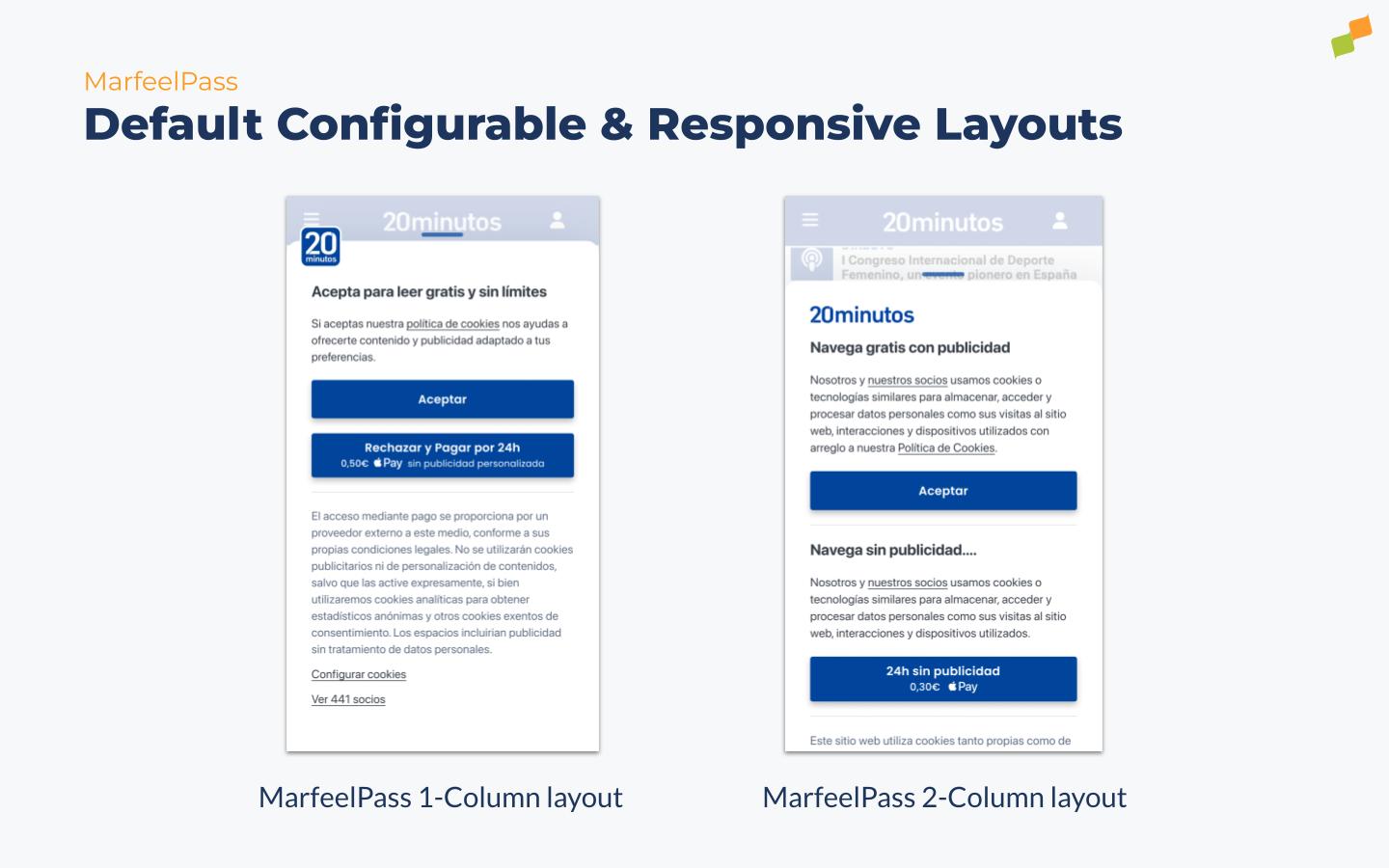
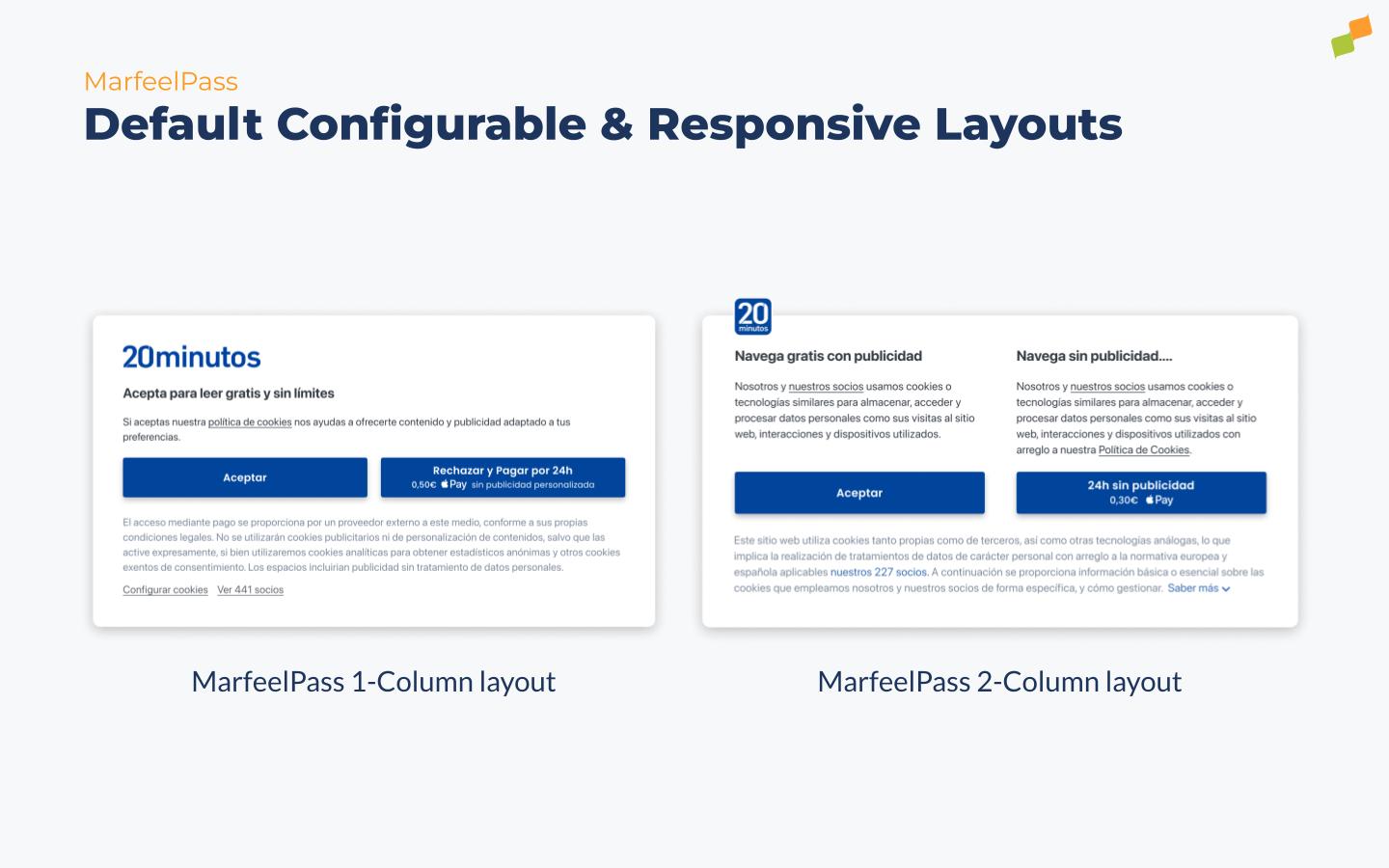
Customize all texts and call-to-actions according to your preferences and specific legal needs in your country. Choose between a favicon style or the full brand logo, and even create a custom layout.
MarfeelPass experience parameters
- Layout: choose the layout that better fits your strategy
- Country
- Currency: The currency of the payment. Valid currencies are
EURorUSD - Amount: the price to charge users for 24h. Use a
.to specify cents. Valid prices are50or0.50 - Share payment across subdomains: configures whether rejection payment should be shared across subdomains
Visual Configuration
Use generic Experiences styles:
- Primary color: to change the color of the call-to-actions
- Icon: to add an icon or the full brand logo
Targeting
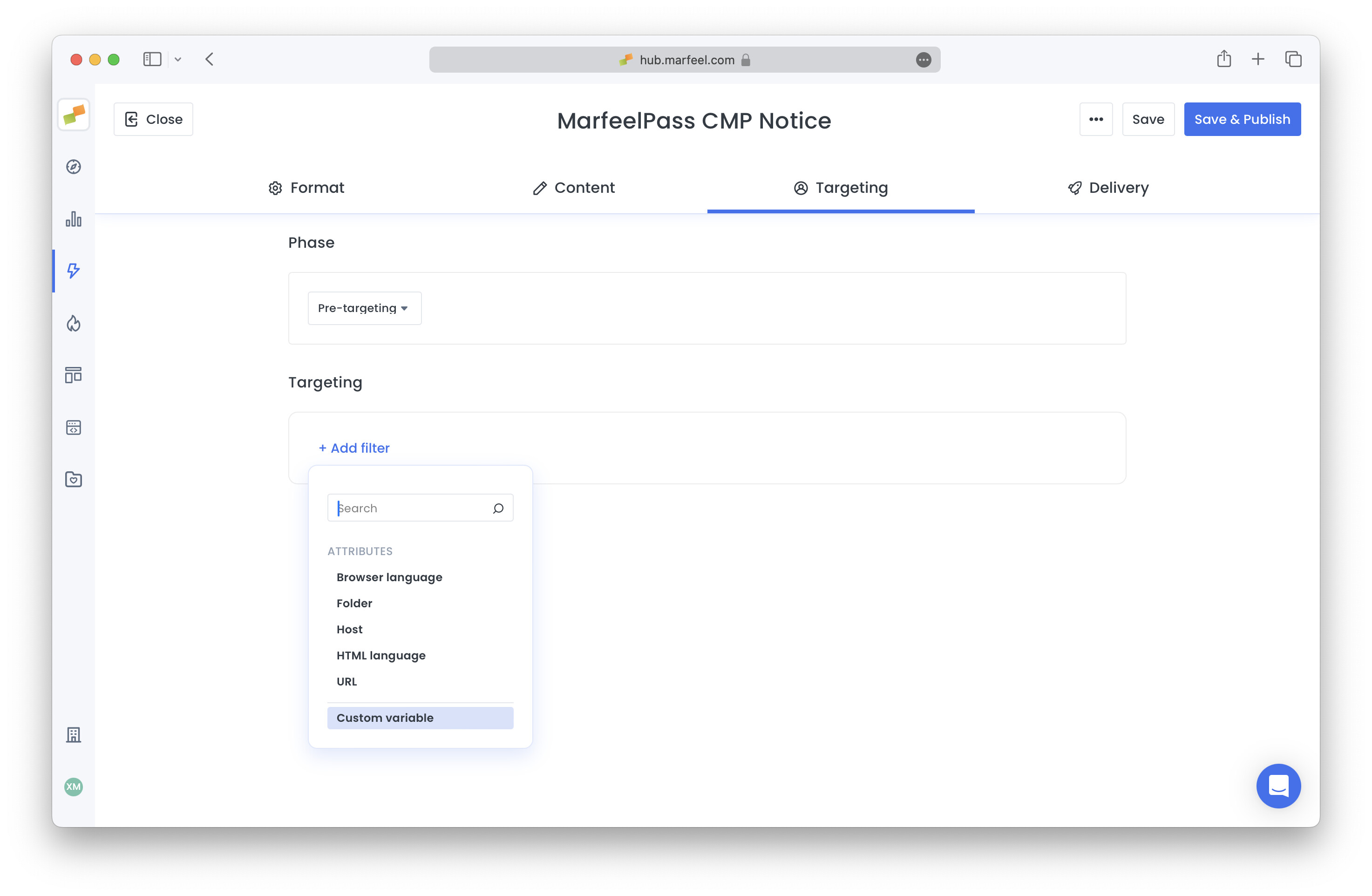
You can create different MarfeelPass experiences for different users depending on conditions. As the experience needs to use Pre-Targeting phase, available dimensions are limited to:
- Host
- Folder
- URL
- HTML Language
- Browser Language
- Experiment Groups: select “Custom Variable” and enter the name of the experiment group, which you need to have previously configured in Experiences Settings.
3.2.2. Configure MarfeelPass as your CMP notice
Section titled “3.2.2. Configure MarfeelPass as your CMP notice”Didomi integration Disable Didomi notice by default. This prevents showing Didomi’s consent layer so the MarfeelPass layer can appear instead.
The code below must be added above Didomi’s initialization code:
<script type="text/javascript">   if (!window.didomiConfig) {      window.didomiConfig = {};   }   if (!window.didomiConfig.notice) {      window.didomiConfig.notice = {};   }   if (!window.didomiConfig.app) {     window.didomiConfig.app = {};   }
   // time in seconds pay to reject should be valid. In this example, one day in seconds is 24h * 60min * 60s = 86400.   window.didomiConfig.app.deniedConsentDuration = 86400;   window.didomiConfig.notice.enable = false;</script>
Connector Details MarfeelPass relies on the following Didomi-specific methods:
- MarfeelPass CMP notice will show when TCF API notifies there’s no valid consent string
- Accept all:
Didomi.setUserAgreeToAll() - Reject when payment successful:
Didomi.setUserDisagreeToAll(); - List of partners:
Didomi.getRequiredVendors() - Open vendors list:
Didomi.preferences.show('vendors')
3.3. Configuring AMP
Section titled “3.3. Configuring AMP”The AMP integration follows the same strategy as the web version: the MarfeelPass notice replaces Didomi’s default notice.
<amp-consent id="consent" layout="nodisplay" type="didomi"> <script type="application/json"> { "promptUISrc": "https://experiences.mrf.io/passexperience/render?id={{EXPERIENCE_ID}}&type=amp&canonical_url=CANONICAL_URL", "sandbox": "allow-top-navigation-by-user-activation allow-popups-to-escape-sandbox", "uiConfig": { "overlay": true }, "clientConfig": { "config": { "notice": { "initialHeight": "70vh" }, "app": { "apiKey": "XXX" //Your API key } } //... Any other custom clientConfig you might have } } </script></amp-consent>You can preview how your experience will look by clicking on promptUISrc from Experience Manager:
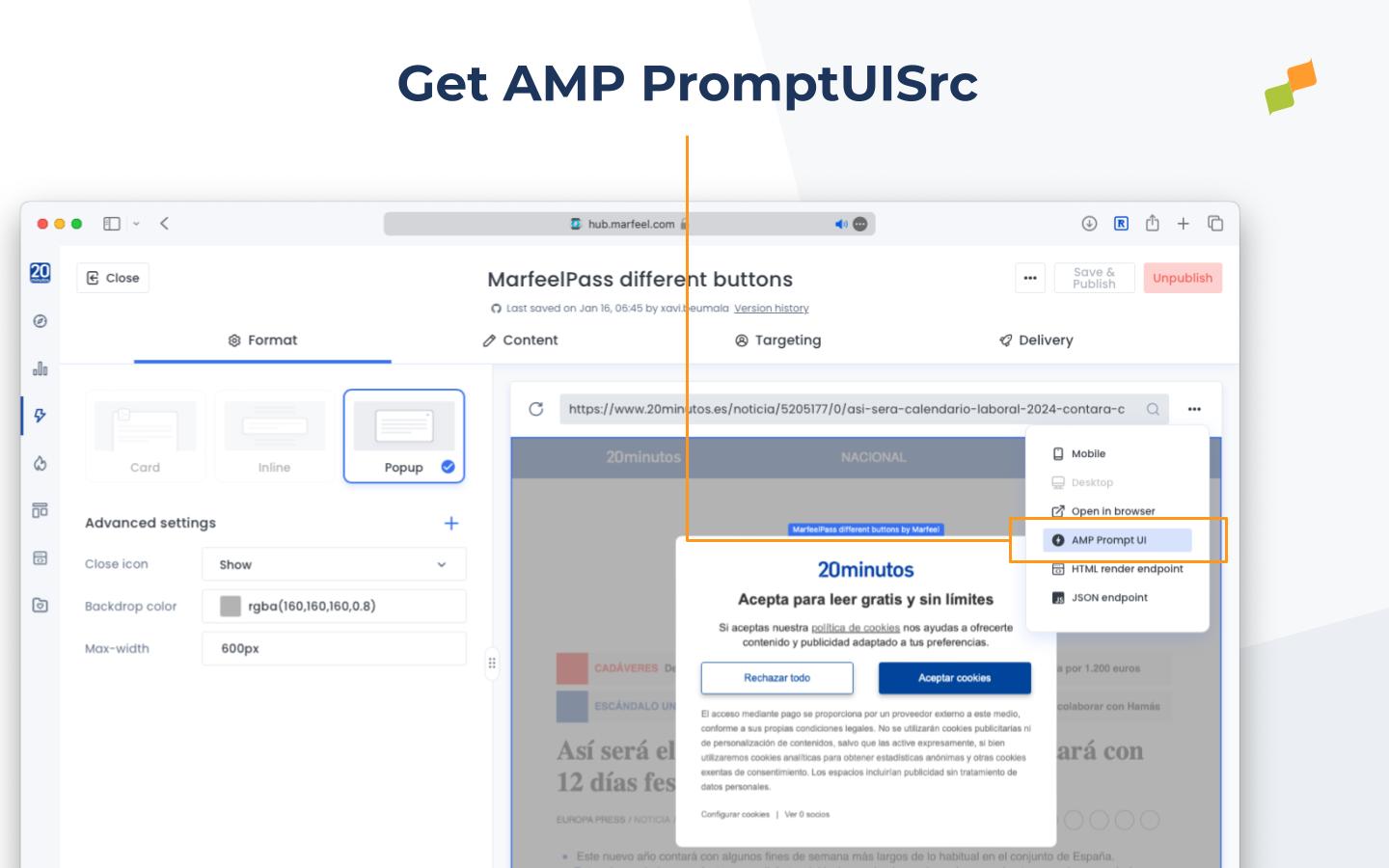
The promptUISrc property includes canonical_url=CANONICAL_URL. You can add or remove this parameter to enable or disable redirections to the canonical page when payment mechanisms are not available. If the canonical_url param is not provided, MarfeelPass falls back to a simple Reject All option.
In order to properly track CMP metrics and private sessions on AMP please make sure to use AMP tracker v.2.0.
4. Review your site configuration
Section titled “4. Review your site configuration”1. Ensure Marfeel SDK Priority
Section titled “1. Ensure Marfeel SDK Priority”- To execute MarfeelPass before other elements that need consent, make sure the Marfeel SDK is present in your HTML or is given priority within your GTM (Google Tag Manager) configuration.
- iOS and Safari 17 natively blacklists Google Tag Manager and Google Ads in private sessions. If you load the Marfeel SDK via GTM, MarfeelPass won’t show.
2. Disable Interaction-Blocking JavaScript Code
Section titled “2. Disable Interaction-Blocking JavaScript Code”- Check for any JavaScript code on your site that creates an interaction-blocking layer. It is essential to disable such code, as MarfeelPass manages this functionality directly.
What CMP experience options does MarfeelPass offer?
MarfeelPass offers three experience options: a no-code CMP experience that adds a MarfeelPass button to your existing Didomi notice (best for trials), a native CMP Notice experience that replaces the Didomi popup entirely (recommended for production), and an AMP version of the CMP Notice experience for AMP pages.
Why should I use the native CMP Notice experience instead of no-code?
The native CMP Notice experience prevents visual flickers caused by DOM manipulation, ensures MarfeelPass shows whenever users change CMP configuration or reject a Purpose, and provides a complete user experience. The no-code mode manipulates Didomi notice HTML directly and can break if Didomi CSS selectors change.
How do I enable MarfeelPass on AMP pages?
Replace your existing amp-consent configuration with the MarfeelPass promptUISrc URL containing your experience ID. Set the sandbox and uiConfig properties as documented. The canonical_url parameter controls whether users are redirected to the canonical page when payment mechanisms are unavailable on AMP.