

Custom MarfeelPass CMP notice layouts
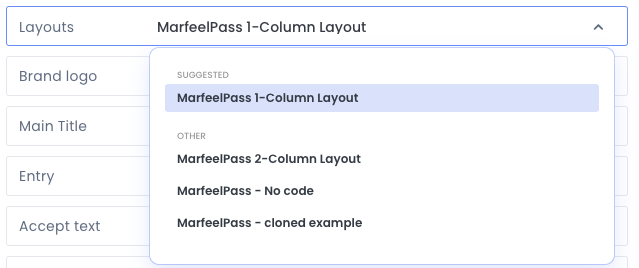
You can fully customize the MarfeelPass CMP notice by designing your own layout when the two out-of-the-box Marfeel CMP layouts do not suit your preferences.
Follow these steps:
- Open the Layout Manager and duplicate the MarfeelPass layout you wish to use as a foundation, such as
MarfeelPass 1-Column LayoutorMarfeelPass 2-Column Layout. - Modify the HTML, CSS and custom fields to meet your specific requirements.
- Once your custom layout is ready, you can either create a new MarfeelPass experience or use an existing one, selecting the customized layout you created.
Special MarfeelPass elements
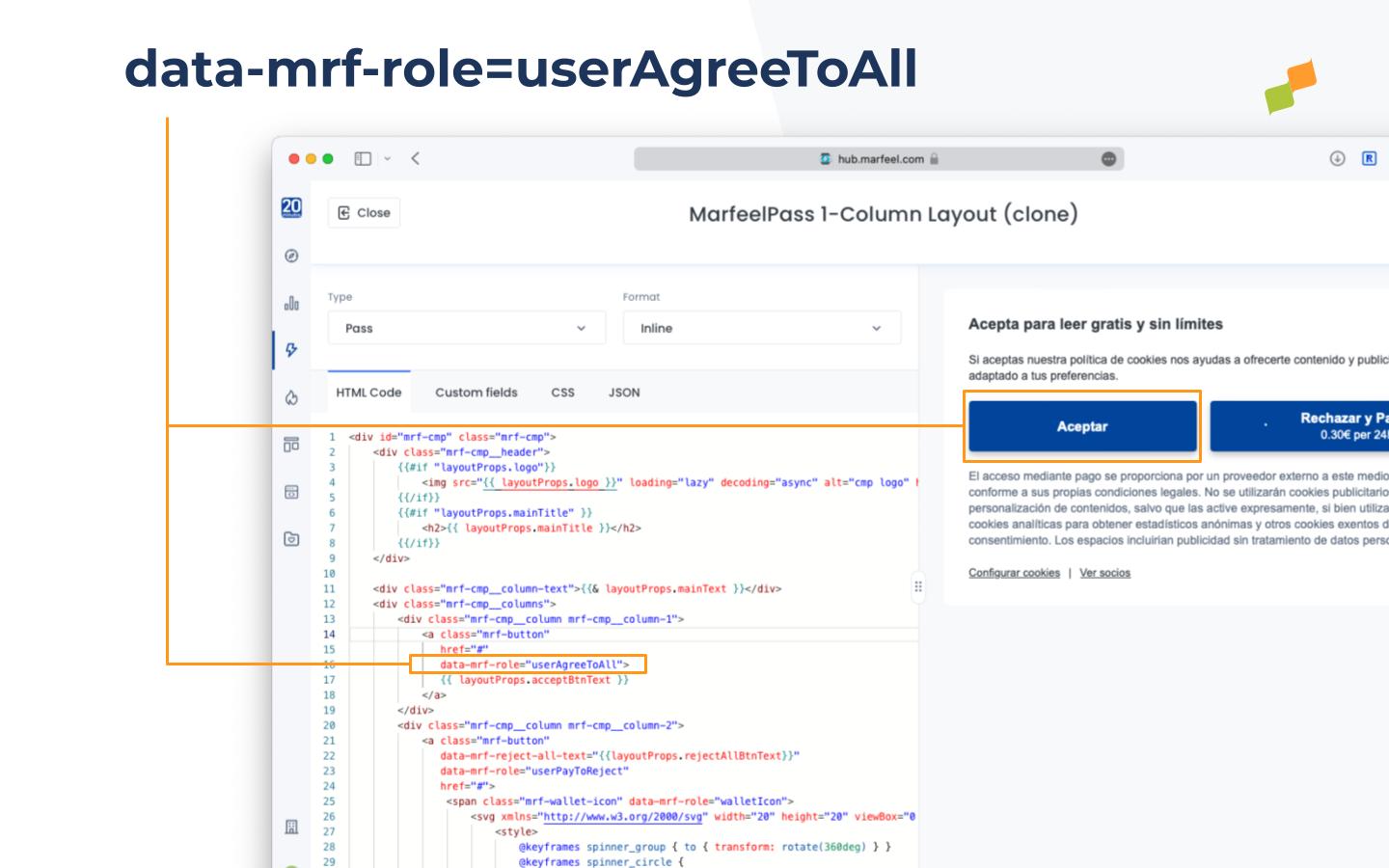
Section titled “Special MarfeelPass elements”MarfeelPass provides several role attributes on your templates for predefined consent behaviors. These roles control how the CMP notice integrates with your underlying CMP:
- data-mrf-role=“userAgreeToAll”: Accept consent button. Triggers the CMP’s accept-all method when clicked.
- data-mrf-role=“mrf:userPayToReject”: Reject and Pay button. Starts the payment process when clicked.
- data-mrf-role=“mrf:walletIcon”: Replaced with Apple Pay or Google Pay icons when a digital wallet is available.
- data-mrf-role=“mrf:numRequiredVendors”: Displays the number of required vendors from the CMP.
- data-mrf-role=“mrf:showVendors”: Opens the vendor list configuration screen.
- data-mrf-role=“mrf:configureCookies”: Opens the cookie configuration interface.
Recirculation
Section titled “Recirculation”- data-mrf-recirculation-skip=“true”: Add this attribute to any link element to prevent MarfeelPass from tracking it as a recirculation source.
How do I create a custom MarfeelPass CMP notice layout?
Open the Layout Manager, duplicate an existing MarfeelPass layout such as the 1-Column or 2-Column template, modify the HTML, CSS, and custom fields, then assign the layout to a new or existing MarfeelPass experience.
What are the available data-mrf-role elements for MarfeelPass templates?
MarfeelPass provides role attributes including userAgreeToAll for the accept consent button, mrf:userPayToReject for the pay-to-reject button, mrf:walletIcon for Apple or Google Pay icons, mrf:numRequiredVendors, mrf:showVendors, and mrf:configureCookies.
How do I prevent a link from being tracked as recirculation in MarfeelPass?
Add the attribute data-mrf-recirculation-skip="true" to the link element. This prevents MarfeelPass from tracking it as a recirculation source.