

Google Ad Manager integration setup guide
Connecting Google Ad Manager to Marfeel lets you pull monetization data directly into your analytics. The integration requires adding a Marfeel service account to your GAM instance and providing your Network Code.
Setup steps
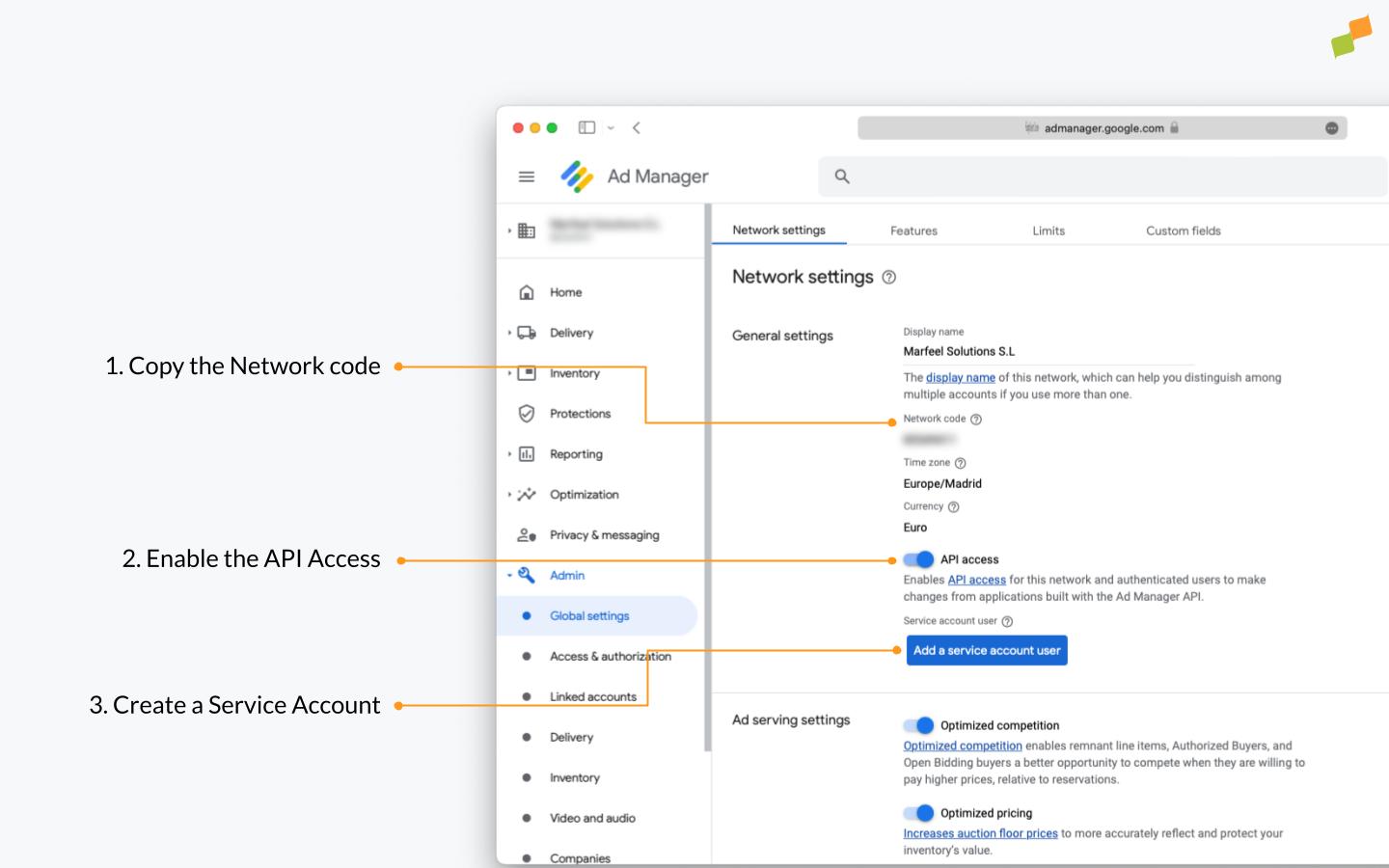
Section titled “Setup steps”- In Google Ad Manager, go to Admin > Global Settings.
- Add the Marfeel service account
dfp-ads@dfp-ads-newsroom.iam.gserviceaccount.comwith Executive permissions. The access must be granted from Global Settings, not from the standard user management screens. Activate API Access and click Add a service account user.
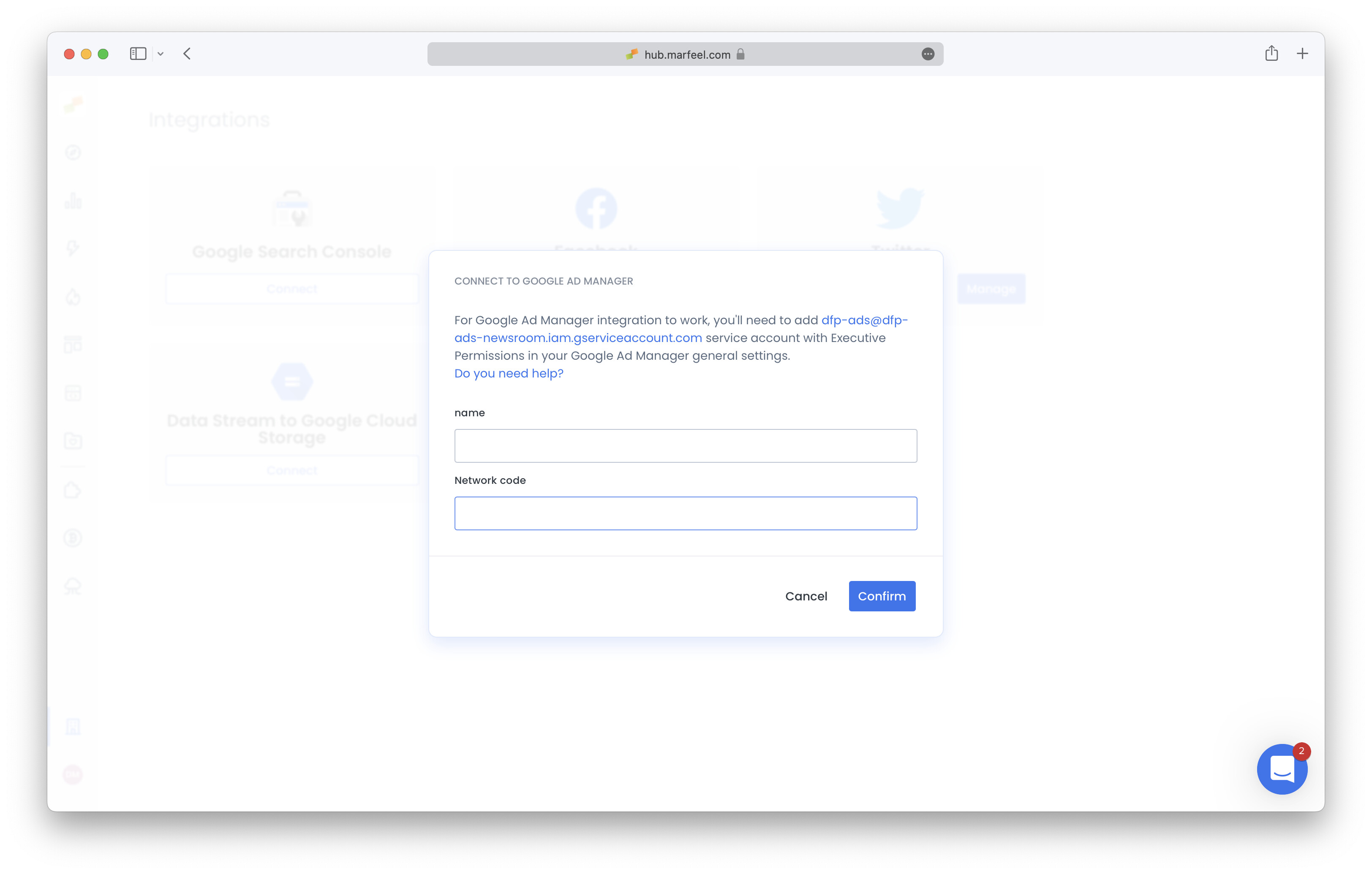
- Go to Integrations > Google Ad Manager on hub.marfeel.com and enter your Network Code.
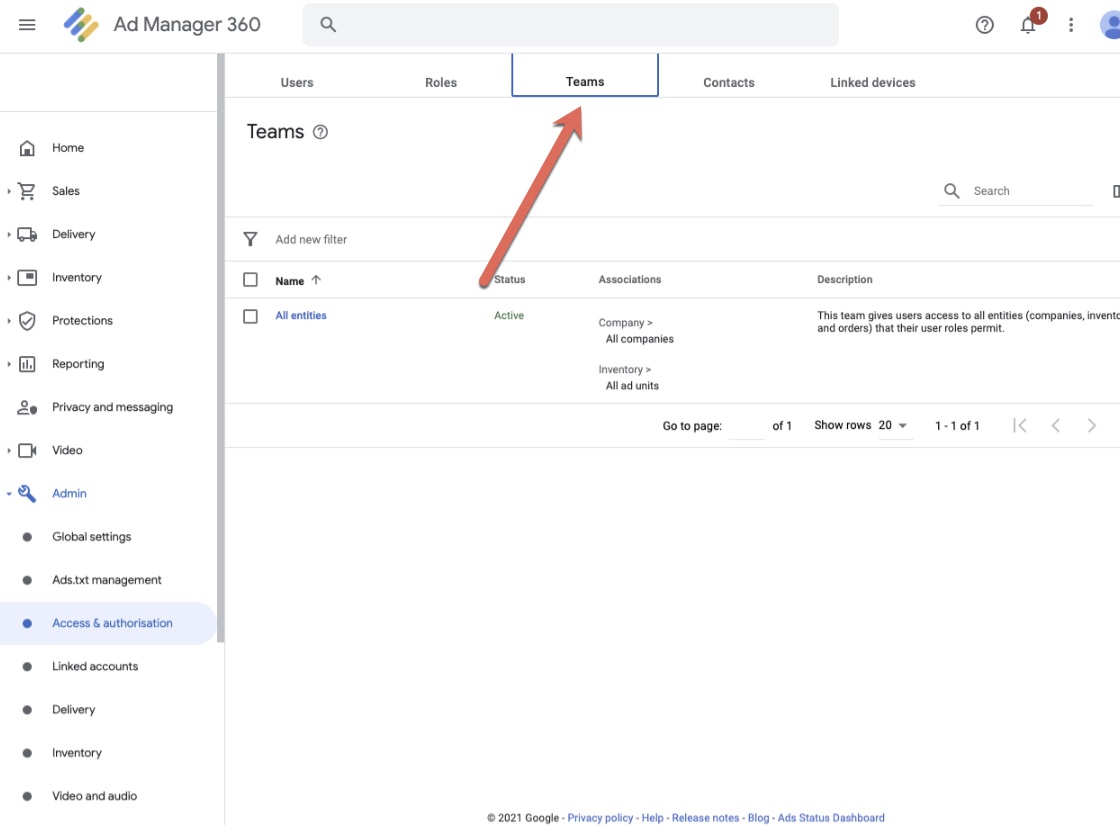
- If your GAM360 has Teams enabled (see screenshot), make sure the Marfeel user belongs to a team with visibility to all line items, without level restrictions such as folder-based filtering. Otherwise, monetization data will not be accessible.
For managed GAM accounts where full access cannot be granted, the Revenue API provides an alternative method to upload monetization data.
Troubleshooting
Section titled “Troubleshooting”Logs tab: debugging the GAM integration
Section titled “Logs tab: debugging the GAM integration”The Google Ad Manager integration screen includes a Logs tab that displays internal information about the data sync. Use it to diagnose connection and permission issues.
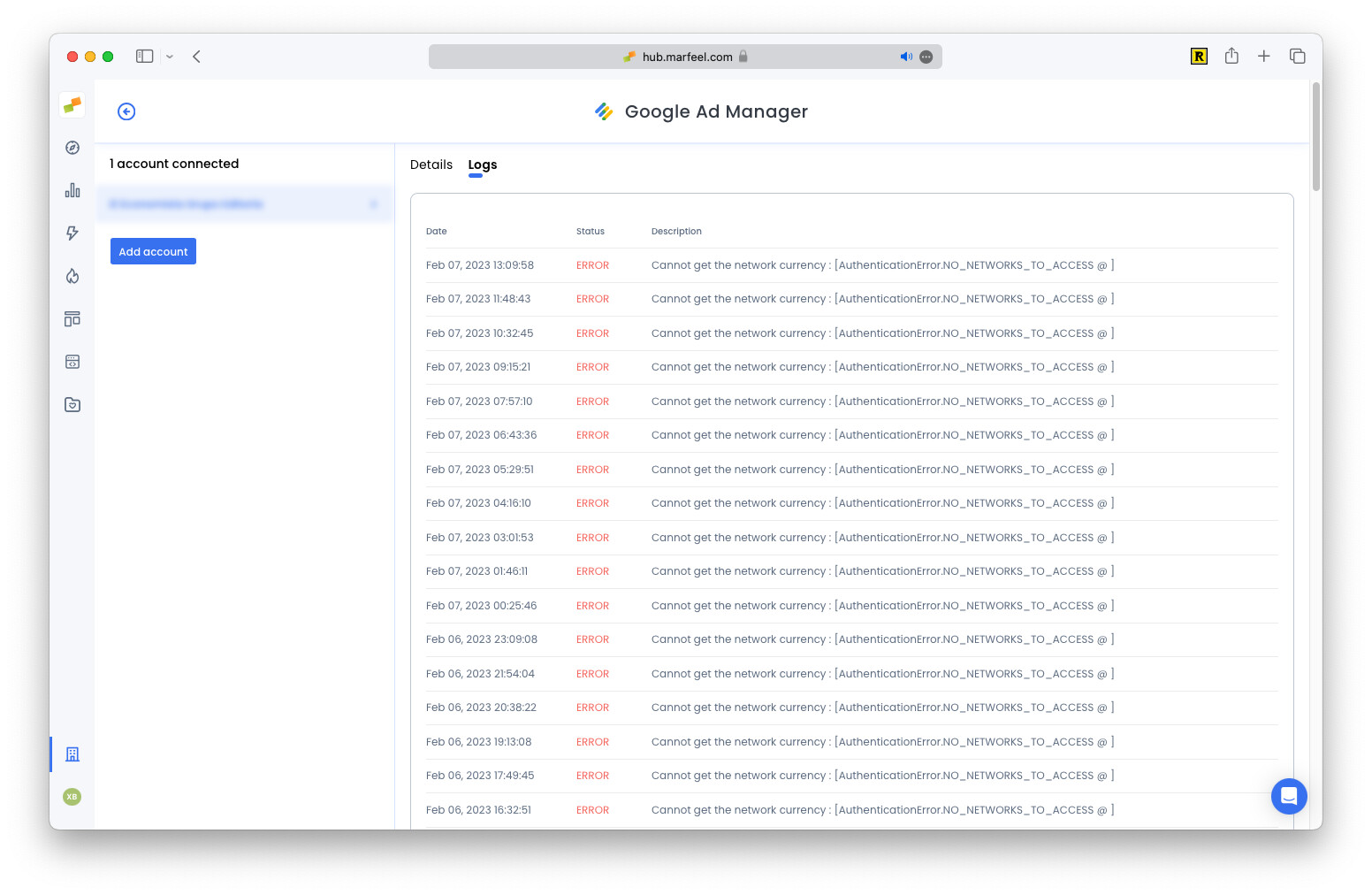
NO_NETWORKS_TO_ACCESS
Section titled “NO_NETWORKS_TO_ACCESS”The service account user is not connected to a network. This typically happens when the production account has not been set up to access the API.
To resolve this, verify that you completed step 2: adding the service account through Admin > Global Settings with API Access activated.
NETWORK_NOT_FOUND
Section titled “NETWORK_NOT_FOUND”The network code in your configuration does not match any network on the server. This usually indicates a typo or extra characters in the code.
To resolve this, double-check the Network Code you entered and make sure it contains no spaces or additional characters.
Generated 0 entries
Section titled “Generated 0 entries”The Marfeel user does not have permission to retrieve line items. This is usually caused by restricted access, such as visibility limited to a specific folder.
To resolve this, ensure the Marfeel user belongs to a team with full visibility to all line items, without folder-level restrictions.
First data sync
Section titled “First data sync”After connecting Google Ad Manager for the first time, the initial full sync may take 2 to 3 hours to complete. To verify that ads are being tracked correctly once the sync finishes, check the Logs tab for confirmation entries.
What does the NO_NETWORKS_TO_ACCESS error mean in Google Ad Manager integration?
This error means the service account user is not connected to a network. It usually happens when the production account has not been set up to access the API. Verify that the service account was added through Admin > Global Settings with API Access activated.
Why does Google Ad Manager show Generated 0 entries after connecting?
This message means the Marfeel service account does not have permission to retrieve line items, usually because access is restricted to a specific folder. Ensure the Marfeel user belongs to a team with full visibility to all line items, without folder-level restrictions.
How long does the first Google Ad Manager data sync take?
After initially connecting Google Ad Manager, the first full data sync may take 2 to 3 hours to complete.