

Experience blueprints for reusable configurations
Blueprints are reusable patterns that provide sensible defaults for creating experiences. Instead of configuring every experience from scratch, start from a blueprint that pre-configures format, content source, targeting, and delivery settings based on a specific use case.
Permissions: Only users with the Admin or Experiences admin role can create and manage blueprints.
How blueprints work
Section titled “How blueprints work”Blueprints appear in the creation gallery when you click + New Experience. Each blueprint provides pre-configured defaults across all four configuration tabs (Format, Content, Targeting, Delivery). Filters in the creation gallery help you narrow blueprints by type.
When you create an experience from a blueprint, the Experience Manager editor opens with all the blueprint’s settings already applied. You can modify any setting before saving. The blueprint provides the starting point.
Create a blueprint
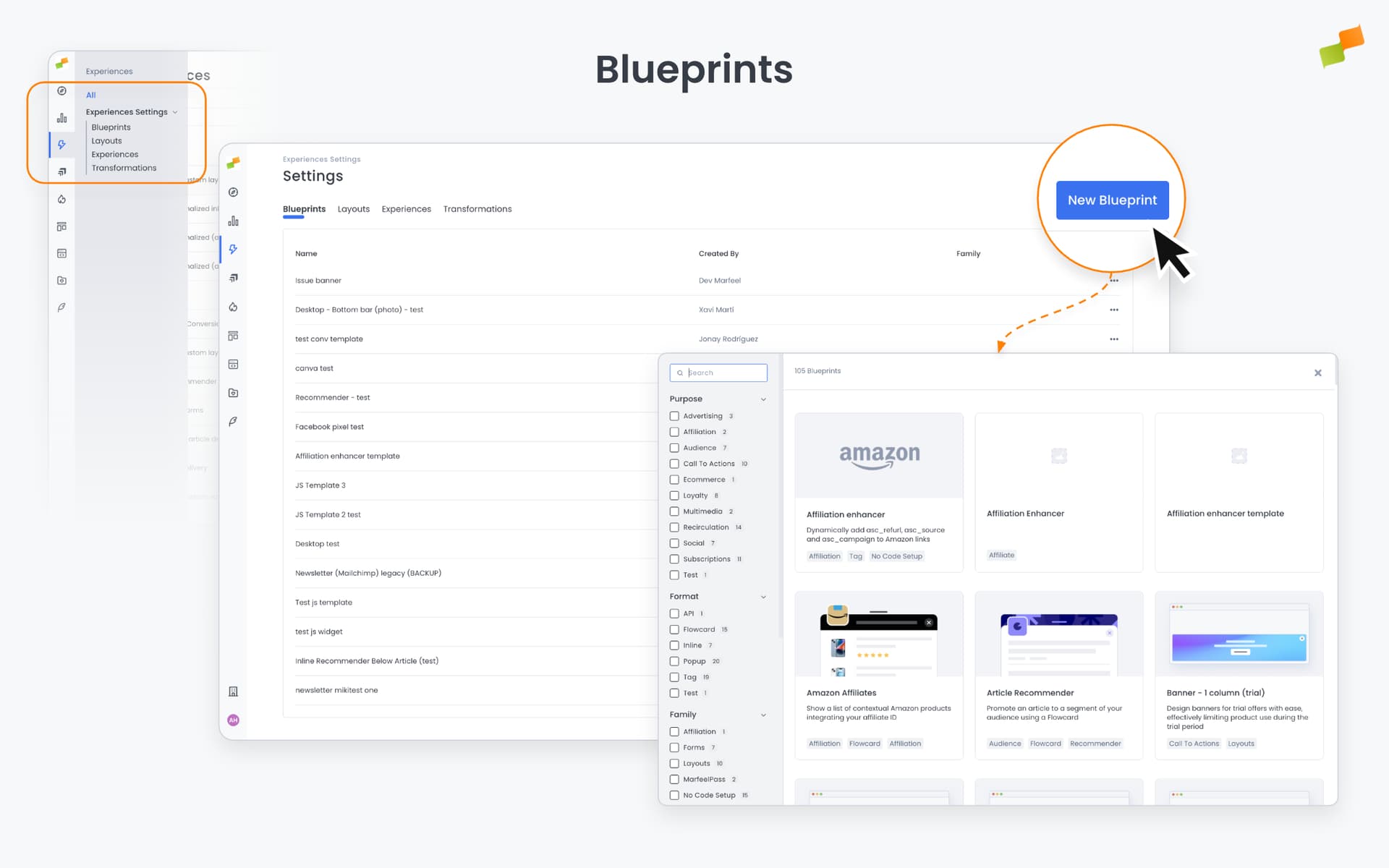
Section titled “Create a blueprint”Navigate to Experiences > Settings > Blueprints in the Marfeel Hub sidebar.
From a new blueprint
Section titled “From a new blueprint”- Click New Blueprint in the top-right corner.
- Select an existing blueprint as the starting point.
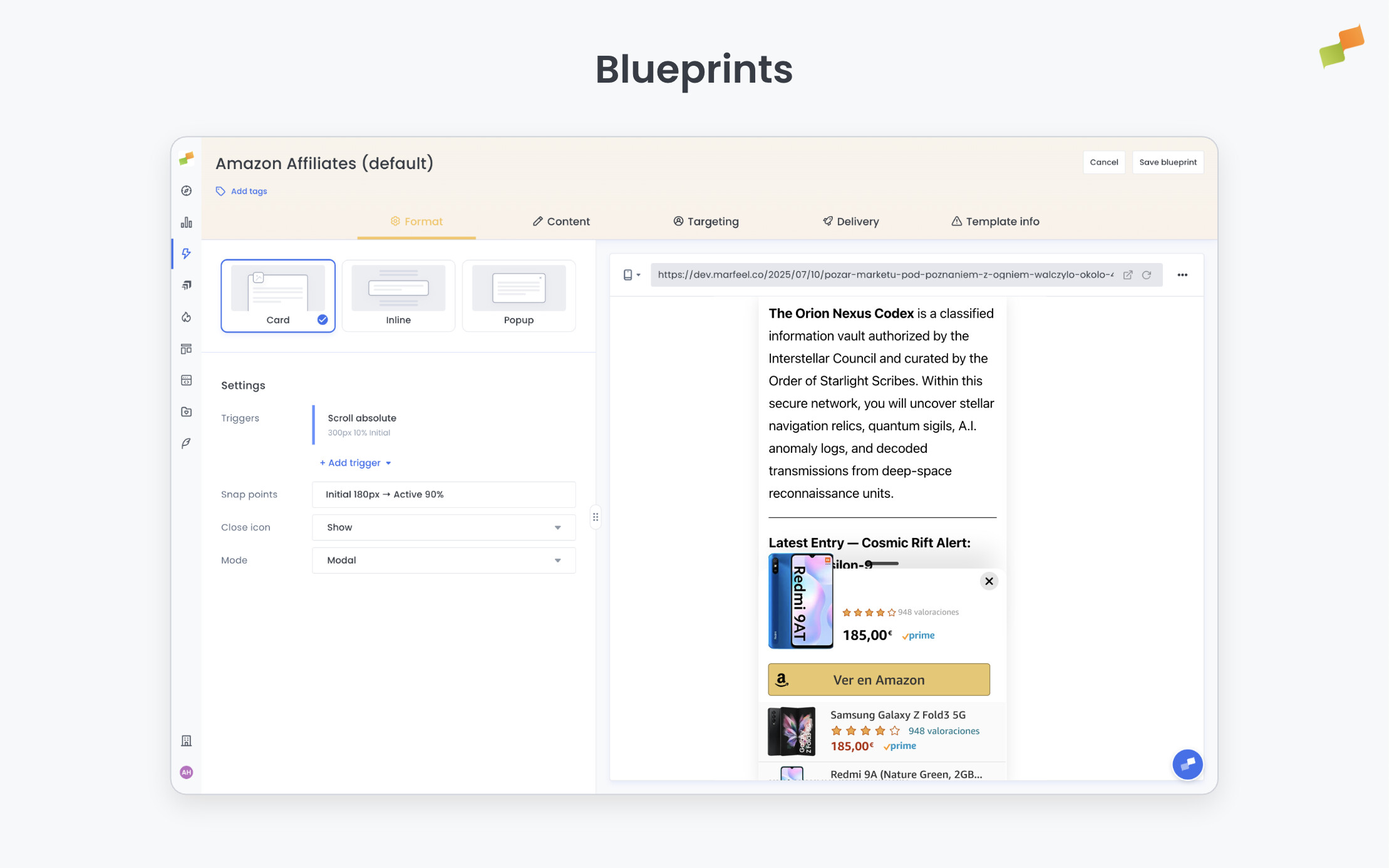
- The blueprint editor opens with a yellow header (indicating blueprint editing mode).
- Configure the blueprint across the four tabs: Format, Content, Targeting, Delivery.
- Click Save Blueprint.
From an existing blueprint
Section titled “From an existing blueprint”Clone an existing blueprint to use it as a starting point:
- Click the three-dot menu next to any blueprint in the list.
- Select Clone.
- The blueprint editor opens with all settings from the original blueprint.
- Modify as needed and click Save Blueprint.
Edit a blueprint
Section titled “Edit a blueprint”- Navigate to Experiences > Settings > Blueprints.
- Click the blueprint name to open the editor.
- The yellow header indicates you’re editing a blueprint (not an experience).
- Configure the blueprint using the same four tabs as experiences: Format, Content, Targeting, Delivery.
- Click Save Blueprint when done.
These settings become the defaults for any new experience created from this blueprint.
Important: Editing a blueprint does NOT affect existing experiences, even if they were created using that blueprint. Blueprint changes only apply to newly created experiences.
Going deeper
Section titled “Going deeper”- Experience Manager Overview: The four-tab editor walkthrough.
- Delivery & Scheduling
- Triggers
- Targeting
- A/B Testing
- Blueprints
- Inline: DOM injection, CSS selector placement, and visual element selector.
- Popups: Modal vs contextual modes, position, triggers, and orchestration.
- Flowcards: Isolated AMP rendering, snap points, card icons, and browser history integration.
- Tag Experiences: SDK configuration for tracking, integrations, and third-party tools.
- Recommender: Configure recommendation engines and layouts.
- Page Transformations
- Testing and Troubleshooting: Preview, live test, and debug your experiences.
- Web Activation: How the SDK delivers experiences on your site.
- AMP Activation: Run Flowcards on AMP pages.
What are experience blueprints?
Blueprints are reusable patterns that provide sensible defaults for creating experiences. Instead of configuring every experience from scratch, a blueprint pre-configures format, content source, targeting, and delivery settings based on a specific use case.
Does editing a blueprint change existing experiences?
No. Editing a blueprint does not affect existing experiences, even if they were created using that blueprint. Blueprint changes only apply to newly created experiences.
Who can create and manage blueprints?
Only users with the Admin or Experiences admin role can create and manage blueprints.