

Flowcards AMP transformations setup and operations
AMP transformations let you repurpose existing AMP pages for Flowcards without code changes. Most publishers already have AMP pages. With minor tweaks, they become effective Flowcard content, no upfront technical investment required.
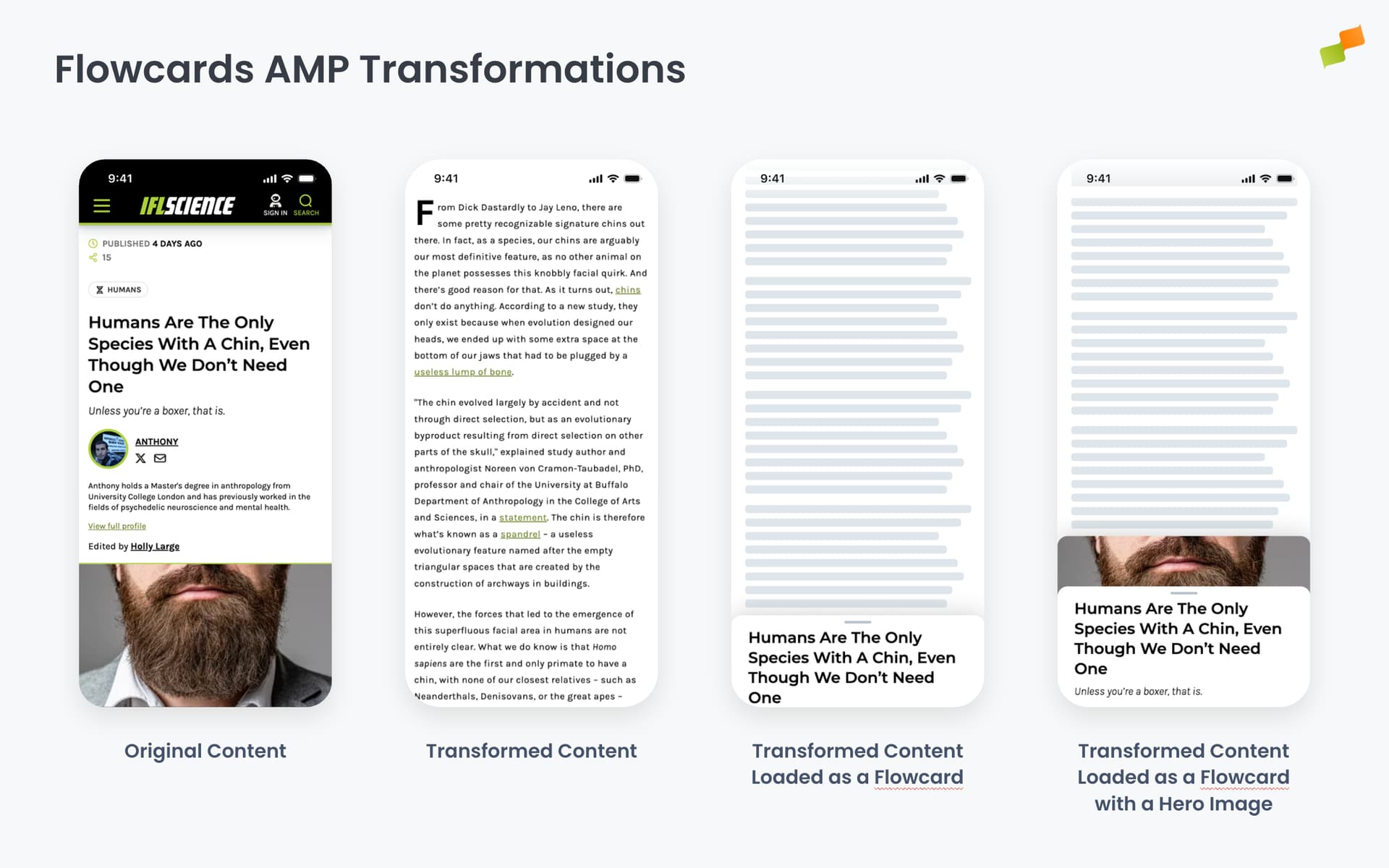
Why transformations exist
Section titled “Why transformations exist”AMP pages are designed for standalone reading. When loaded inside a Flowcard, three common problems appear:
- Oversized headers: Navigation bars and branding headers consume vertical space. On a Flowcard’s initial snap point, the user sees chrome instead of content.
- Broken dynamic components: Elements like
amp-listthat rely on JS and external requests don’t render until the Flowcard reaches its interactive state, leaving blank areas. - Top media blocking the title: A large image pushes the article title below the visible area of the initial snap point.
Content transformations solve these problems by modifying the AMP document in real time before it renders inside the Flowcard.
Create a transformation
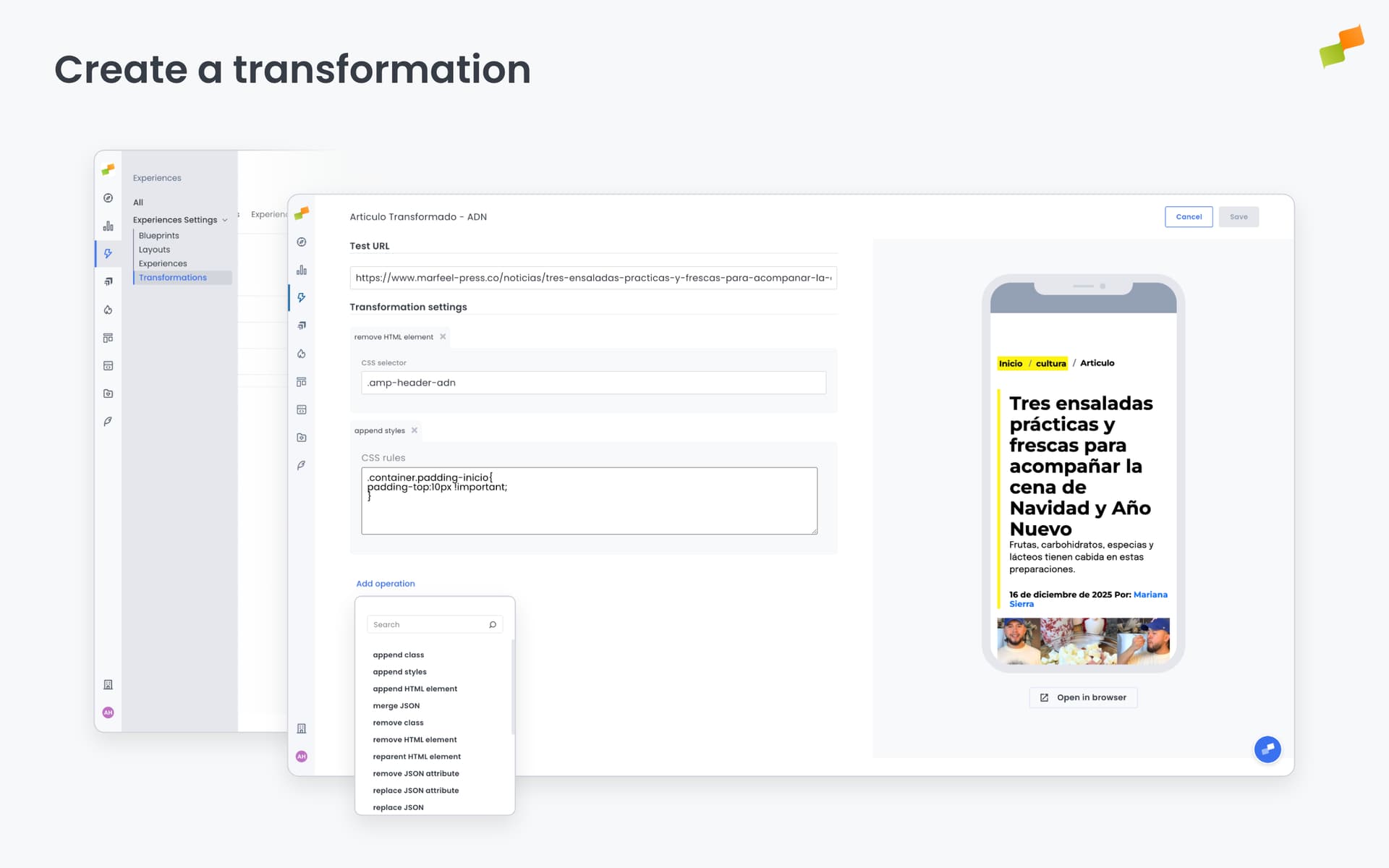
Section titled “Create a transformation”Transformations are created in Experiences Settings > Transformations as reusable templates. Once created, a transformation can be applied to any Flowcard. This is typically a one-time setup during onboarding.
- Navigate to Experiences Settings > Transformations.
- Click + New Transformation and give it a name.
- Enter a Test URL, the AMP page you want to transform. The live preview on the right shows the result.
- Click Add operation to add transformation operations. Each operation targets specific elements in the AMP document.
- Stack multiple operations to build the complete transformation.
- Click Save.
The transformation is now available from any Flowcard’s configuration.
Available operations
Section titled “Available operations”Operations modify the AMP document’s HTML, CSS, JSON, and attributes. Click Add operation and search or select from the list.
HTML operations
Section titled “HTML operations”| Operation | What it does |
|---|---|
| Append HTML element | Injects new HTML inside a parent element. Parameters: parent selector, conditional HTML selector, HTML content |
| Remove HTML element | Removes elements matching a CSS selector from the document |
| Reparent HTML element | Moves an element from its current position to a new parent in the DOM |
| Set HTML attribute | Sets an attribute on a target element. Parameters: target CSS selector, attribute name, value |
| Replace HTML attribute JSON | Replaces a JSON value inside an HTML attribute |
CSS operations
Section titled “CSS operations”| Operation | What it does |
|---|---|
| Append class | Adds a CSS class to elements matching a selector. Parameters: target CSS selector, class name, limit (max elements to affect) |
| Remove class | Removes a CSS class from elements matching a selector |
| Append styles | Injects additional CSS rules into the document |
JSON operations
Section titled “JSON operations”| Operation | What it does |
|---|---|
| Merge JSON | Merges JSON data into an existing JSON structure |
| Replace JSON | Replaces a JSON structure entirely |
| Replace JSON attribute | Replaces a specific attribute within a JSON structure |
| Remove JSON attribute | Removes an attribute from a JSON structure |
| Enhance JSON attribute | Modifies a JSON attribute value with additional data |
Utility operations
Section titled “Utility operations”| Operation | What it does |
|---|---|
| Preload image | Adds preload hints for images to improve loading performance |
| Resource URLs absolute | Converts relative resource URLs to absolute paths |
| Move root vars to body | Moves CSS custom properties from the root to the body element |
| GoogleAnalytics Recommender | Adds Google Analytics tracking configured for Recommender experiences |
| GoogleAnalytics Experiment | Adds Google Analytics tracking configured for A/B testing experiments |
Common transformation patterns
Section titled “Common transformation patterns”Remove navigation headers
Section titled “Remove navigation headers”Most AMP pages have prominent header bars that waste vertical space inside a Flowcard. Remove them so content appears immediately at the initial snap point.
- Add a Remove HTML element operation.
- Set the target CSS selector to match your header (e.g.,
header,.nav-bar,.site-header). - Repeat for any secondary navigation bars.
Remove top media
Section titled “Remove top media”Large images push the article title out of view. Remove the top media from the AMP document and configure the Flowcard’s hero image instead. This gives you the parallax effect while keeping the title visible at the initial snap point.
- Add a Remove HTML element operation targeting the hero image container.
- In the Flowcard’s Content tab, set the hero image to Auto-detect to pull the same image from the page’s structured data.
Add analytics tracking
Section titled “Add analytics tracking”Proper attribution of Flowcard-driven pageviews requires specific tracking operations.
- Add a GoogleAnalytics Recommender operation for content recommendation tracking.
- Or add a GoogleAnalytics Experiment operation if the Flowcard is part of an A/B test.
Fix visual glitches
Section titled “Fix visual glitches”Minor CSS issues like broken paddings, margins, or layout shifts can be corrected with two approaches:
- Add an Append styles operation with corrective CSS rules.
- Or use Append class to apply existing utility classes to specific elements.
Testing transformations
Section titled “Testing transformations”Every transformation includes a live preview. Enter a test URL and the preview renders the transformed AMP document in a mobile device frame. Changes appear immediately as you add or modify operations.
Click Open in browser below the preview to see the full transformed page.
Test with multiple URLs from your site. A transformation that works for one article may break on another if the DOM structure varies across templates.
Going deeper
Section titled “Going deeper”- Experience Manager Overview: The four-tab editor walkthrough.
- Delivery & Scheduling
- Triggers
- Targeting
- A/B Testing
- Blueprints
- Inline: DOM injection, CSS selector placement, and visual element selector.
- Popups: Modal vs contextual modes, position, triggers, and orchestration.
- Flowcards: Isolated AMP rendering, snap points, card icons, and browser history integration.
- Tag Experiences: SDK configuration for tracking, integrations, and third-party tools.
- Recommender: Configure recommendation engines and layouts.
- Page Transformations
- Testing and Troubleshooting: Preview, live test, and debug your experiences.
- Web Activation: How the SDK delivers experiences on your site.
- AMP Activation: Run Flowcards on AMP pages.
What problems do AMP transformations solve for Flowcards?
AMP transformations fix three common problems when loading AMP pages inside Flowcards: oversized navigation headers that consume vertical space, broken dynamic components like amp-list that leave blank areas, and large top images that push the article title below the visible snap point.
How do I create a Flowcard AMP transformation?
Navigate to Experiences Settings > Transformations, click + New Transformation, enter a test AMP URL for the live preview, add operations targeting specific elements in the AMP document, and click Save. The transformation becomes a reusable template available from any Flowcard configuration.
What types of operations are available in AMP transformations?
Four categories of operations are available: HTML operations (append, remove, reparent elements, set attributes), CSS operations (append or remove classes, inject styles), JSON operations (merge, replace, remove, or enhance JSON attributes), and utility operations (preload images, convert relative URLs, add Google Analytics tracking).