

Experience triggers for scroll, timer, click, and visibility
Triggers control when an experience activates. Without any triggers configured, an experience activates as soon as possible, immediately when the page loads and targeting conditions are met. Add triggers to delay or condition activation based on specific user behaviors: scroll depth, time on page, element visibility, or clicks.
Available trigger types
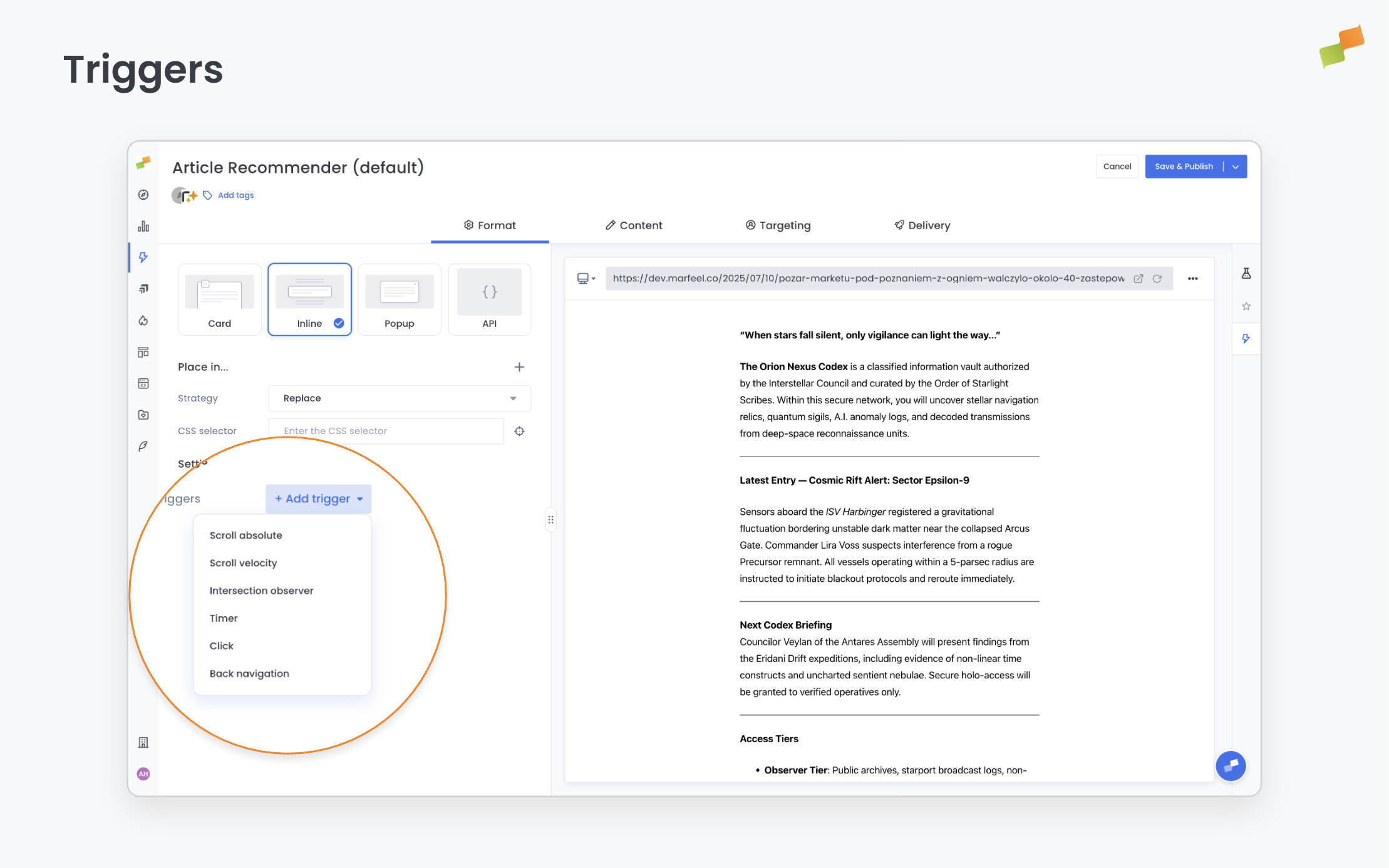
Section titled “Available trigger types”Configure triggers under Advanced Settings in the Format tab. Not every trigger is available on every format. The available triggers depend on the format’s placement and interaction model.
| Trigger | What it does | Common use cases |
|---|---|---|
| Scroll Absolute | Activates after the user scrolls a specified number of pixels or percentage of the page. If both are set, activates when either condition is met | Engagement-based prompts (subscription gates after 50% scroll). Note: Popups with this trigger use scroll-bounded entry (appear gradually as user scrolls) |
| Scroll Velocity | Activates when the user scrolls a specified number of pixels within a time window. Negative pixel values detect upward scrolling | Exit-intent patterns when users scroll too fast to be reading or scroll back up |
| Intersection Observer | Activates when a specified element (identified by CSS selector) enters the viewport. Optional delay parameter | End-of-article prompts when users reach the final paragraph, or hiding Flowcards when native ads appear |
| Timer | Activates after a specified number of milliseconds since the Marfeel SDK loads | Standard paywall implementations with timed content access |
| Click | Activates when the user clicks a specific element (identified by CSS selector) | Complex interactions like promoting an offer through a blocking banner, then moving it to a passive banner when user dismisses |
| Back Navigation | Activates when the user hits the browser back button. Requires prior user interaction (click, tap, or keypress) | Prevent bounce from Discover traffic by replacing article content with recommendations |
Combining triggers
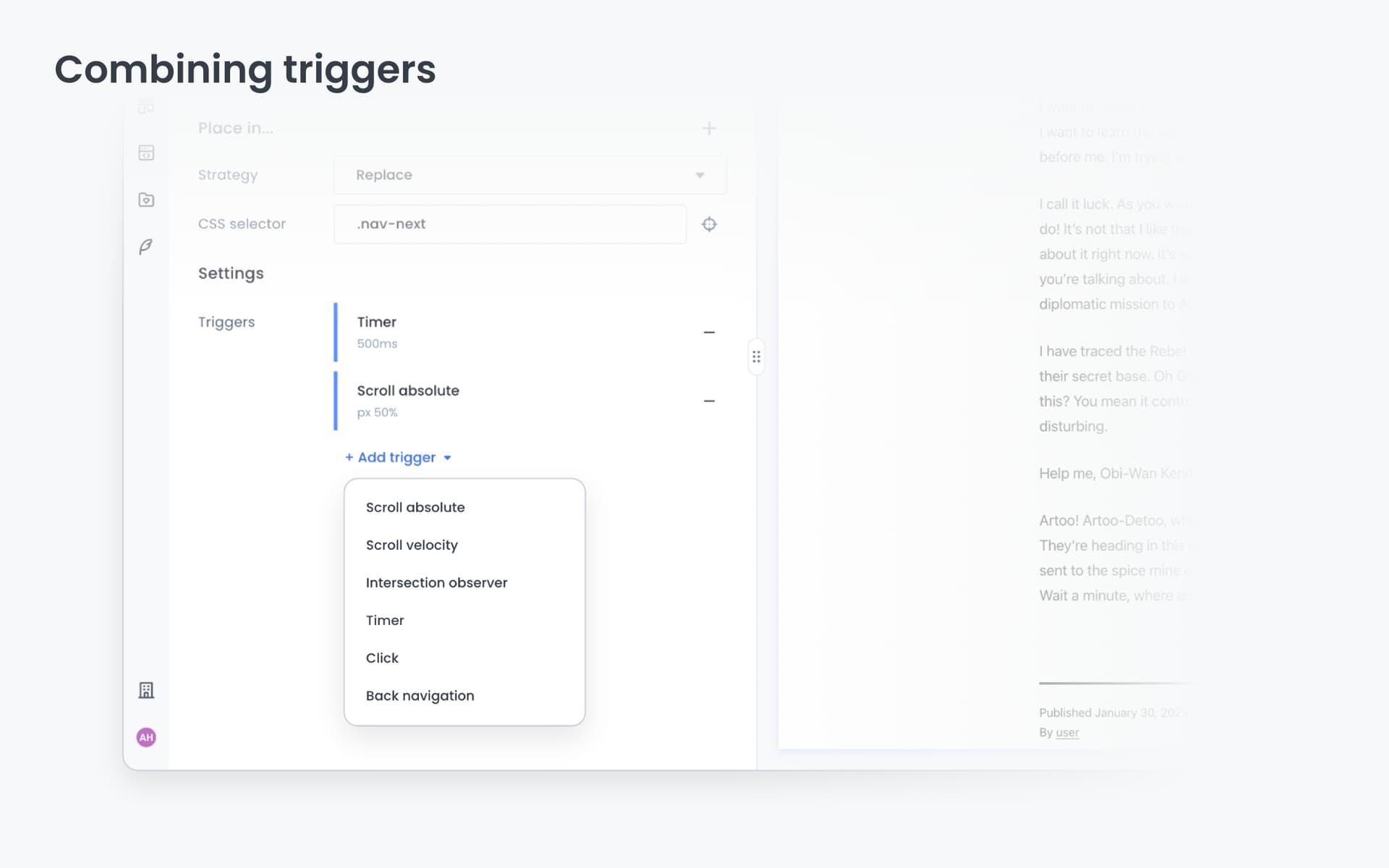
Section titled “Combining triggers”You can configure multiple triggers on a single experience. When combined, the experience activates as soon as any one trigger condition is met (OR logic). The first trigger whose condition is satisfied wins.
Example: An experience with both a Timer (5 seconds) and Scroll Absolute (50%) will activate whichever happens first. If the user scrolls past 50% before 5 seconds elapse, the scroll trigger activates the experience immediately.
AMP limitations
Section titled “AMP limitations”The following trigger types have limitations on AMP pages:
- Percentage-based Scroll Absolute: Not supported. Use pixel-based scroll triggers instead.
- Intersection Observer: Not supported on AMP pages.
When creating experiences that run on both Web and AMP, use pixel-based scroll or timer triggers for broadest compatibility.
Format-specific trigger behavior
Section titled “Format-specific trigger behavior”Each experience format responds to triggers differently. The trigger type you select determines the entry animation and positioning behavior.
Flowcards
Section titled “Flowcards”Flowcards require additional configuration for each trigger: a target snap point. When the trigger fires, the Flowcard transitions to the specified snap point (Initial, Promoted, Active, Minimized, or Hidden).
Scroll-bounded behavior: Only specific triggers enable scroll-bounded entry where the Flowcard position is tied to scroll depth:
- Scroll Absolute
- Scroll Velocity (downward with positive pixel values)
- Intersection Observer
All other triggers, Timer, Click, and Back Navigation, use animated transitions that are independent of scroll position. This behavior is automatic based on the trigger type you select.
Recurrent triggers: The Intersection Observer fires every time the target element enters the viewport on pages with infinite scroll. This means the Flowcard repeats its behavior each time the target element enters the viewport, allowing dynamic responses to lazy-loaded content.
Example configuration:
- Trigger: Intersection Observer targeting
.end-of-article - Target snap point: Promoted
- Recurrent: Every Time
- Result: Each time an article’s end marker appears (infinite scroll), the Flowcard expands to the Promoted position
See Flowcards: Triggers for full details.
Popups
Section titled “Popups”Popups have two entry behaviors that depend on the trigger type:
Scroll-bounded entry: Only Scroll Absolute triggers use scroll-bounded entry, where the Popup gradually appears as the user scrolls. The Popup position is tied to scroll depth. It emerges proportionally to how far past the threshold the user has scrolled.
Immediate appearance: All other triggers, Scroll Velocity, Intersection Observer, Timer, Click, and Back Navigation, cause the Popup to appear immediately with a fade-in animation, independent of scroll position.
This behavior is automatic. You don’t configure it separately. The trigger type determines the entry behavior.
See Popups: Entry behavior for full details.
Inline
Section titled “Inline”Inline experiences inject content directly into the page at a specified CSS selector position. Triggers control when the injection happens, but the injection itself is always immediate once the trigger fires.
Inline experiences have no format-specific trigger behaviors. All trigger types cause immediate injection into the DOM at the configured selector position.
See Inline Experiences: Placement for full details.
Tag Experiences
Section titled “Tag Experiences”Tag Experiences execute third-party tracking or analytics scripts. Triggers control when the script executes.
Tag experiences have no format-specific trigger behaviors. All trigger types cause immediate script execution when the trigger condition is met.
See Tag Experiences for full details.
Page Transformations
Section titled “Page Transformations”Page Transformations modify existing page elements (add classes, inject HTML, change styles). Triggers control when the transformations apply.
Page Transformations have no format-specific trigger behaviors. All trigger types cause immediate transformation application when the trigger condition is met.
See Page Transformations for full details.
Trigger best practices
Section titled “Trigger best practices”Choose the right trigger for your goal
Section titled “Choose the right trigger for your goal”| Goal | Recommended trigger |
|---|---|
| Engage users already reading | Scroll Absolute (30-50% of page) |
| Capture users at article end | Intersection Observer targeting end-of-article element |
| Time-gate content (paywalls) | Timer with appropriate delay |
| Exit-intent capture | Back Navigation or Scroll Velocity (upward) |
| Interactive element promotion | Click targeting specific elements |
Test trigger timing
Section titled “Test trigger timing”Trigger timing significantly impacts user experience and conversion rates:
- Too early: Users haven’t engaged enough to convert. They dismiss the experience and may not see it again due to frequency capping.
- Too late: Users have already decided to leave. The experience feels intrusive or irrelevant.
- Just right: Users are engaged but haven’t committed to an action yet.
Use A/B testing to find optimal timing for your audience. Test variations with different scroll thresholds or time delays.
Avoid trigger conflicts
Section titled “Avoid trigger conflicts”When multiple experiences use the same trigger on the same page, they may activate simultaneously. Use Priority settings to control which experience wins in conflicts.
Consider mobile vs desktop behavior
Section titled “Consider mobile vs desktop behavior”Scroll-based triggers behave differently on mobile vs desktop:
- Mobile users scroll more frequently and in smaller increments
- Desktop users may use keyboard navigation (spacebar, arrow keys) which affects scroll velocity detection
- Consider setting different scroll thresholds for mobile and desktop using device targeting
Going deeper
Section titled “Going deeper”- Experience Manager Overview: The four-tab editor walkthrough.
- Delivery & Scheduling
- Triggers
- Targeting
- A/B Testing
- Blueprints
- Inline: DOM injection, CSS selector placement, and visual element selector.
- Popups: Modal vs contextual modes, position, triggers, and orchestration.
- Flowcards: Isolated AMP rendering, snap points, card icons, and browser history integration.
- Tag Experiences: SDK configuration for tracking, integrations, and third-party tools.
- Recommender: Configure recommendation engines and layouts.
- Page Transformations
- Testing and Troubleshooting: Preview, live test, and debug your experiences.
- Web Activation: How the SDK delivers experiences on your site.
- AMP Activation: Run Flowcards on AMP pages.
How do multiple triggers combine on a single experience?
When multiple triggers are configured on a single experience, the experience activates as soon as any one trigger condition is met (OR logic). The first trigger whose condition is satisfied wins. For example, an experience with both a Timer (5 seconds) and Scroll Absolute (50%) activates whichever condition is met first.
Which trigger types support scroll-bounded entry for Popups?
Only the Scroll Absolute trigger uses scroll-bounded entry for Popups, where the Popup gradually appears as the user scrolls. All other triggers (Scroll Velocity, Intersection Observer, Timer, Click, Back Navigation) cause the Popup to appear immediately with a fade-in animation.
What trigger limitations exist on AMP pages?
On AMP pages, percentage-based Scroll Absolute triggers are not supported (use pixel-based scroll instead), and Intersection Observer triggers are not supported at all. Use pixel-based scroll or timer triggers for broadest compatibility across Web and AMP.