

Marfeel Recommender: Setup and configuration guide
The Marfeel Content Recommender delivers personalized, engaging content to your audience. By combining different recommender engines with content restrictions, you can tailor recommendations to match user interests and your site’s goals.
This guide walks you through configuring a Marfeel Recommender step by step, from choosing the right ranking profile to setting up content restrictions and tuning the CTR signal. For a broader understanding of how feeds, engines, and curations fit together, see the core concepts overview.
Steps to Configure a Marfeel Recommender:
- Creating a Recommender experience
- Choose an engine
- Configure the Time Window parameter
- Apply Content Restrictions
- Configure the ranking CTR signal
1. Create a Recommender Experience
Section titled “1. Create a Recommender Experience”Every Marfeel Recommender is configured as a Marfeel Experience. You can set one up by navigating to Experiences screen and clicking on New Experience. The experience creation popup opens up showing available experience templates, where you can filter by recommender ones using the checkbox in the Family section of the sidebar. Marfeel offers a set of default templates for Recommender experiences, but you can set your own customized ones in Experiences settings.
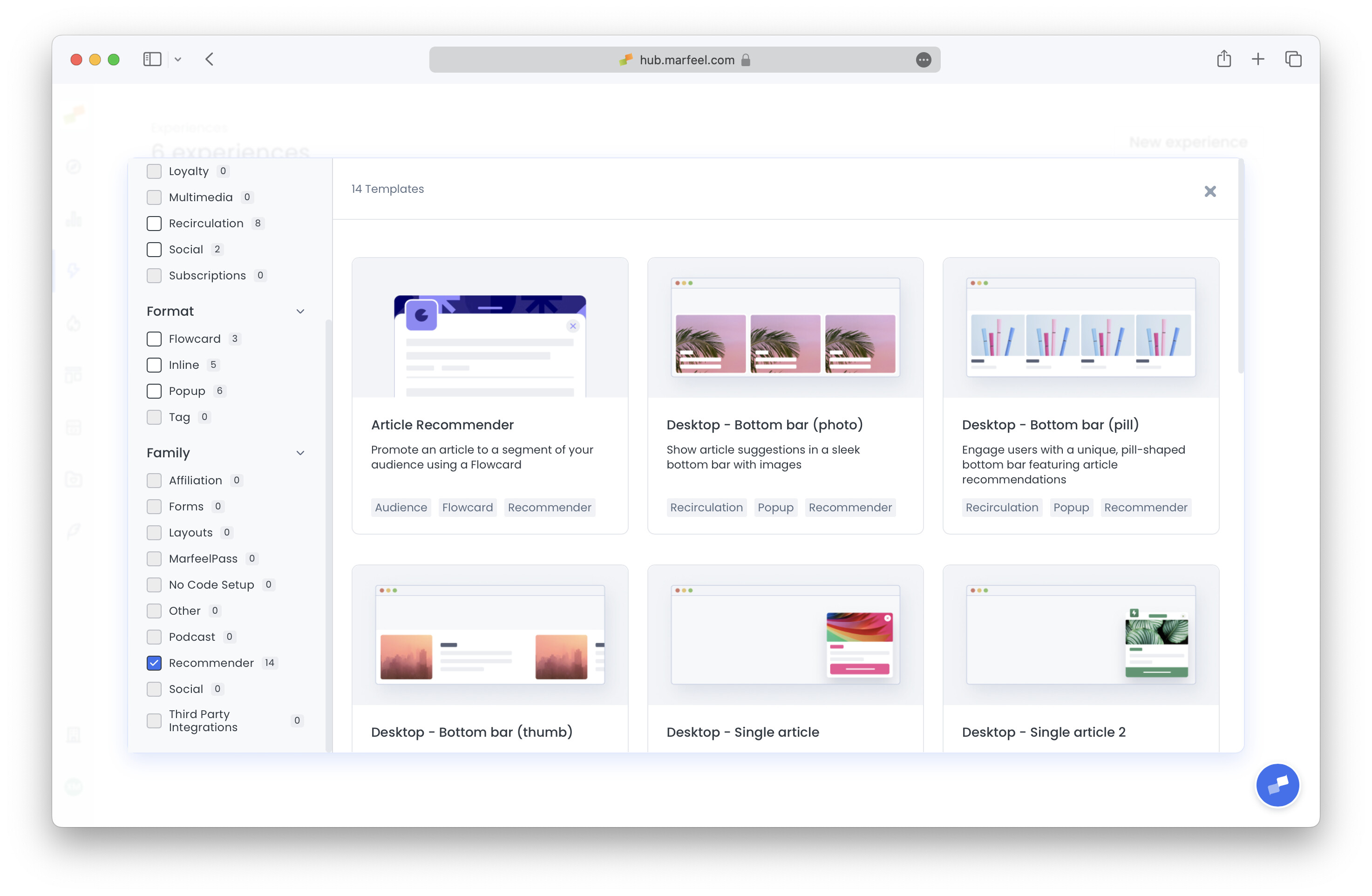
Once you have selected the template you want to start with, the experience edition screen shows up. You can configure all the experiences common options here (Format, Targeting, and Delivery). Recommender specific options are configured in Content tab.
2. Choose a Ranking Profile
Section titled “2. Choose a Ranking Profile”Marfeel offers several pre-configured recommender engines, each designed to prioritize different ranking signals. Selecting the appropriate engine depends on your content strategy and what you aim to achieve.
Available Recommenders
Section titled “Available Recommenders”- Simple rankers, no usage of Ranking Signals
- Algorithm based rankers, different weightings of all Ranking Signals
- Popular: Prioritizes articles with high traffic while also factoring in engagement and other signals. Read more.
- Trendy : Showcases articles with a sharp increase in traffic over short periods. Read more.
- Similar : Recommends articles closely related to the one being viewed. Read more.
- Highest CTR : Surfaces articles that have performed well in terms of click-through rate. Read more.
- Personalized : Tailors recommendations to the user’s interests, preferences, and behavior. Read more.
- Balanced : Provides a balanced recommendation approach, combining all signals without heavily weighting any particular one. Read more.
3. Configure the Time Window Parameter
Section titled “3. Configure the Time Window Parameter”The Time Window parameter defines the period over which the recommender considers traffic data for the Popularity signal. Adjusting this parameter helps you focus on content that is currently popular or has sustained popularity over a longer period.
Options
Section titled “Options”- Short Time Window (e.g., last 24 hours): Highlights content that is currently trending.
- Long Time Window (e.g., last 7 days or month): Includes articles that have sustained popularity.
How to Configure
Section titled “How to Configure”- Decide on the timeframe that aligns with your content strategy.
- Set the Time Window parameter in the recommender’s settings. Example:
For a news site that wants to feature the most current articles, set the Time Window to the last 24 hours.
4. Apply Content Restrictions
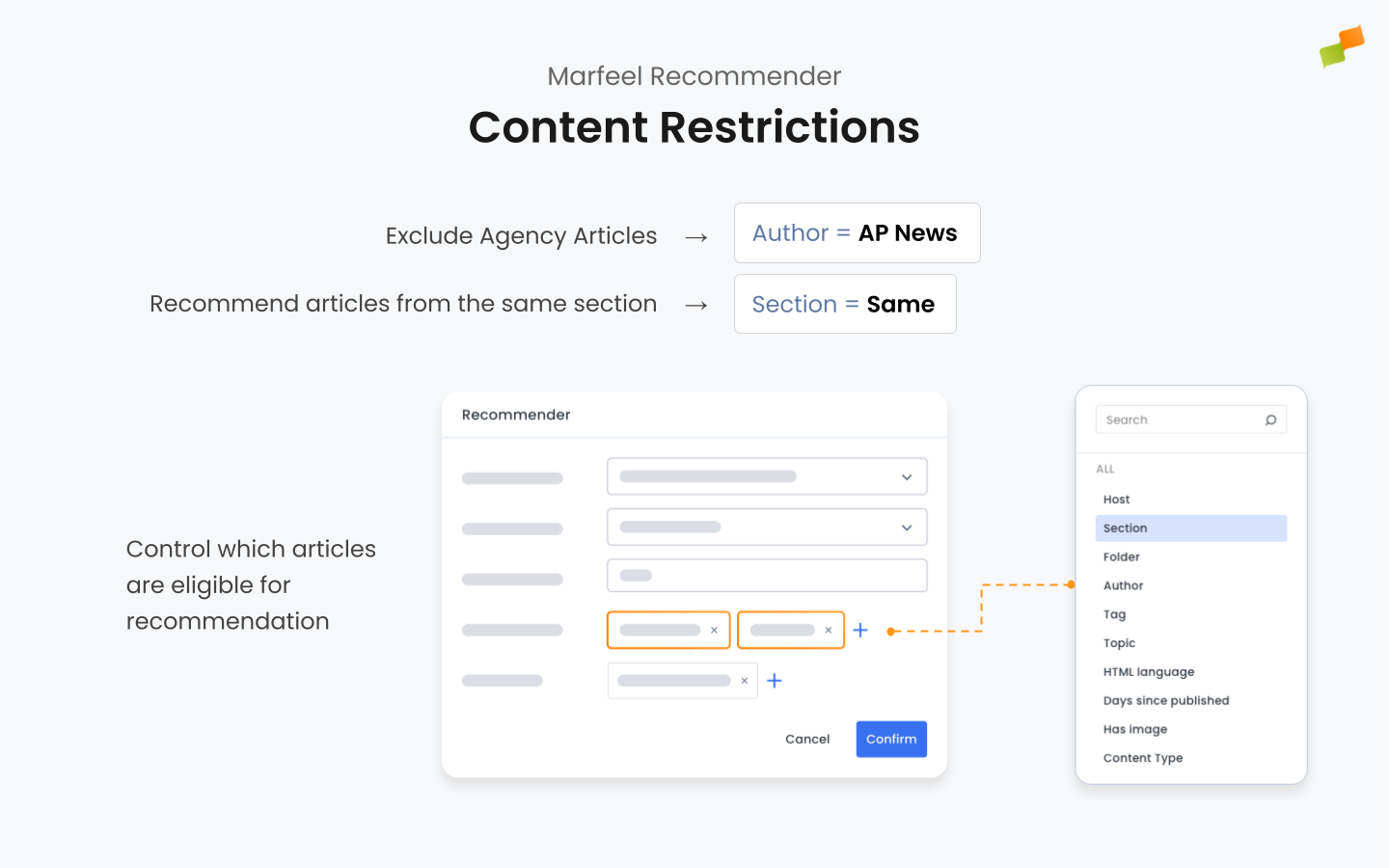
Section titled “4. Apply Content Restrictions”Content Restrictions control which articles are eligible for recommendation. You can restrict recommendations based on various dimensions such as domain, section, author, topics, content type, and more.
Available Restrictions
Section titled “Available Restrictions”- Host : Limit recommendations to articles within the same domain or a specific host. This is ideal for multi-site setups.
- Folder
- Section
- Author
- Topic
- Tag
- HTML Language
- Content Type : New, Recent, Evergreen or Not Editorial.
- Days Since Published : Same as Content Type but with higher precision.
- Has Image : Ensures that only articles with images are recommended, preventing broken images in modules that display thumbnails. True by default.
- Visibility
- Days since last update
How to Apply Restrictions
Section titled “How to Apply Restrictions”- Same Value : Restrict recommendations to content that shares the same attributes as the current article (e.g., same section, author, or topic).
- Specific Values : Choose specific hosts, sections, authors, etc., to include or exclude. You can use operators:
- Equals : Include articles that match the specified values.
- Not Equals : Exclude articles that match the specified values.
Example 1: Restrict to Same Section
Section titled “Example 1: Restrict to Same Section”To recommend articles from the same section as the current article being read by a user:
- Set the Section filter to Same Value.
Example 2: Exclude Specific Authors
Section titled “Example 2: Exclude Specific Authors”If you want to exclude articles by certain authors (i.e. News Agencies):
- Set the Author filter to Not Equals and specify the authors to exclude.
Fallback Mechanism
Section titled “Fallback Mechanism”If the number of articles matching your restrictions is fewer than requested, the recommender removes some restrictions to fulfill the request. The filters are removed sequentially in the following order:
- Publish Time
- Tags
- Topics
- Authors
- Sections
- HTML Language
Bear in Mind:
Marfeel Recommender will not recommend articles below a certain traffic threshold, deeming them as not relevant. For an article to be considered relevant enough to be recommended, it needs to fulfill any of the following minimum conditions.
- 50 visits during last 7 days
- 10 visits during last hour
- 5 visits during last 5 minutes
5. Configure the Ranking CTR Signal
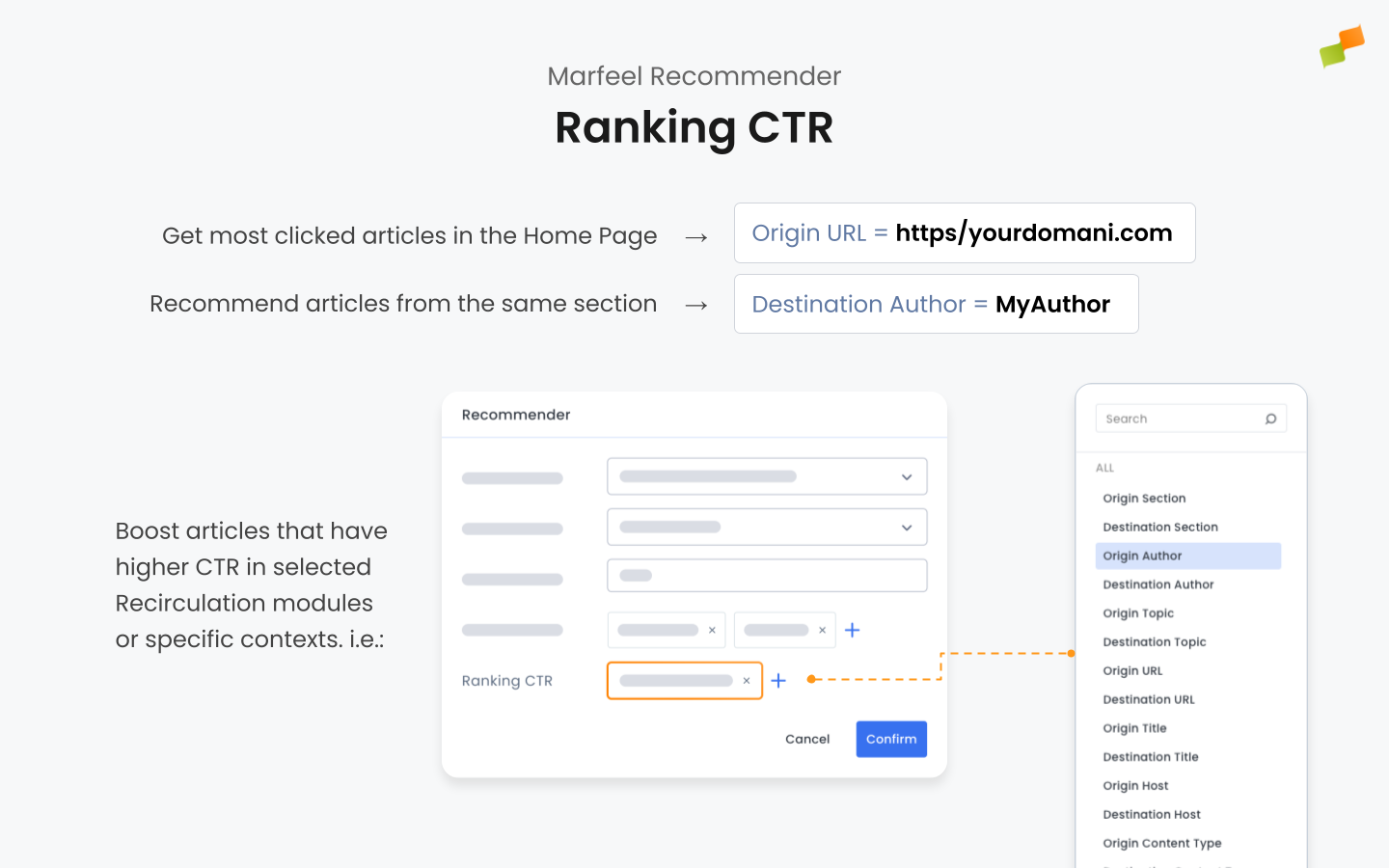
Section titled “5. Configure the Ranking CTR Signal”The Ranking CTR (Click-Through Rate) signal evaluates how well articles perform based on user clicks in recirculation modules or specific contexts. Configuring this signal boosts articles with higher engagement, making your recommendations more effective. This matters because:
- Articles with higher CTRs are proven to attract user interest.
- Focusing on CTR can increase overall engagement and click-through rates.
Warning
This is an advanced configuration parameter. Most of the times using Module Name = same is the desired option. It gets specially useful for reordering modules.
You can specify which CTR data the recommender should use by setting filters based on all the dimensions supported by Marfeel Recirculation module like module Name, origin and destination URL, Author or Section among others. For additional options that are not available in the UI, see the advanced configuration reference.
Using Module Name
Section titled “Using Module Name”Boost articles with higher CTR in the same recirculation module: the recommender will consider the CTR of articles within the same module, promoting those with higher CTR.
- Set Module Name to Same Value (
Module Name = same).
If you have a recirculation module named “Related Articles” on your article pages, setting Module Name = Related Articles will prioritize articles that have performed well in that specific module.
Using Origin URL to promote most clicked articles in the Home Page
Section titled “Using Origin URL to promote most clicked articles in the Home Page”Recommend articles with the highest CTR from a specific origin page: the recommender will prioritize articles that have the highest CTR when users navigate from the specified origin URL.
To recommend articles that have the highest CTR from the homepage:
- Set
Origin URL = homepage.
This configuration will boost articles that users frequently click on when visiting your homepage.
Using Destination Author
Section titled “Using Destination Author”Recommend articles with the best CTR for a specific author. The recommender will promote articles that have high CTR and are authored by the specified author.
If you want to recommend articles with the best CTR from the same author as the current article:
- Set
Destination Author = author.
This will prioritize articles written by the same author that have performed well in terms of CTR.
Troubleshooting
Section titled “Troubleshooting”A new article does not appear in recommendations yet
Section titled “A new article does not appear in recommendations yet”Newly published articles are not available for the recommender immediately. They first need to be ingested into Marfeel’s content pool, which takes a few minutes after publication in your CMS.
If an article still does not appear after ingestion, check in this order:
- Whether it meets the minimum traffic conditions.
- Whether your active Content Restrictions (especially
Days Since PublishedandDays since last update) exclude it. - Whether the Fallback Mechanism is removing other restrictions before the one you expected, causing older content to surface in its place.
What ranking profiles are available in Marfeel Recommender?
Marfeel Recommender offers simple rankers (Most Read, Latest, Oldest) and algorithm-based rankers (Popular, Trendy, Similar, Highest CTR, Personalized, Balanced) that use different weightings of ranking signals.
How does the fallback mechanism work for content restrictions?
If the number of articles matching your restrictions is fewer than requested, the recommender removes filters sequentially in this order: Publish Time, Tags, Topics, Authors, Sections, HTML Language.
What is the minimum traffic threshold for articles to be recommended?
An article must meet at least one of these conditions: 50 visits during the last 7 days, 10 visits during the last hour, or 5 visits during the last 5 minutes.