

Marfeel Recommender: Build and customize layouts
Recommender layouts control how article recommendations appear across your site. Each layout combines an HTML template, a CSS template, and configurable properties to render recommendations as inline modules, sliders, flowcards, or custom formats. Layouts follow the same template engine architecture as other Marfeel layouts.
Layout Anatomy
Section titled “Layout Anatomy”Every Recommender layout consists of three components:
| Component | Purpose |
|---|---|
| HTML Template | Structure and content placement. Uses Trimou templating to iterate over recommendations and display article data. |
| CSS Template | Visual styling. Also uses Trimou templating to inject colors, fonts, and configurable properties. |
| Layout Properties | Configurable variables that make layouts reusable across different experiences. |
Layout Configuration
Section titled “Layout Configuration”Create your layout in the Layout Editor header:
| Setting | Options | Description |
|---|---|---|
| Type | Recommender | Must be “Recommender” for recommendation experiences |
How Values Get Filled
Section titled “How Values Get Filled”Layouts declare Layout Properties, but values come from the experience that uses the layout:
Experience Settings → Layout Properties (defaults)Experience-level settings take precedence over layout defaults. This lets you configure the same layout differently across experiences.
Template Data
Section titled “Template Data”Recommendations Array
Section titled “Recommendations Array”Recommendations are injected as JSON during rendering. Each recommendation contains article data:
{ "recommendations": [ { "title": "Article title", "url": "https://domain.com/path/to/article.html", "img": "https://domain.com/path/to/image.jpg", "authors": ["Author 1", "Author 2"], "sections": ["Section"], "tags": ["Tag1", "tagGroup:Tag2", "Tag3"], "publishTime": "2024-12-26 17:01:03", "updateTime": "2024-12-26 17:05:13", "visibility": "open", "feedId": 0, "feedName": "Similar Articles", "customProperties": { "og:title": "Article title", "og:description": "Article description", "og:image": "https://domain.com/path/to/image.jpg" } }, ... ]}| Property | Description |
|---|---|
{{title}} | Article headline |
{{url}} | Article URL |
{{img}} | Featured image URL |
{{authors}} | Array of author names |
{{sections}} | Array of section/category names |
{{tags}} | Array of tags |
{{publishTime}} | Publication date (ISO format) |
{{updateTime}} | Last modification date (ISO format) |
{{visibility}} | Access level: open or hard-paywall |
{{feedId}} | Feed index (starts at 0). Only for multi-feed. |
{{feedName}} | Feed display name. Only for multi-feed. |
Custom Fields
Section titled “Custom Fields”When Custom Fields are synced to Recommender, additional article metadata becomes available under {{customProperties.<name>}}. See Custom Fields in Recommender Layouts for usage examples including excerpts, custom thumbnails, alt text, and premium badges.
By default, og:title, og:description and og:image are exposed as Custom Fields.
Layout Properties
Section titled “Layout Properties”Reference Layout Properties with {{layoutProps.<key>}}. See Layout Editor for how to create and configure Layout Properties.
HTML Templating
Section titled “HTML Templating”Base Structure
Section titled “Base Structure”Iterate over recommendations using the {{#recommendations}} block:
<section class="recommender-module"> <ul> {{#recommendations}} <li> <a href="{{url}}"> <img src="{{img}}" alt="{{title}}" /> <h2>{{title}}</h2> </a> <span class="section">{{sections.0}}</span> </li> {{/recommendations}} </ul></section>{{#recommendations}} at some point. Access Array Elements
Section titled “Access Array Elements”Use dot notation with index numbers (zero-indexed):
{{sections.0}} <!-- First section -->{{authors.0}} <!-- First author -->Iteration Properties
Section titled “Iteration Properties”Access metadata about the current position in the loop:
| Property | Description |
|---|---|
iter.index | Current position (starts at 1) |
iter.position | Current position (starts at 0) |
iter.isFirst | True if first item |
iter.isLast | True if last item |
iter.hasNext | True if more items follow |
{{#recommendations}} <article class="{{#if iter.isFirst}}featured{{/if}}"> <h2>{{title}}</h2> </article>{{/recommendations}}Common Patterns
Section titled “Common Patterns”Display Premium Content Indicator
Section titled “Display Premium Content Indicator”Show an icon when visibility is hard-paywall:
{{+premiumIcon}}  {{#if "visibility eq 'hard-paywall'"}}    <img src="https://domain.com/premium-icon.svg" alt="Premium" />  {{/if}}{{/premiumIcon}}
{{#recommendations}}<article>  <a href="{{url}}">    <h2>{{{>premiumIcon}}}{{title}}</h2>  </a></article>{{/recommendations}}
Format Publish Dates
Section titled “Format Publish Dates”Use datetime helpers for different formats:
{{timeFormat publishTime pattern="MMM dd"}} <!-- Jul 09 -->{{timeFormat publishTime pattern="hh:mm a"}} <!-- 08:35 AM -->{{prettyTime publishTime}} <!-- 15 minutes ago -->{{prettyTime publishTime locale='es'}} <!-- Hace 15 minutos -->See Templating Syntax for full datetime formatting reference.
Build Author/Section URLs
Section titled “Build Author/Section URLs”Use expression language to construct URLs from author or section names:
{{+authorUrl}}  {{#set author=this}}    {{#setEl i="author.toLowerCase().replace(' ', '-')"}}      https://domain.com/authors/{{i}}.html    {{/setEl}}  {{/set}}{{/authorUrl}}
{{#recommendations}}<article>  <h2><a href="{{url}}">{{title}}</a></h2>  {{#authors}}    <a href="{{>authorUrl}}">{{this}}</a>  {{/authors}}</article>{{/recommendations}}
Optimize Image Sizes
Section titled “Optimize Image Sizes”Full-size images can hurt performance. Use expression language to modify image URLs for your CDN:
{{#setEl i="img.split('?')[0]"}}{{i}}?width=240{{/setEl}}This transforms https://domain.com/image.jpg?width=1200 into https://domain.com/image.jpg?width=240.
Render different content per feed
Section titled “Render different content per feed”When an experience uses multiple feeds, use feedId to render different headings or layouts for each feed’s articles:
{{#recommendations}} {{#if "feedId eq 0"}} {{#if "iter.isFirst"}}<h3>Related Articles</h3>{{/if}} {{/if}} {{#if "feedId eq 1"}} {{#if "iter.isFirst"}}<h3>Trending Now</h3>{{/if}} {{/if}} <a href="{{url}}"> <img src="{{img}}" alt="{{title}}"> <span>{{title}}</span> </a>{{/recommendations}}For string-based branching, use isEq (see Templating Syntax)
{{#isEq feedName "Opinion"}}...{{/isEq}}
Layout Generation with Copilot
Section titled “Layout Generation with Copilot”Marfeel Copilot can generate a Recommender layout based on an existing module from your site:
- In the Layout Editor preview, use the HTML element picker (top left)
- Select the element you want to copy. Use breadcrumbs to target parent elements if needed
- Click Generate > Layout in the bottom right dialog
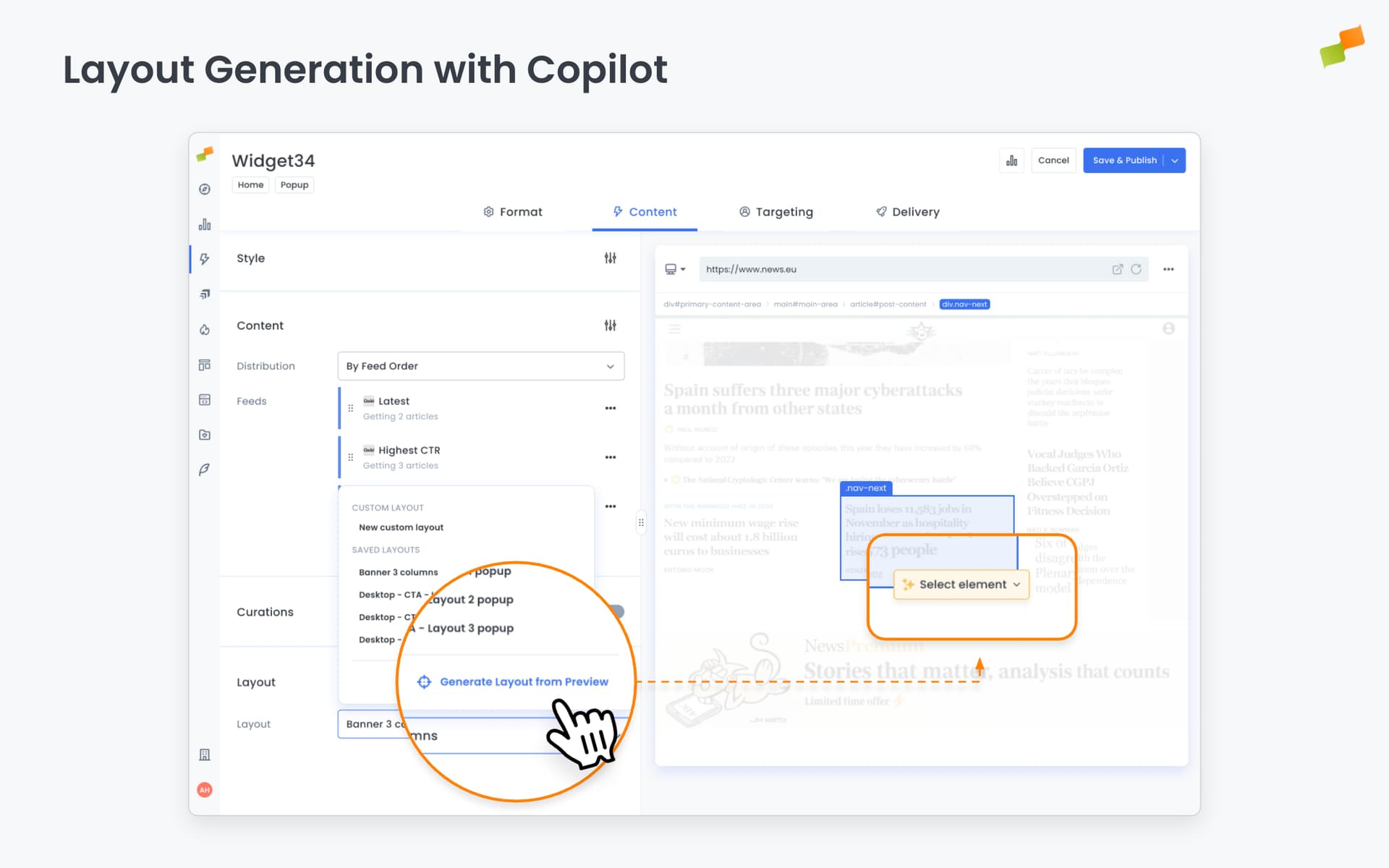
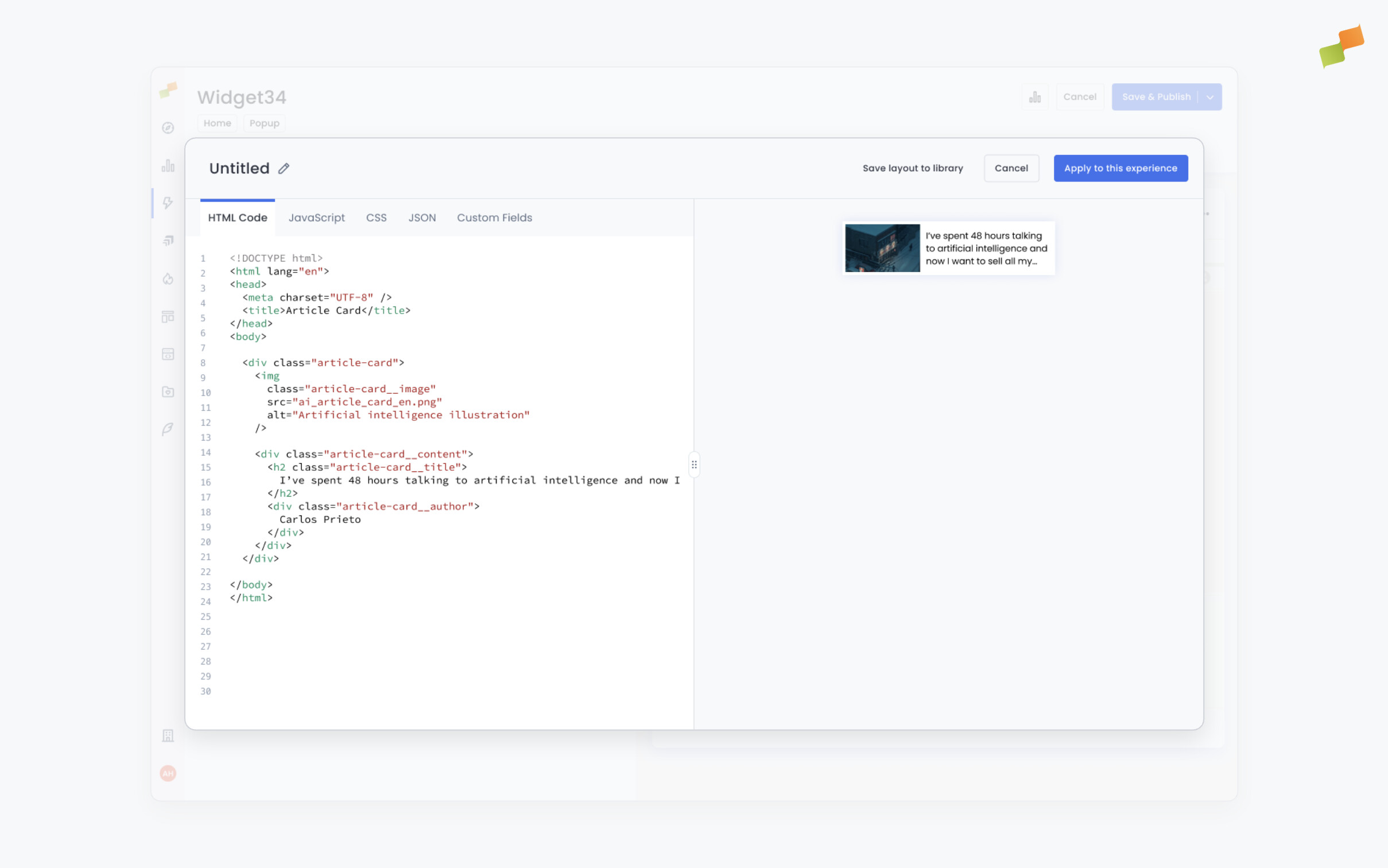
The suggested layout appears in a popup with a dedicated preview. Refine it before applying as a Custom Layout.
Default Layouts
Section titled “Default Layouts”Marfeel provides pre-built layouts so you don’t need to start from scratch.
Flowcard Layouts
Section titled “Flowcard Layouts”Recommender Flowcard List is a full-featured layout with configurable:
- Section and author colors
- Pill frequency (e.g., show pill every 4th article)
- Ad unit integration (slot, position, density, dimensions)
- Multi-size ad formats
- Google Analytics tracking
Inline Module Layouts
Section titled “Inline Module Layouts”- List of Thumbs — Thumbnail grid
- List of Text Links — Text-only list
- Block of Thumbs — Compact thumbnail block
- Ticker — Scrolling headline ticker
Desktop Layouts
Section titled “Desktop Layouts”Optimized for larger screens (also work on mobile):
- Desktop Single Article
- Desktop Photo Slider
- Desktop Pill Slider
- Desktop Thumb Slider
WhatsApp Layouts
Section titled “WhatsApp Layouts”For WhatsApp channel feed experiences:
- WhatsApp Layout Card
- WhatsApp Layout Inline
Troubleshooting
Section titled “Troubleshooting”Preview shows placeholder content, not my site’s articles
Section titled “Preview shows placeholder content, not my site’s articles”The Layout Editor preview renders using the JSON tab’s example data. To test with real content:
- Open a Recommender experience in edit mode
- Click JSON endpoint in the preview options (top right)
- Copy the response
- Paste into the Layout Editor’s JSON tab
Copied layouts have unwanted attributes
Section titled “Copied layouts have unwanted attributes”When copying HTML from a live page, JavaScript may have already added dynamic IDs, lazy-load markers, or other attributes. Copy HTML with JavaScript disabled to avoid this.
Frequently Asked Questions
Section titled “Frequently Asked Questions”How do I preview a Recommender layout with real article data?
Open a Recommender experience in edit mode, click JSON endpoint in the preview options (top right), copy the response, and paste it into the Layout Editor’s JSON tab. The Layout Editor preview renders using the JSON tab’s example data by default.
Can Marfeel Copilot generate a Recommender layout automatically?
Yes. In the Layout Editor preview, use the HTML element picker (top left) to select a module from your site, then click Generate > Layout. Copilot produces a suggested layout with a dedicated preview that you can refine before applying. This is an intensive AI operation that may take up to a minute.
How do layout properties get their values in Recommender?
Layouts declare layout properties with default values, but the experience that uses the layout supplies the final values. Experience-level settings take precedence over layout defaults, so you can configure the same layout differently across multiple experiences.