

Add, edit, delete and disable users
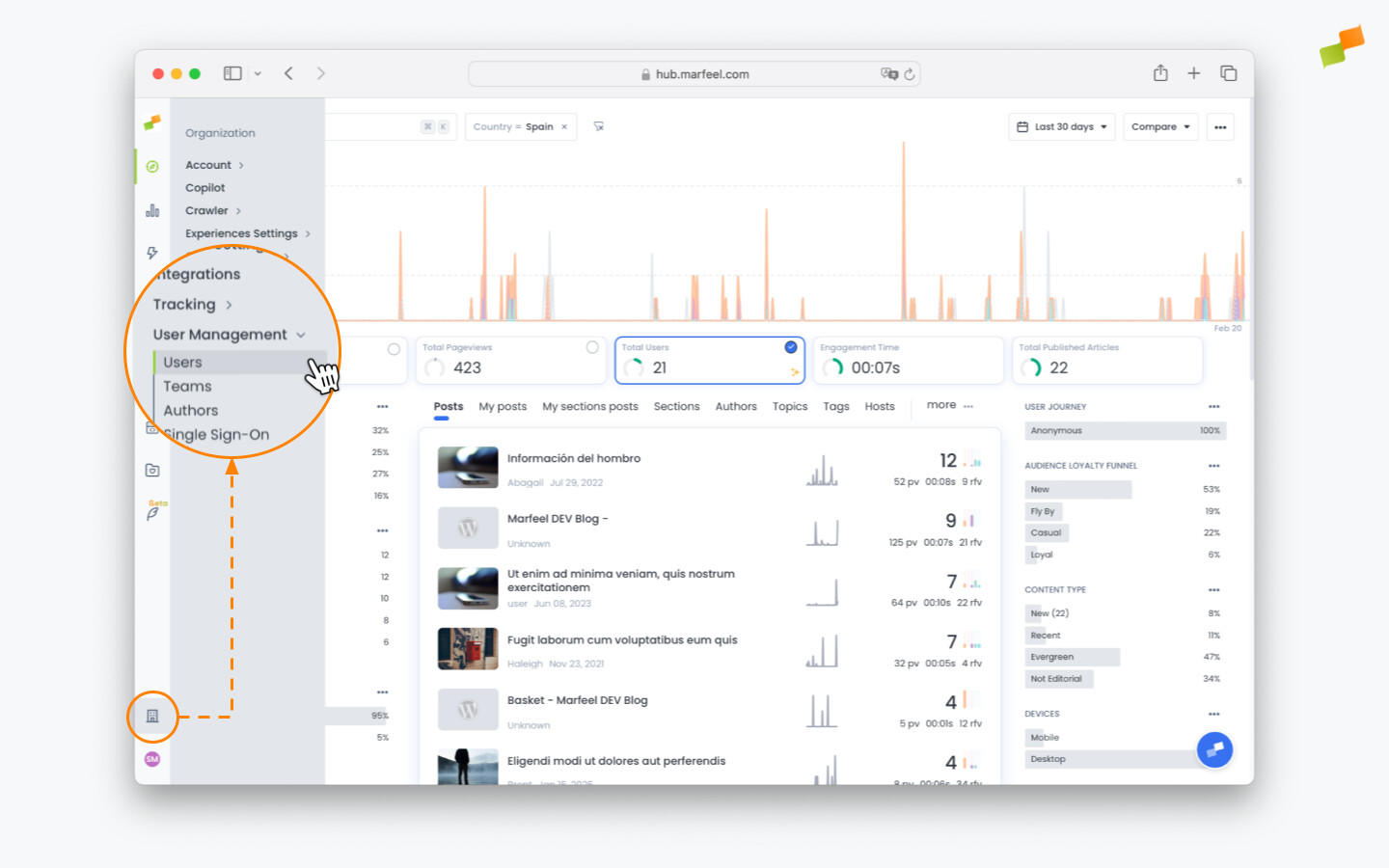
System admins are responsible for creating and assigning the correct level of access to every team member who uses Marfeel. All user creation and management happens through the User Management view, located under the Organization tab.
In this view, users are identified by their email addresses. You can see each user’s assigned roles, name, and the date they last logged in.
Add users
Section titled “Add users”All Marfeel paid plans allow unlimited users. Everyone in your organization should have access to the same source of truth and be data informed.
To add a new user to an account, follow the steps below. Find the definition for each role in User Access Roles.
-
Click on Users
-
Click on
Invite new usersin the top-right corner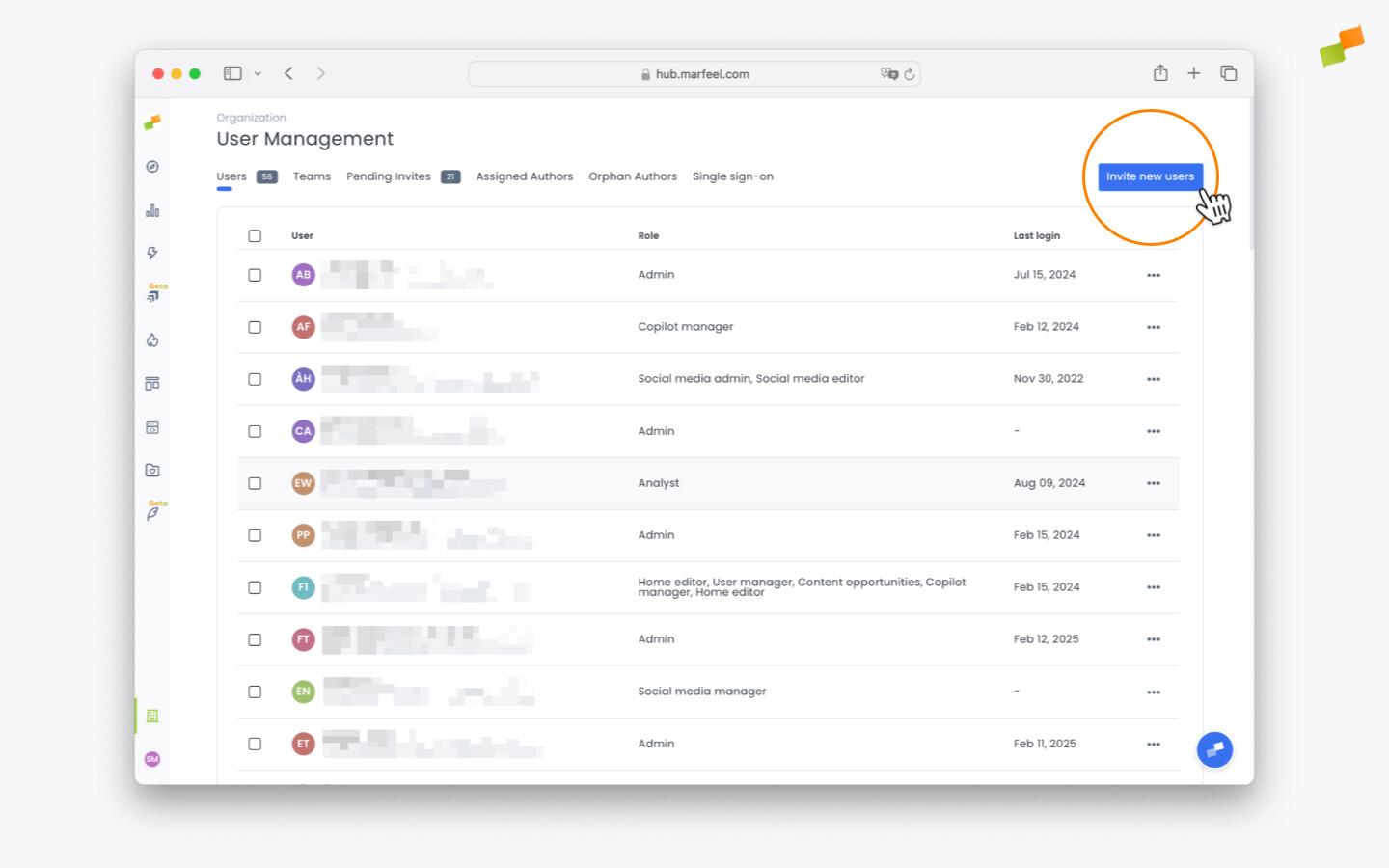
-
Add the email of the team member you want to invite
-
Separate multiple emails with a space
-
Select one or multiple roles for the user
Newly invited users will receive an invitation email and will be listed as Pending users until they log in for the first time.
For bulk provisioning, consider organizing users into Teams so they inherit shared roles and data restrictions automatically.
Resend an invitation
Section titled “Resend an invitation”If an invited user doesn’t receive the email, ask them to check their spam or junk folder first, and verify they haven’t unsubscribed from Marfeel notifications. If it’s not there, go to Pending Invites, find the user, and use the resend option.
Edit users
Section titled “Edit users”Admins and User Managers can change the level of access and permissions for any existing user at any time. See User Access Roles and User Manager for role definitions.
- Click on Users
- Click on the three dots next to the data of last login of the user and select
Edit user.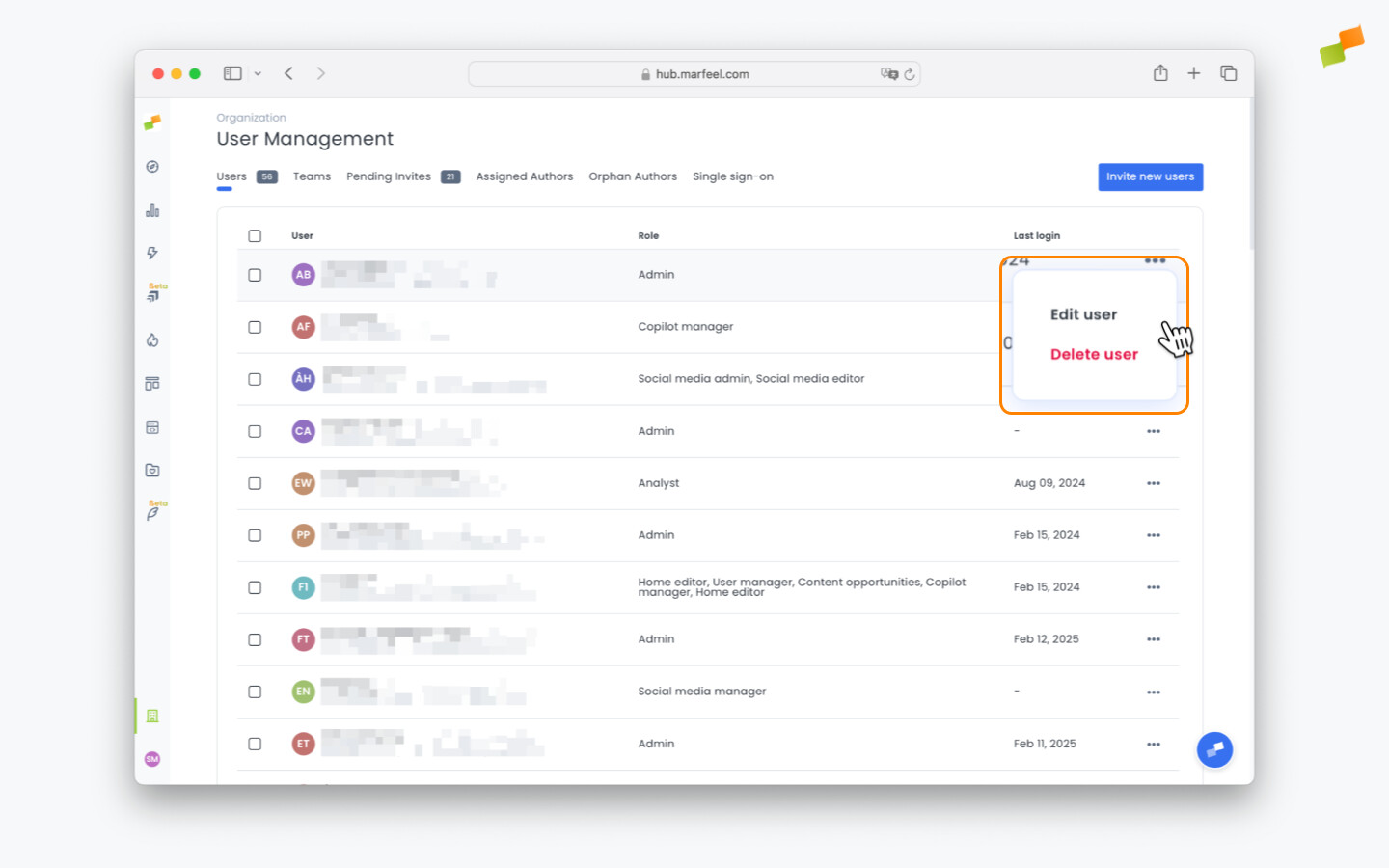
- Select
Permissionsand use the drop-down menus to update the information entered previously. ClickConfirm.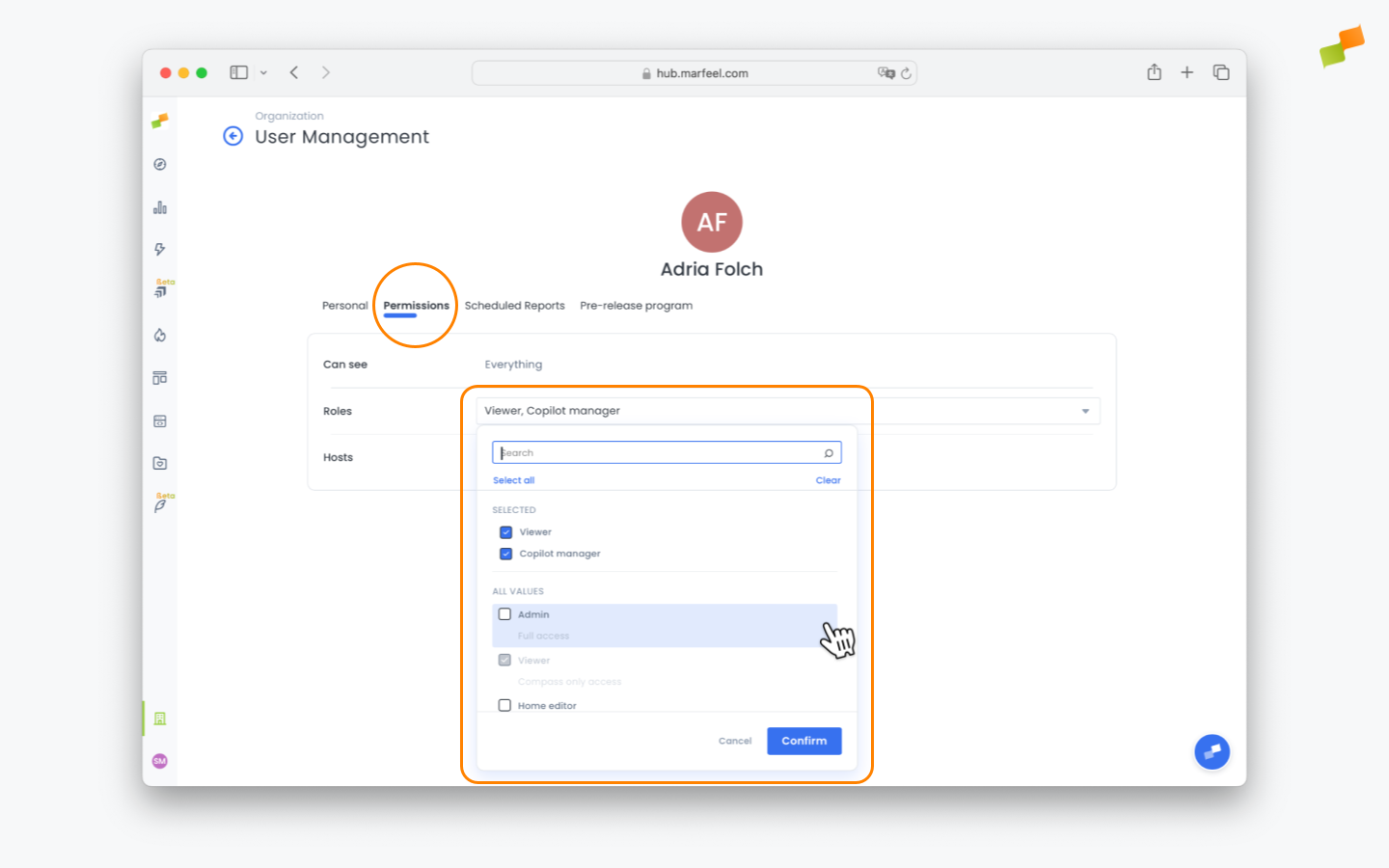
Delete users
Section titled “Delete users”- Click on Users
- Click on the three dots next to the data of last login of the user and select
Delete user.
API users
Section titled “API users”API users are not included in the standard list of Permissions. They must be added manually by submitting a request via chat or your account manager. Once an API user is created, admins can manage their access like any other user, including restricting their level of data access.
Disable users
Section titled “Disable users”Disabling a user prevents them from logging in to any Marfeel account they belong to, while keeping their workspace setup and role configuration intact. This is useful for temporary deactivation, security concerns, or when someone leaves the organization but you want to retain their configuration for easy restoration later.
To disable a user:
- Click on
User Management - Click the three dots next to the user’s last login
- Select
Disable user
Disabled users are visibly marked in the User Management view and can be re-enabled at any time.
Who can add or modify users in Marfeel?
Only users with the Admin or User Manager role can add, edit, delete, or disable users.
What is the difference between deleting and disabling a user?
Deleting a user permanently removes them from the account. Disabling a user prevents them from logging in while keeping their workspace setup and role configuration intact, making it easy to restore access later.
How do I request an API user in Marfeel?
API users must be added manually by submitting a request via chat or your account manager. Once created, admins can manage their access like any other user, including restricting their level of data access.