

User authentication, login, and session management
Marfeel supports three login methods: email and password, Google OAuth, and Microsoft OAuth. If your email address is associated with a Google or Microsoft account, you can use either provider to sign in directly.
For extra security, organizations can force authentication with single sign-on via Google or Microsoft. Enterprise plan users can also configure Okta as an identity provider for centralized access control. When SSO is enforced, users who try to log in with email and password directly (without first selecting Google or Microsoft) receive the error: Your organization forbids your access with username and password
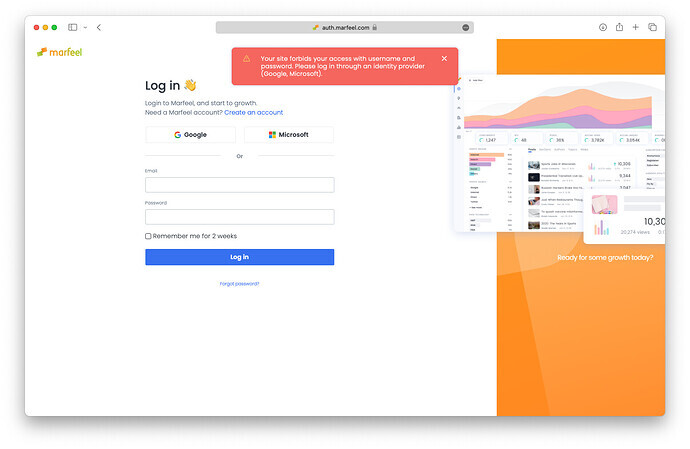
If you receive this error, select Google or Microsoft on the login screen to authenticate through your organization’s SSO provider.
Multi-account users
Section titled “Multi-account users”A single user can belong to multiple organization accounts. This is common for consultants working across different organizations or for organizations that split their properties into separate accounts.
Users can have different access roles and data restrictions per organization.
To switch organizations:
- Open the user profile pop-up in the bottom left corner
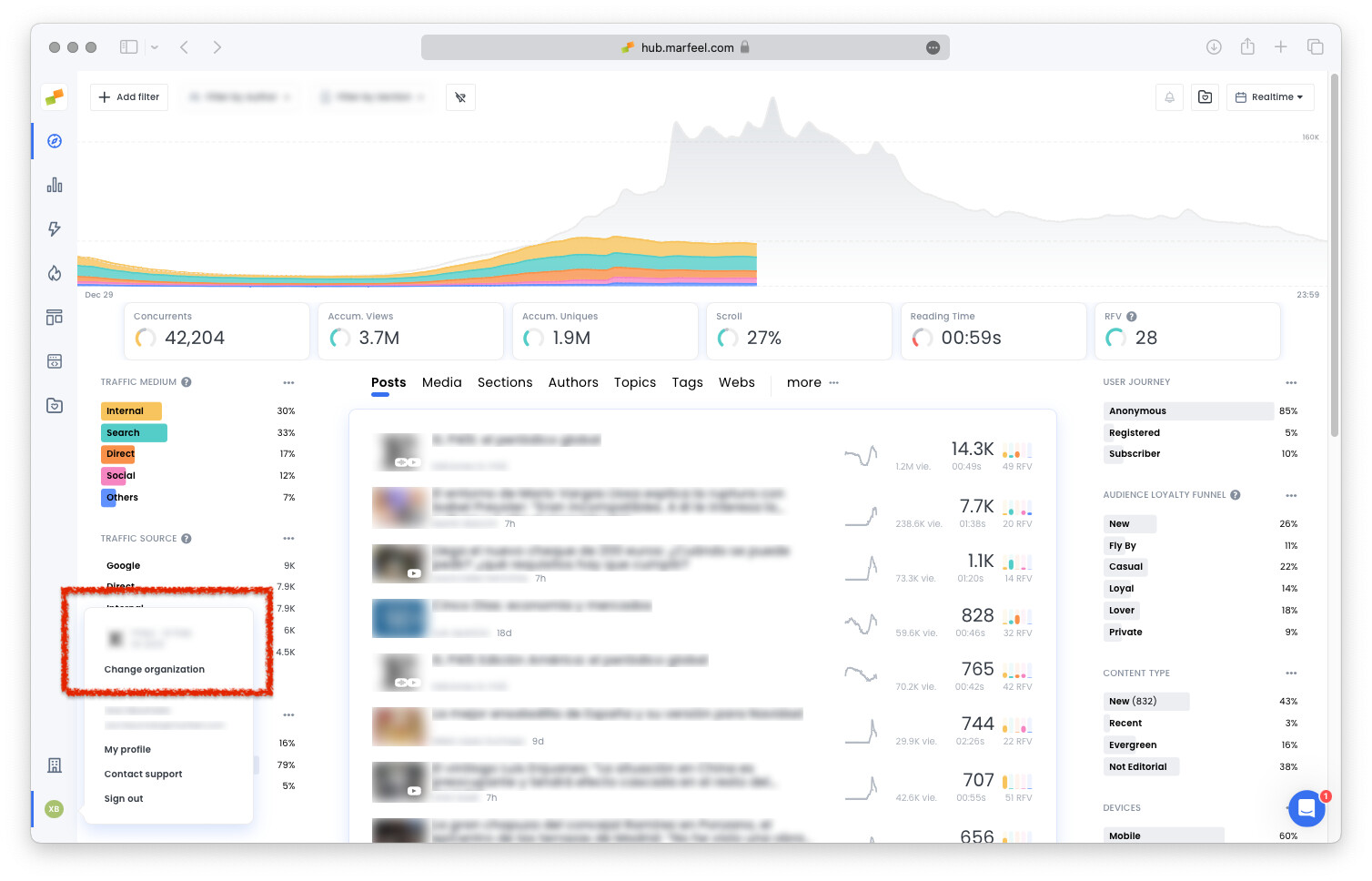
- Click on
Change organization. This option only appears if you have access to multiple accounts. - A pop-up lists the organizations you have access to
- In the search box, type the organization ID, the domain name, or the organization name
Change your password
Section titled “Change your password”Reset your password by clicking the Forgot password link on the login page.
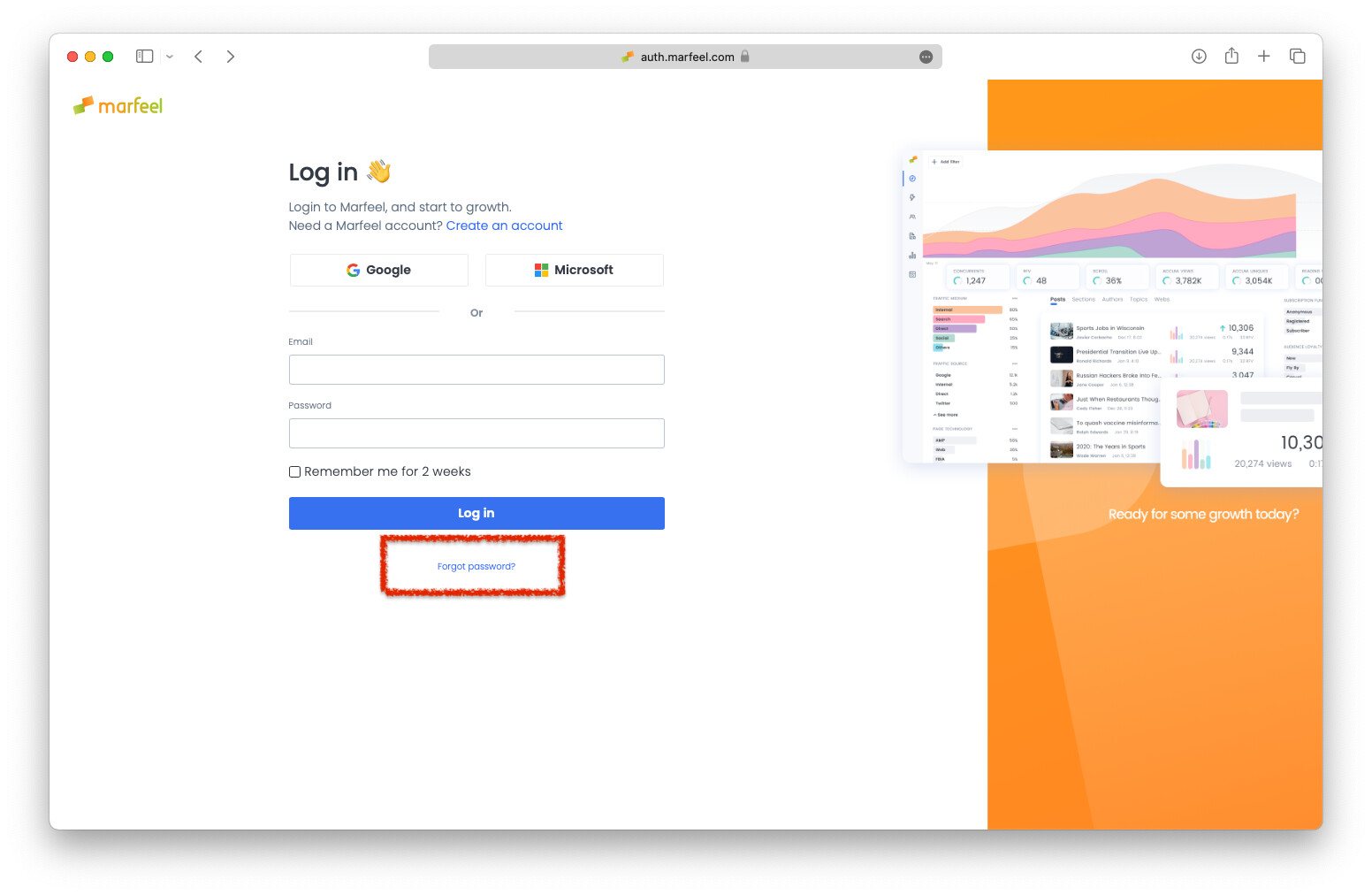
You will receive an email with instructions to reset your password.
Account confirmation and first login
Section titled “Account confirmation and first login”New users receive a confirmation email when an organization admin invites them. The invitation link expires after 7 days. If the link expires, the admin must send a new invitation.
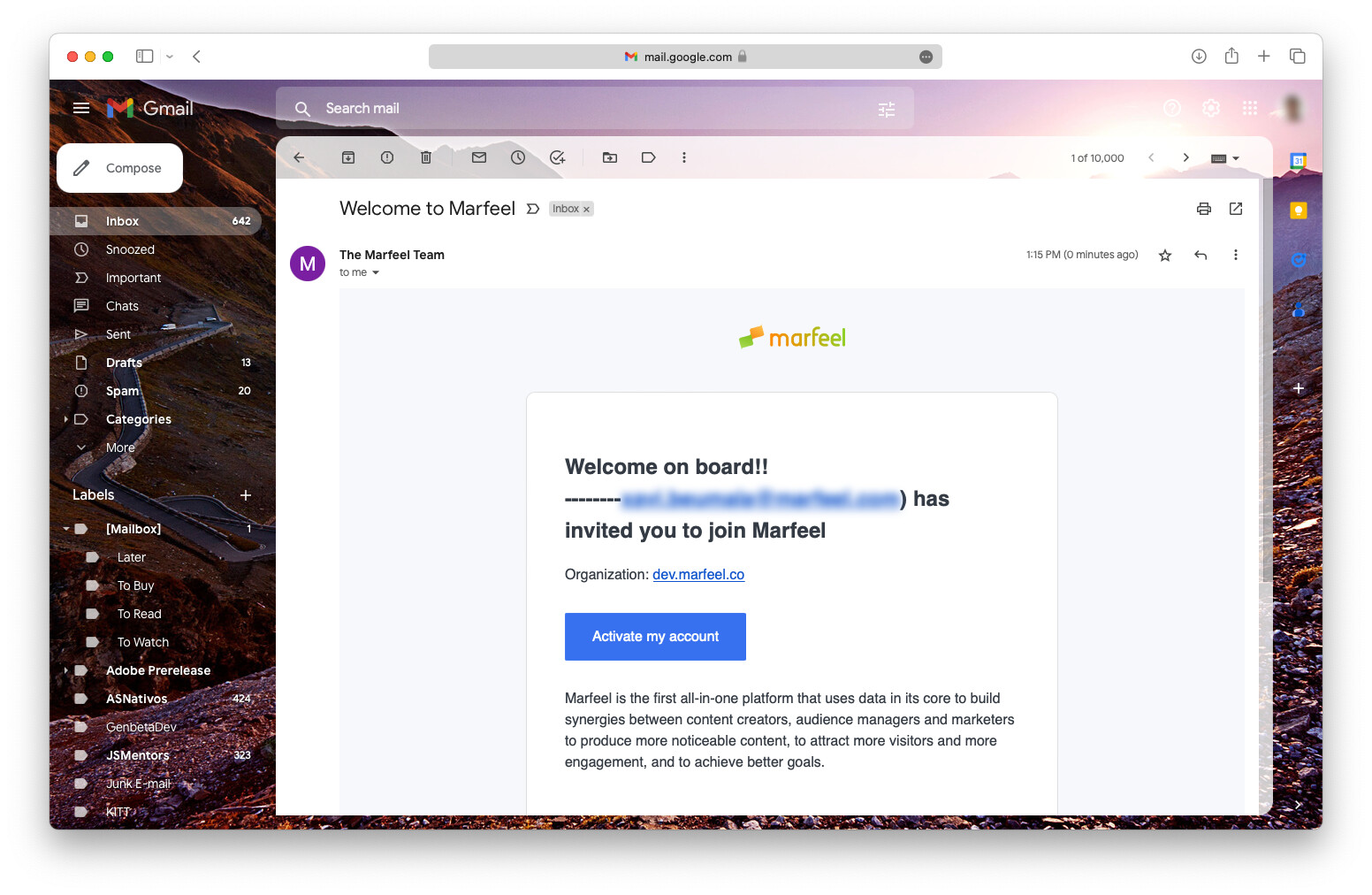
Click Activate my account in the email. You will be prompted to provide:
- Your first name
- Your last name
- Your role at your company
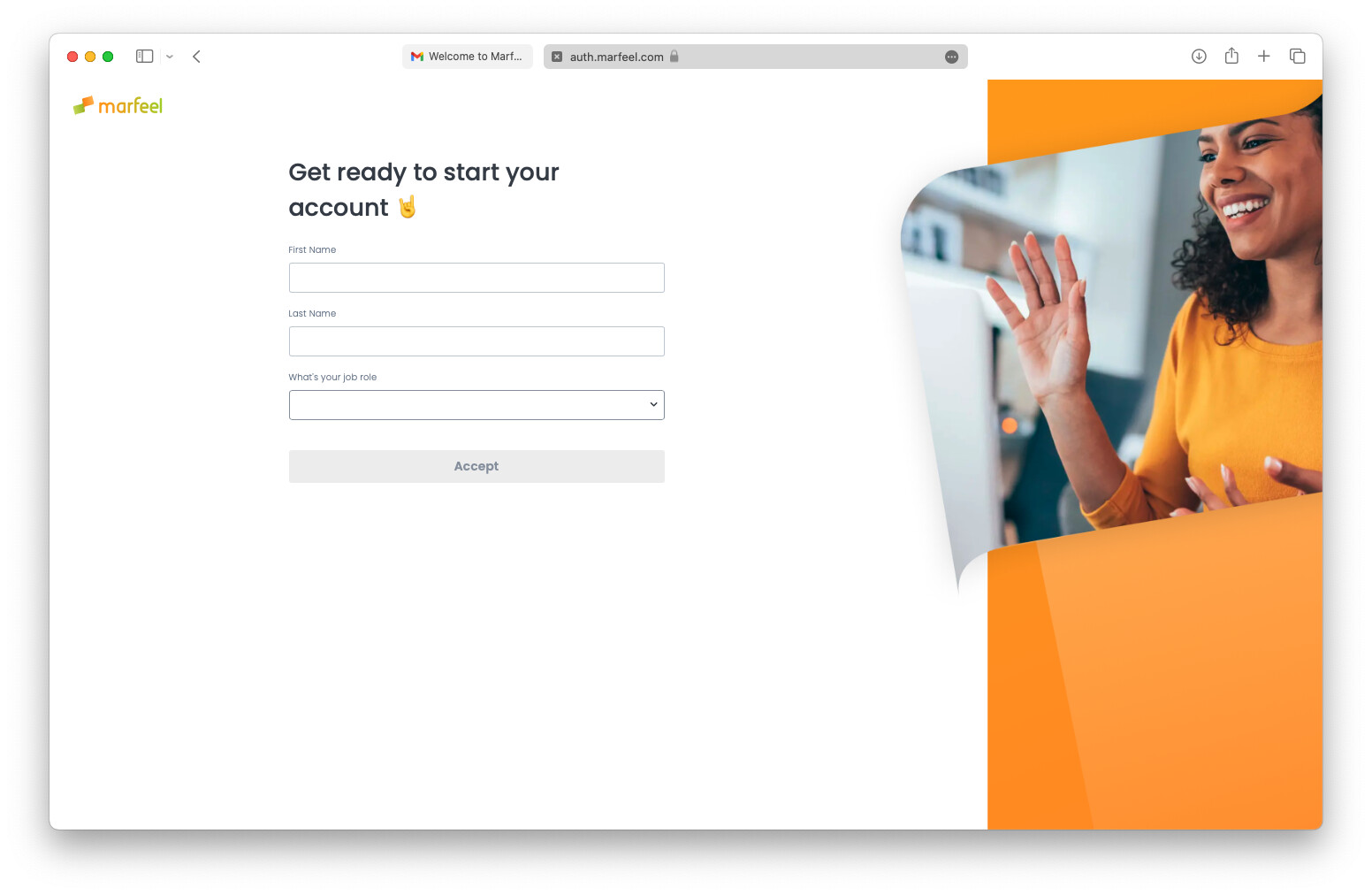
This information personalizes the platform to your needs. Both the user and organization admins can update it at any time from the user profile page.
Session restrictions
Section titled “Session restrictions”User sessions enforce the following security limits and automatically log out users when exceeded:
- Sessions authenticated via Google or Microsoft last 24 hours
- Sessions authenticated via email and password with the
Remember meoption last 14 days - Each user is limited to 5 concurrent sessions to support multiple devices (desktop, laptop, tablet, and phone). Every user should have their own login credentials. Sharing logins is not recommended because it prevents you from managing individual permissions or revoking access when needed.
How do I switch between multiple Marfeel organization accounts?
Open the user profile pop-up in the bottom left corner and click Change organization. A pop-up lists the organizations you have access to. Use the search box to find an organization by ID, domain name, or organization name.
How long do Marfeel login sessions last?
Sessions authenticated via Google or Microsoft last 24 hours. Sessions authenticated via email and password with the Remember me option last 14 days. Each user is limited to 5 concurrent sessions.
How do I reset my Marfeel password?
Click the Forgot password link on the login page. You will receive an email with instructions to reset your password.