

SSO authentication and login settings
Marfeel supports authentication through a securely stored username and password or via Single Sign-On (SSO), which lets users authenticate across multiple applications with one set of credentials.
Google and Microsoft OAuth services work out of the box. Any existing user can log in with a Google or Microsoft account without additional configuration.
For organizations using identity providers like Okta, Marfeel also supports custom SSO integrations on the Enterprise plan.
Login session duration
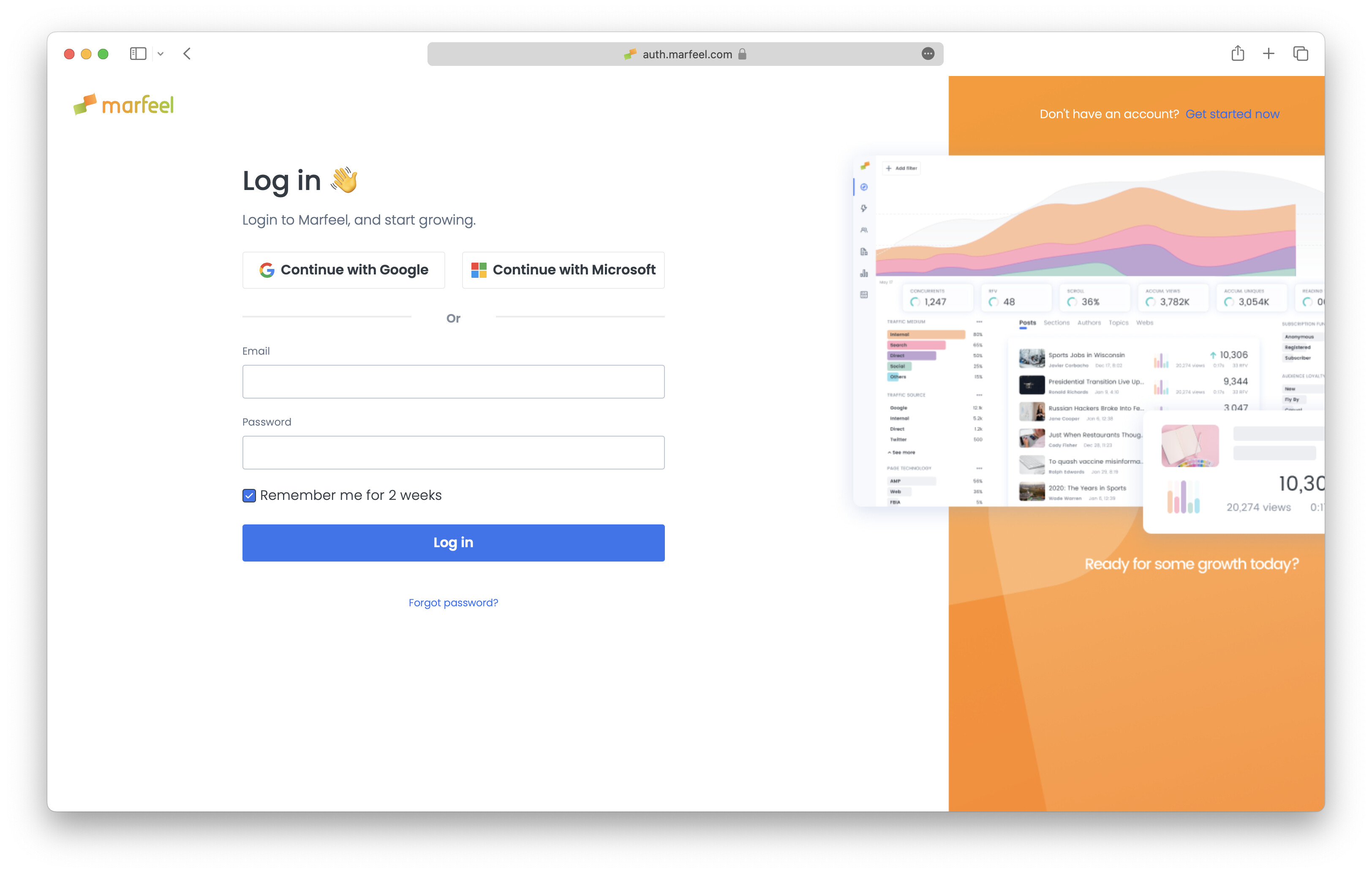
Section titled “Login session duration”Users remain authenticated for 14 days on the same browser by default, regardless of the login method used. When logging in from a non-trusted device, users can limit authentication to the current browser session by deselecting the “Remember me for 2 weeks” checkbox below the login inputs.
Force Single Sign-On (SSO) authentication
Section titled “Force Single Sign-On (SSO) authentication”On the Enterprise plan, Marfeel offers advanced SSO settings that allow admins to force users to log in exclusively using their corporate accounts.
To activate SSO restrictions:
- Click on SSO Integration under Organization settings.
- Define the user email domains that will be forced to log in via Google or Microsoft corporate credentials. For example, in the screenshot below, any user with an email like
user_name@aa.comunder the domainaa.comwill be forced to use SSO authentication.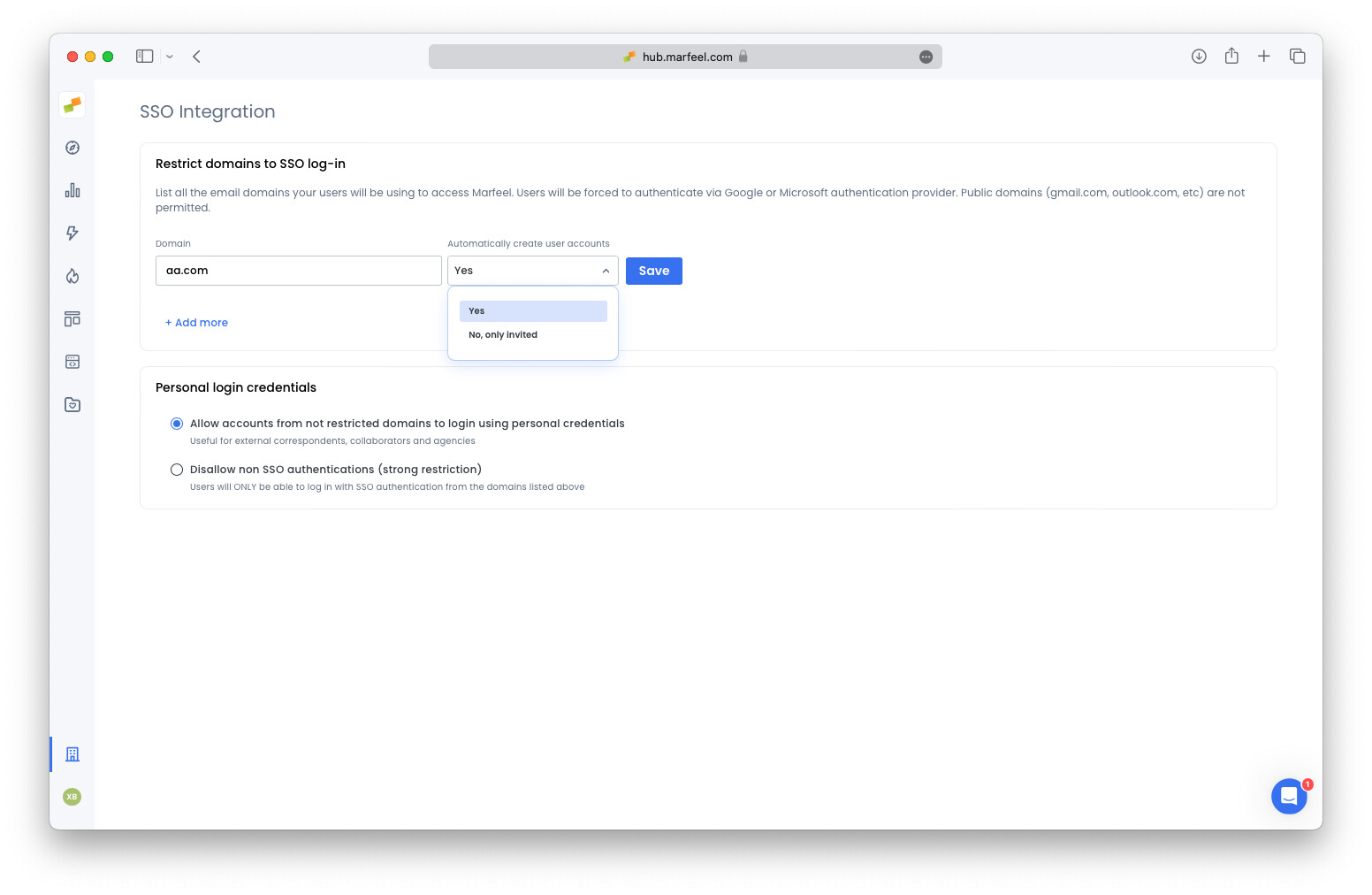
- Decide whether to
Automatically create user accounts:Yes: A Marfeel user will be automatically created for any user that signs in from the specified domain. Automatically created users will be assigned the Viewer role.No, only invited: Only previously added users can log in.
- To force SSO authentication for all users under the specified domains, tick the option
Disallow non SSO authentications. This prevents external users like correspondents or agencies from accessing the platform unless they have a valid corporate account.
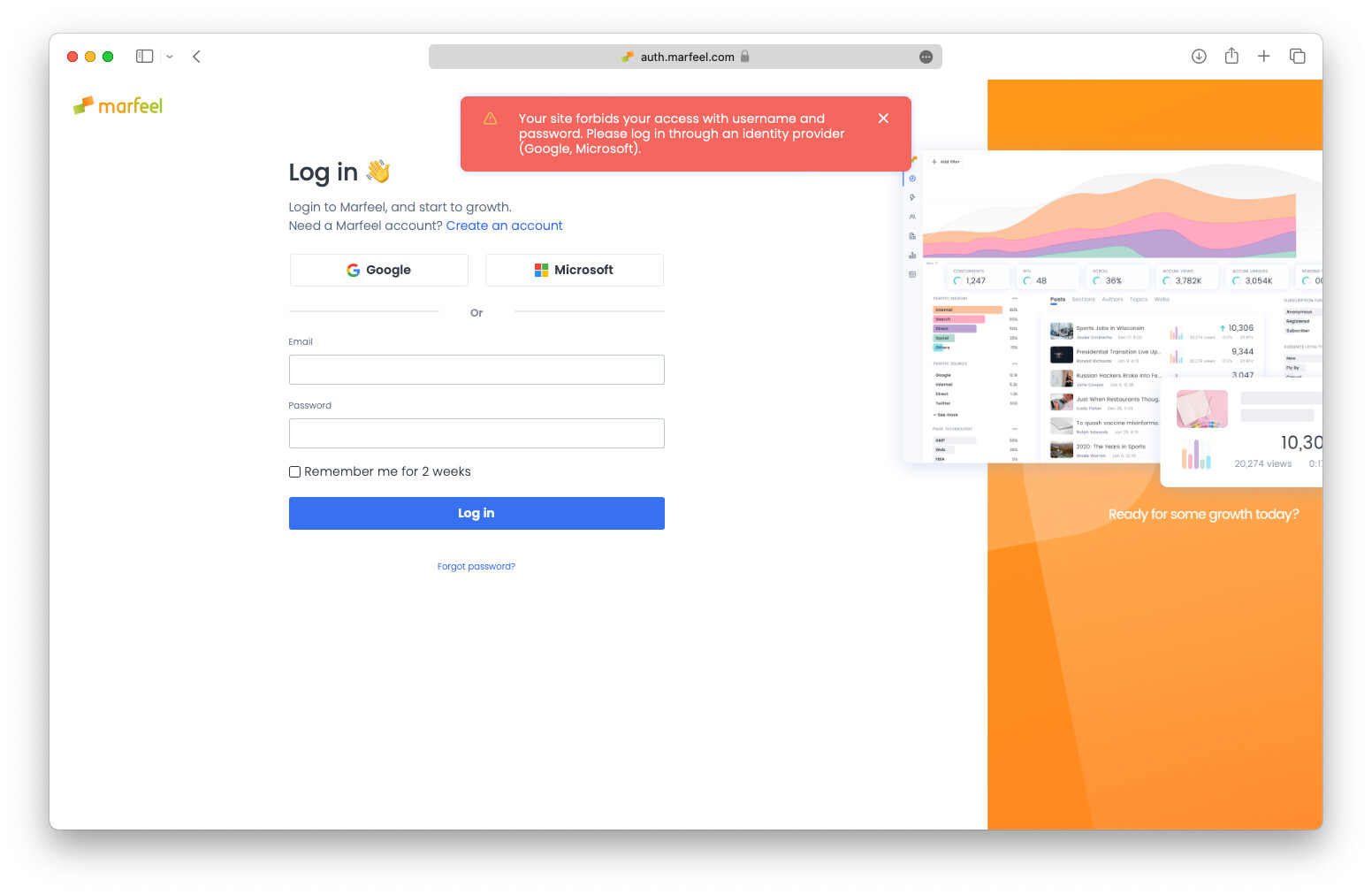
When SSO restrictions are active, if a user tries to log in via username and password, they will receive the following error: Your organization forbids your access with username and password
Microsoft OAuth permissions request
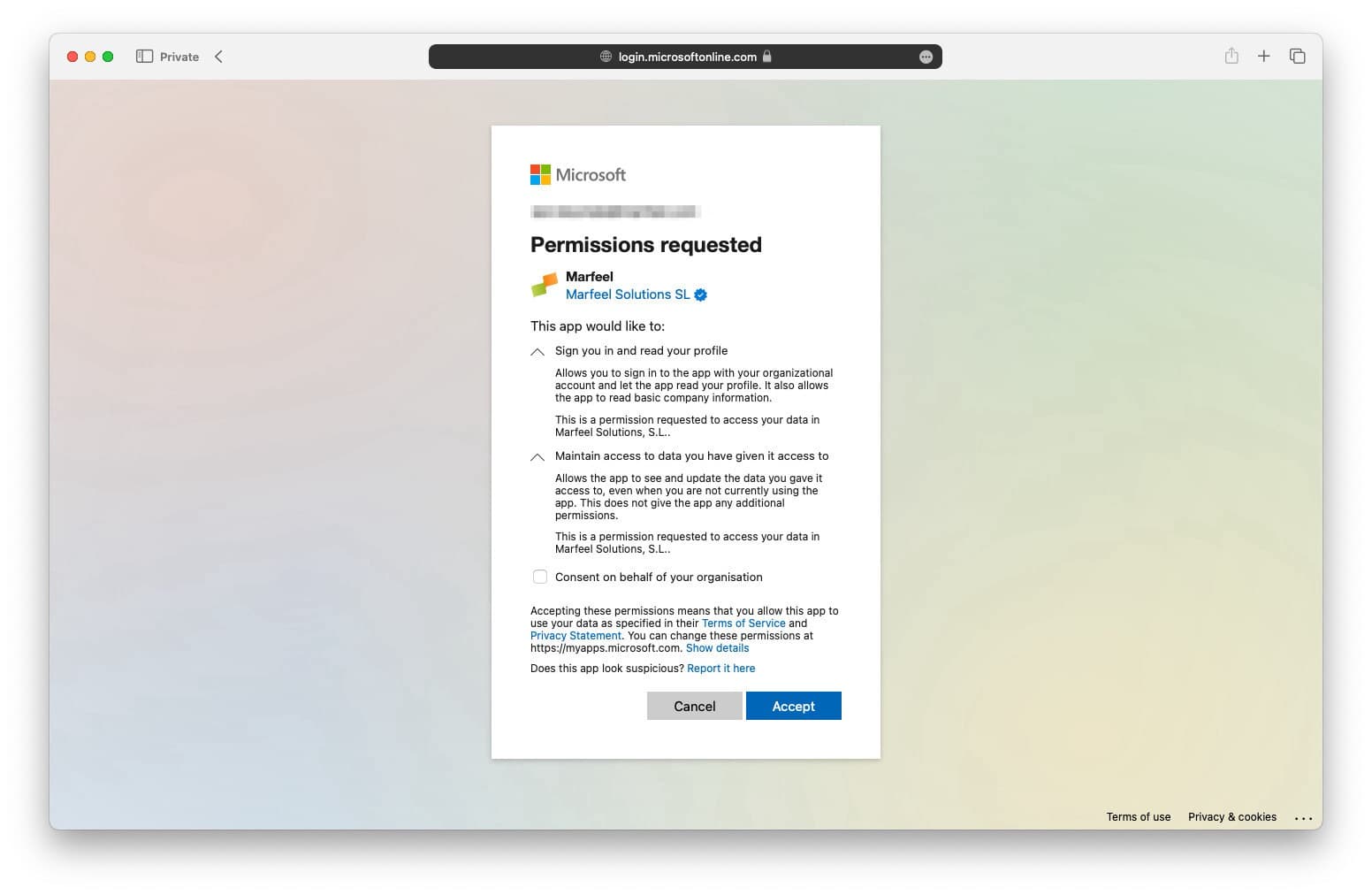
Section titled “Microsoft OAuth permissions request”Depending on the Microsoft organization settings, the first time a user tries to log in using SSO, the IT department that oversees Microsoft OAuth service may need to approve Marfeel.
How long does a Marfeel login session last?
Users remain authenticated for 14 days on the same browser by default, regardless of login method. To limit authentication to the current browser session, deselect the “Remember me for 2 weeks” checkbox at login.
Can I force users to log in only with corporate SSO credentials?
Yes. On the Enterprise plan, admins can define email domains that must authenticate via Google or Microsoft corporate credentials. Enabling the “Disallow non SSO authentications” option blocks username and password login for those domains.
Does Microsoft require IT approval for Marfeel SSO?
Depending on the Microsoft organization settings, the IT department may need to approve Marfeel the first time a user tries to log in using Microsoft SSO.