

Big Screen mode for real-time newsroom dashboards
Big Screen mode displays your most important metrics and KPIs on large newsroom screens in a highly readable, visually appealing format. Teams across the business can spot changes and trends in real time and act on them immediately.
- Improved alignment: Editors align around the critical goals that matter to the business. Everyone sees how their work contributes.
- Increased collaboration: Real-time data on a shared display facilitates teamwork. Teams see events as they happen and respond together.
- Serendipity: Patterns and connections in the data surface naturally when the whole team can see them.
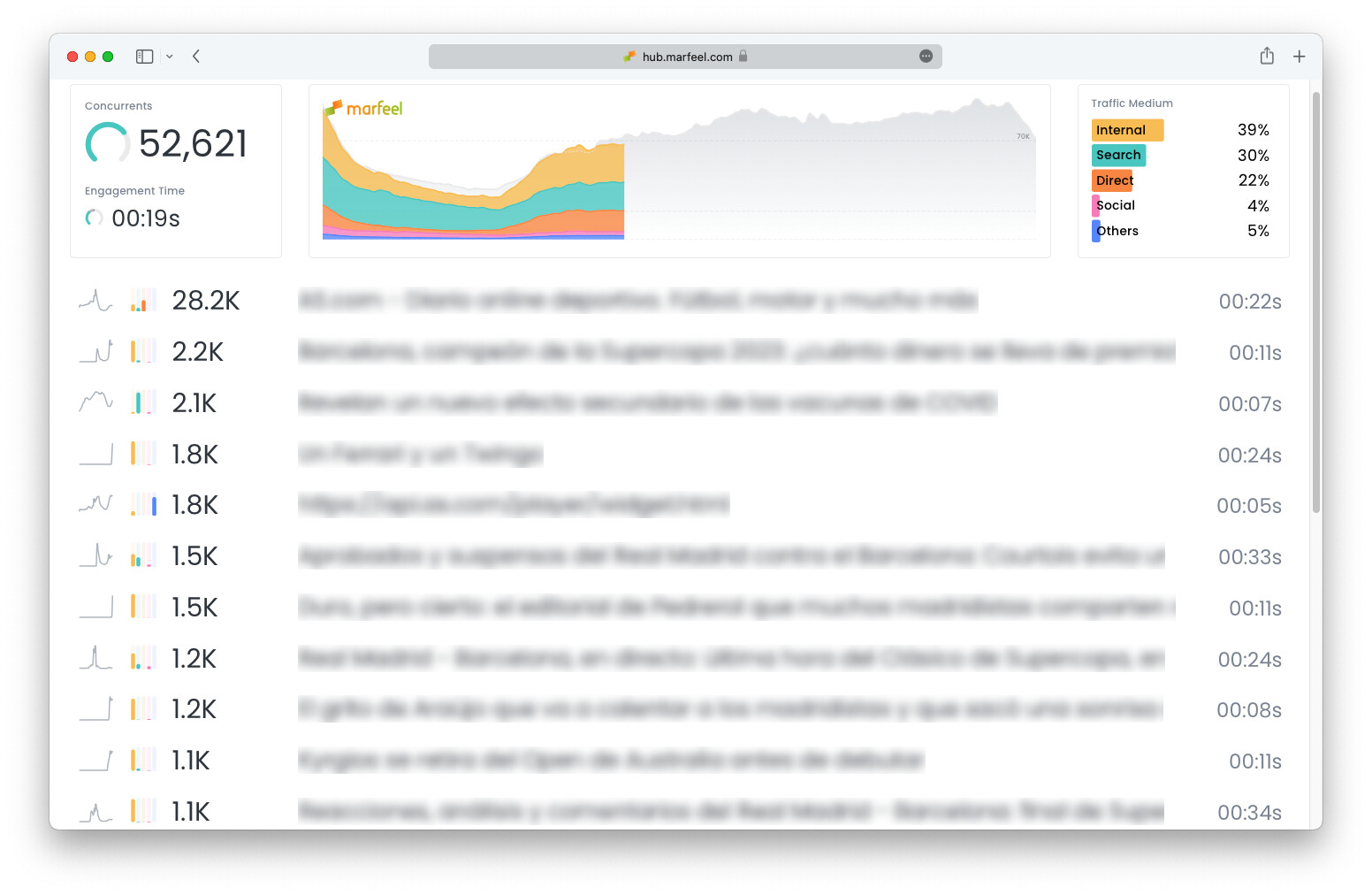
Enabling Big Screen mode
Section titled “Enabling Big Screen mode”- Go to the Compass view
- Click on the three dots in the upper-right corner of the Compass Dashboard Select Big Screen mode
Customizing Big Screen mode
Section titled “Customizing Big Screen mode”Big Screen mode respects any filter set on the Compass view. Different teams can project different panels on the big screen: filter a given section, filter internal traffic for home editors, social traffic for social teams, and so on.
Any filter available at the data warehouse level can be applied.
- Go to the Compass view
- Set any filter you want: i.e. filter a
Section - Click the button
Leaving Big Screen mode
Section titled “Leaving Big Screen mode”Exit Big Screen mode by clicking on the logo or removing the bigScreen=true parameter from the URL.
Role and session restrictions
Section titled “Role and session restrictions”Marfeel provides a URL token-based mechanism to log in Big Screen sessions without explicit usernames and passwords, making it ideal for digital signage setups.
To enable this, account administrators create a user with the Big Screen user role. The Big Screen role has the same access level as a Viewer but can generate an access token.
Once the user exists, either the user or the admin can generate an access token from the Permissions tab:
- Go to Permissions
- Click on
Generate Login Token - Append this query parameter to any URL to create a token-based signed session:
?token=<token_here>
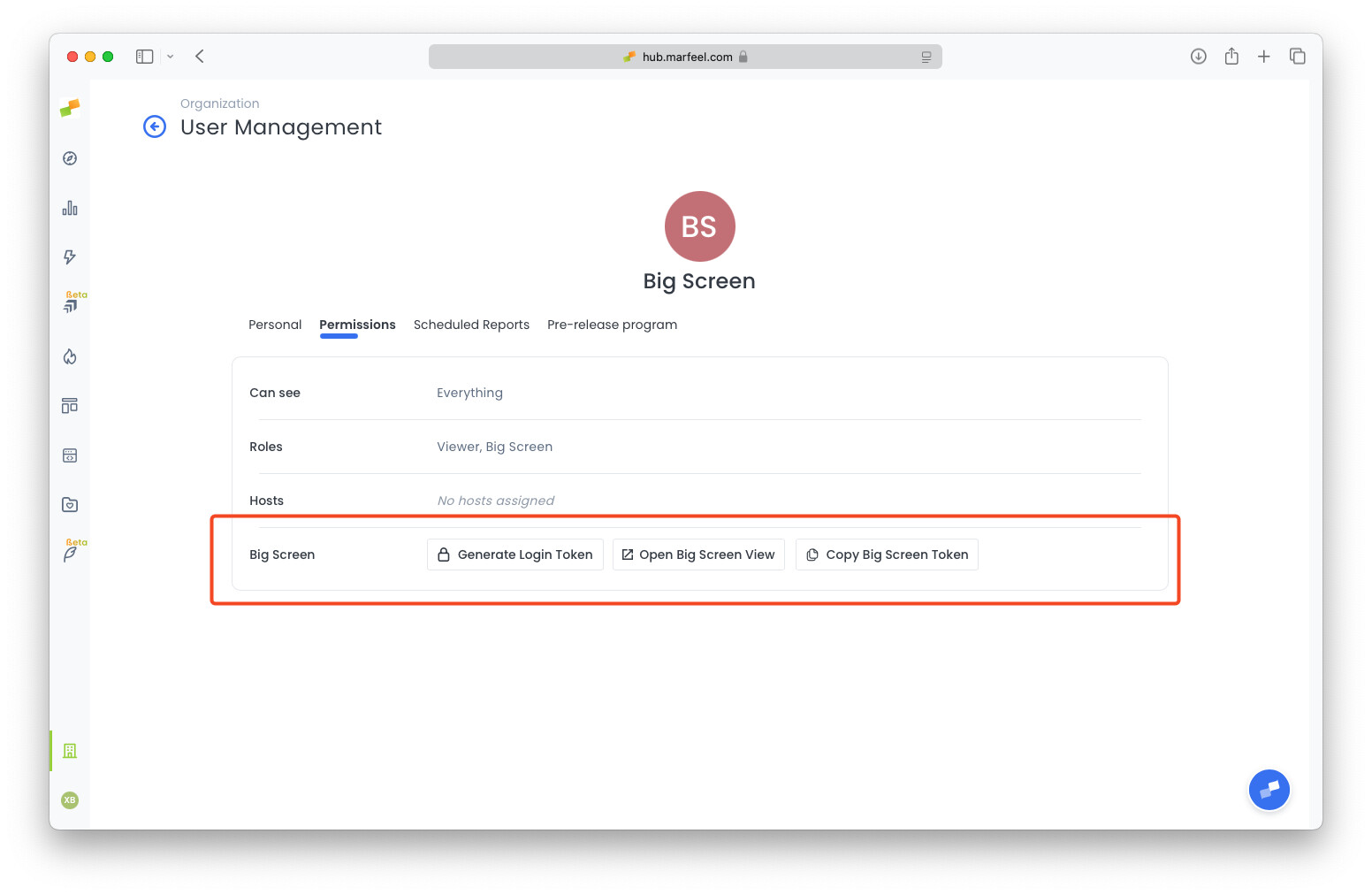
The UI helps you copy the generated token to the clipboard or open a basic Big Screen URL you can use.
Every time you generate a token, previously generated tokens will stop working.
For security purposes:
- Create dedicated users for each of your screens.
- The token is automatically removed from the URL once the Marfeel UI loads.
- Token-based sessions expire every 15 days, the same as regular sessions. The system automatically re-logs the user in.
How do I enable Big Screen mode?
Go to the Compass view, click the three dots in the upper-right corner, and select Big Screen mode.
How do I set up token-based access for digital signage?
Create a user with the Big Screen role, then generate a login token from the Permissions tab. Append ?token=<token_here> to any URL to create a signed session that does not require a password.
Can I customize which metrics appear on the big screen?
Yes. Big Screen mode respects any filter set on the Compass view, so you can filter by section, traffic source, or any dimension available at the data warehouse level.