

Microsoft Teams integration for scheduled reports
The Microsoft Teams integration delivers scheduled reports directly to your Teams channels. Subscribe your team to daily, weekly, or monthly reports so everyone sees the same data. This builds alignment, encourages discussion, and creates consistent data review habits across the organization. Marfeel also supports Slack as an alternative delivery channel.
How to integrate Teams
Section titled “How to integrate Teams”-
Go to Organization settings > Integrations > Microsoft Teams.
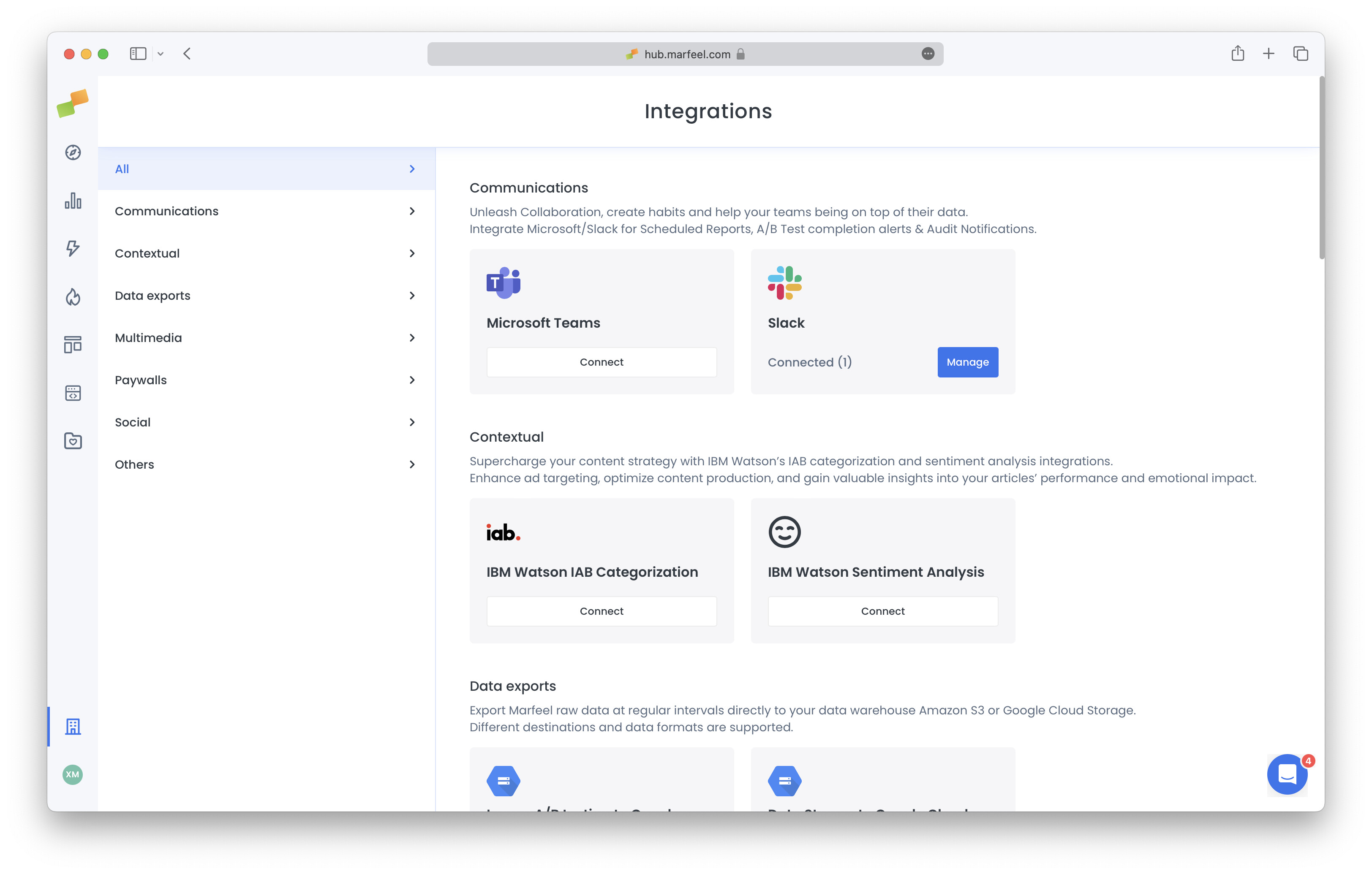
-
Sign in to the Microsoft OAuth and accept the necessary permissions. You must be a Global Administrator of the Microsoft organization to do so.
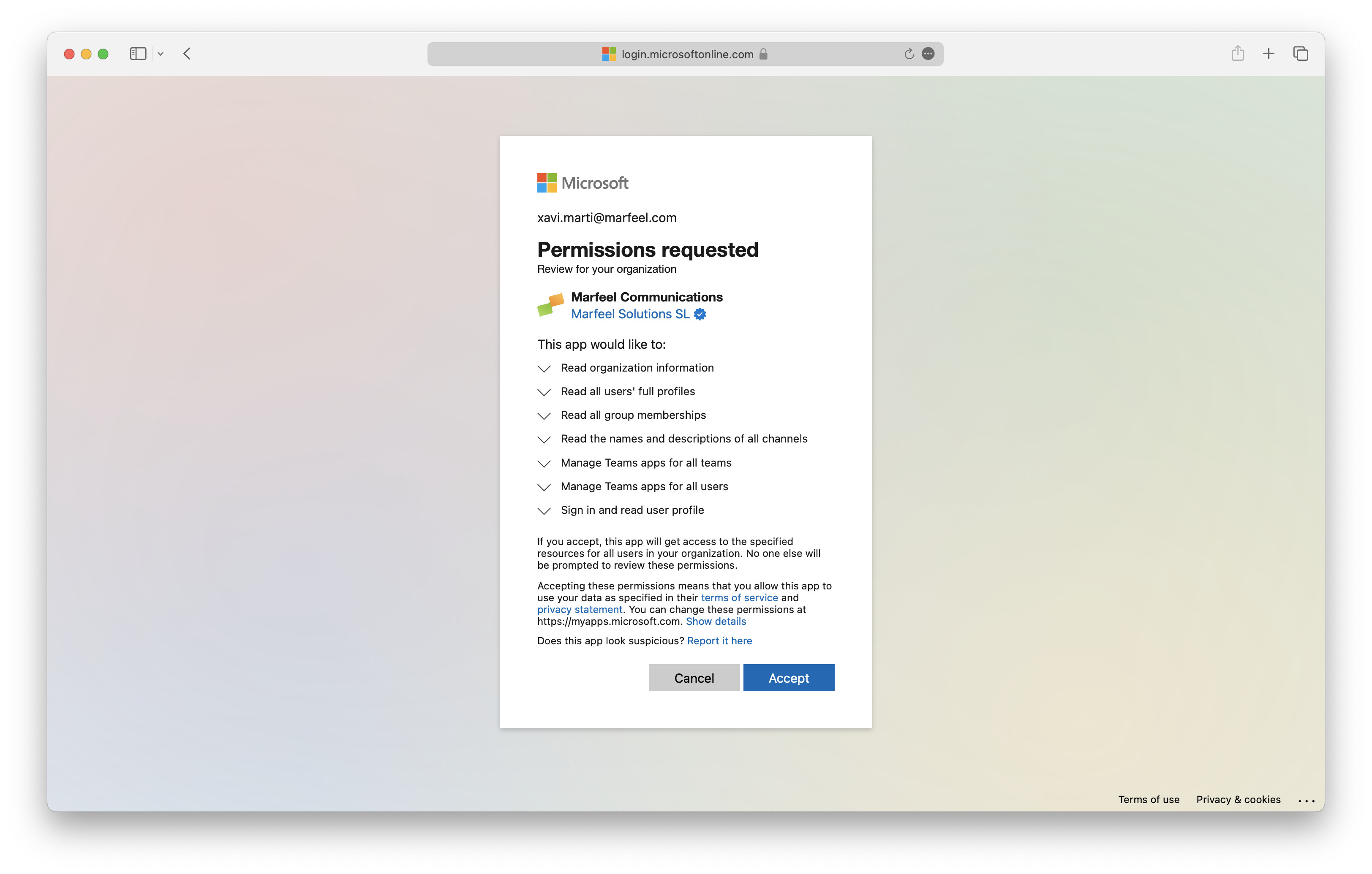
-
The integration is now connected. Any scheduled reports delivered to Microsoft Teams channels appear under Integrations > Teams > Details. Previous activity can be found under the “Logs” tab.
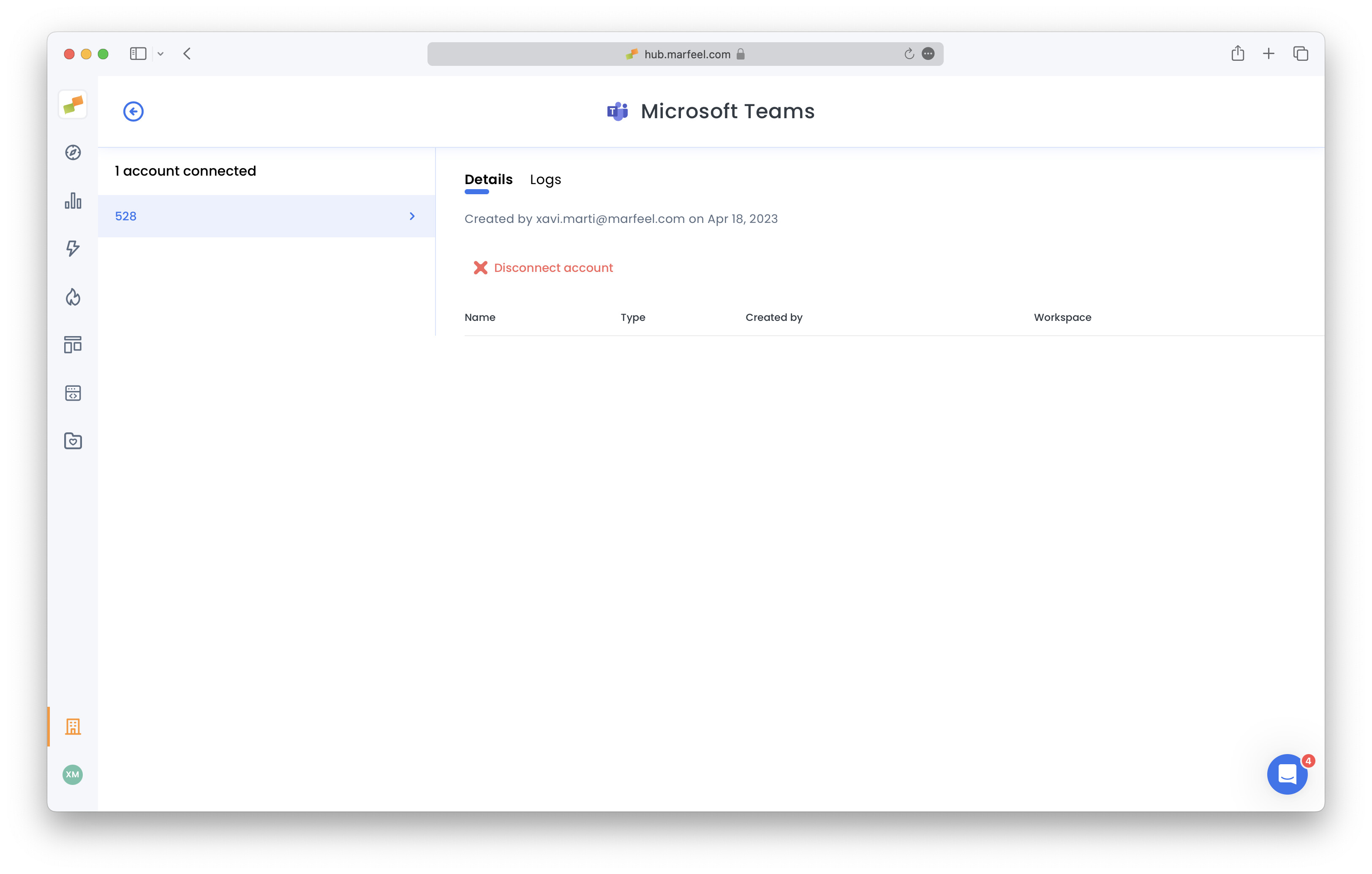
-
Configure any scheduled report to be delivered via Microsoft Teams by selecting this option on the report subscription dialog.
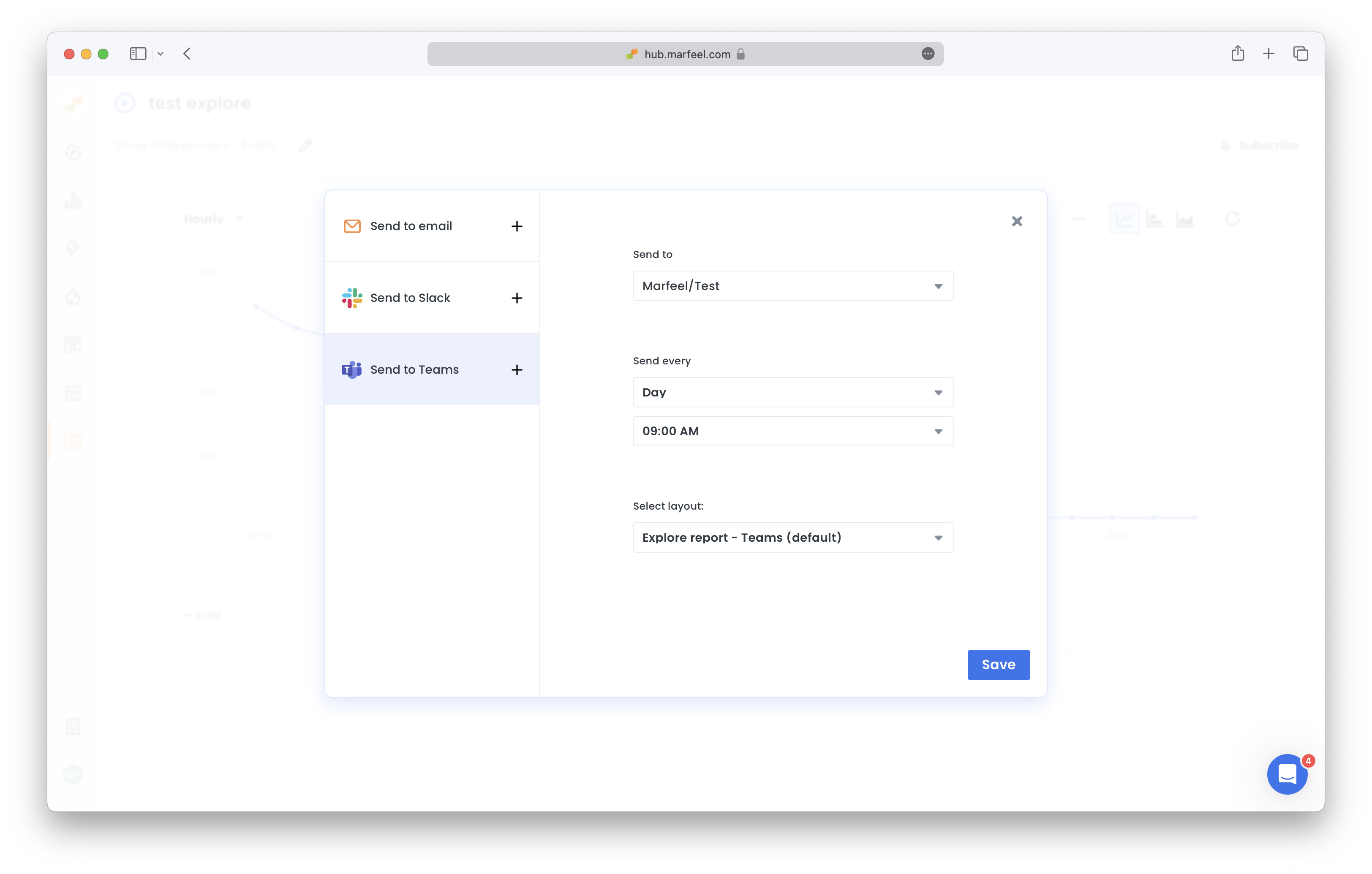
Who can set up the Microsoft Teams integration in Marfeel?
A Global Administrator of the Microsoft organization must sign in to the Microsoft OAuth and accept the necessary permissions.
Where can I see Microsoft Teams report delivery activity?
Go to Organization settings, then Integrations, then Teams, and click Details. Previous activity is available under the “Logs” tab.
How do I send a scheduled report to a Microsoft Teams channel?
Configure any scheduled report and select Microsoft Teams as the delivery method in the report subscription dialog.