

Amplify team collaboration, drafts, and reposting
Amplify lets multiple team members split the content distribution process across defined roles: editors create, managers curate, and reviewers approve before publishing. Drafts, reposting, and shared dashboards keep everyone aligned.
Collaborative workflows
Section titled “Collaborative workflows”Different team members manage distinct parts of the distribution process. Amplify supports three workflow patterns:
-
Editors originate, managers schedule. Social Media Editors work within the CMS to generate copy with the support of Marfeel Copilot, while Social Media Managers implement the posts and schedule them through Amplify.
-
Editors create posts, managers curate. Social Media Editors generate a list of potential posts in Amplify and save them as Drafts, while Social Media Managers curate from the list to build the distribution calendar.
-
Two-step revision and approval. Social Media Managers handle copywriting and image customization, then hand off to another Social Media Manager for revision and approval before publishing.
Saving drafts for team review
Section titled “Saving drafts for team review”Any post created in Amplify can be saved as a draft instead of published immediately. Drafts are visible to all Amplify editors, managers, and admins, enabling revision and editing before publication.
To save a post as a draft, click on the Save as Draft button in the top right of the Amplify window. The blue scheduling button next to it will change, showing the word Save as Draft along with the number of Feeds your post is currently programmed on. Click to confirm and your draft will be saved.
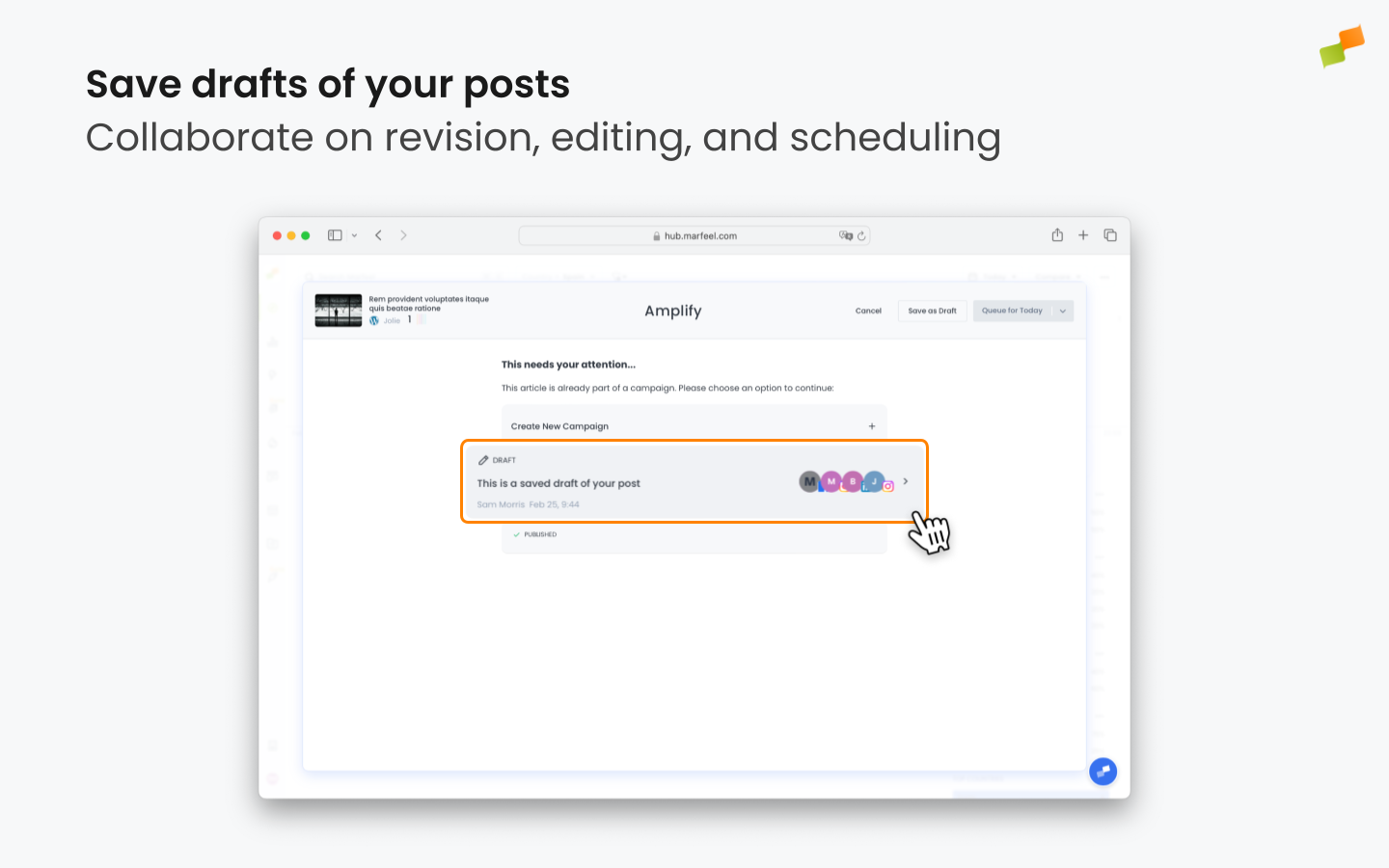
Once saved, a draft can be shared by copy-pasting the browser URL. Other users can also see the list of saved drafts for an article by clicking on its Amplify icon. From there, they can open drafts, edit them further, and schedule them for publication.
Reposting
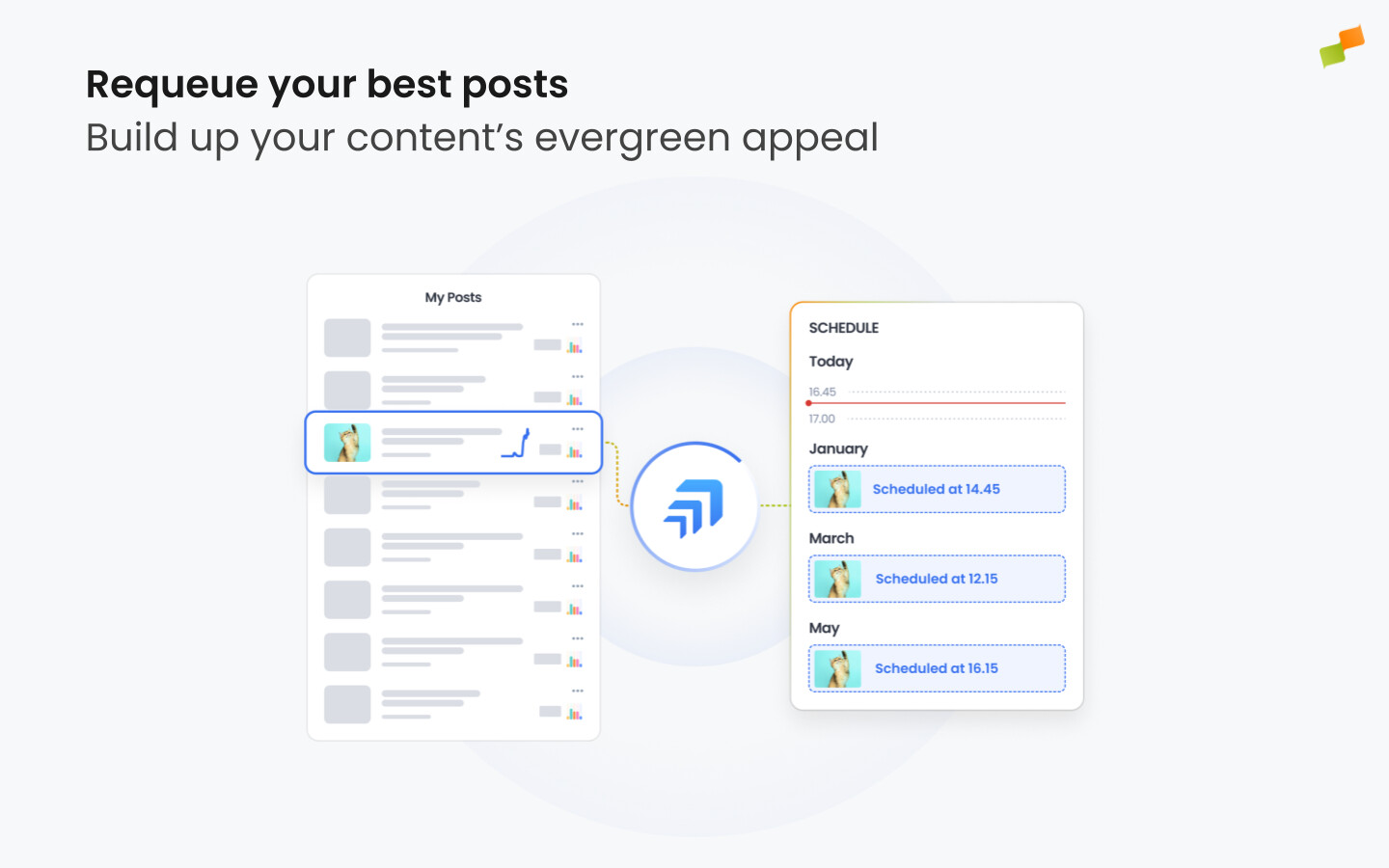
Section titled “Reposting”Amplify identifies top-performing content and highlights it so you can queue it for publication again. Any content posted through Amplify can be reshared at a later date by selecting the article and amplifying it again through the usual process.
A common use case is periodically reposting successful evergreen content to keep traffic flowing to your best pieces. Amplify’s contextual performance metrics help social media managers identify stories that performed well and schedule them for reposting at a later date.
Collaborative dashboards
Section titled “Collaborative dashboards”Marfeel’s dynamic dashboards are fully compatible with Amplify data, enabling teams to build reports and visualizations that simplify analysis and foster alignment across your distribution workflow.
For instance, the data team could create a dashboard that highlights the most successful articles of the last 24 hours that have not been posted to social media yet, prompting the social media team to pick up those stories and add them to the day’s queue.
How do I save a post as a draft in Amplify for team review?
Click the Save as Draft button in the top right of the Amplify window. The scheduling button changes to show “Save as Draft” along with the number of feeds programmed. Once saved, drafts are visible to all Amplify editors, managers, and admins, and can be shared by copy-pasting the browser URL.
Can I repost content that was already published through Amplify?
Yes. Any content posted through Amplify can be reshared at a later date. Amplify identifies top-performing articles and highlights them so you can queue them for reposting. A common use case is periodically reposting successful evergreen content to keep traffic flowing to your best pieces.
What collaborative workflows does Amplify support?
Amplify supports three main workflows: editors originate and managers schedule, editors create draft posts and managers curate from the list, and a two-step revision and approval process where one manager handles copywriting and images while another reviews before publishing.