

YouTube integration setup for video analytics
Marfeel’s YouTube integration uses YouTube API Services to import data from your YouTube channel videos into Marfeel. This includes real-time engagement metrics such as videos (named as posts in Marfeel), plays, likes, comments, and subscribers (named as followers in Marfeel). The videos in your channel are synced and matched with existing articles based on text similarity with the article title. All data is available in the Explore module and Compass playbook, and you can also track social monitoring metrics across platforms. For a deeper dive on the social media module and how to get the most out of it, see the user guide.
The YouTube integration also allows publishing videos to your YouTube channels via Amplify.
Important: The YouTube integration uses the YouTube Data API and connects individual channel accounts. It does not support the YouTube Reporting API or Content Owner scope. Organizations that manage channels through YouTube’s Content Manager (partner backend) cannot use this integration to aggregate data across all linked channels.
By connecting your YouTube account to Marfeel, you agree to YouTube’s Terms of Service and acknowledge Google’s Privacy Policy. Data retrieved from YouTube will be accessible to users with Analyst role.
Set up the YouTube integration
Section titled “Set up the YouTube integration”-
Go to the Organization icon in the sidebar, and select
Integrations. Navigate to ‘Social’ section.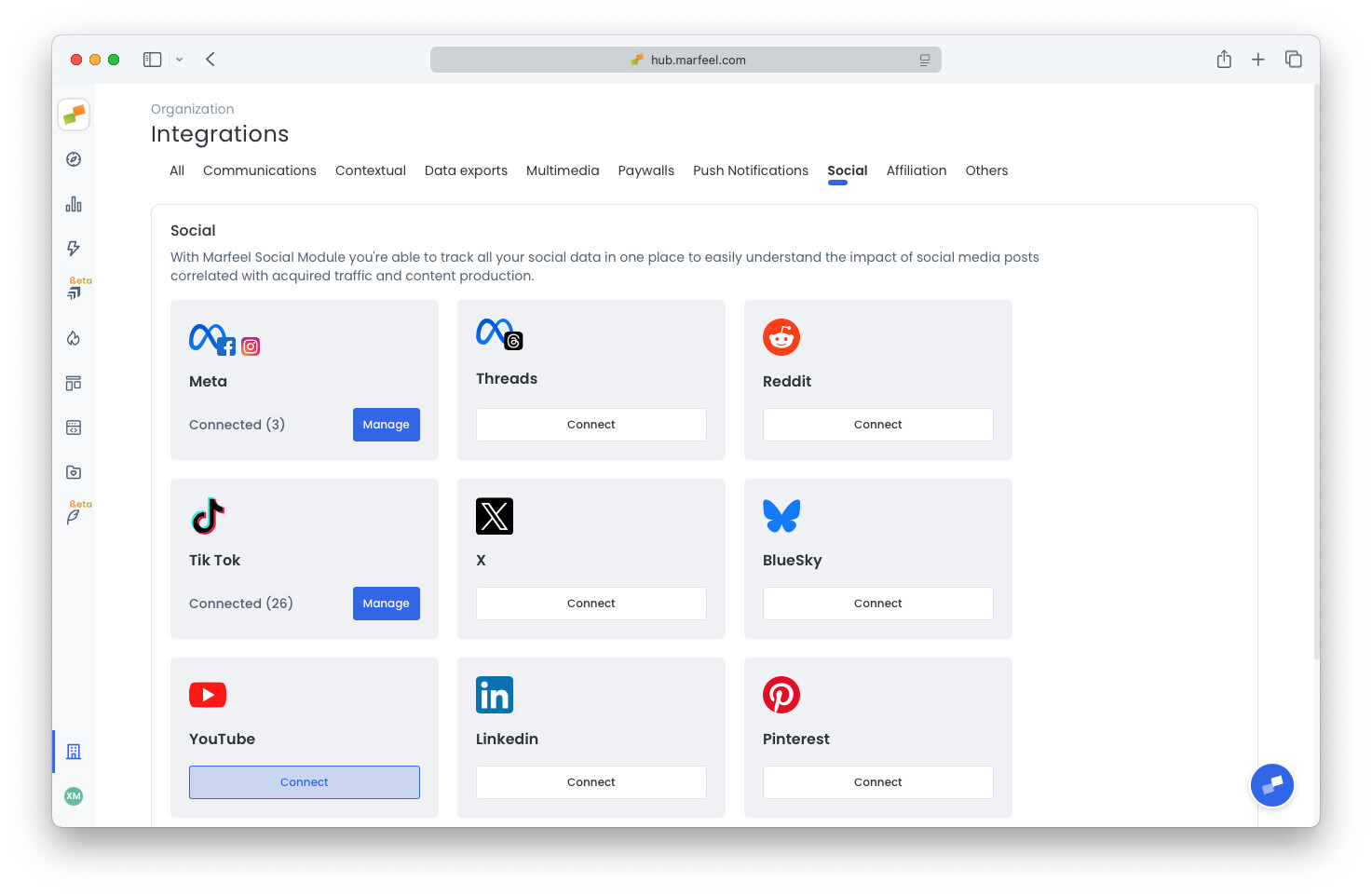
-
Click on
Connectin the YouTube integration box. You’ll be prompted for confirmation.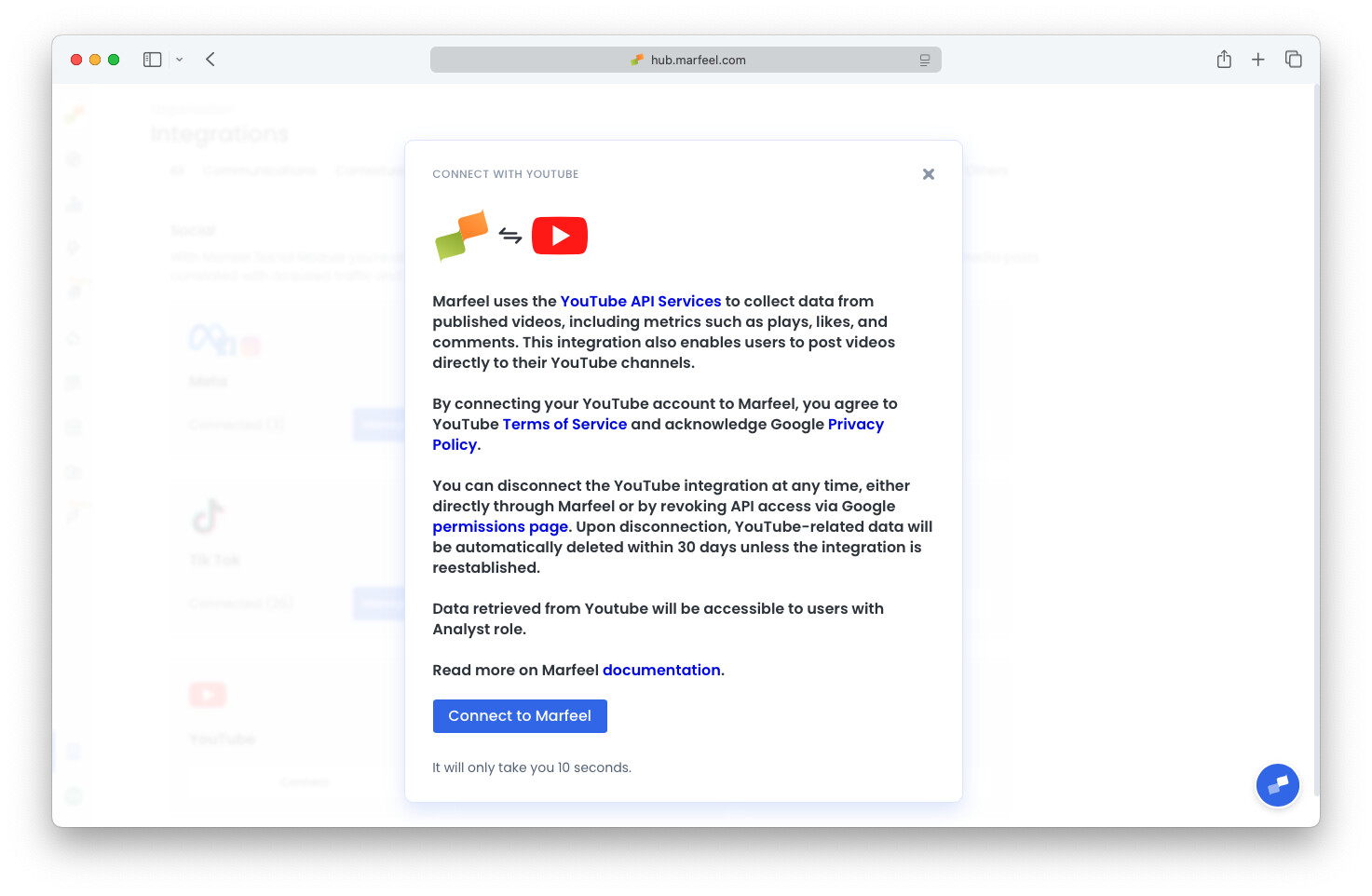 If there is some already connected YouTube channel to this Marfeel account, the button will show "Manage" instead. You can connect new accounts by clicking on this button and then on "Add Account" on the integration's left sidebar.
 -
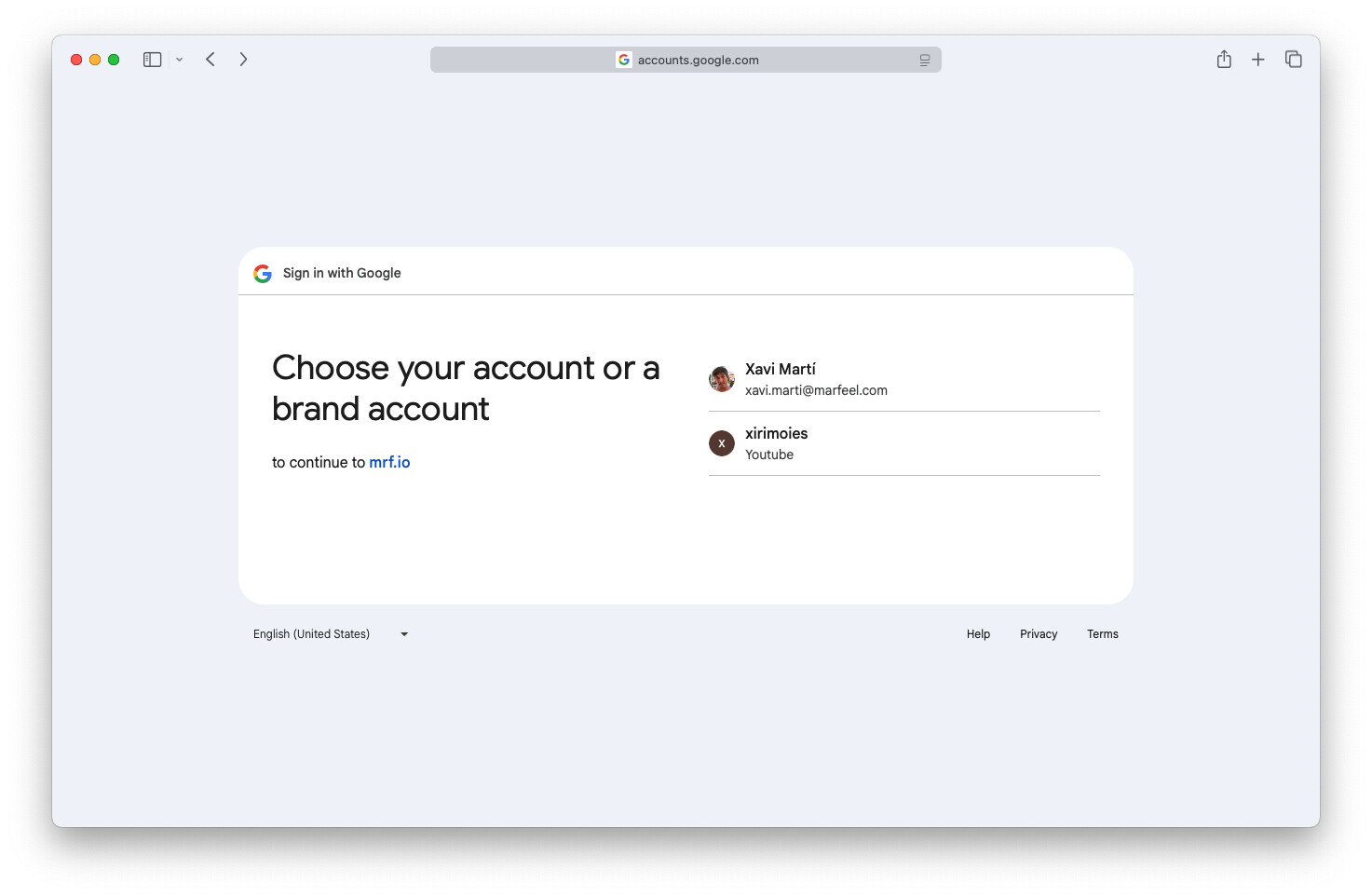
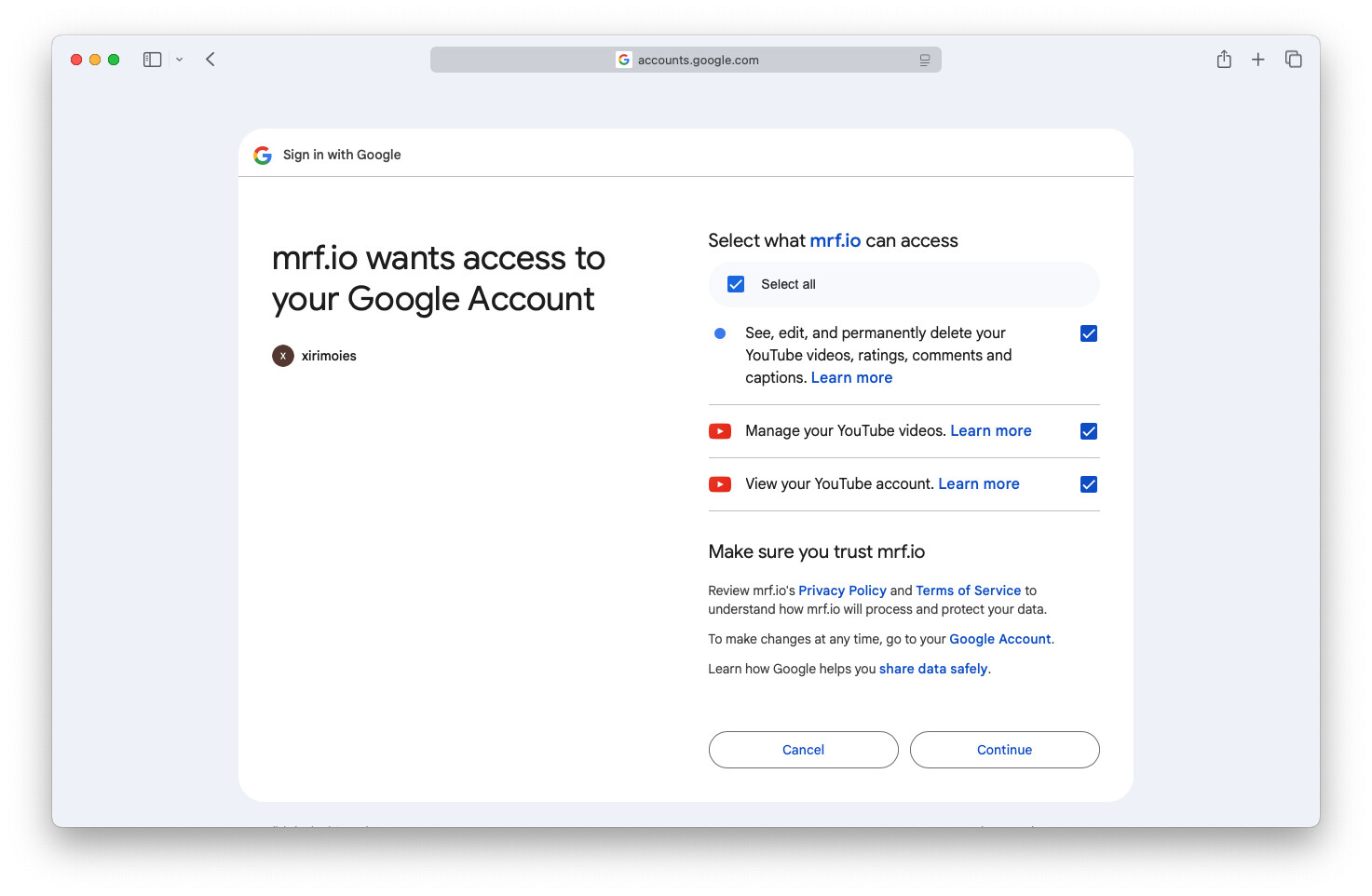
After confirming, you will be redirected to YouTube, where you can select the account or channel to connect and review the requested permissions.
-
Once accepted, you’ll be redirected back to Marfeel. Your integration is now connected.
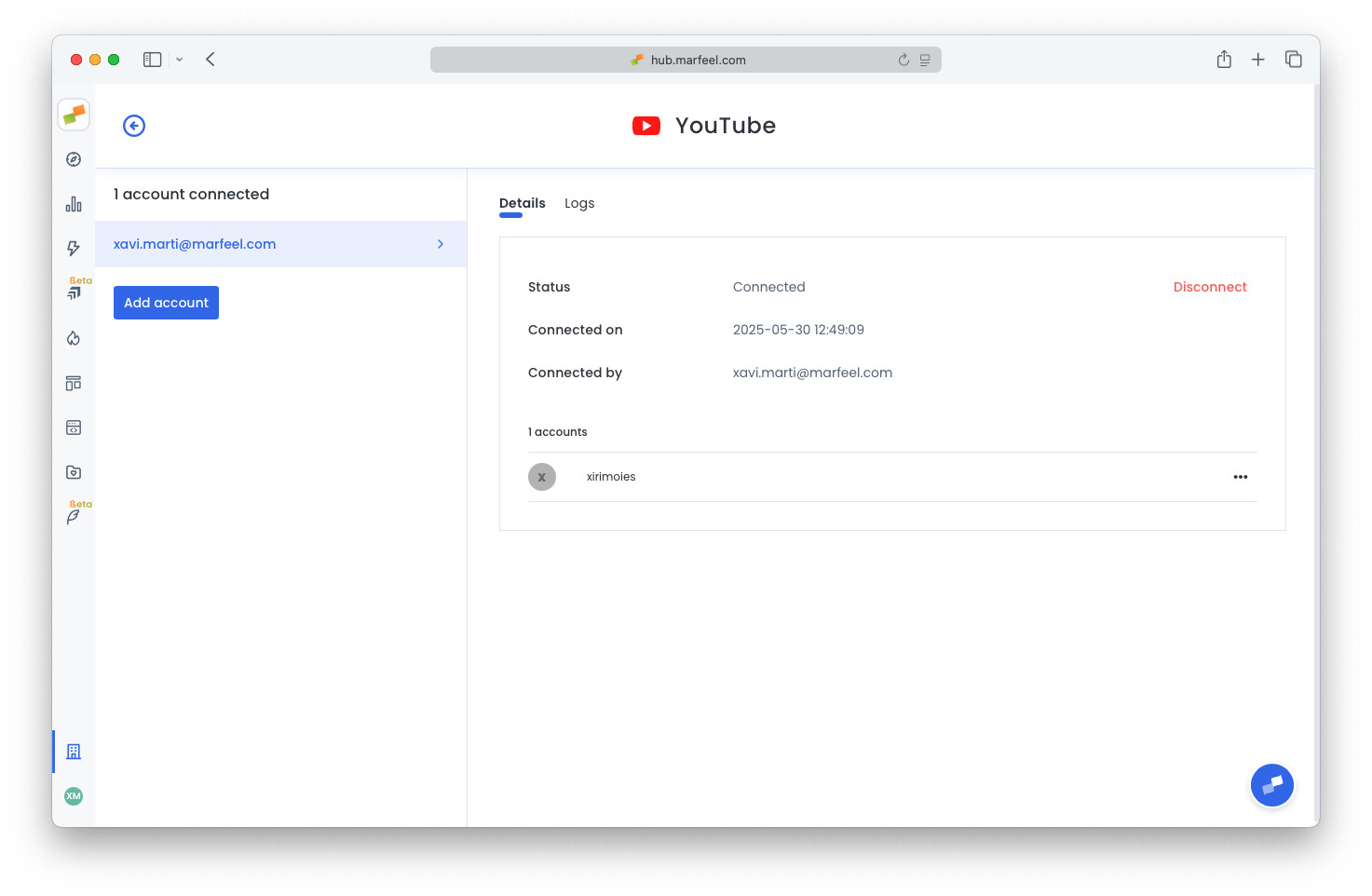
-
Check the
Logstab for feedback on how many posts are being retrieved, and potential errors. Keep in mind that it takes a minute for the sync to start.
Disconnect the YouTube integration
Section titled “Disconnect the YouTube integration”You can disconnect the YouTube integration at any time, either directly through Marfeel or by revoking API access via Google’s permissions page.
Upon disconnection, YouTube-related data will be automatically deleted within 30 days unless the integration is reestablished.
Disconnect from Marfeel
Section titled “Disconnect from Marfeel”- Go to the Organization icon in the sidebar, and select
Integrations. Navigate to ‘Social’ section. - Locate YouTube’s integration box and click on
Manage. - On the left sidebar, select the channel you’d like to disconnect.
- Click on
Disconnectbutton below.
Revoke access via Google’s permission page
Section titled “Revoke access via Google’s permission page”- Visit Google’s permissions page
- On the list of third party apps that have been granted access, search for
MarfeelYoutubeExperienceand click on it. - Click on “Delete all connections you have with MarfeelYoutubeExperience”
- You’ll be prompted with a confirmation prompt. Confirm.