

Amplify getting started guide for publishers
Marfeel Amplify lets you manage content distribution across all your channels from a single interface. This guide walks you through creating and scheduling your first posts, connecting feeds, and navigating the key screens in the platform.
🎓 Master Amplify, step by step 📊 The video below is an excerpt from the Amplify Fundamentals course.
🧠 Discover more learning paths on Marfeel Academy.
Distributing your first article
Section titled “Distributing your first article”Access Amplify
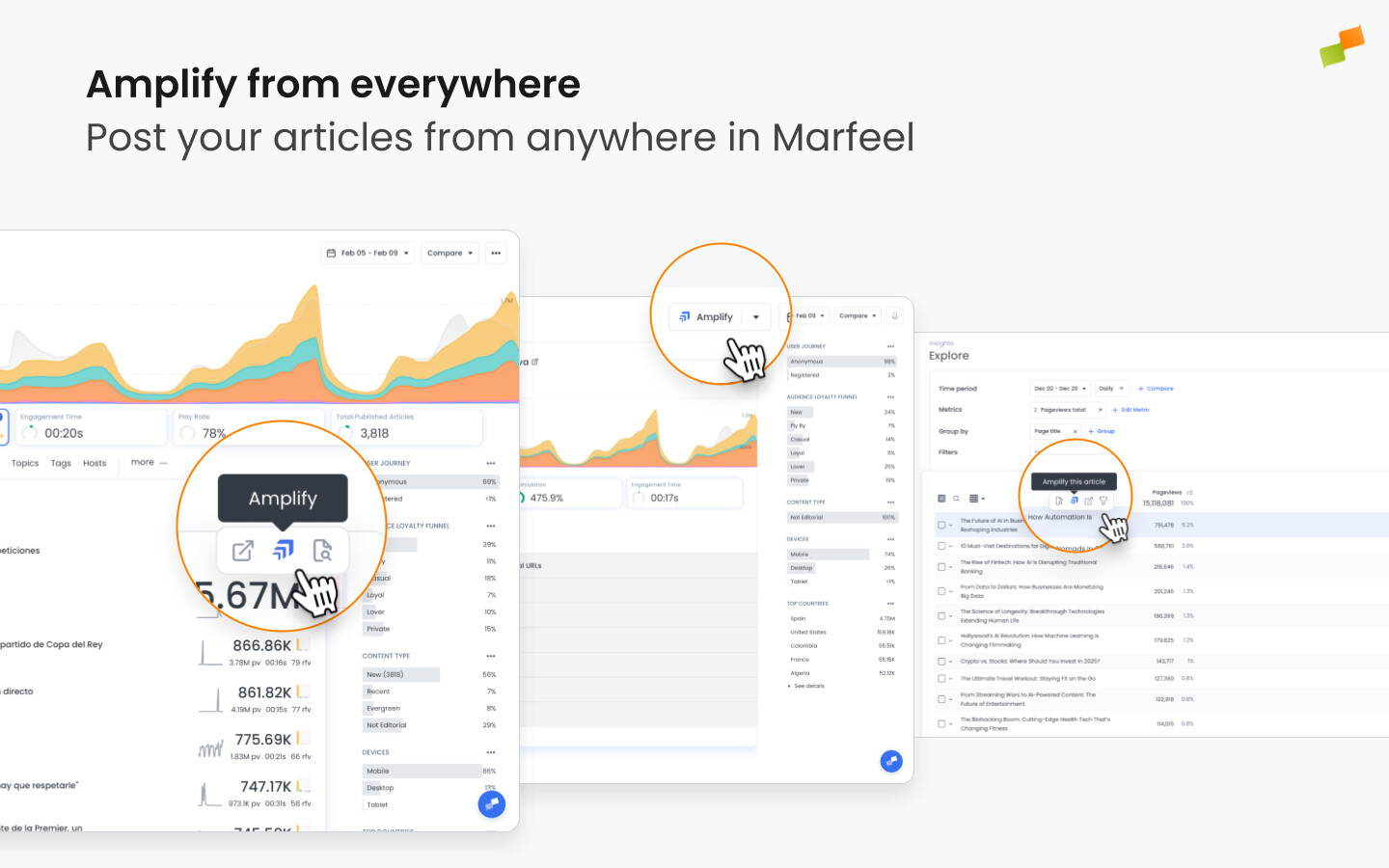
Section titled “Access Amplify”Click the Amplify icon that appears when you hover over an article, or use the Amplify button within article details. The icon is available wherever article-level information is displayed: Compass, reports, dashboards, or your Feeds view. Only users with Amplify admin, manager, or editor roles can access Amplify.
Select where to publish
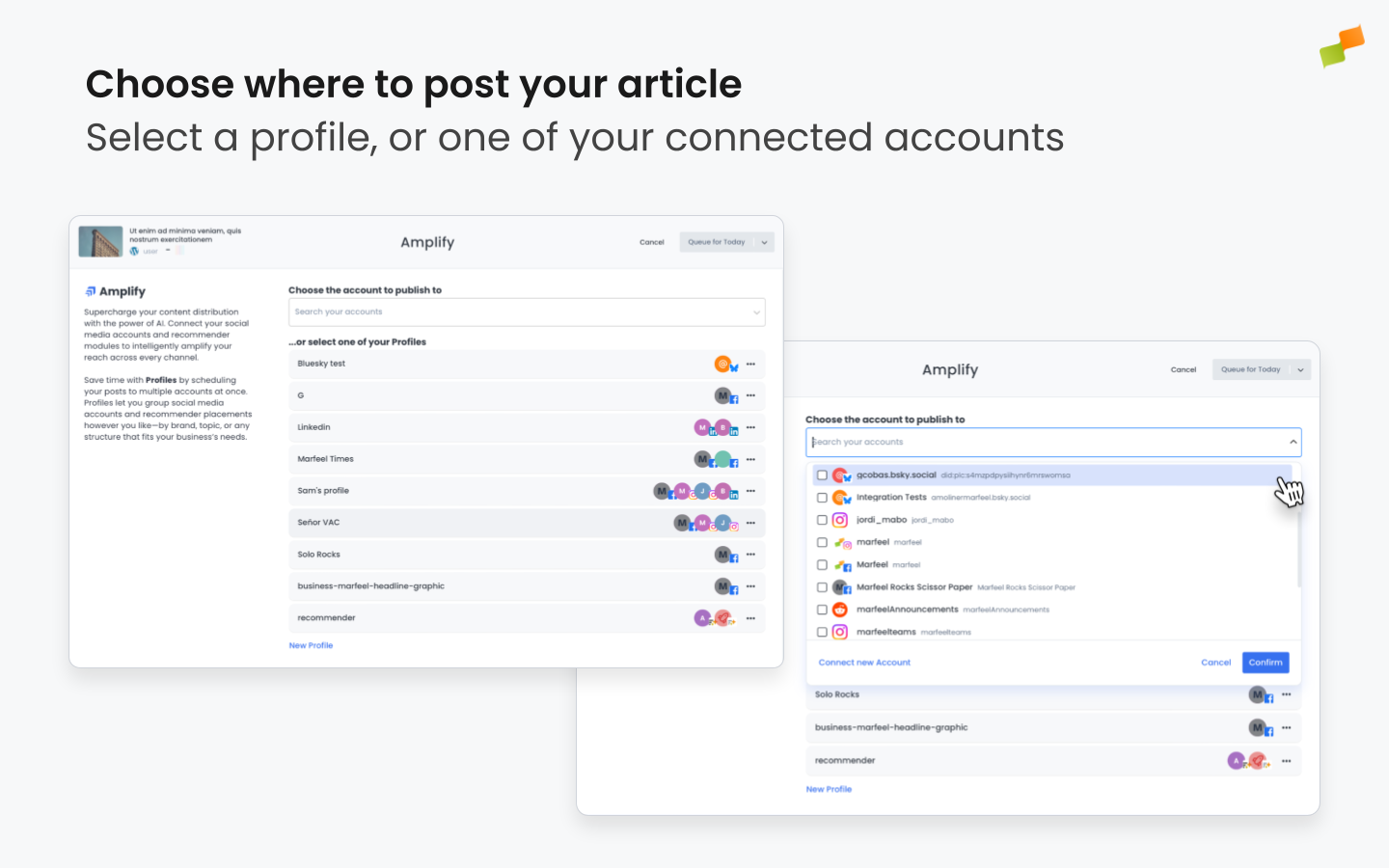
Section titled “Select where to publish”Choose where you want to publish your post. You can select a single feed or multiple feeds, depending on your distribution strategy.
- Feeds: Individual feeds such as a Facebook page, a push notifications service, or an on-site recommender module.
- Profiles: Groups of multiple feeds that let you publish to several feeds at once. Visit our detailed article to learn more about creating and editing profiles.
Prepare your post’s images
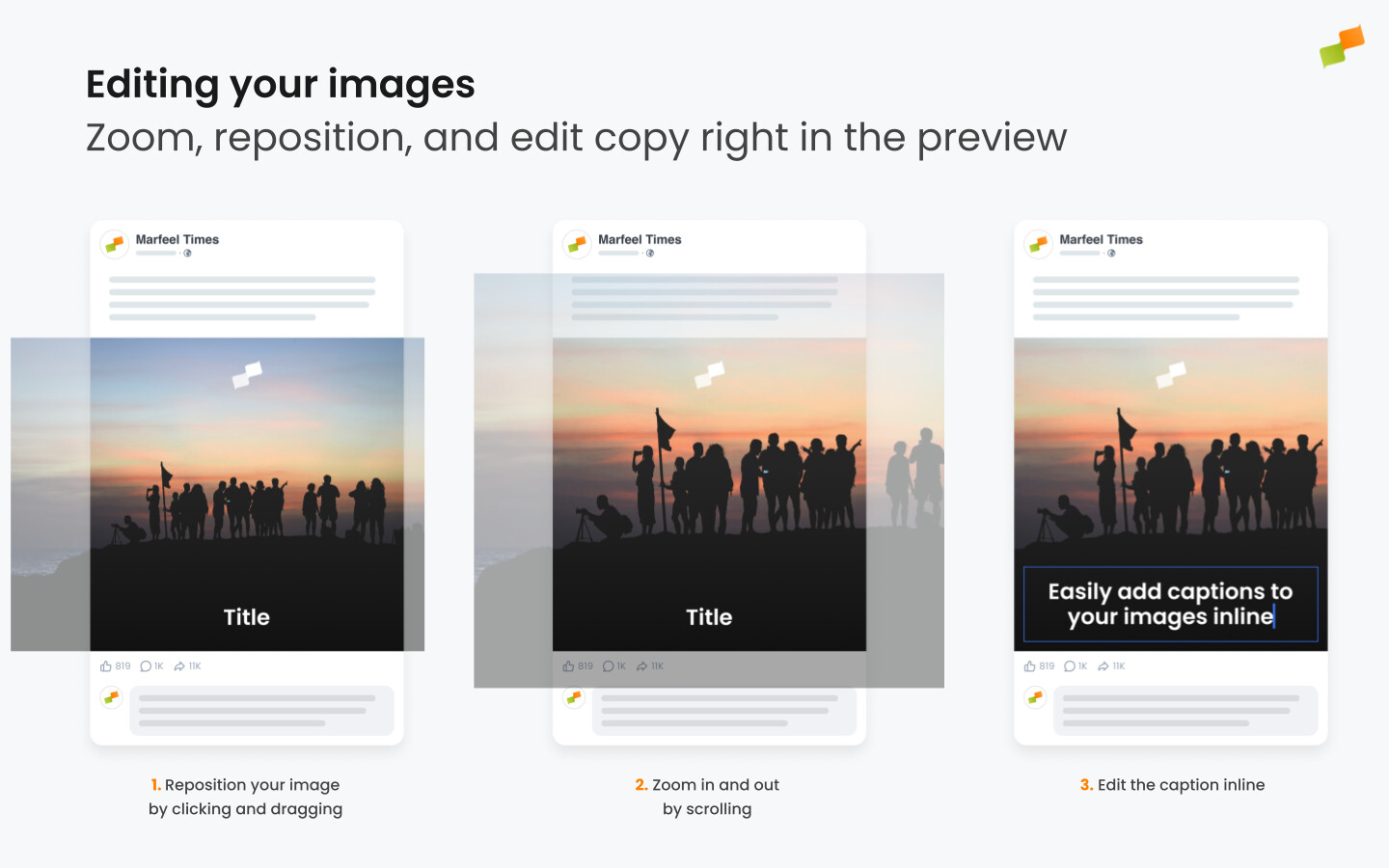
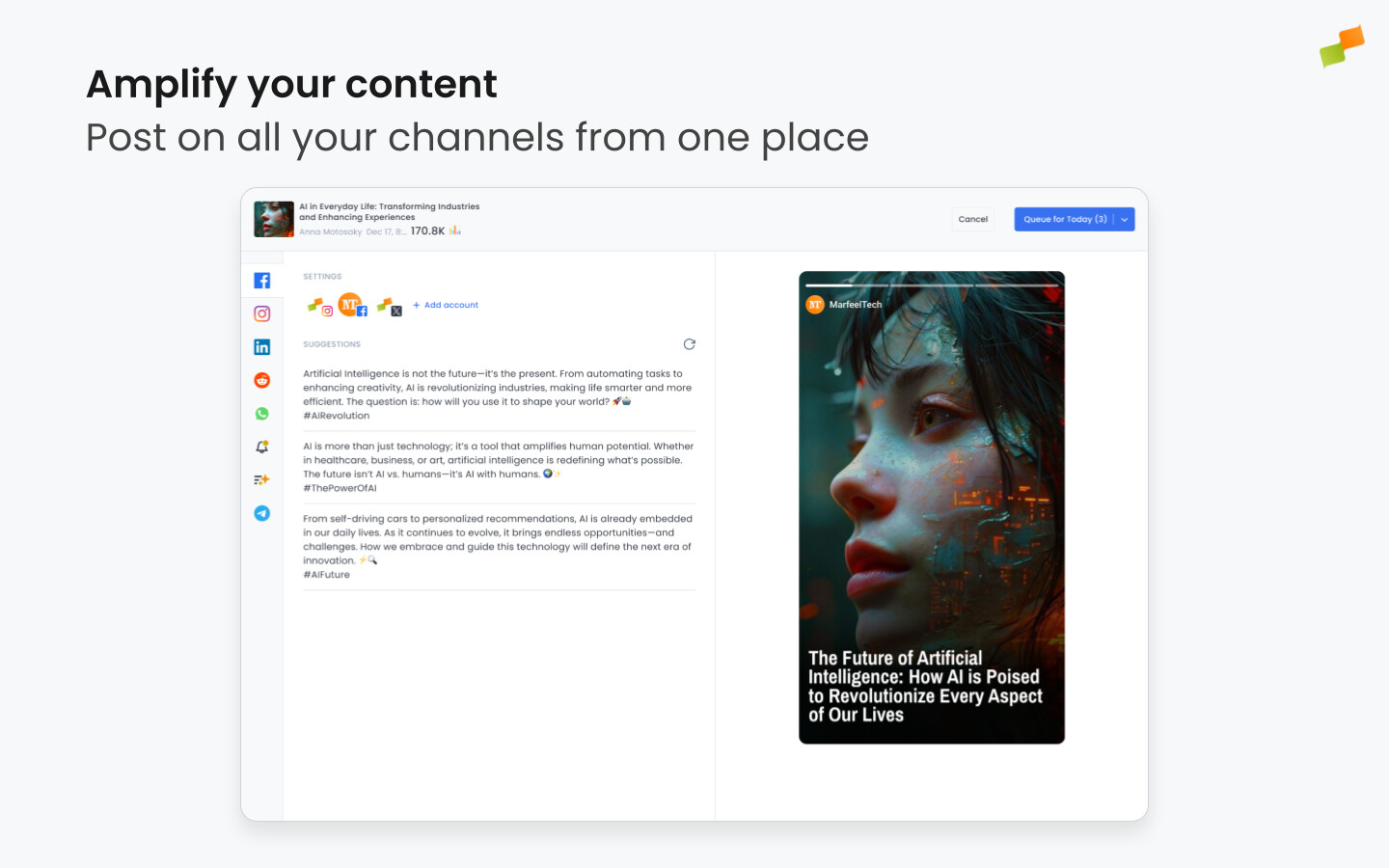
Section titled “Prepare your post’s images”Amplify automatically detects and pulls all images from your article and lets you choose which one to use. The default layout set up for your feed is applied, but you can customize the image further: choose a different layout, move it around, and zoom in and out. You can also add more images from the article, or upload them manually, to create a story or a carousel.
Write your post with Copilot
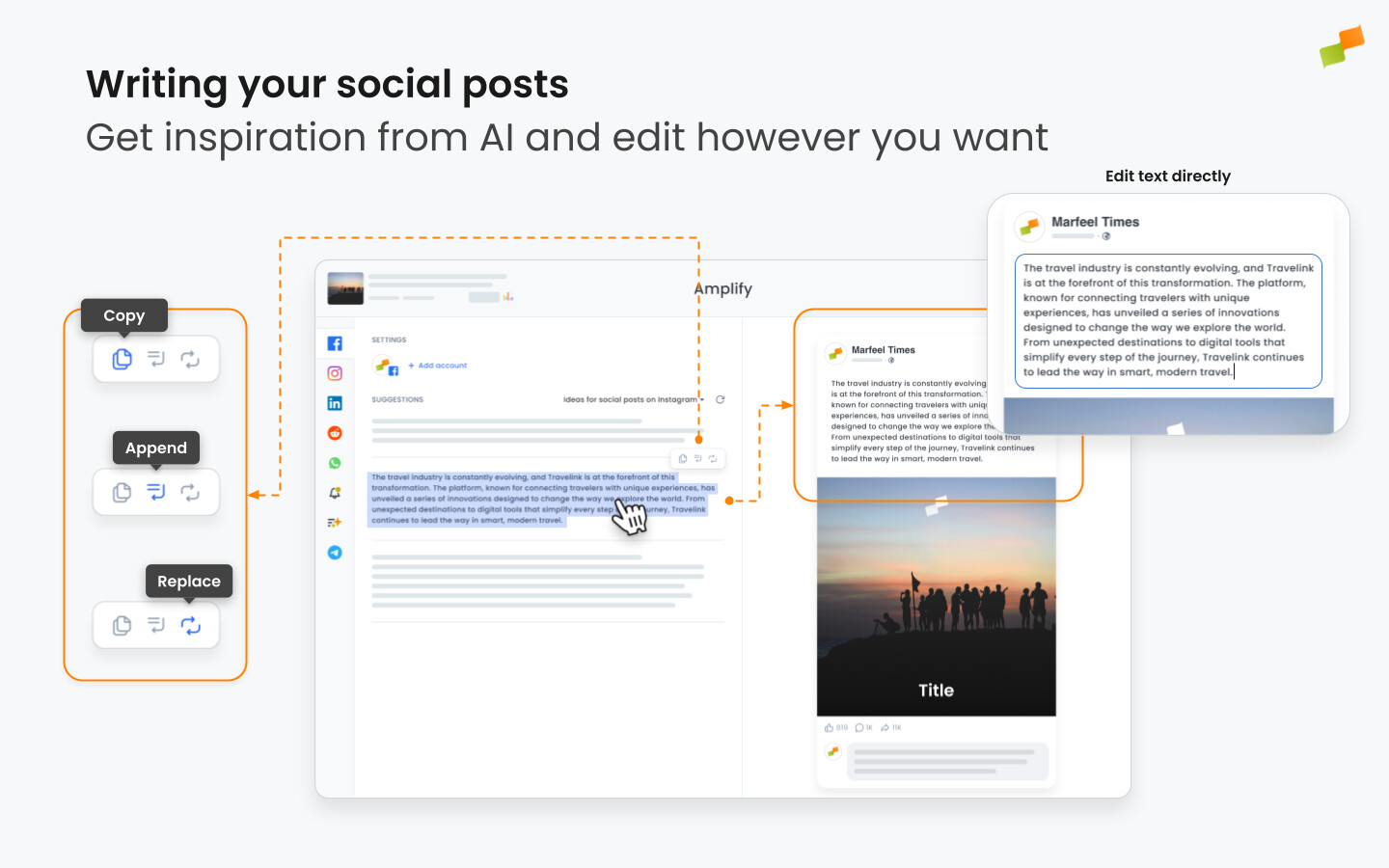
Section titled “Write your post with Copilot”Generate your post with Amplify’s AI-powered suggestions. Copilot provides a default option based on your article’s og:title and og:description OpenGraph attributes, plus three additional suggestions generated using one of your prompts. These suggestions are tailored to your article’s content, giving you a strong starting point. You can use them as-is, edit them in-line directly in the post preview, or write your own from scratch.
Adjust for multiple channels
Section titled “Adjust for multiple channels”After generating the images and text, review each channel you are publishing on. Click through the channels on the left, check the preview, and make adjustments if needed.

Publish or schedule your post
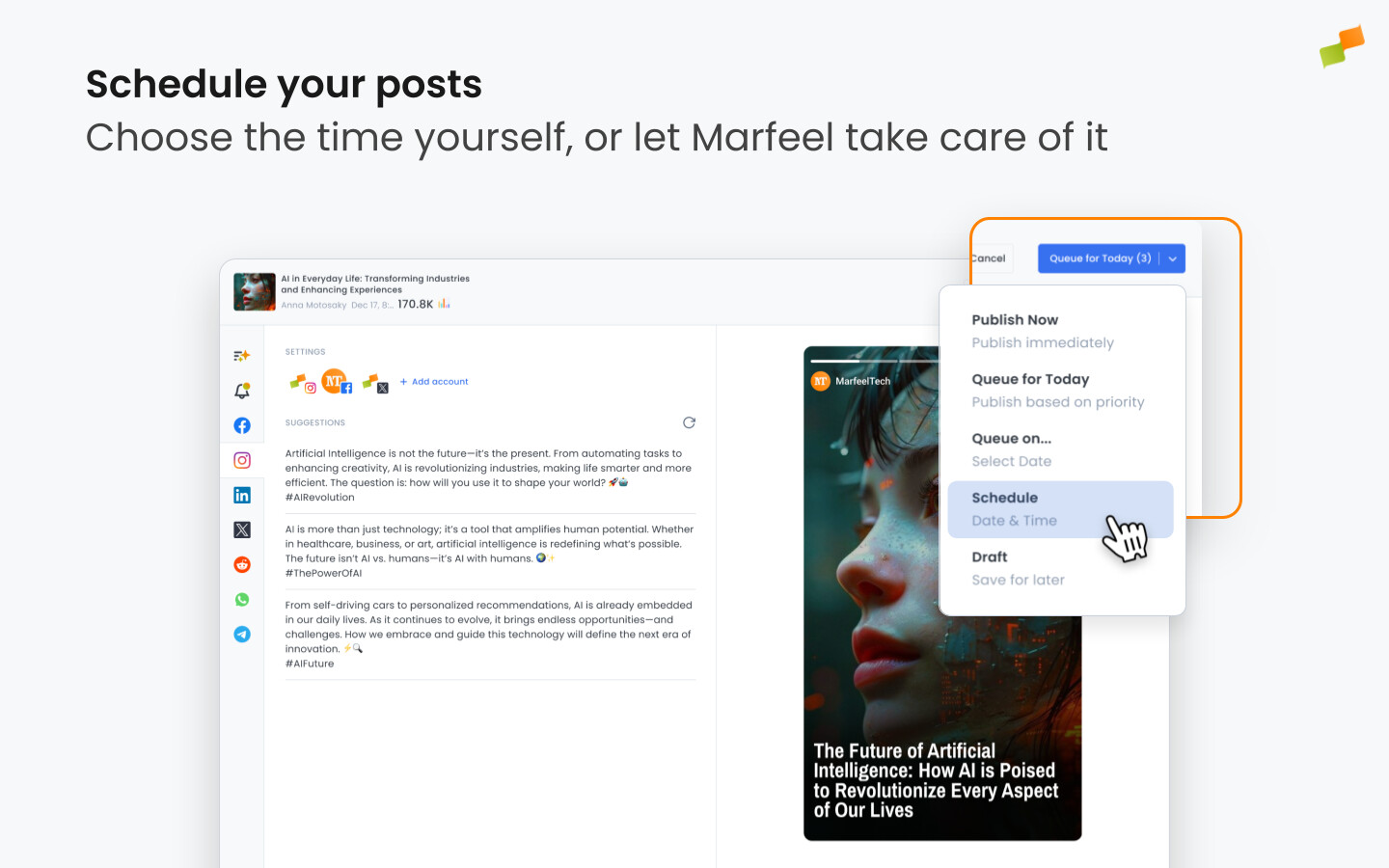
Section titled “Publish or schedule your post”Choose whether to publish now, schedule on a specific date and time, or queue to post at the most optimal time based on analysis of your data. For fully automated distribution, see how to set up posting rules and recommendation engines.
🎓 Become a Marfeel Amplify expert 📣 Learn how to publish smarter, automate sharing, and optimize your social strategy with our Marfeel Amplify Course.
✅ Workflow-focused training ✅ Automation strategies ✅ Certificate of completion included

🧠 Start now on Marfeel Academy.
Connecting your feeds
Section titled “Connecting your feeds”You can connect distribution feeds to Marfeel contextually from within the Amplify post creation screen or via Account Settings.
Visit our documentation to learn how.
Getting to know the key screens
Section titled “Getting to know the key screens”With your first posts created and feeds connected, take a tour of the screens you will use to manage your content distribution across social media and beyond.
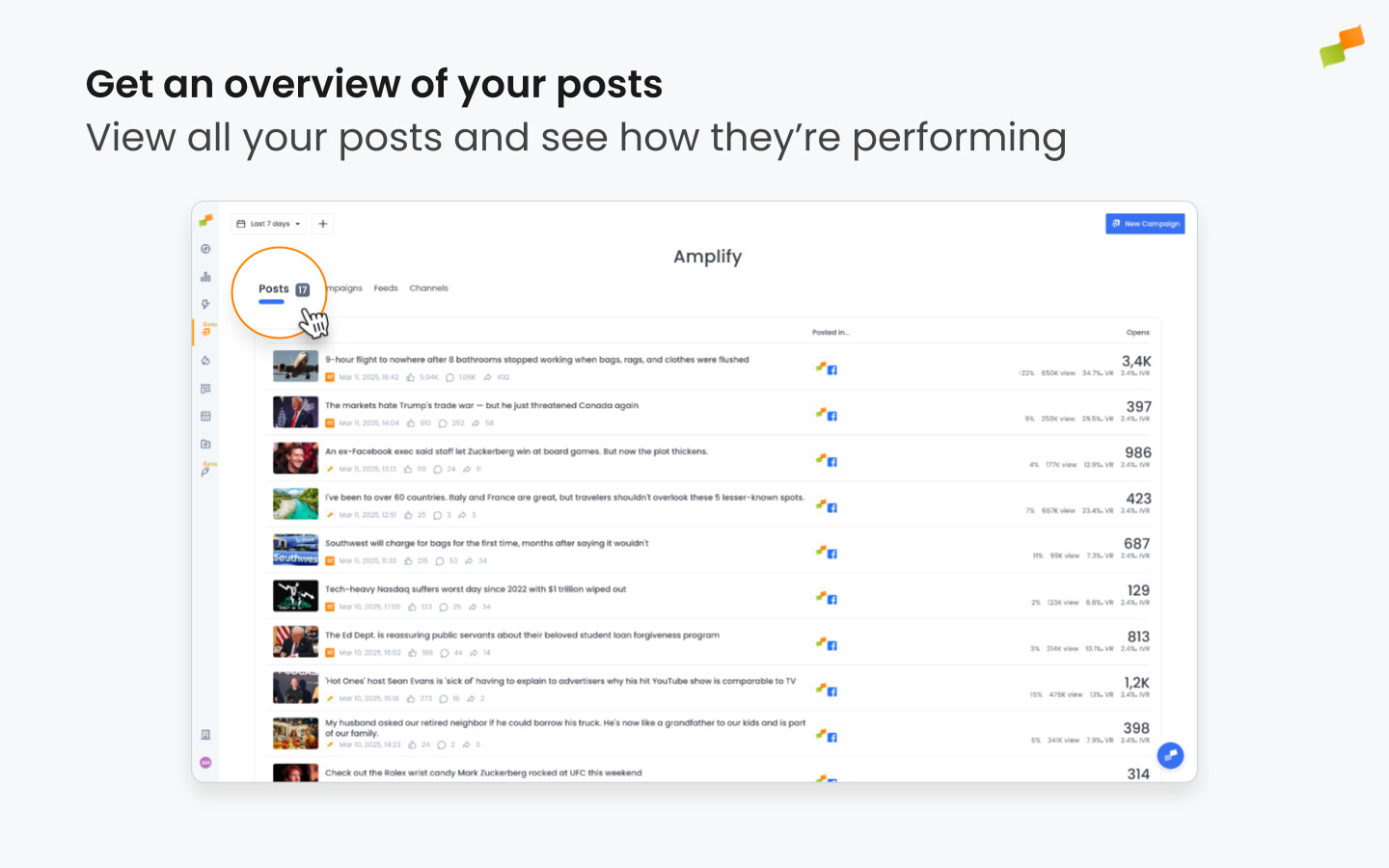
Posts provides an overview of articles you have published on your connected feeds along with their performance metrics. See what has been published today and how it is performing at a glance. Apply filters to view posts from specific channels, and customize the time frame to analyze performance on specific days.
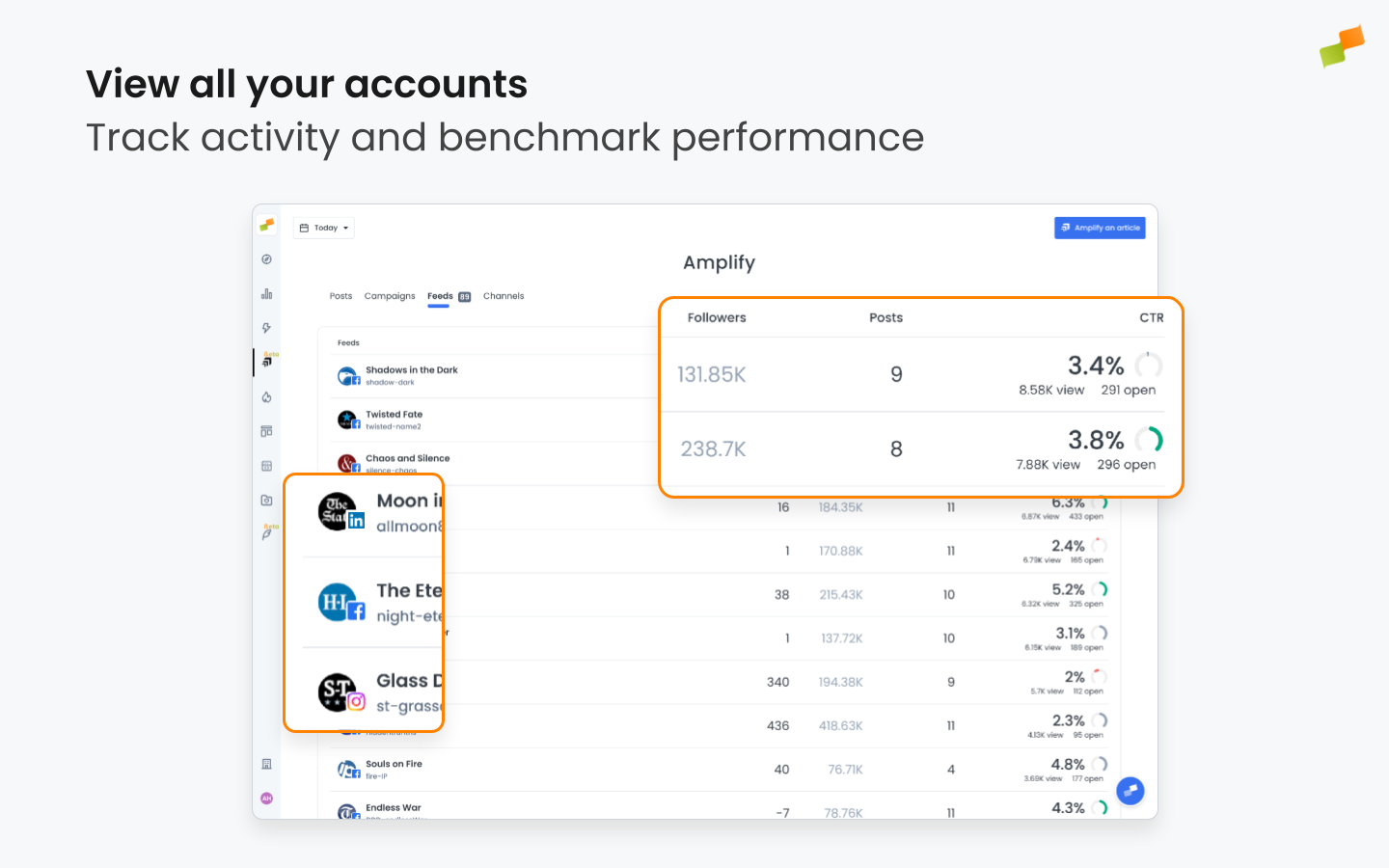
Feeds provides a comprehensive view of all your connected feeds, with key metrics for performance tracking and benchmarking. Data is pulled directly from each platform, and predictive analytics deliver context to help you identify when feeds exceed or fall short of their historical benchmarks. Visit our detailed article to learn more about Feeds.
Feed Details
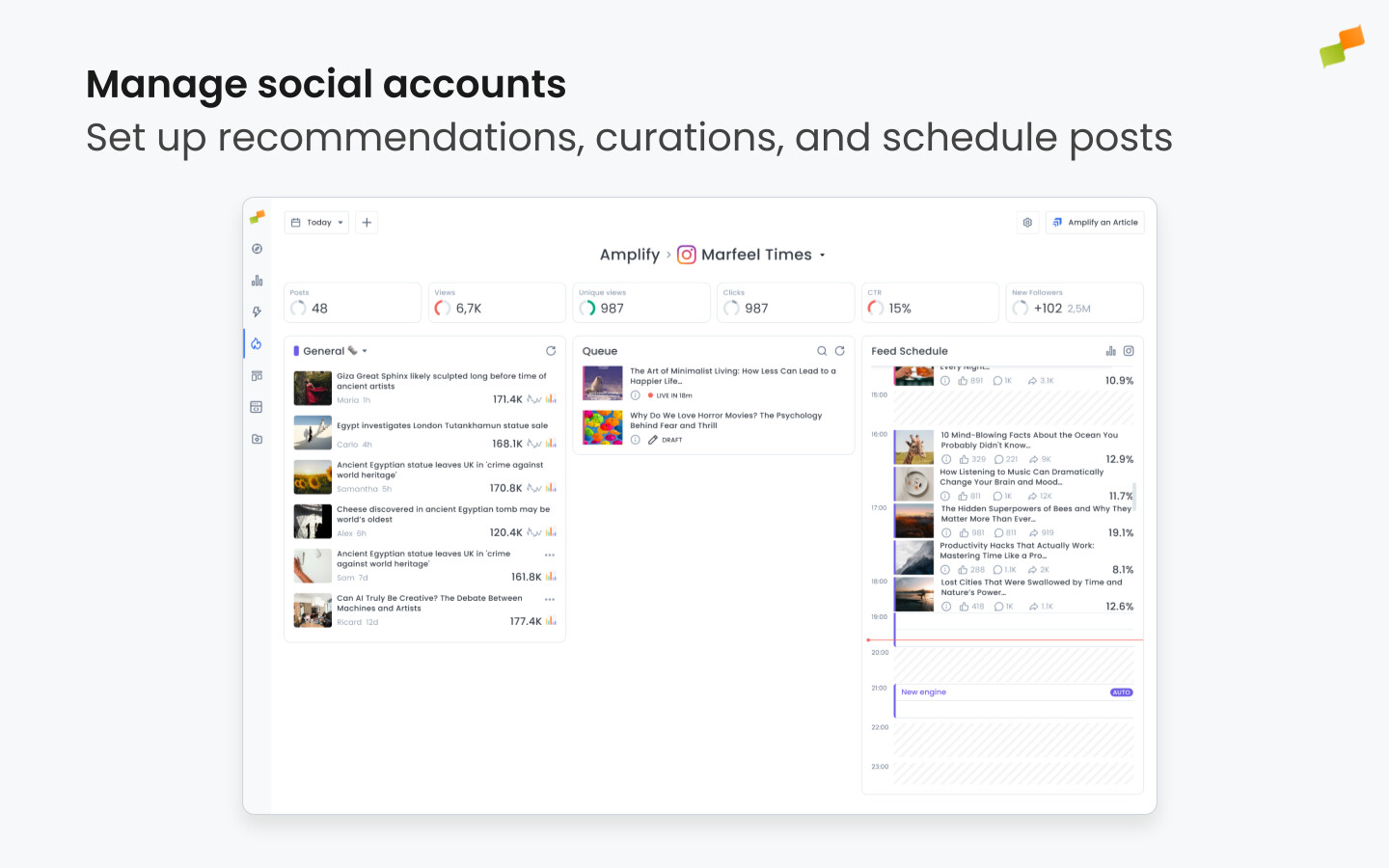
Section titled “Feed Details”Feed Details offers a detailed view of each connected feed, divided into three columns:
- Smart Recommendations: recommended content to post based on the guidelines you have selected.
- Queue: where posts go when they are queued. Posts in this column take precedence over Smart Recommendations for scheduling.
- Feed Schedule: a timeline showing posted articles with performance metrics, scheduled posts, and time slots where automation is set up.
Visit our detailed article to learn more about Feed Details.
Channels
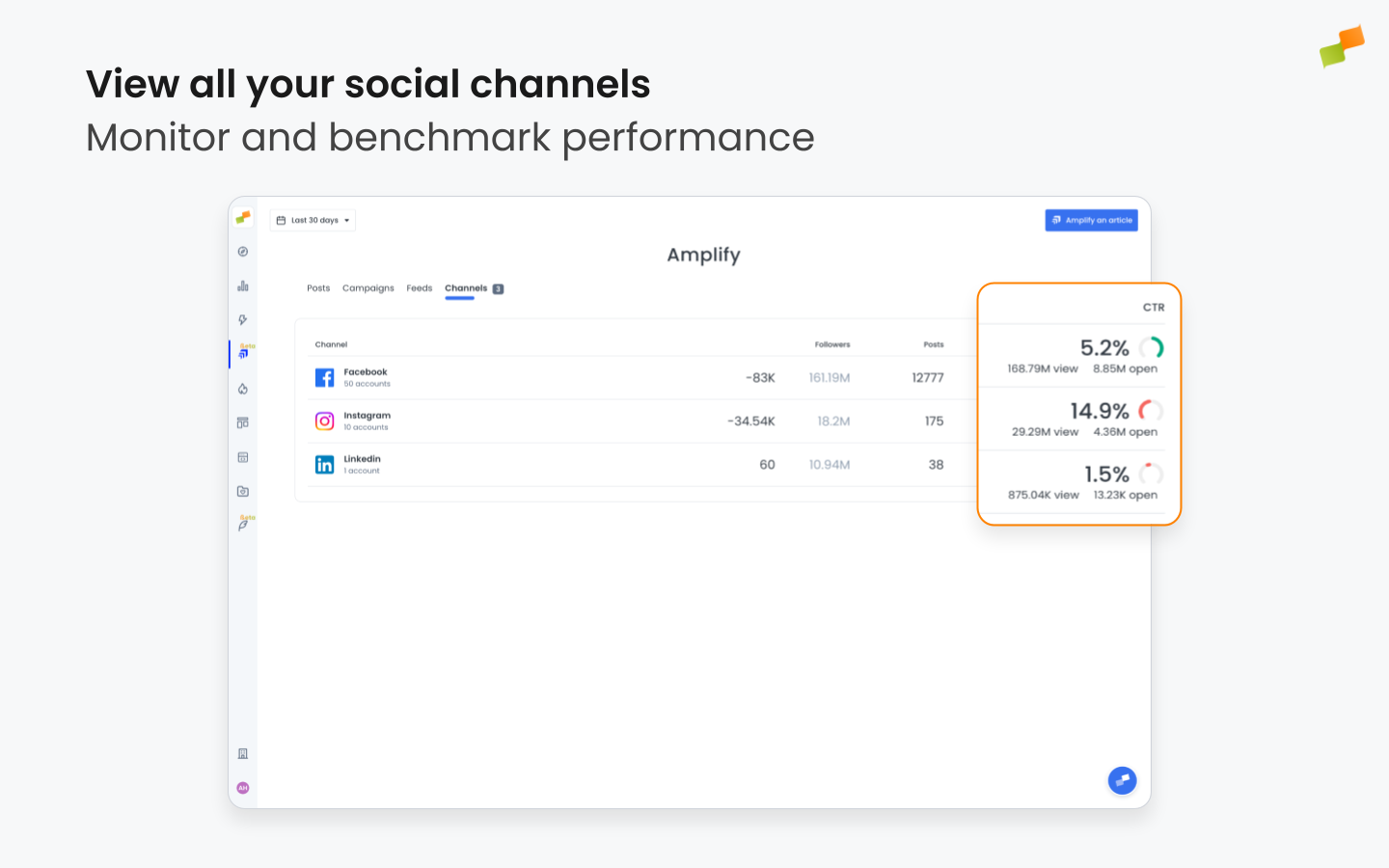
Section titled “Channels”Channels provides an overview of all your connected channels, aggregating metrics from the feeds belonging to each one: follower growth or decline, volume of published posts within your chosen timeframe, and engagement figures, all at a channel level.
Amplify Popup
Section titled “Amplify Popup”The core of Marfeel Amplify. This screen lets you generate and schedule posts for social media and other channels. Write the copy, select and customize images, choose the aspect ratio and layout, and configure settings like adding a link in the first comment. Publishing options such as schedule or queue for optimal time are also set here.
Article Details
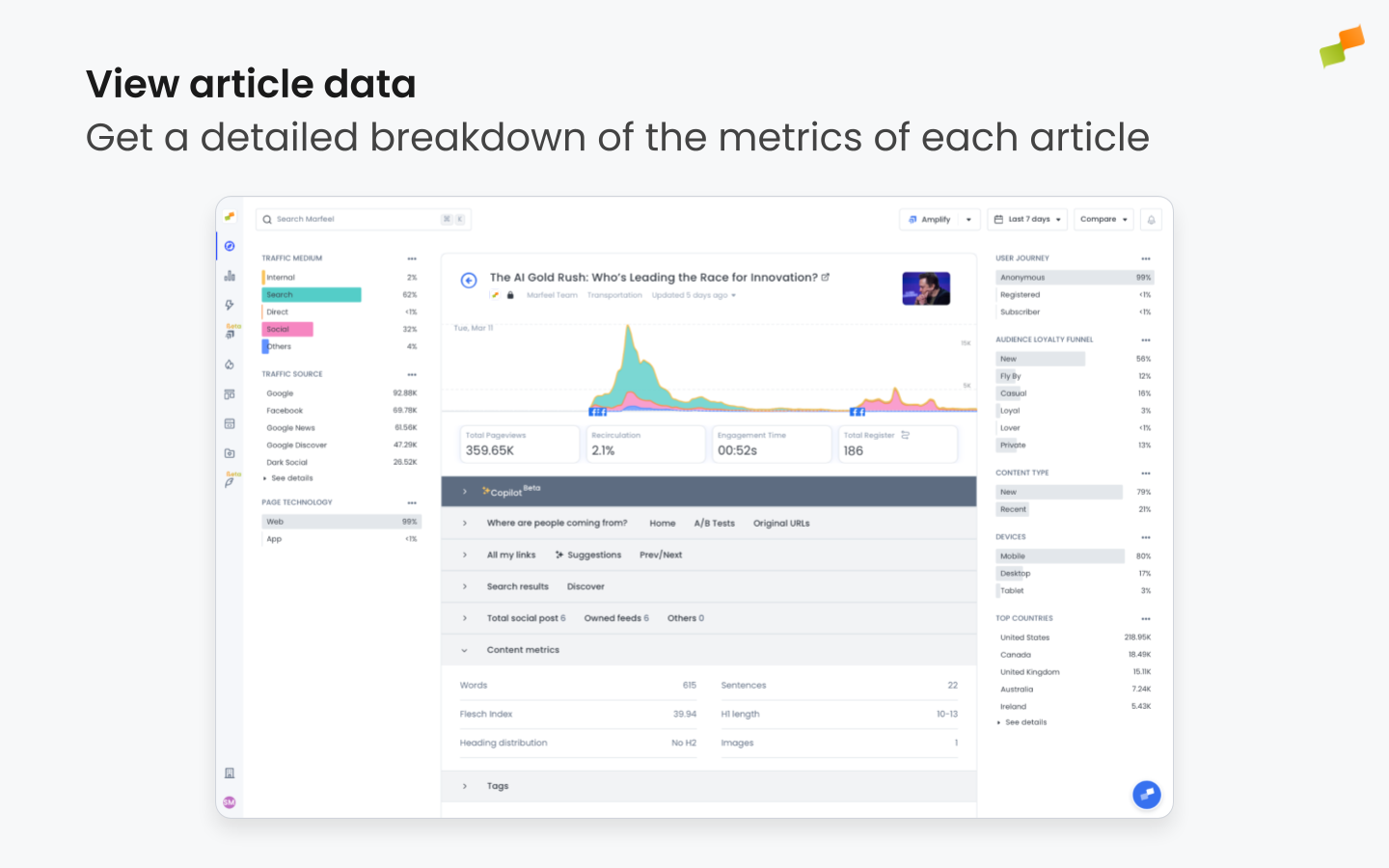
Section titled “Article Details”This screen provides a detailed breakdown of the main metrics and KPIs for a specific article. It is accessible from anywhere in Marfeel where you can see an article-level entry, such as the main Compass dashboard. Article Details can serve as a jumping off point to amplify an article, by clicking the Amplify button in the top right.
Explore Reports
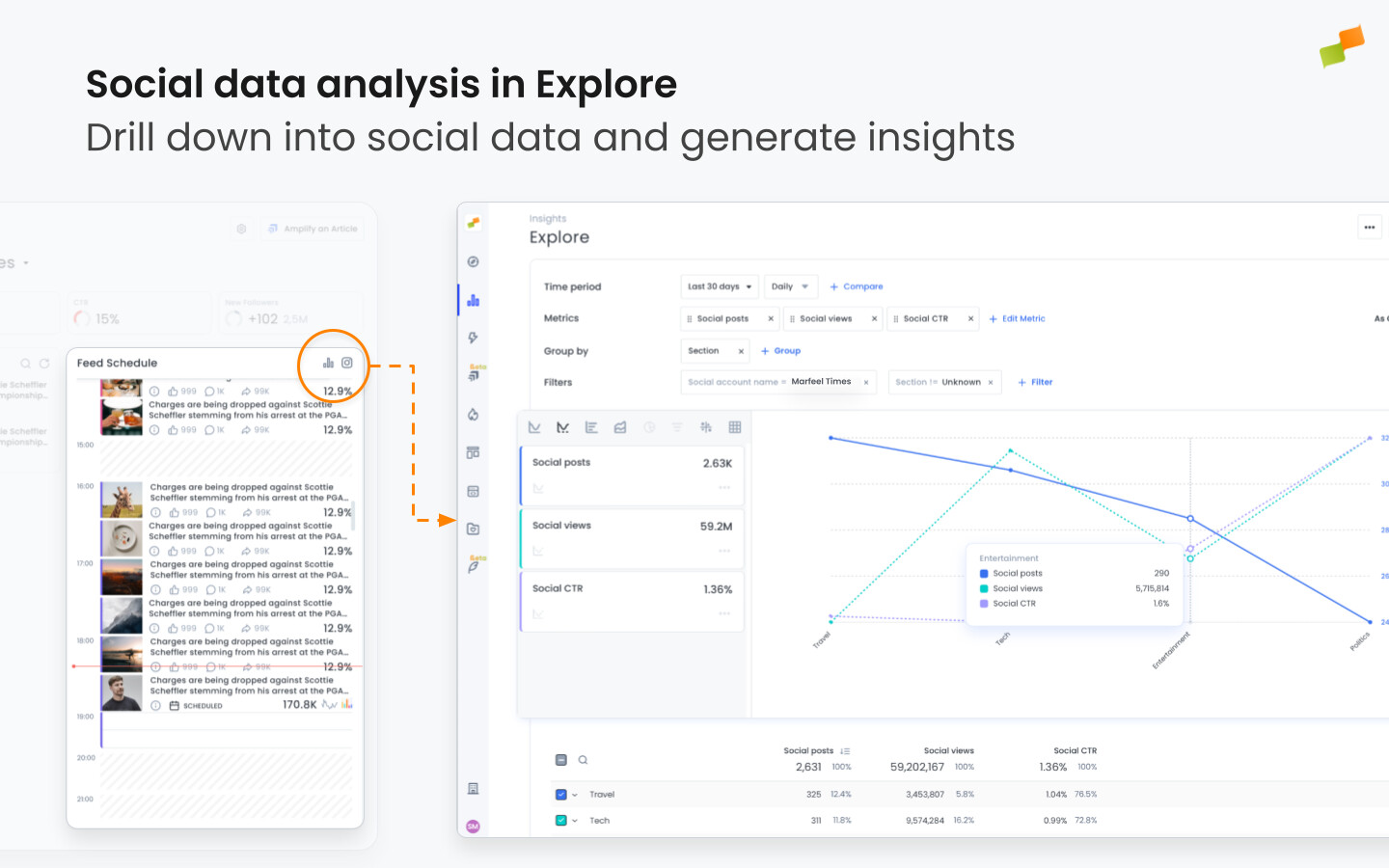
Section titled “Explore Reports”Marfeel captures social media data that can be consumed through Explore, allowing users to build detailed reports analyzing performance across channels, feeds, topics, post formats, time windows, and more. If a report contains article-level entries, those articles can be amplified directly from within Explore.
Dashboard
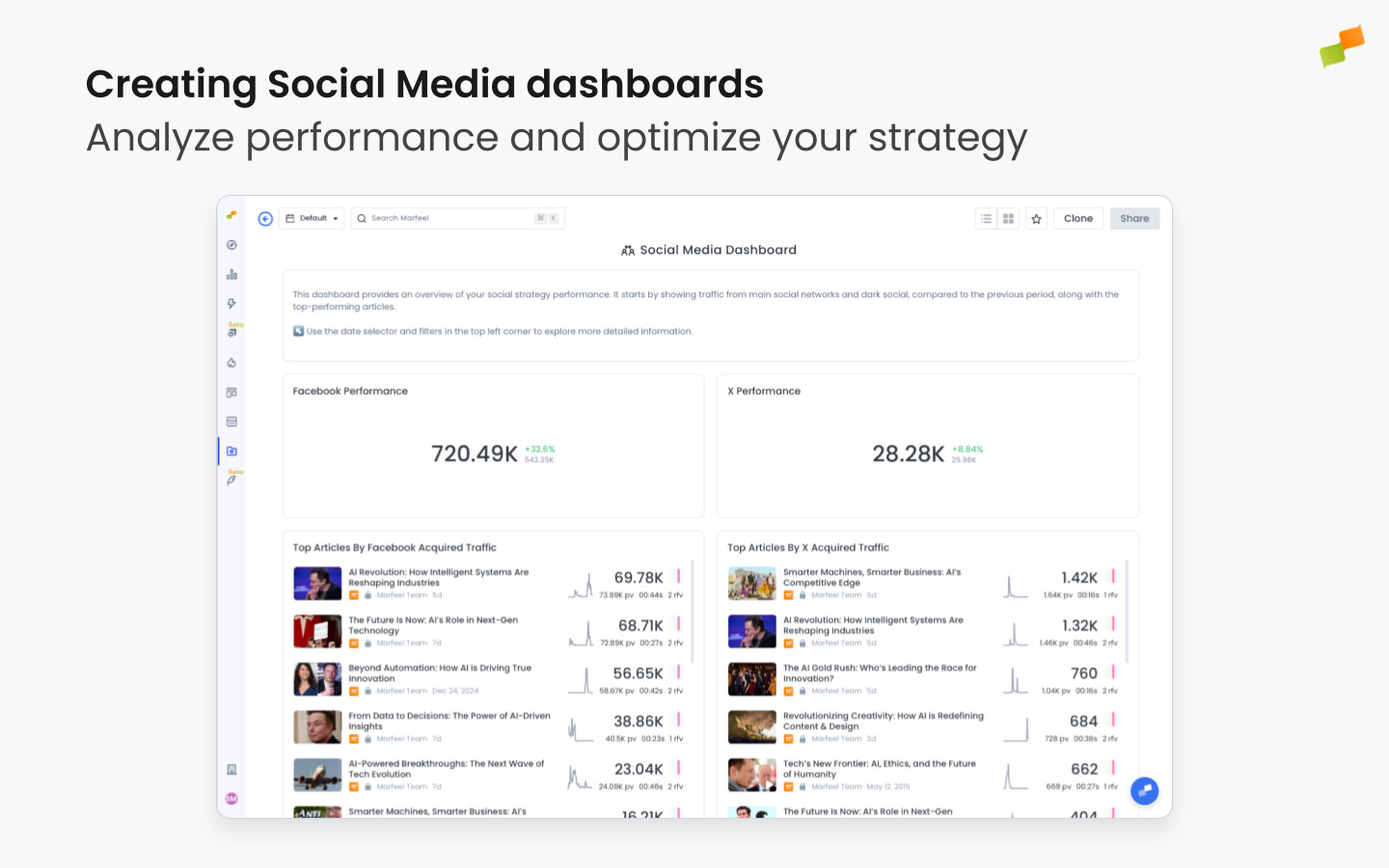
Section titled “Dashboard”Any view within Marfeel, including reports, can be saved and visualized in a dashboard. This allows for the creation of dedicated and collaborative dashboards for different teams and functions, such as the social media or distribution teams. Article-level entries can be amplified from within the dashboard by clicking the Amplify icon.
Where can I access Amplify to distribute an article?
Click the Amplify icon that appears when you hover over an article or use the Amplify button within article details. The icon is available wherever article-level information is displayed, such as in Compass, reports, dashboards, or Feeds view. Only users with Amplify admin, manager, or editor roles can access it.
Can I publish one post to multiple social feeds at once?
Yes. When creating a post, you can select multiple individual feeds or use Profiles, which group several feeds together so you can publish to all of them at once.
What publishing options does Amplify offer for scheduling posts?
Amplify offers three publishing options: publish immediately, schedule for a specific date and time, or queue the post to publish at the most optimal time based on analysis of your data.