

Amplify settings for social post branding and layout
Amplify settings control how your social posts look and behave across all connected accounts. Global Settings apply to every account by default, while Account Settings let you override specific properties per account.
Global Settings
Section titled “Global Settings”To configure your global settings, open the Amplify tab in the sidebar menu on the left and navigate to Social Settings > Appearance. You will be presented with Marfeel Amplify’s global settings menu.
Global Settings only apply when there is no Account Setting configured for a combination of Account and property.
Channel Defaults
Section titled “Channel Defaults”Some Global Settings are configured per channel. Copilot Prompt for Instagram accounts, for instance, should not be the same as the one for LinkedIn. Channel Defaults can be found in Global Settings and will also apply only when there is no Account Setting configured for a combination of Account and property.
🎓 Master Amplify, step by step 📊 The video below is an excerpt from the Amplify Fundamentals course.
🧠 Discover more learning paths on Marfeel Academy.
Account Settings
Section titled “Account Settings”Account Settings apply to each of your connected accounts and take precedence over Global Settings for that property.
To configure them, open the Feed Details screen for any of your accounts and click on the Settings ⚙ button in the top right. You will be presented with Amplify’s account settings menu.
List of Settings
Section titled “List of Settings”Aspect Ratio
Section titled “Aspect Ratio”Aspect ratio is the default image sizing for the selected channel. Each channel supports different aspect ratios, so select the one that occupies the most space in the viewport. Consult with your design team to define which choice works best for your brand.
Avatar
Section titled “Avatar”The small image used in mobile apps and in browser windows, often the isotype of your logo. This image appears on your Link in Bio page. Use a high resolution PNG with a transparent background.
Avatar alignment
Section titled “Avatar alignment”Alignment for the Avatar described above.
Border radius
Section titled “Border radius”Defines the curvature of the border on images generated by Marfeel for your social posts.
Copilot Prompt
Section titled “Copilot Prompt”Copilot prompts tell Marfeel Amplify how to write copy for your posts automatically. Prompts can be simple (“give me ideas for social media posts”) or very specific (“suggest social media posts that are serious and emphasize data points and numerical figures”). Visit our dedicated article to learn more about Copilot prompts.
Custom CSS
Section titled “Custom CSS”Custom CSS block to include on Amplify Layouts. Allows global styling like adding custom fonts.
First Comment
Section titled “First Comment”Defines the first comment that will be posted on certain social platforms where it is advisable to insert the link to an article in a comment beneath your post instead of in the post body.
Layout
Section titled “Layout”Layouts are HTML and CSS code used to automatically create and style images for your social posts. Select which layout to use by default on each of your social channels. Visit our dedicated article to learn how to set up and configure layouts.
Layout Filters
Section titled “Layout Filters”You can assign filters to any layout so that Amplify automatically selects the right visual treatment based on article attributes. Instead of manually choosing a layout for each post, define rules once and let the system match content to layouts for you.
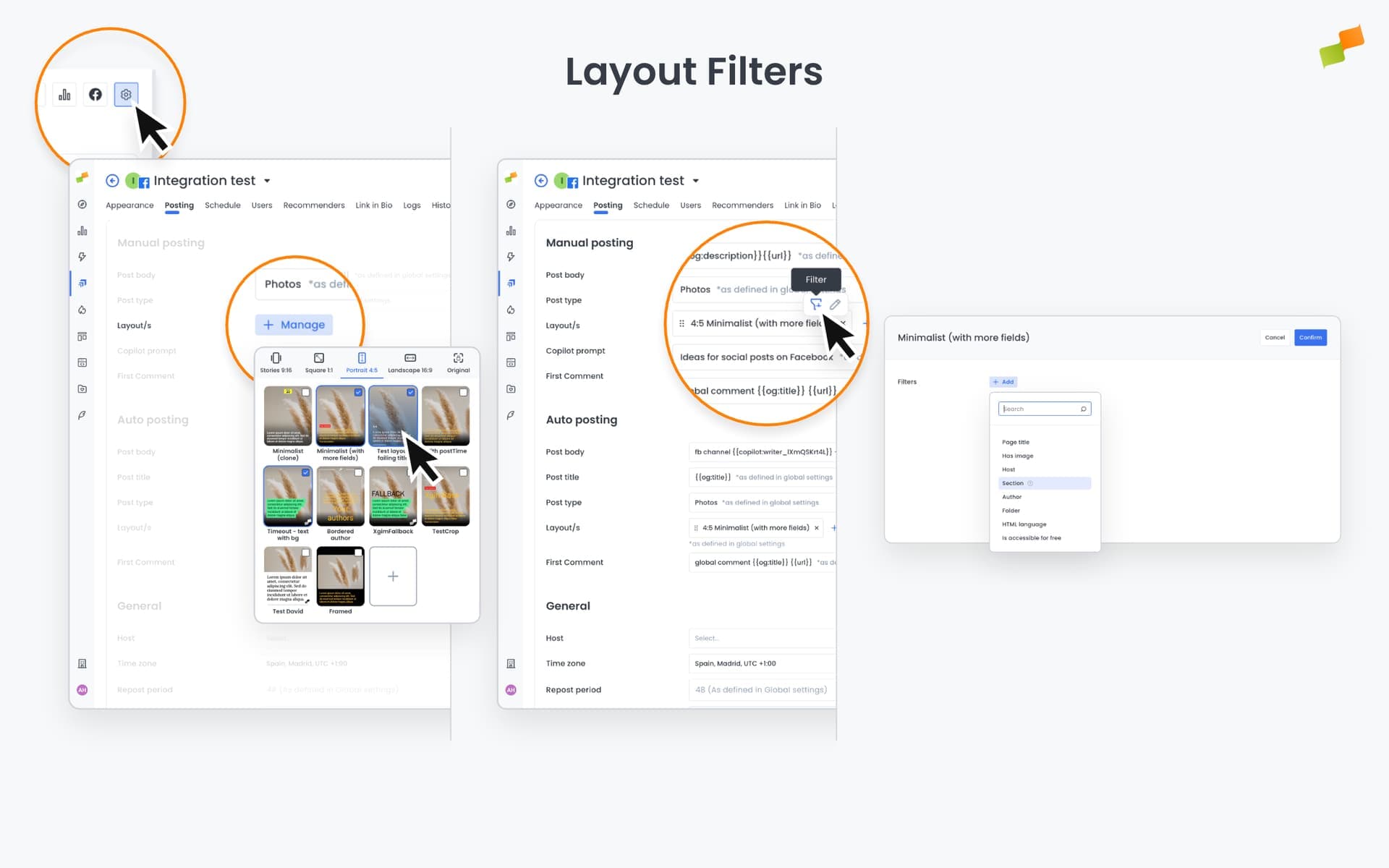
To add filters, open any layout’s configuration and click + Add. You can combine multiple filters per layout for precise targeting.
When a new post is created, Amplify evaluates your filter rules in order and applies the first matching layout. If no filters match, the default layout is used.
Post Body
Section titled “Post Body”The post body template defines the text that accompanies your shared image on social platforms. Templates support standard placeholders like {{og:title}}, {{og:description}}, and {{publishTime}}, as well as custom property placeholders via {{customProperties.fieldName}} when you configure Custom Fields to sync to Amplify.
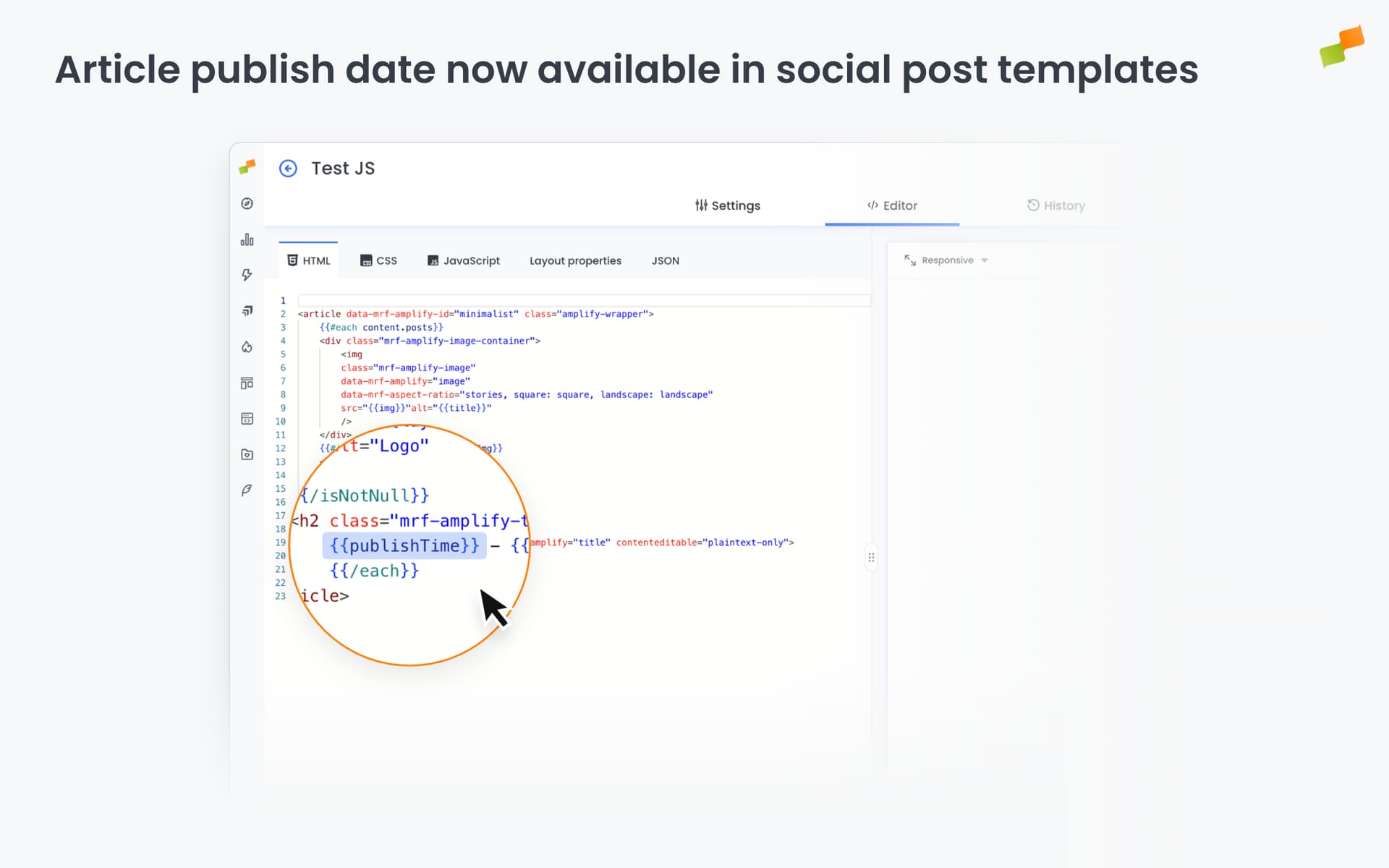
Use {{publishTime}} to include the original article publish date in any post. This is useful when resharing evergreen content or referencing older articles — audiences can see when the piece was first published without you editing each post manually.
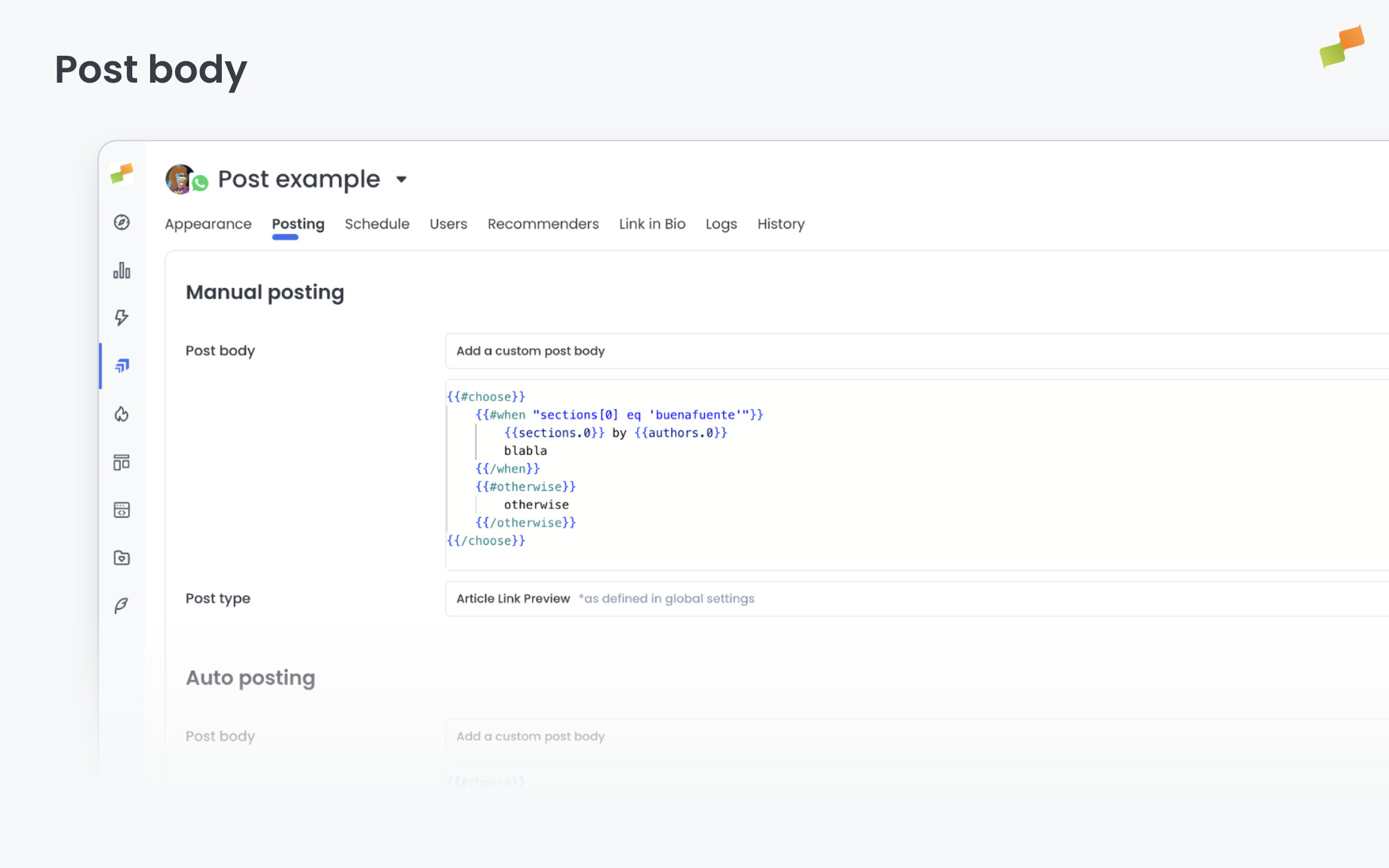
Templates also support conditional logic and repeating sections. Customize messages by section, author, or any article field, and loop through arrays like tags to auto-generate hashtags. See Smart Post Templates for syntax and examples.
Open Graph Cleaners
Section titled “Open Graph Cleaners”Open Graph Cleaners remove unwanted text from an article’s og:title and og:description before Amplify uses them in your posts. Use them to strip site names, section prefixes, or SEO suffixes that clutter social copy. Rules are configured in Global Settings and apply automatically whenever Amplify fetches article metadata for publishing — no changes to your CMS or article markup are required.
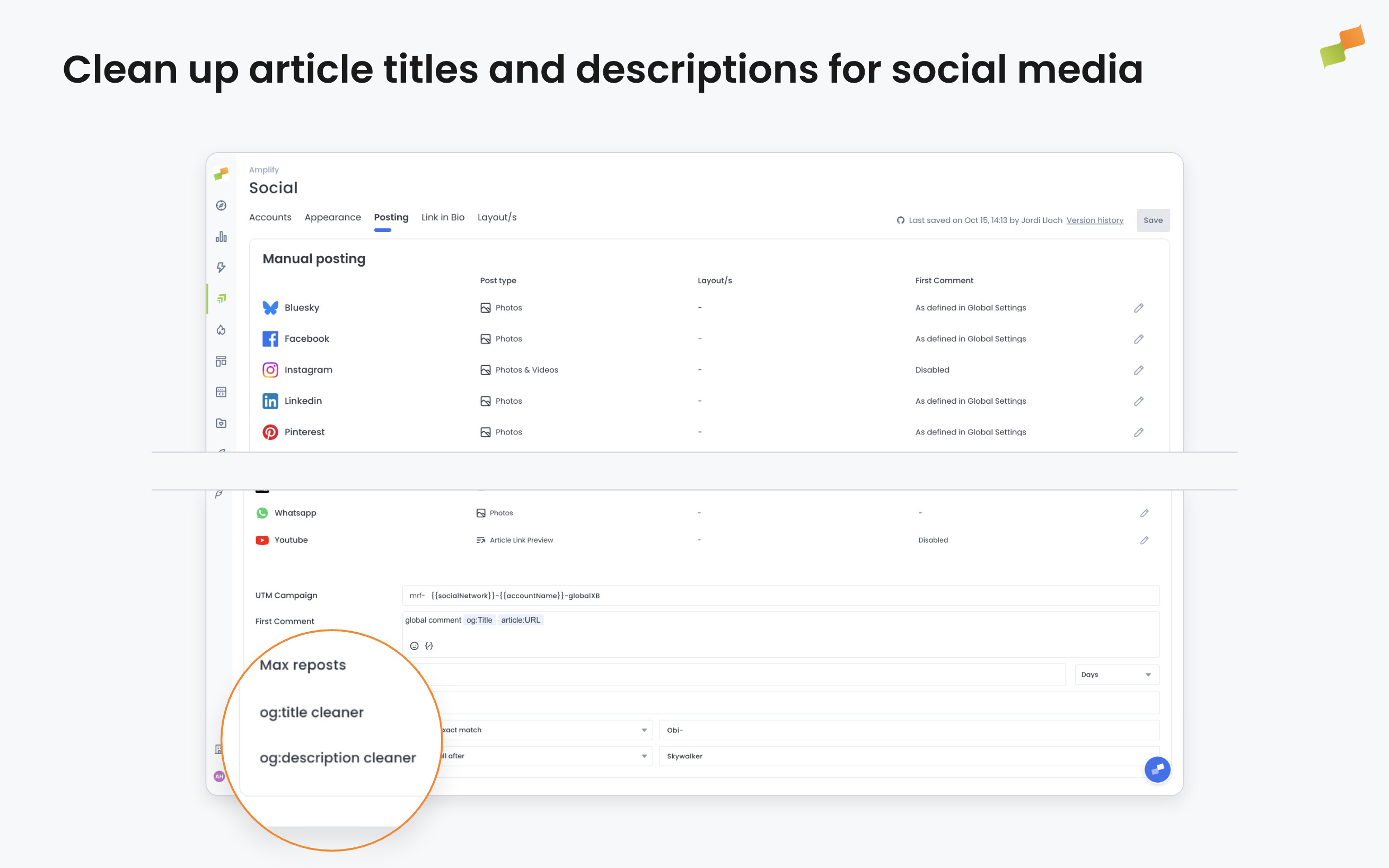
Two fields, og:title cleaner and og:description cleaner, let you configure titles and descriptions independently. For each, select an operation from the dropdown and enter the pattern or text to act on in the field beside it:
- Remove all after: Strips everything after the pattern. Use it to remove suffixes like
| mysite.com. - Remove all before: Strips everything before the pattern. Use it to remove prefixes.
- Remove exact match: Removes the specified text wherever it appears in the metadata.
- None: No cleaning. This is the default — Amplify uses the original
og:titleandog:description.
Post Image
Section titled “Post Image”Defines which image property is used when sharing articles to social media. By default, Amplify uses the article’s og:image.
With Custom Fields, you can extract a different image, for example the first in-content photo or a thumbnailUrl from structured data, and select it as the post image source at the feed level. All posts in the feed will use the selected image property. When a specific article doesn’t have the custom property, Amplify falls back to og:image automatically.
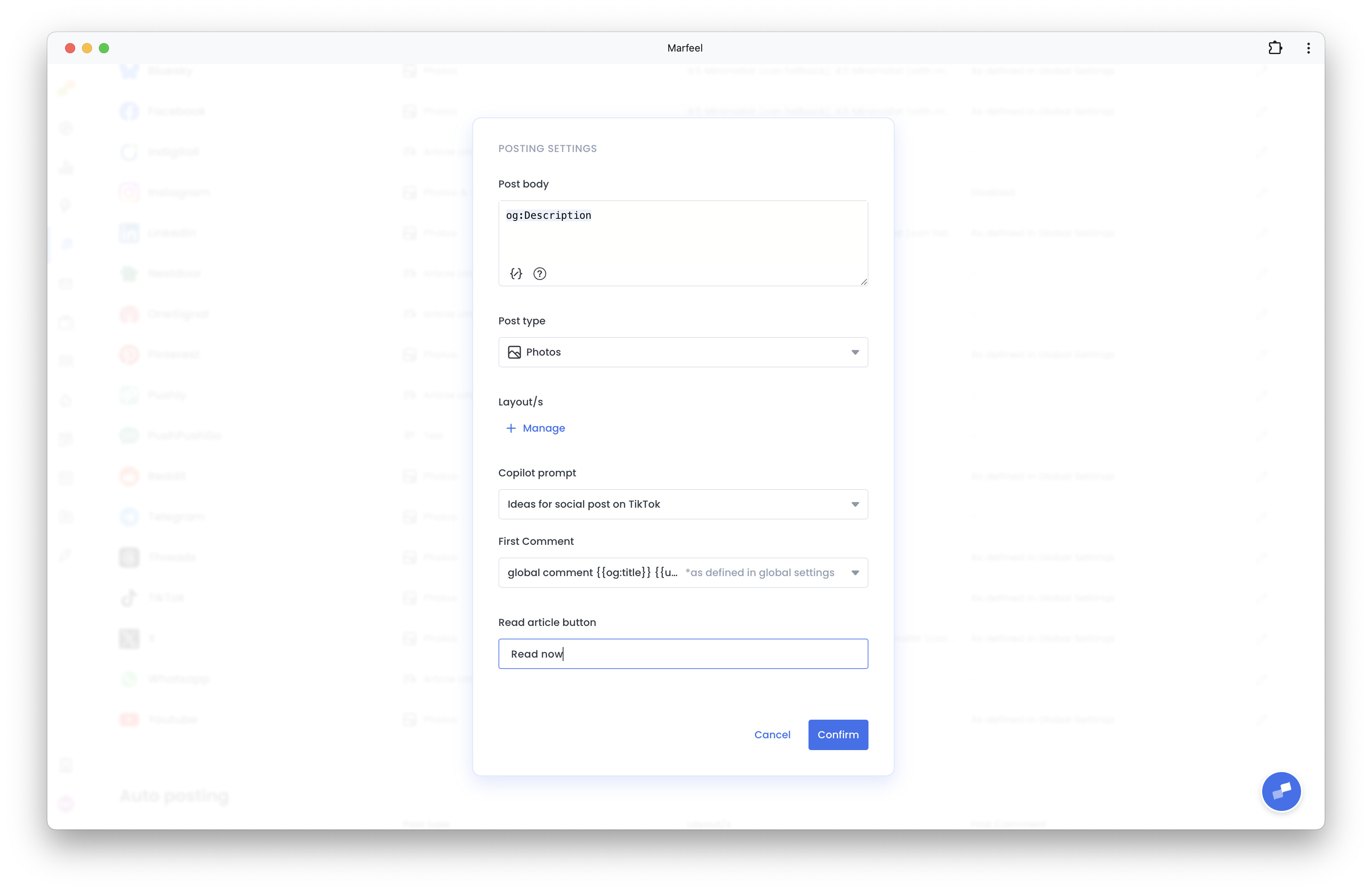
Read article button
Section titled “Read article button”Sets the text on the Read article link that TikTok posts can carry back to your article. See article links on TikTok for how the link works and which accounts can use it.
By default the anchor reads Read article. Enter your own wording to replace it:
- In Global Settings: the label applies to every TikTok post.
- On an individual account: the label overrides the global value for that account only.
- Left empty: Amplify uses the default Read article text.
Labels are limited to 30 characters.
Signature
Section titled “Signature”A signature appends the author’s social profile handle to the post body before it is published on X.
Amplify manages character limits so that the signature and post content fit within X’s constraints. If the article has no associated author, or the author has no X account connected, Amplify omits the signature for that post rather than publishing an empty placeholder.
To use signatures:
- Each author must connect their X account under User Management > [User] > Personal > My social profiles.
- Enable the signature in Feed Settings > Posting and select Author Social Profile.
Custom signatures support Trimou template logic. The signature field uses the same code editor as Post Body templates, so placeholders and conditional expressions are evaluated before publishing instead of being treated as plain text. Use conditional logic to control when the signature appears, for example only for articles in your Opinion section:
{{#if "sections[0] eq 'Opinion'"}}Your signature text{{/if}}See the Marfeel templating syntax reference for the full list of supported expressions.
Link in Bio
Section titled “Link in Bio”Defines the text of the Link in Bio page used for Instagram and other platforms that do not support link posts.
Your publication’s logo. Use a high resolution .png version with a transparent background.
Logo alignment
Section titled “Logo alignment”Specifies how your logo will be positioned in images.
Accent color
Section titled “Accent color”Selects the primary color used to style certain parts of your images.
Background Color
Section titled “Background Color”Selects the color that will appear behind your images or design elements.
Text alignment
Section titled “Text alignment”Defines how text is positioned in images generated by Marfeel for your social posts.
Timezone
Section titled “Timezone”Sets the timezone for the account, which determines your feed’s calendar so that posts are scheduled at the right time. Timezone defaults to the one configured in Marfeel’s Organization Settings.
Typography
Section titled “Typography”Selects the font type and font size used to generate text in your images. Custom fonts are supported. To use a custom font, you need the font file hosted on a server and the URL address for it.
-
Go to Appearance and in the
Typographyfield, input the name of the font you want to use. -
Lower down, in the
Custom CSSfield, input the following code, replacing the value afterfont-familywith the name of the font you want to use, and the url aftersrc: urlwith the address where the font is hosted.
@font-face { font-family: 'Roboto'; font-weight: 600; src: url("https://www.example.com/static/fonts/roboto.woff2"); font-display: swap;}- Make sure that the font’s name in
Typographyis written exactly as it appears in theCustom CSSfield, including spaces and casing. Otherwise Amplify won’t be able to identify and import it.
Custom fonts can also be imported from Google Fonts. To do so, input the following code in the Custom CSS field, replacing the example url seen below for the font you would like to use:
@import url('https://fonts.googleapis.com/css2?family=Roboto:ital,wght@0,100..900;1,100..900&display=swap')To fix this, configure your CDN or font server to allow the origin https://hub.marfeel.com. Once allowed, Amplify can fetch the font file and render it consistently across all operating systems.
Repost Period
Section titled “Repost Period”Defines how much time must pass before an already posted article can be suggested again in smart recommendations and for automated feeds. The system enforces a minimum interval of 4 hours, regardless of the value set.
Max Reposts
Section titled “Max Reposts”Defines how many times an article can be reposted before it is excluded from recommendations. Only reposts during the last 30 days are counted. Set this value to 0 if you do not want already posted articles to be suggested in your feed or posted automatically.
🎓 Become a Marfeel Amplify expert 📣 Learn how to publish smarter, automate sharing, and optimize your social strategy with our Marfeel Amplify Course.
✅ Workflow-focused training ✅ Automation strategies ✅ Certificate of completion included

🧠 Start now on Marfeel Academy.