

Facebook and Instagram Meta integration setup
The Meta integration connects your Facebook pages and Instagram accounts to Marfeel, importing engagement data including posts, comments, shares, likes, and followers. All data is available in the Explore module and Compass playbook. The integration also enables posting to your Facebook and Instagram pages directly from within Marfeel.
For a deeper dive on the social media module and how to get the most out of it, see the user guide.
Set up the Meta integration
Section titled “Set up the Meta integration”-
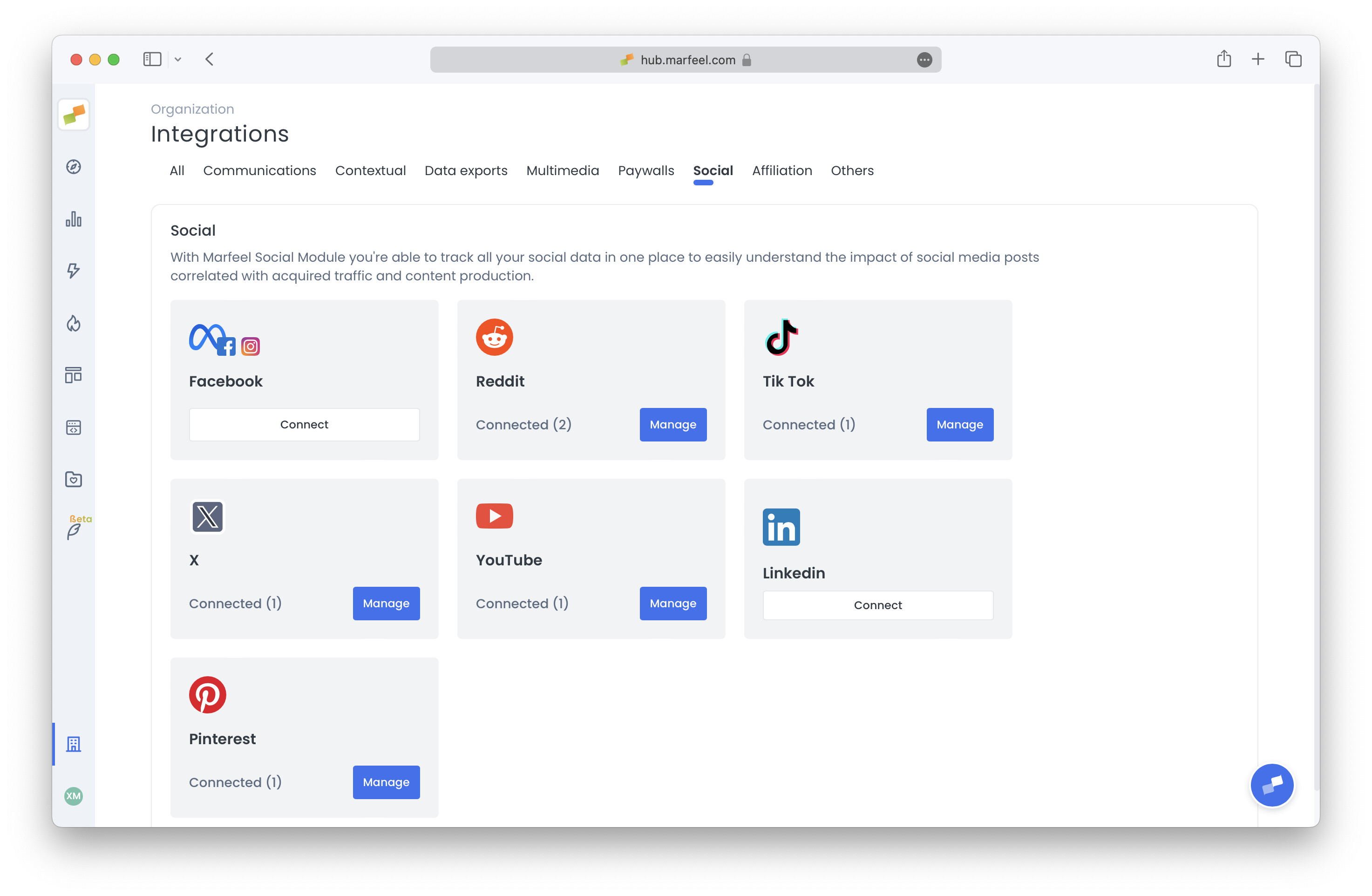
Go to the Organization icon in the sidebar and select Integrations. Scroll down to find the Social section.
-
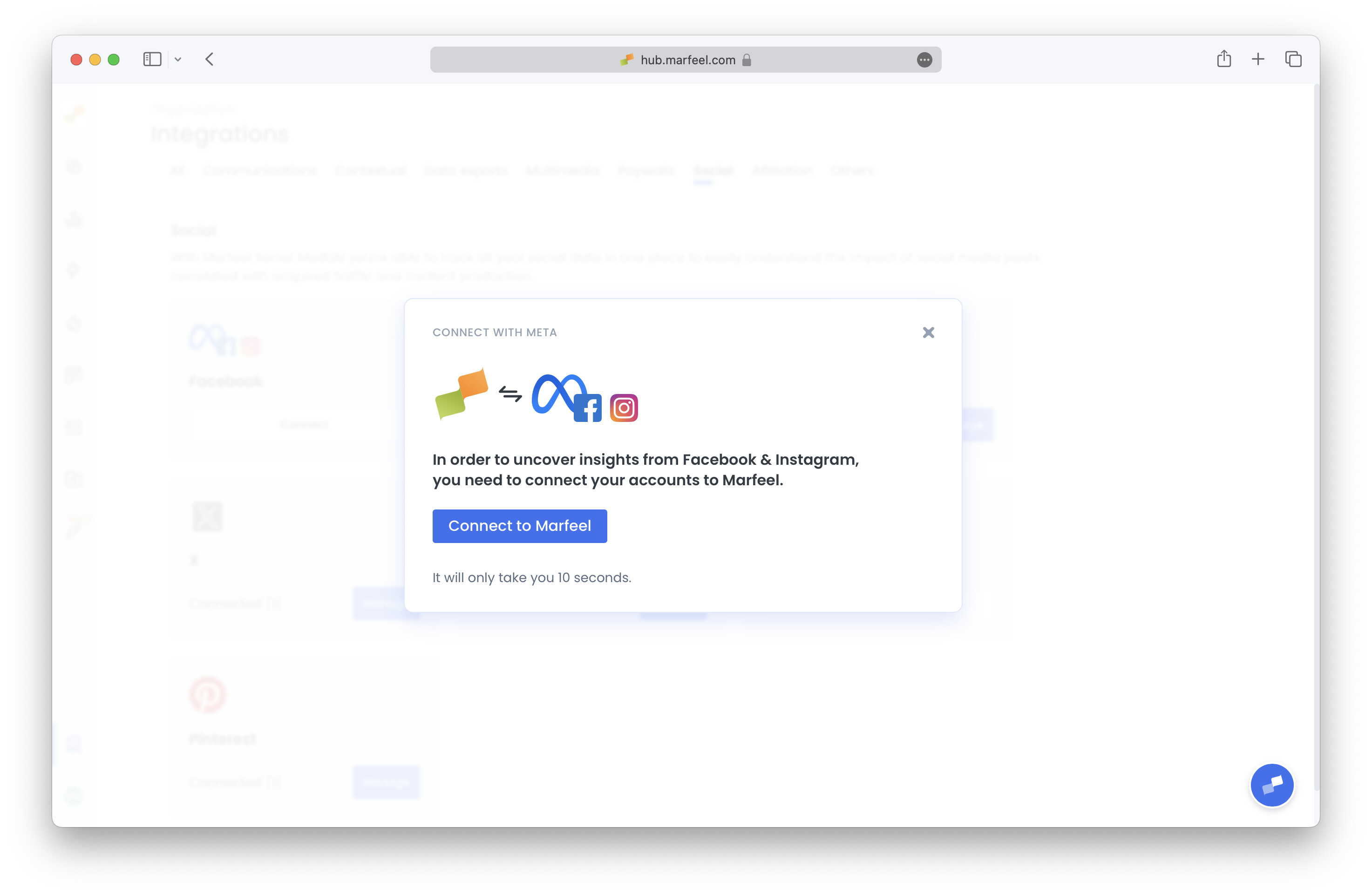
Click on Connect in the Meta integration box. You will see the following prompt:
-
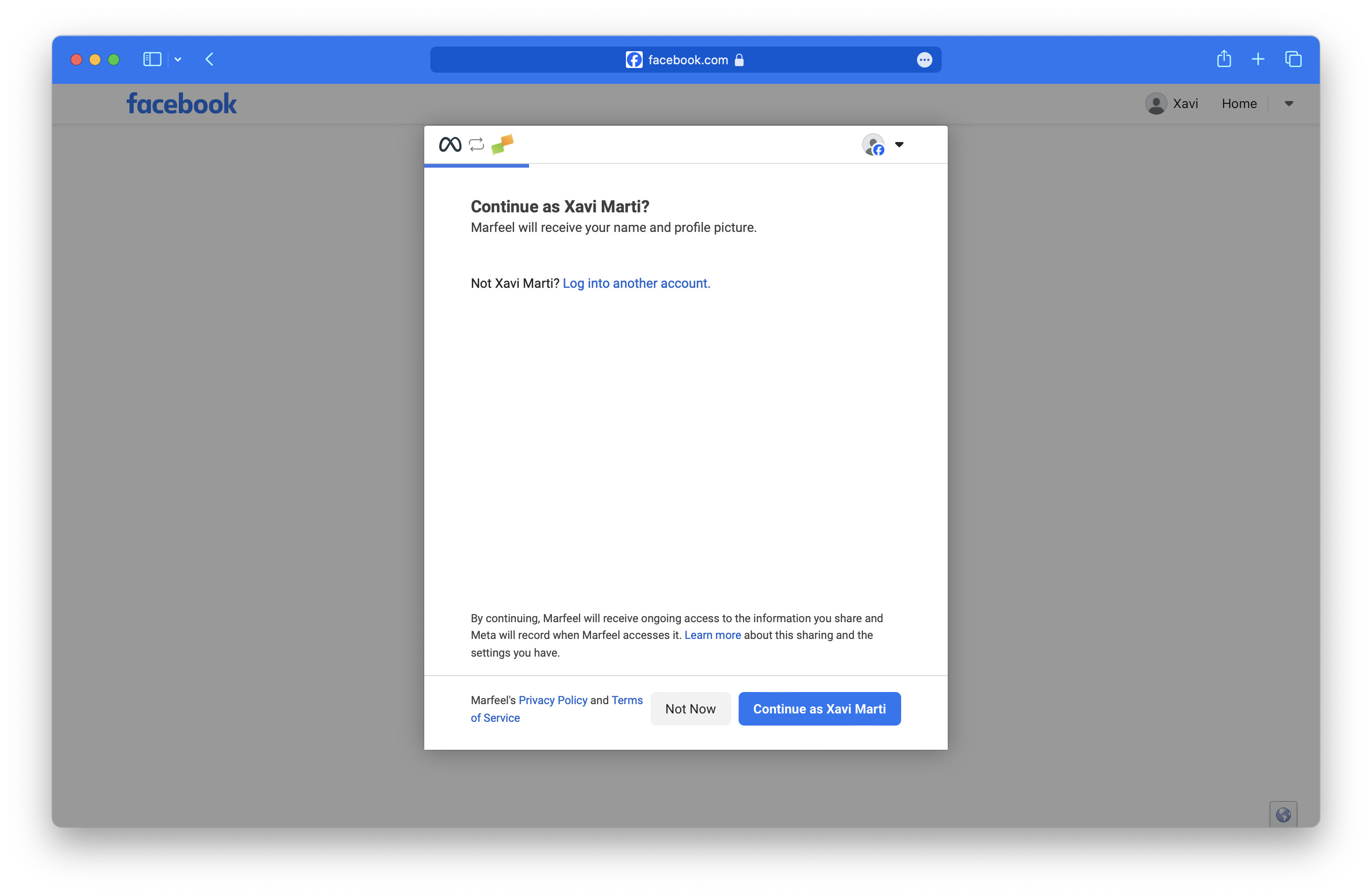
Log in to your Facebook account if prompted. You will then start the OAuth authorization process.
-
Select the Business that owns the pages you want to give access to, and choose the specific Facebook pages and Instagram accounts.
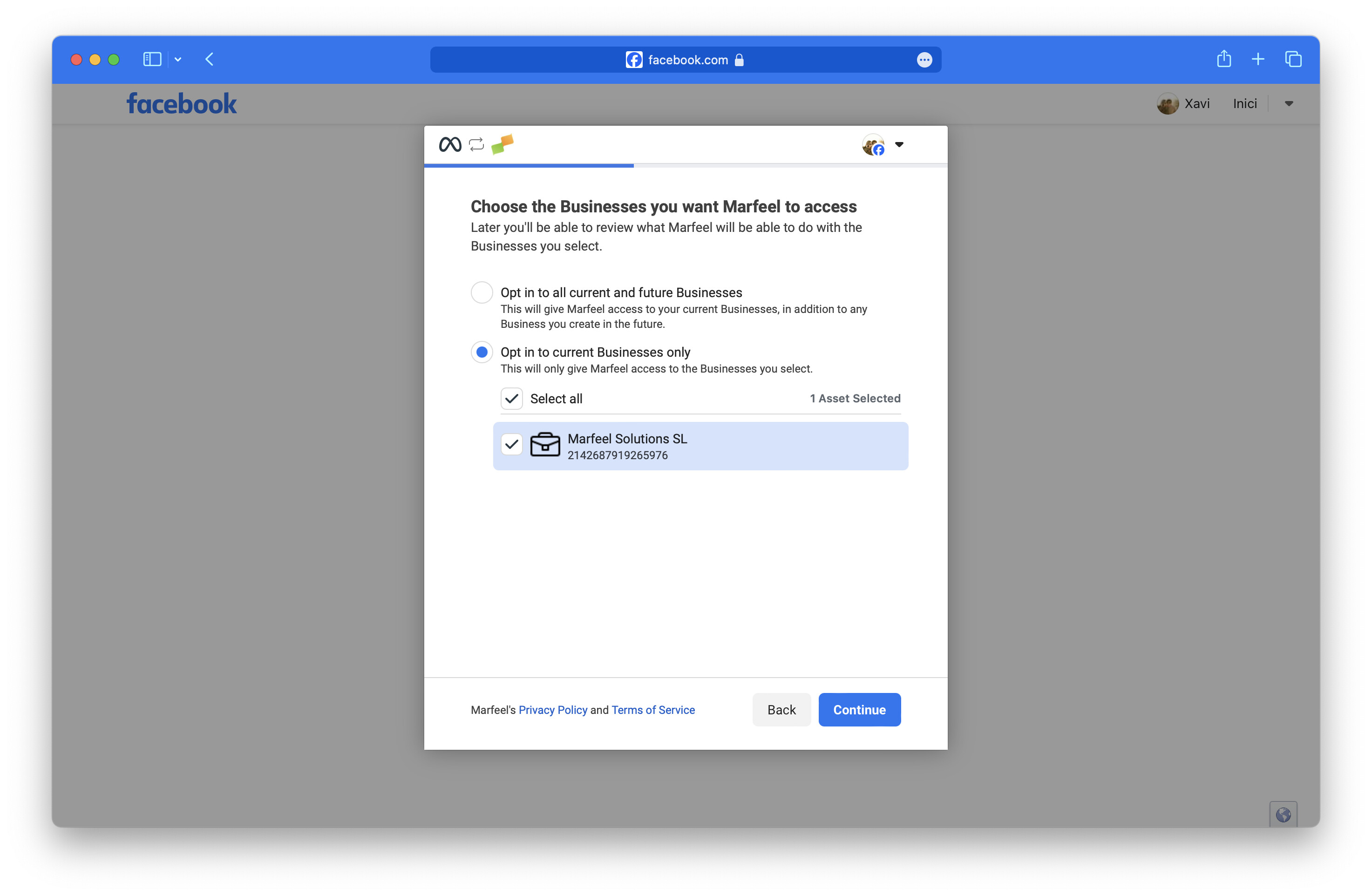
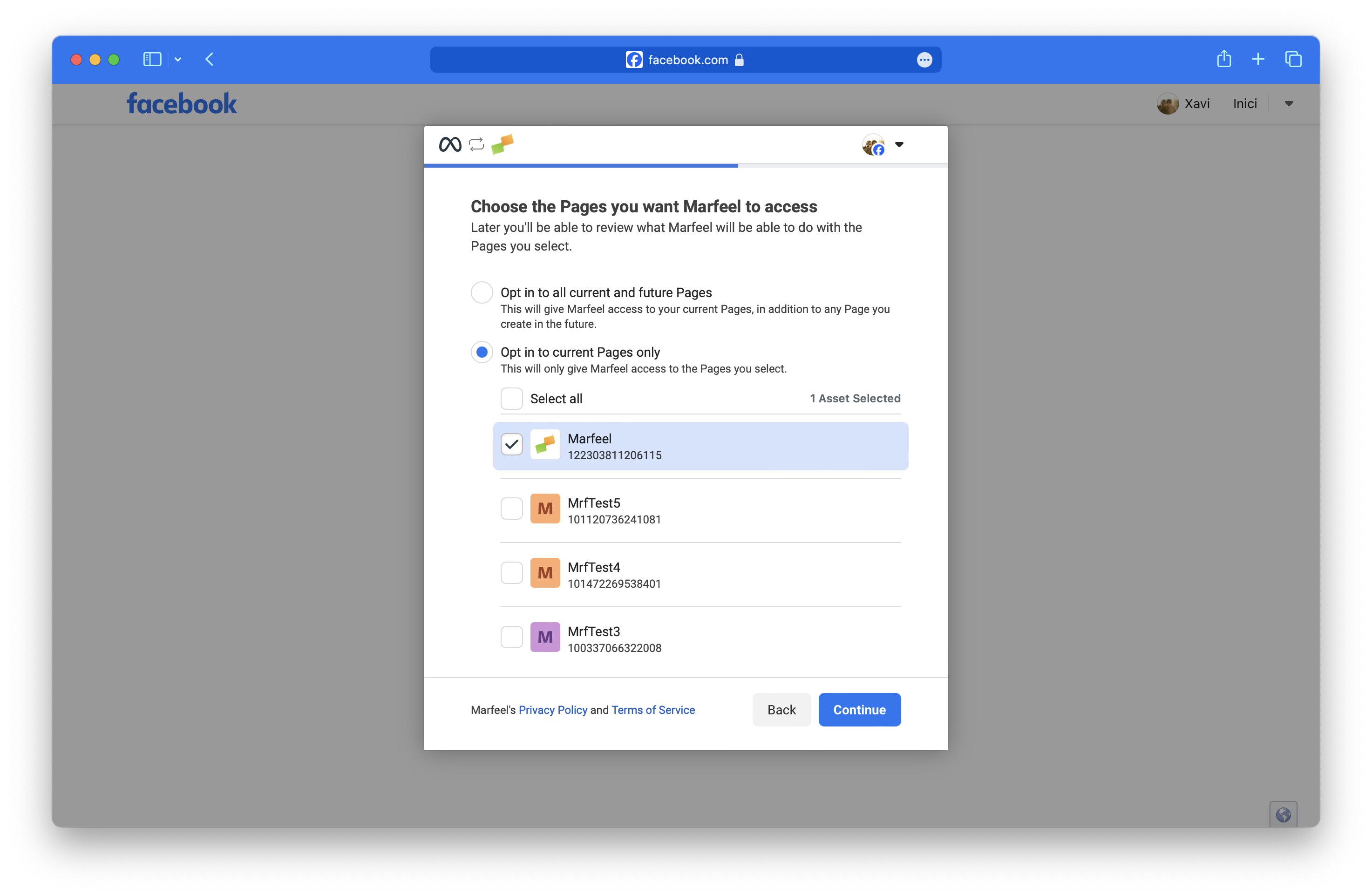
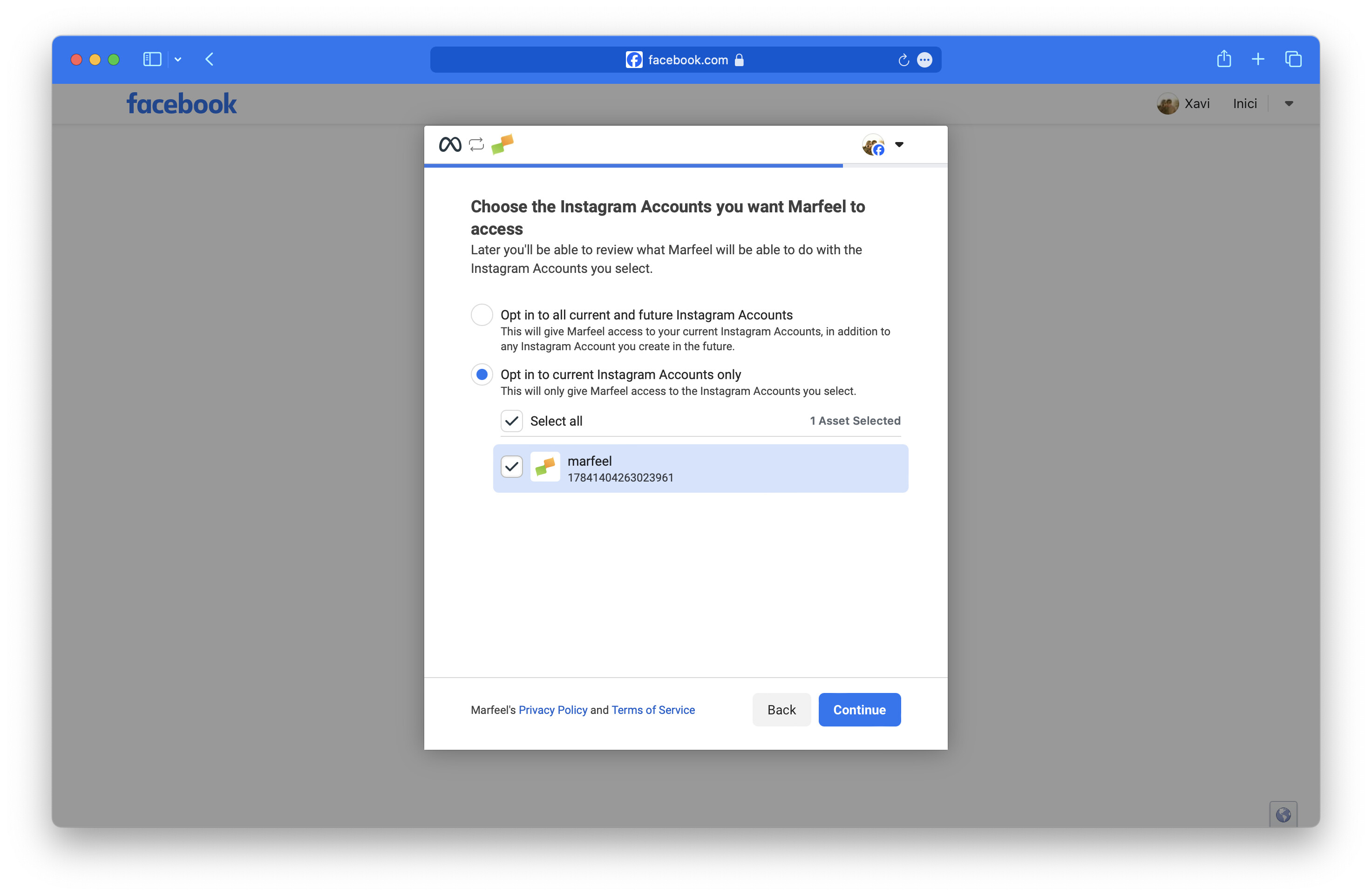
If you want Meta integration to be able to sync all data from your Instagram accounts, you need to make sure they are connected to the Facebook pages you add in the integration. You can connect them by following the instructions provided in Meta's documentation.
-
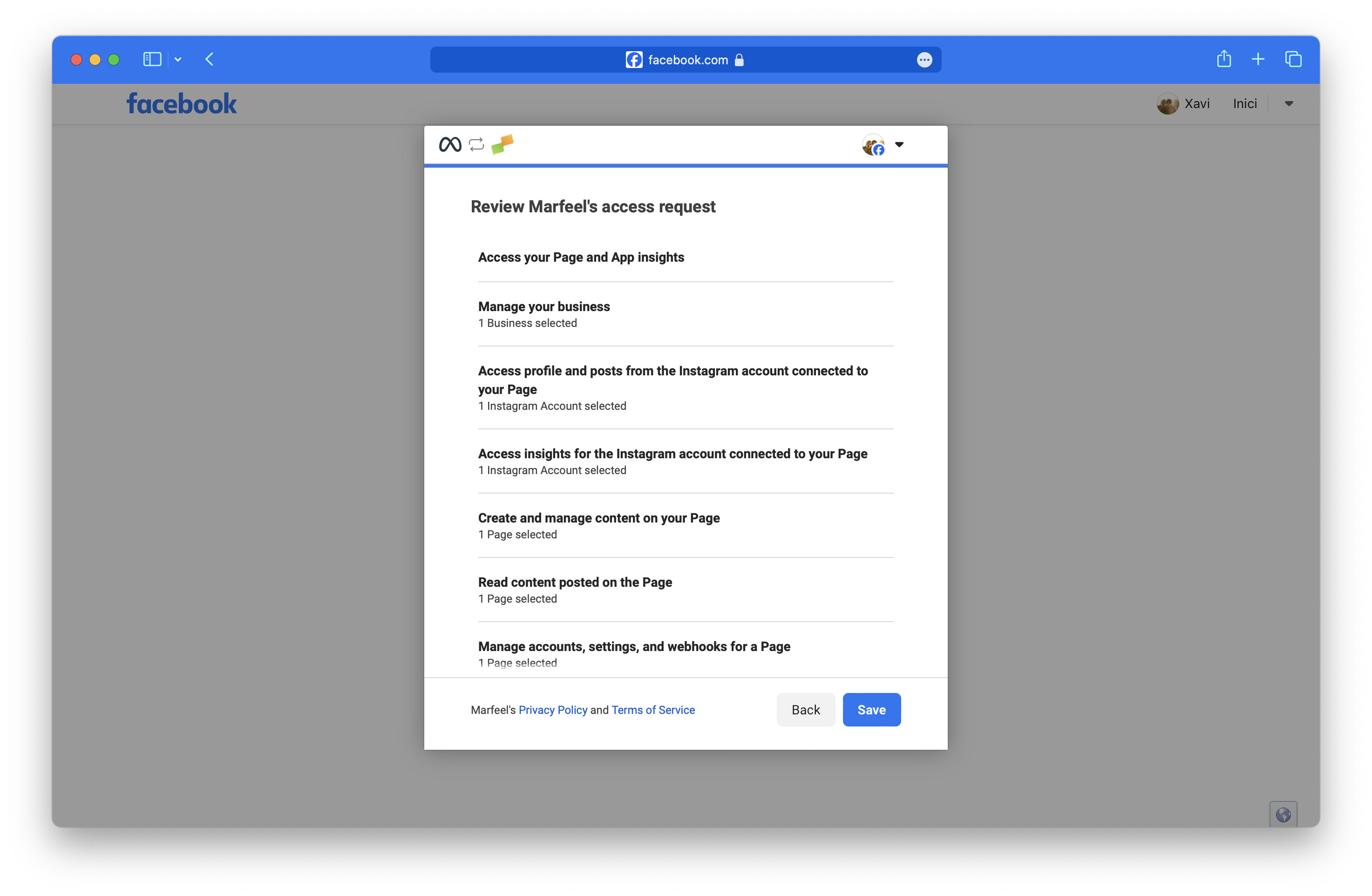
Review and Save.
-
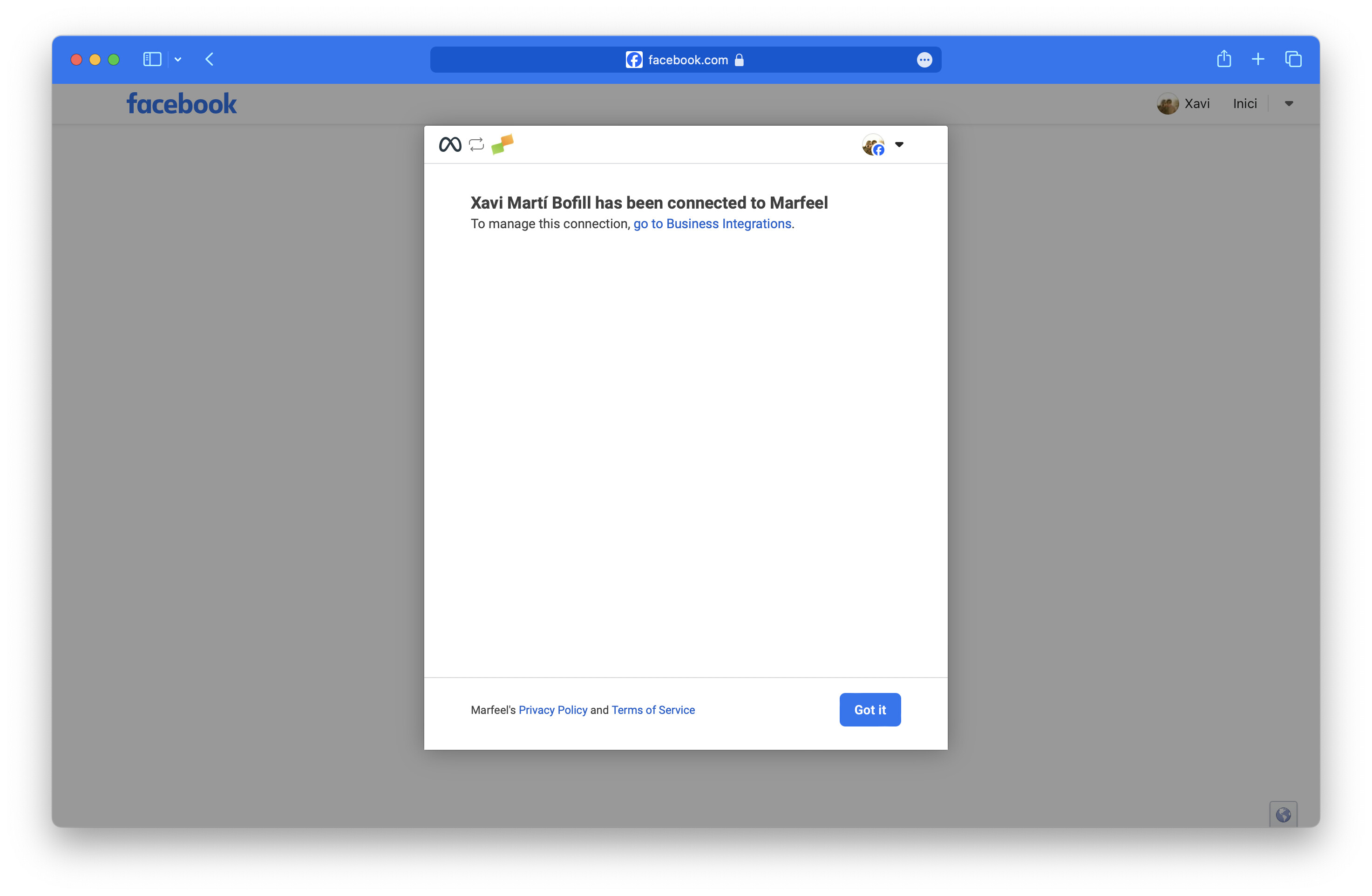
Integration is connected. Click on “Got it” to return to Marfeel.
You should now see the integration with the list of Facebook pages and Instagram accounts it has access to.
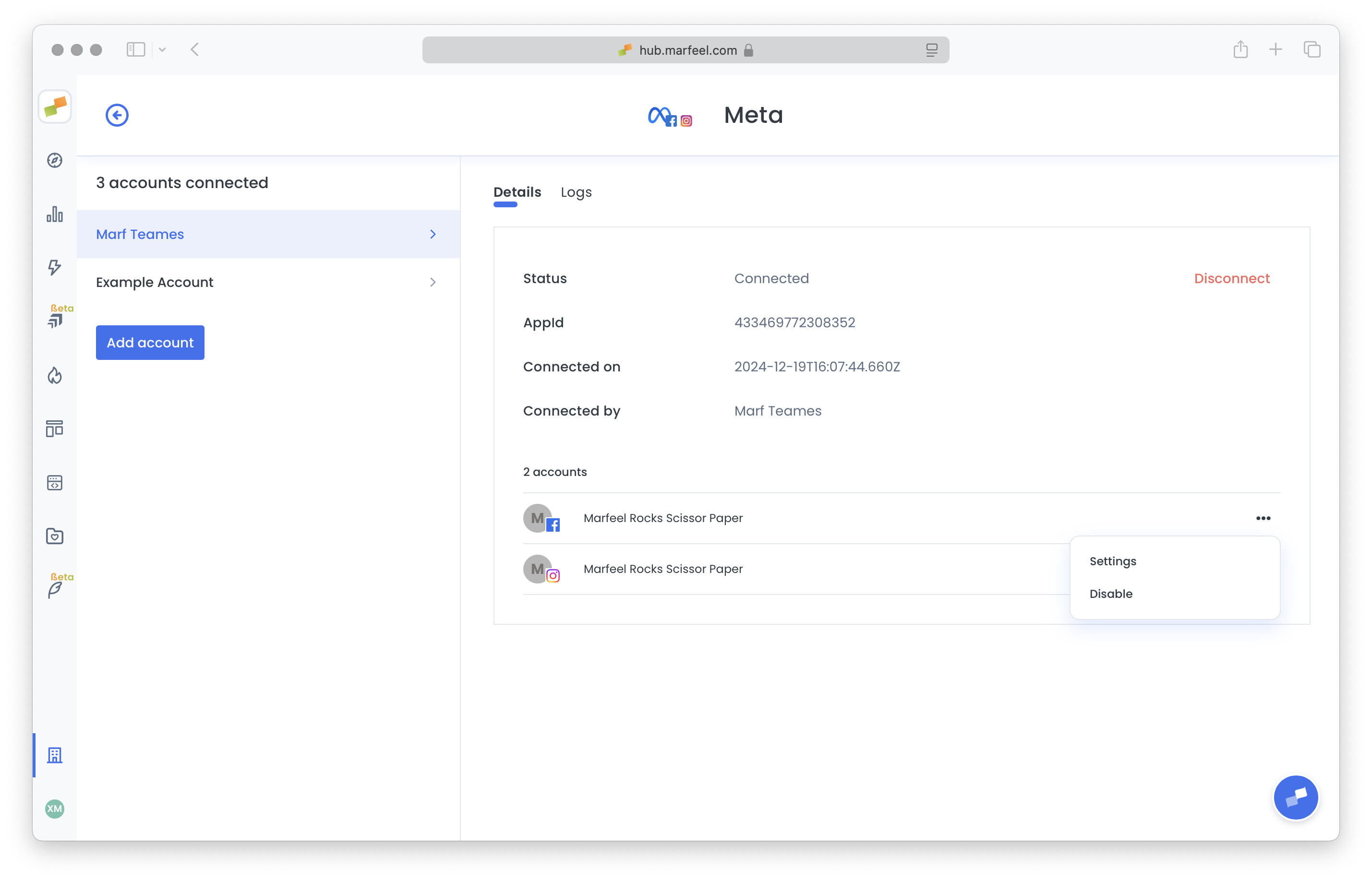
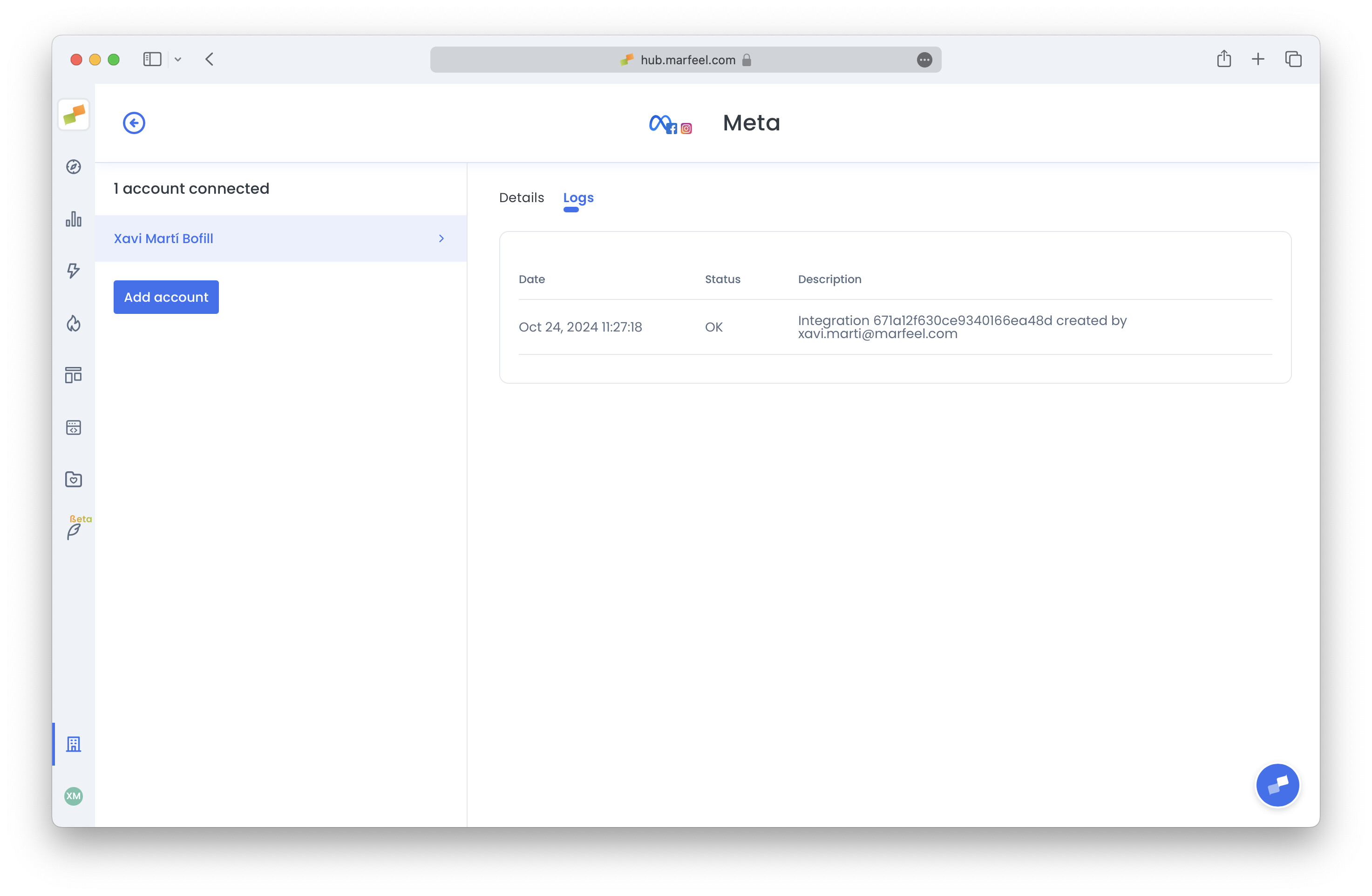
Information is pulled hourly. You can come back anytime to review extraction results in the “Logs” tab.
Setting up Meta integration for multiple Marfeel organizations
Section titled “Setting up Meta integration for multiple Marfeel organizations”Facebook permissions are unique per Facebook user and Marfeel app. If you set up a second integration in Marfeel with the same user and edit those permissions, the first integration will be affected as well.
For this reason, if you need to set up different Facebook pages or Instagram accounts on different Marfeel organizations, select all of them during Facebook’s OAuth process. Click on “Edit previous settings” if it is not the first time you are connecting, and make sure all pages and accounts are selected. Then disable the ones not needed within the administration screen of each integration in Marfeel.
Because each Instagram account is intrinsically connected to a Facebook page within Meta platform, enabling or disabling either of them will affect both.
Enabling customizable Facebook preview
Section titled “Enabling customizable Facebook preview”To customize link previews when Amplifying via Facebook, your domain must be verified and your page may need to be approved as a news or media publisher. This enables metadata override such as title, description, and image.
Follow these steps to enable full support:
1. Verify your domain
Section titled “1. Verify your domain”Complete domain verification through Meta Business Manager by following Facebook’s official guide: 🔗 Verify Your Domain, Meta Business Help
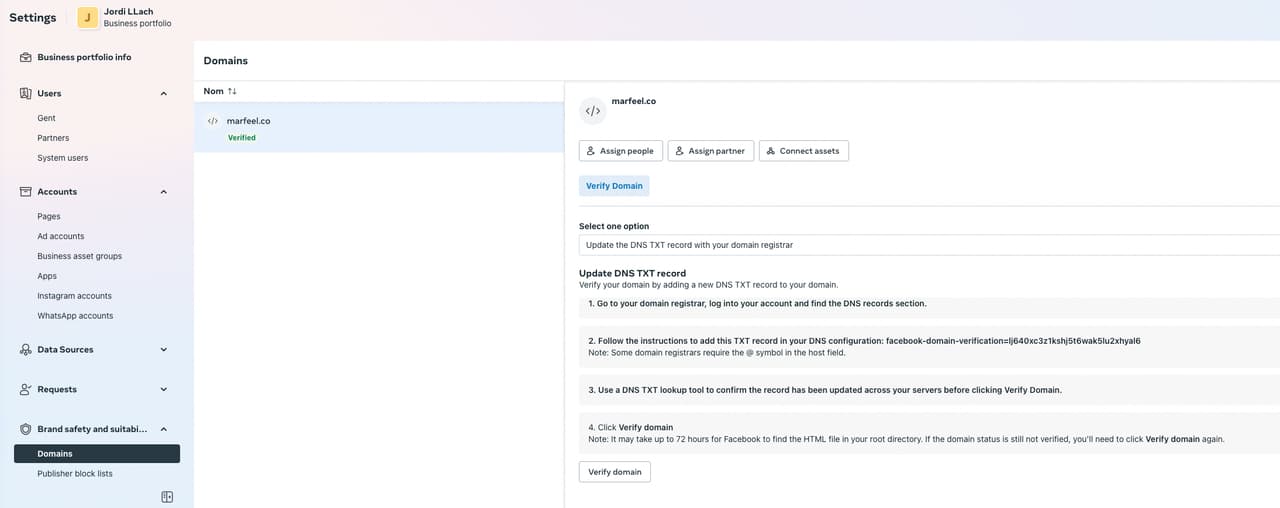
2. Associate your Facebook page with the domain
Section titled “2. Associate your Facebook page with the domain”Once the domain is verified:
- Go to the Domains section in Business Manager.
- Select your domain.
- Click Assign Pages and attach your Facebook Page.
- Your page is now linked to the verified domain.
3. Apply for News Page Indexing (if applicable)
Section titled “3. Apply for News Page Indexing (if applicable)”This step is required if you are a news or media organization and want full metadata override capabilities.
- Visit: Facebook News Tools
- Click Apply for News Page Index (only available to eligible Pages).
- Submit your publication’s details via the form.
- If approved, Facebook may grant your page permission to override link previews.
Troubleshooting
Section titled “Troubleshooting”The integration may sometimes experience problems fetching data from the pages you are syncing. When this happens, you may notice posts missing from Editorial Details or Explore. Check the Logs tab inside the integration for details. For additional social module troubleshooting, including data delays and post attribution, see the dedicated guide.
Common issues are listed below:
FacebookGraphException: Please reduce the amount of data you’re asking for, then retry your request
Section titled “FacebookGraphException: Please reduce the amount of data you’re asking for, then retry your request”This error impacts certain pages, normally large ones, and it comes from an unsolved Facebook bug. Please contact Marfeel support.
FacebookOAuthException: This endpoint requires the ‘pages_read_user_content’ permission
Section titled “FacebookOAuthException: This endpoint requires the ‘pages_read_user_content’ permission”This error comes from a wrong token creation. Delete the integration and create it again from scratch.
FacebookGraphException: An unknown error occurred
Section titled “FacebookGraphException: An unknown error occurred”Please contact Marfeel support.
Missing Permission: role XXX
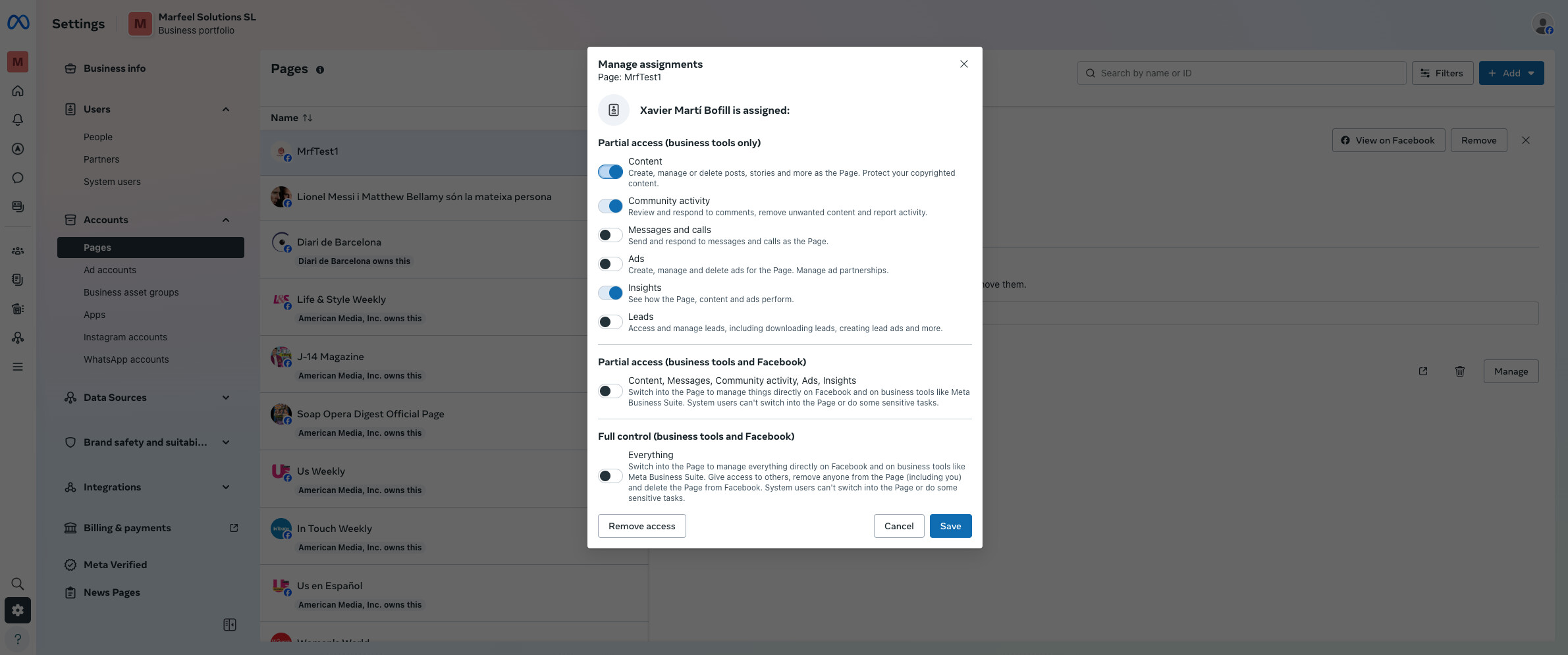
Section titled “Missing Permission: role XXX”This error, followed by a role like create_content, pages_manage_engagement, or pages_manage_comments, means that the user who provided access to the page does not have the required role to post content on that page. User roles can be managed through Meta Business Suite by navigating to Pages, selecting the Page, and then selecting the user within it or assigning a new user if they are not present. The minimum permissions for Marfeel functionalities to work are as follows.
Pages missing or no pages added
Section titled “Pages missing or no pages added”After you finish the OAuth workflow and select your Facebook pages, business portfolios, and Instagram profiles, some of them might not appear in the Marfeel integration. If this happens, make sure your selections are consistent:
- Each selected Facebook page must be included in a selected business portfolio.
- Each Instagram profile must be linked to a selected Facebook page.
FacebookOAuthException: You cannot access the app till you log in to www.facebook.com (code 190, subcode 459)
Section titled “FacebookOAuthException: You cannot access the app till you log in to www.facebook.com (code 190, subcode 459)”Log into Facebook. This normally means you need to set up two-step verification. Once done, the integration should start working again without issues.
How do I set up Meta integration for multiple Marfeel organizations?
Facebook permissions are unique per user and Marfeel app. Select all pages and accounts during the OAuth process, then disable the ones not needed within each organization’s integration settings.
Why are some Facebook pages or Instagram accounts missing after setup?
Each selected Facebook page must be included in a selected business portfolio, and each Instagram profile must be linked to a selected Facebook page. Verify your selections are consistent in the OAuth workflow.
What does the OAuthException pages_read_user_content error mean?
This error comes from a wrong token creation. Delete the existing integration and create it again from scratch to generate a new token with the correct permissions.