

Amplify autopilot mode for automatic social posting
Amplify autopilot mode publishes content automatically across your feeds using recommendation engines and calendar-based scheduling. This reduces your team’s manual workload while keeping your feeds active around the clock.
For example, you may have discovered that hard news topics perform well in the morning while entertaining topics perform better in the evening. To streamline your content distribution, you can set up recommendation engines to auto-publish relevant articles during each time slot, filtering by Topic and the ranking criteria Popular to select high-performing articles that Amplify will post automatically during the chosen windows.
🎓 Master Amplify, step by step 📊 The video below is an excerpt from the Amplify Fundamentals course.
🧠 Discover more learning paths on Marfeel Academy.
Enabling autopilot mode
Section titled “Enabling autopilot mode”Autopilot mode allows Amplify to publish content automatically across your selected distribution destinations. When enabled, Amplify publishes articles selected by one of your recommendation engines.
You can define specific periods for autopilot mode. A common use case is covering times when your team is unavailable: weekends, holidays, or overnight hours.
For example, if your team is offline between 8:00 pm and 8:00 am, you can configure autopilot mode to post automatically during those hours but switch it off during the workday.
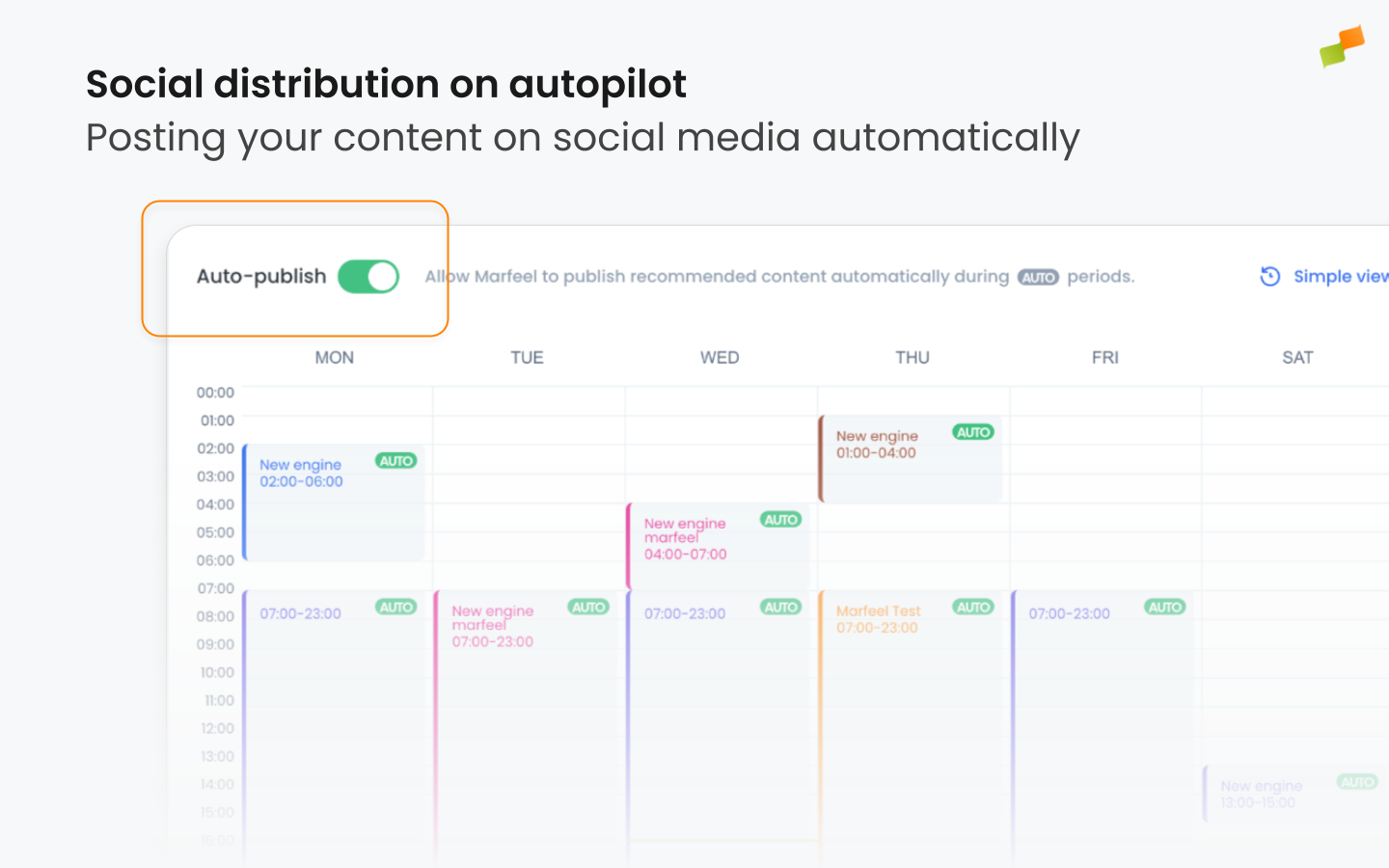
When autopilot mode is active, it prioritizes posts curated by your team and those already scheduled over articles recommended by the engine.
Assigning recommenders to time slots
Section titled “Assigning recommenders to time slots”Assigning different recommenders to specific time slots in the Feed Schedule lets you control what content publishes on different days and time periods.
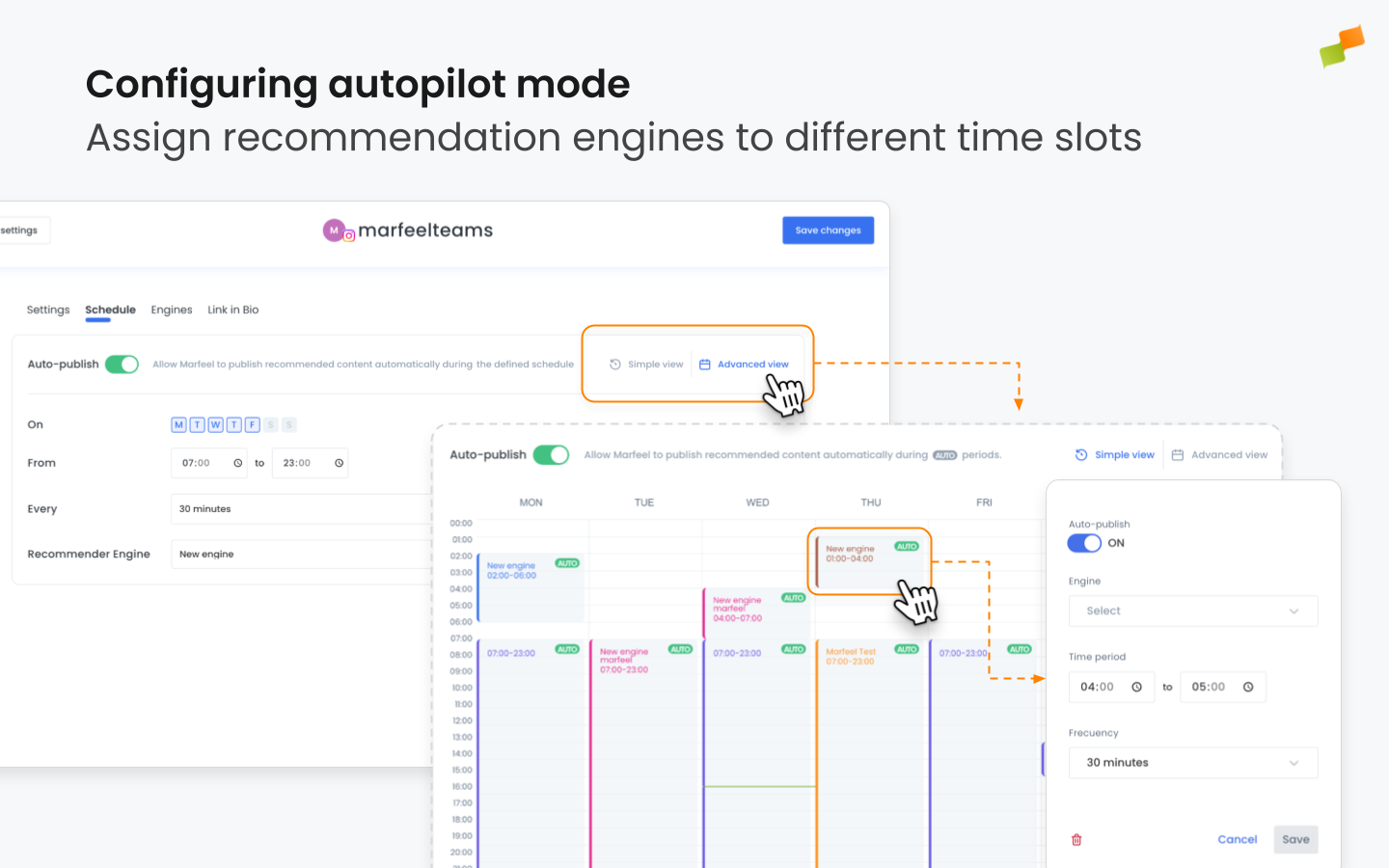
To configure a recommendation engine for a specific time slot, click on the Settings ⚙ symbol in the top right and navigate to the Schedule tab.
The Schedule tab has two view modes, Simple and Advanced.
- In Simple view, you can assign a recommendation engine to the feed, as well as the days of the week and time of the day on which autopilot mode should be turned on.
- In Advanced view, you can see your weekly calendar with all available time slots and whatever engines you have set up at present. You can move blocks around by clicking and dragging, and you can create new blocks by clicking on a time slot in the calendar.
You can also select the posting frequency for each timeframe. In some time slots you may want to post content every 5 minutes, while in others you may want to space your posts out and only publish once every 30 minutes or more.
For either mode you can switch autopilot mode ON or OFF. You can assign a recommendation engine to a time slot without enabling autopilot mode, in which case it delivers content recommendations that your distribution team can use to plan your feed’s calendar.
Setting up your article selection flow
Section titled “Setting up your article selection flow”Recommenders in Amplify let you configure multiple feeds, enabling both a diverse pool of articles to choose from and a structured priority order for automated publishing.
Unlike recommenders in Experiences, Amplify does not remove filters to meet the requested number of articles. Instead, if a feed returns no results, the system automatically moves to the next feed in the list. This creates a waterfall logic for content selection.
Example:
Section titled “Example:”You could configure your first feed as Breaking News, using a custom tag to filter for articles marked as breaking. These articles will always be prioritized for publishing. If no breaking news articles are available, Amplify will proceed to the next feed in your list.
Generating copy and images automatically
Section titled “Generating copy and images automatically”When running autopilot mode, Amplify publishes your posts using the copy and images you have set up. If no custom copy or images exist, Amplify generates the post text and images automatically according to the parameters defined in your global or account configuration, and in your [image layouts]https://community.marfeel.com/t/amplify-layouts/103565).
Automatic resharing for X
Section titled “Automatic resharing for X”Amplify can automatically reshare content from other X accounts directly through your feeds. This eliminates manual reposting and distributes content across your network of social profiles without extra effort.
This feature is particularly valuable for publishing networks managing multiple regional feeds, brands with various social profiles, teams coordinating content distribution strategies, or feeds giving visibility to other emerging profiles they are growing.
Configuration options
Section titled “Configuration options”Configure your feeds to automatically reshare content from selected X accounts with two options:
1. Reshare everything posted by a specific linked X account: Configure any feed to automatically reshare all content from selected sources.
2. Reshare any mention from a given X account: Configure selective resharing to focus only on posts where your feed is mentioned.
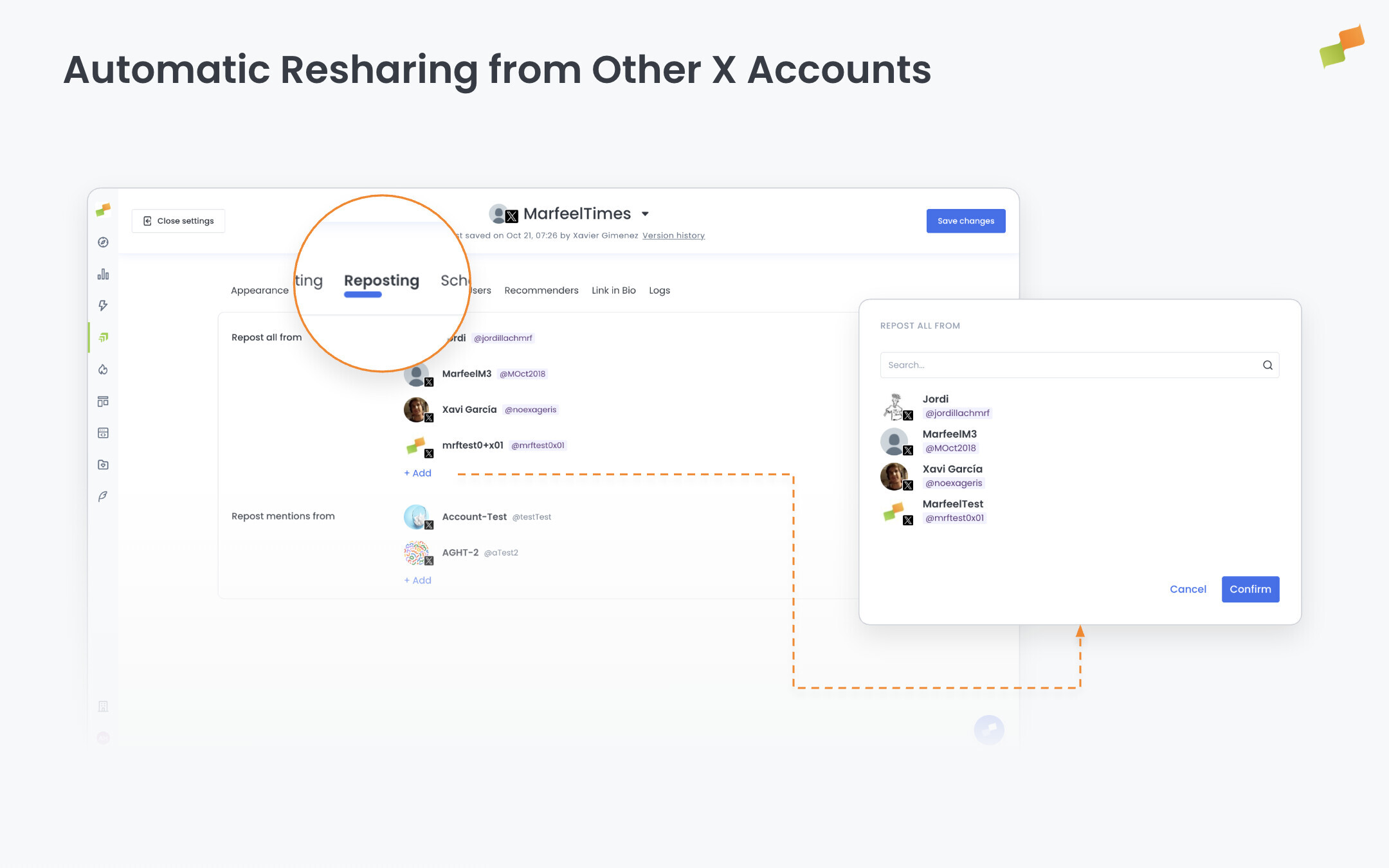
How it works
Section titled “How it works”When you configure Amplify to automatically reshare posts, the system continuously monitors the selected X accounts. Depending on your chosen option, it either reshares everything they post or only reshares when your feed is mentioned. You maintain full control over which X accounts to monitor, ensuring only relevant content gets amplified.
Setup is minimal. Add the social media profile URLs of X accounts you want to monitor in your account settings, and Amplify handles the rest. No complex rules or manual checking required.
Real-world use cases
Section titled “Real-world use cases”- Media partnerships: Automatically reshare content from partner publications to strengthen relationships and cross-promote audiences
- Industry thought leadership: Amplify content from key influencers and experts to position your brand alongside trusted voices
- Regional distribution: Ensure national newsroom content reaches local audiences through coordinated feed networks
- Journalist amplification: Principal feeds can automatically amplify content from their journalist feeds
- Community engagement: Respond to and amplify mentions from important voices in your industry
Set up reshares directly in your account settings to start amplifying relevant content today.
🎓 Become a Marfeel Amplify expert 📣 Learn how to publish smarter, automate sharing, and optimize your social strategy with our Marfeel Amplify Course.
✅ Workflow-focused training ✅ Automation strategies ✅ Certificate of completion included

🧠 Start now on Marfeel Academy.
How does Amplify autopilot mode prioritize content?
When autopilot mode is active, it prioritizes posts curated by your team and those already scheduled over articles recommended by the engine.
Can I assign different recommenders to different time slots?
Yes. In the Schedule tab you can use Simple view to assign a recommender plus days and times, or Advanced view to drag and drop engine blocks across a weekly calendar with per-slot posting frequency.
How does automatic resharing work for X feeds?
You can configure feeds to reshare everything posted by a specific linked X account or only reshare posts where your feed is mentioned. Amplify continuously monitors the selected X accounts and handles resharing automatically.