

Recommender Use Case: Reorder articles by CTR
The Marfeel Reorder Module dynamically rearranges articles within homepage modules, section highlights, or sidebar lists based on their real-time click-through rate (CTR), ensuring the most engaging content appears in the most visible positions.
Scenario Description
Section titled “Scenario Description”Most websites display articles in a static order, either chronologically or based on editorial selection. This approach does not always optimize for user engagement or content effectiveness.
CTR-based reordering solves this by prioritizing content that has already proven to resonate with your audience. Articles with higher click-through rates move into prominent positions automatically, so the most compelling content is always where users are most likely to see and click it. For a related approach that amplifies high-CTR articles across your entire site, see the dedicated use case.
Dynamic Reordering Without Altering Content
Section titled “Dynamic Reordering Without Altering Content”- The Marfeel Reorder Module reorders articles in any module based on the ranking provided by Marfeel’s Recommender, without altering the articles themselves or needing to render them again.
- This is particularly useful for personalizing the homepage or automating modules to showcase high-CTR articles.
Significant for Mobile Users
Section titled “Significant for Mobile Users”- On mobile devices, screen real estate is limited. A module that fits entirely on a desktop screen could extend across several viewports or become a carousel on mobile.
- Reordering ensures that the most engaging content appears first, increasing the likelihood that mobile users will see and interact with it.
CTR-based reordering dynamically adapts to your audience’s preferences, showcasing content that is most likely to engage them. This strategy maximizes the effectiveness of your modules and enhances the overall user experience by presenting the most compelling content upfront. You can also optimize section pages with the most clicked articles for similar results on category and topic pages.
How to Set it Up
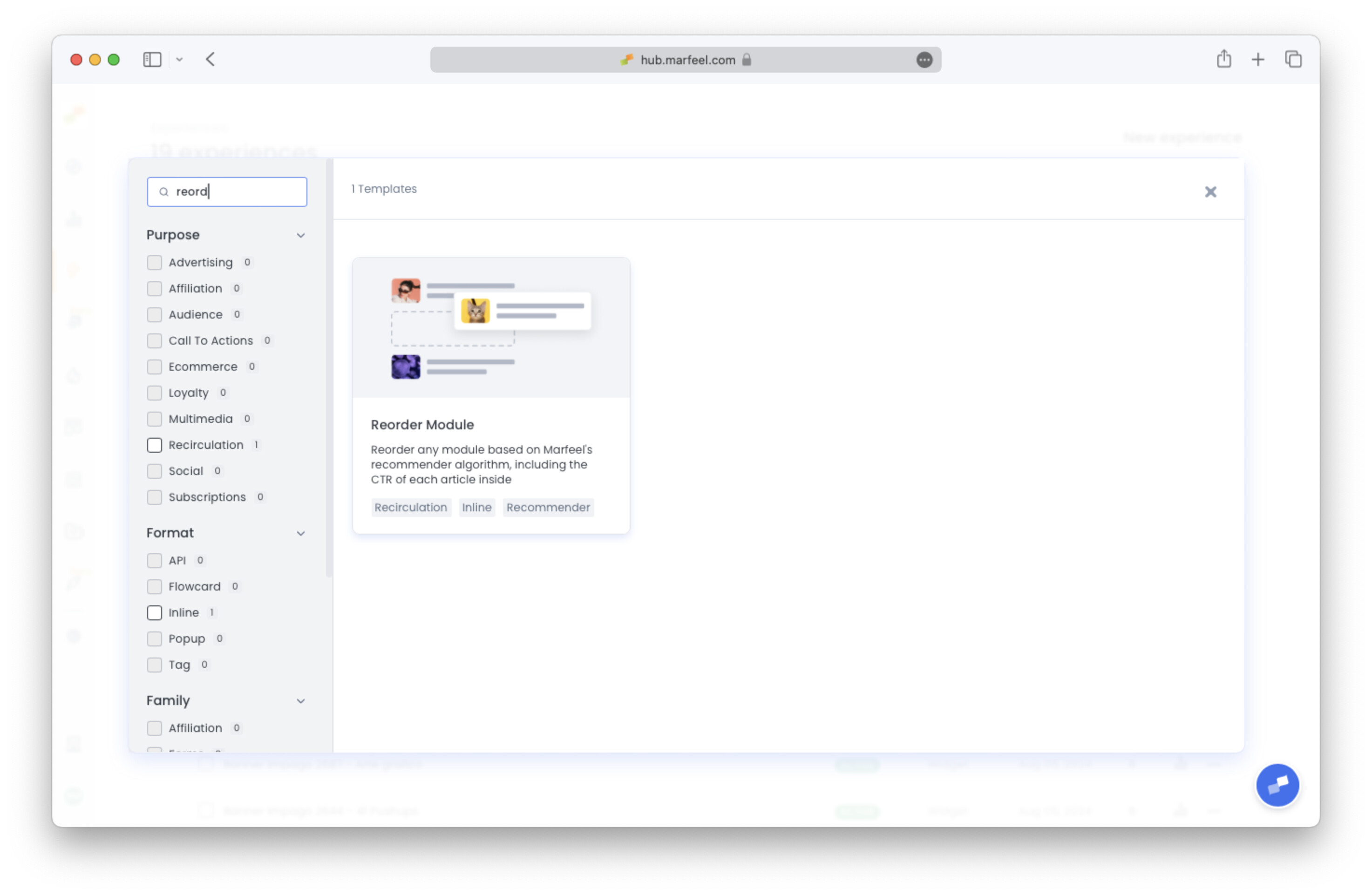
Section titled “How to Set it Up”- In order not to start from scratch, you can create a new experience using the Reorder Module template.
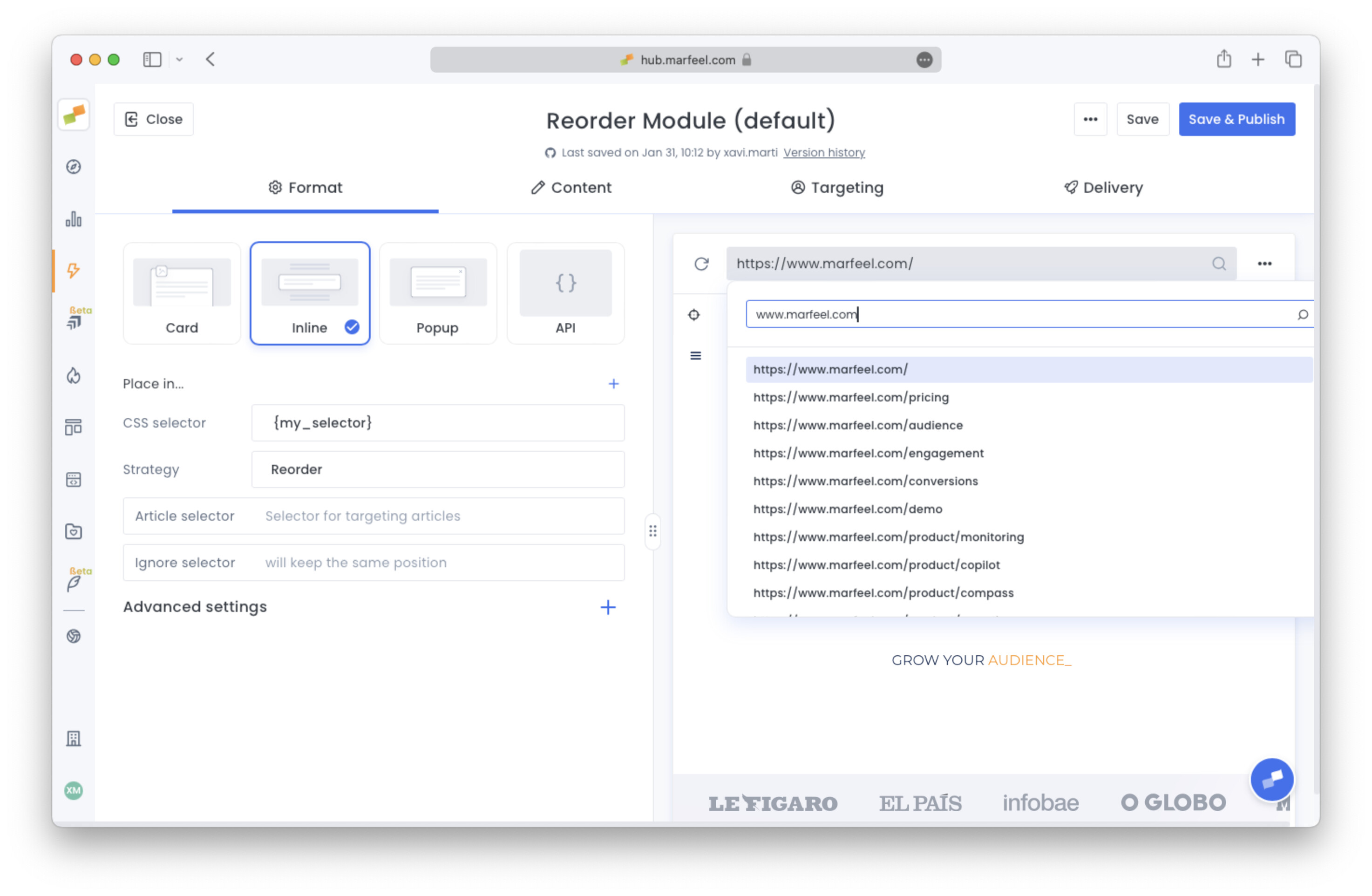
- Using the preview url selection dropdown, navigate to a page featuring the module you want to have reordered.
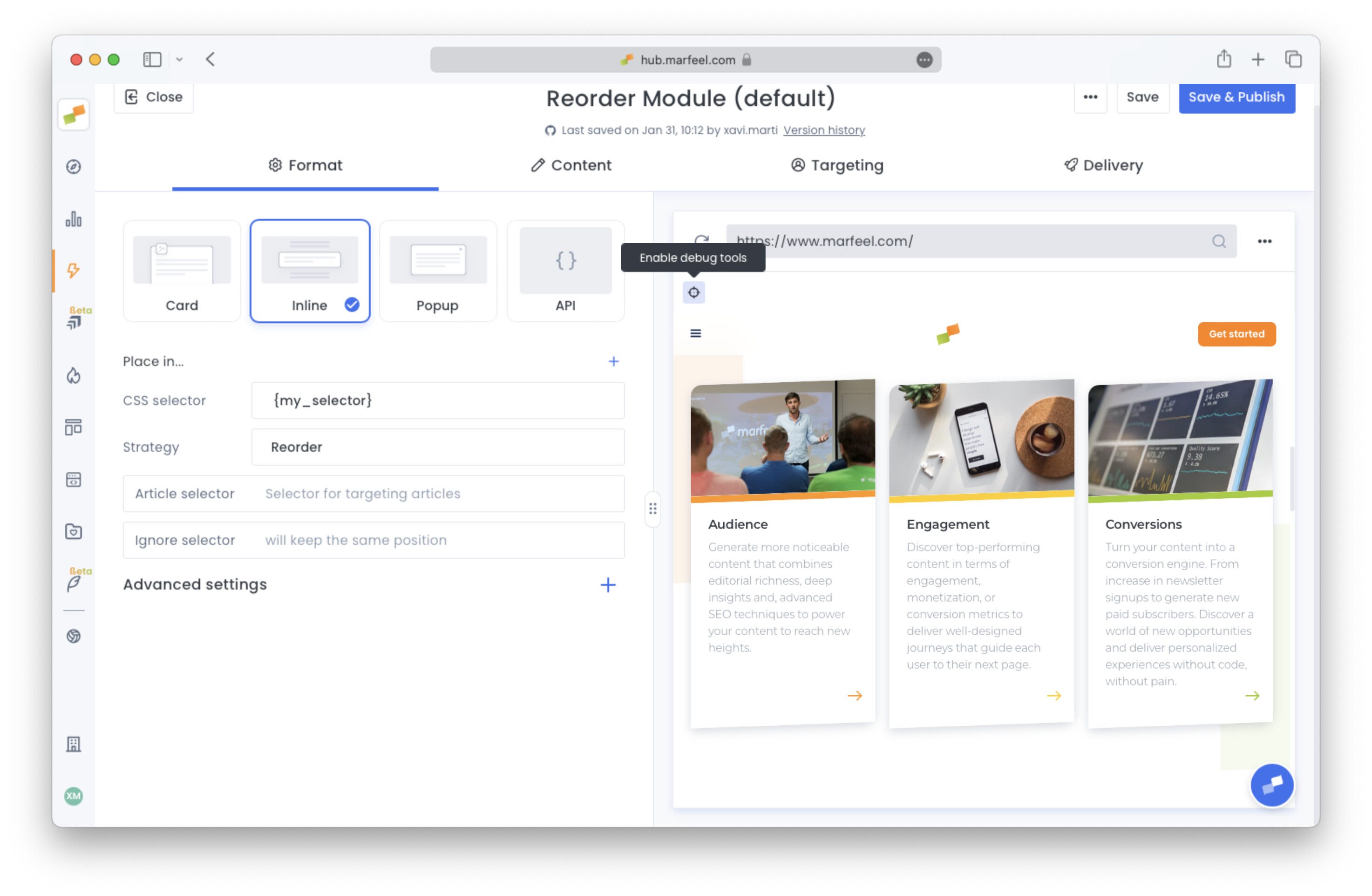
- Click on the target icon on the preview top left corner to activate highlighting mode.
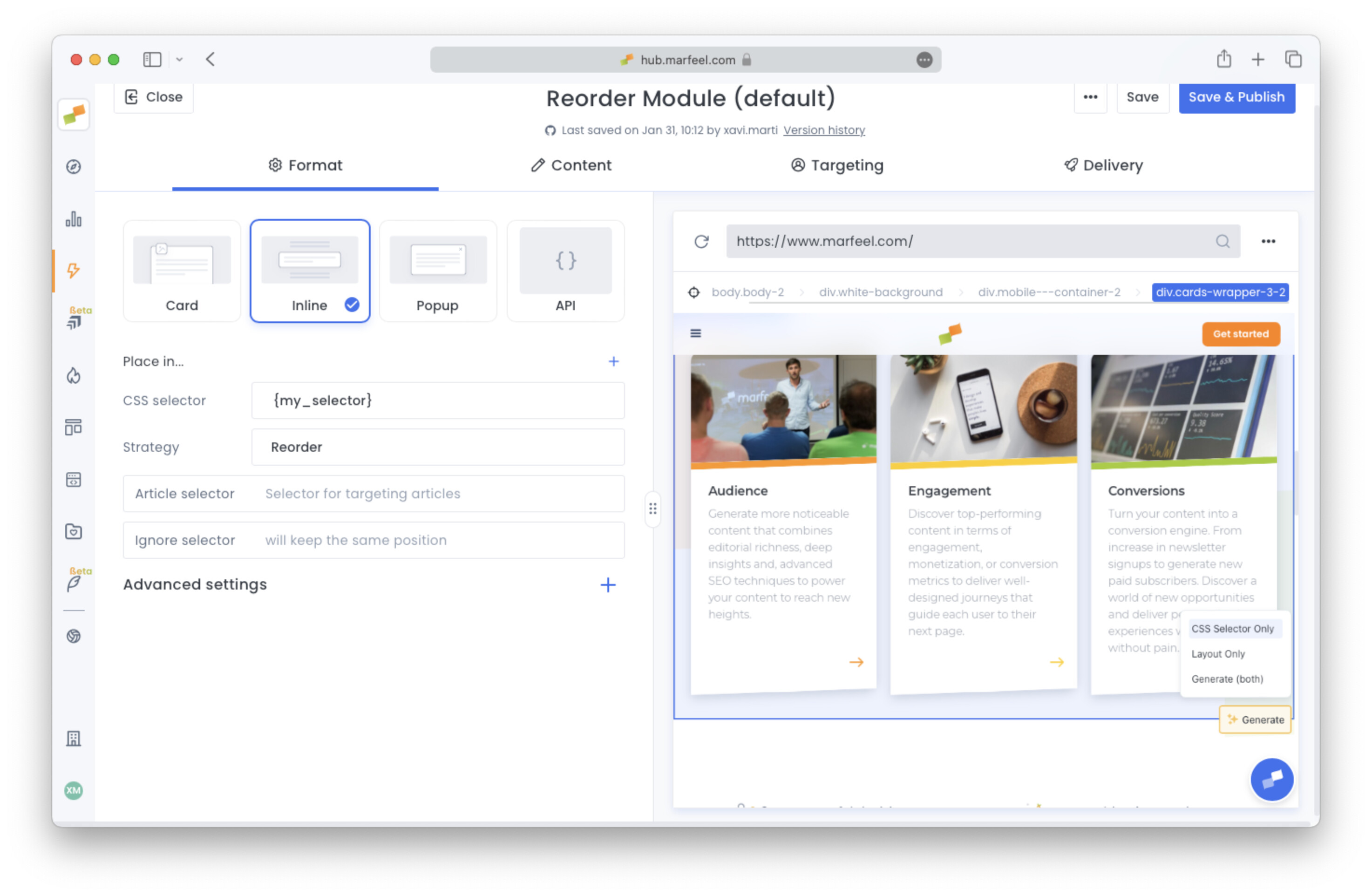
- Hover over the module until it gets highlighted and click. Using the dropdown, select Generate > CSS Selector Only.
- Check and confirm.
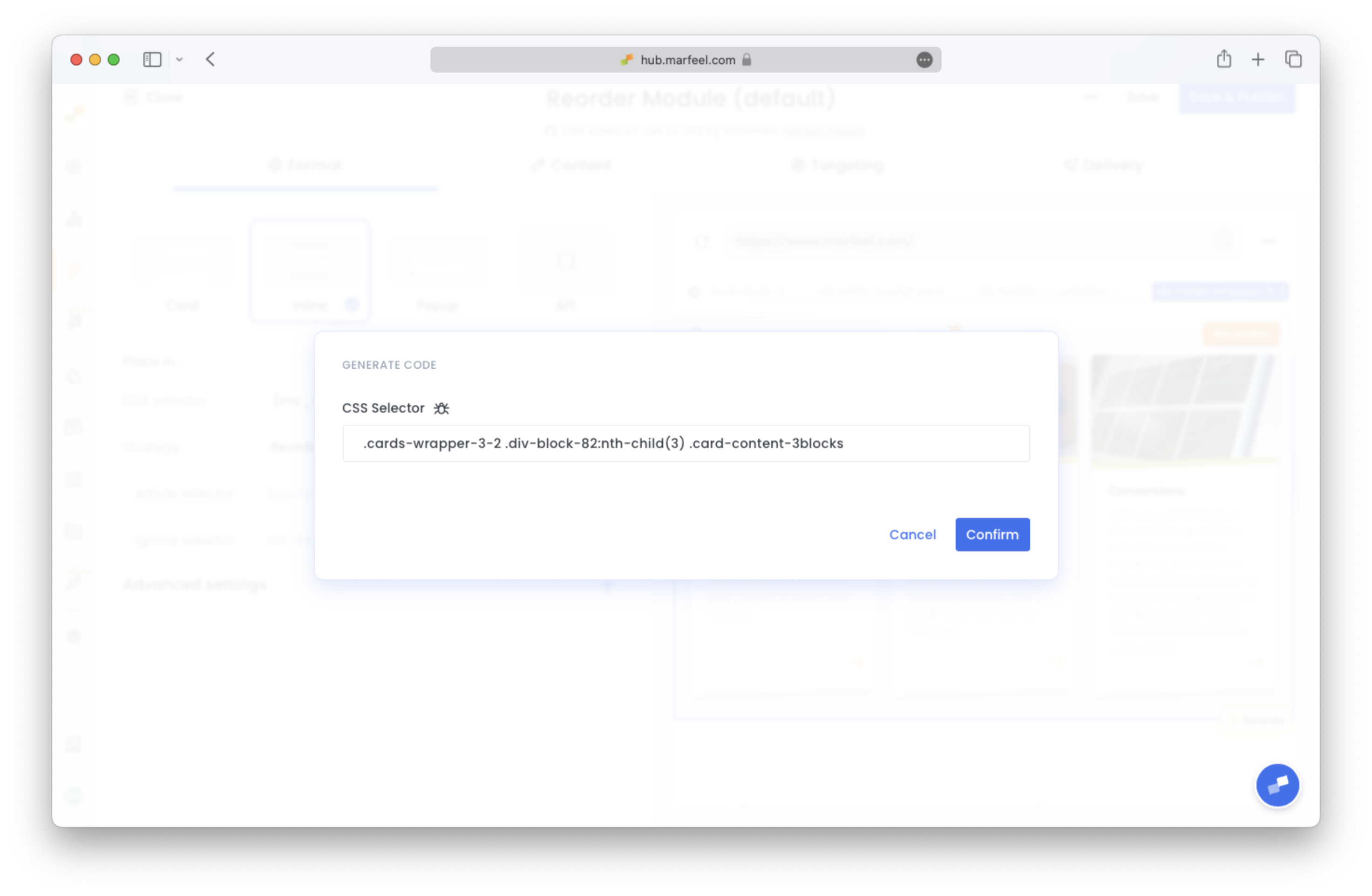
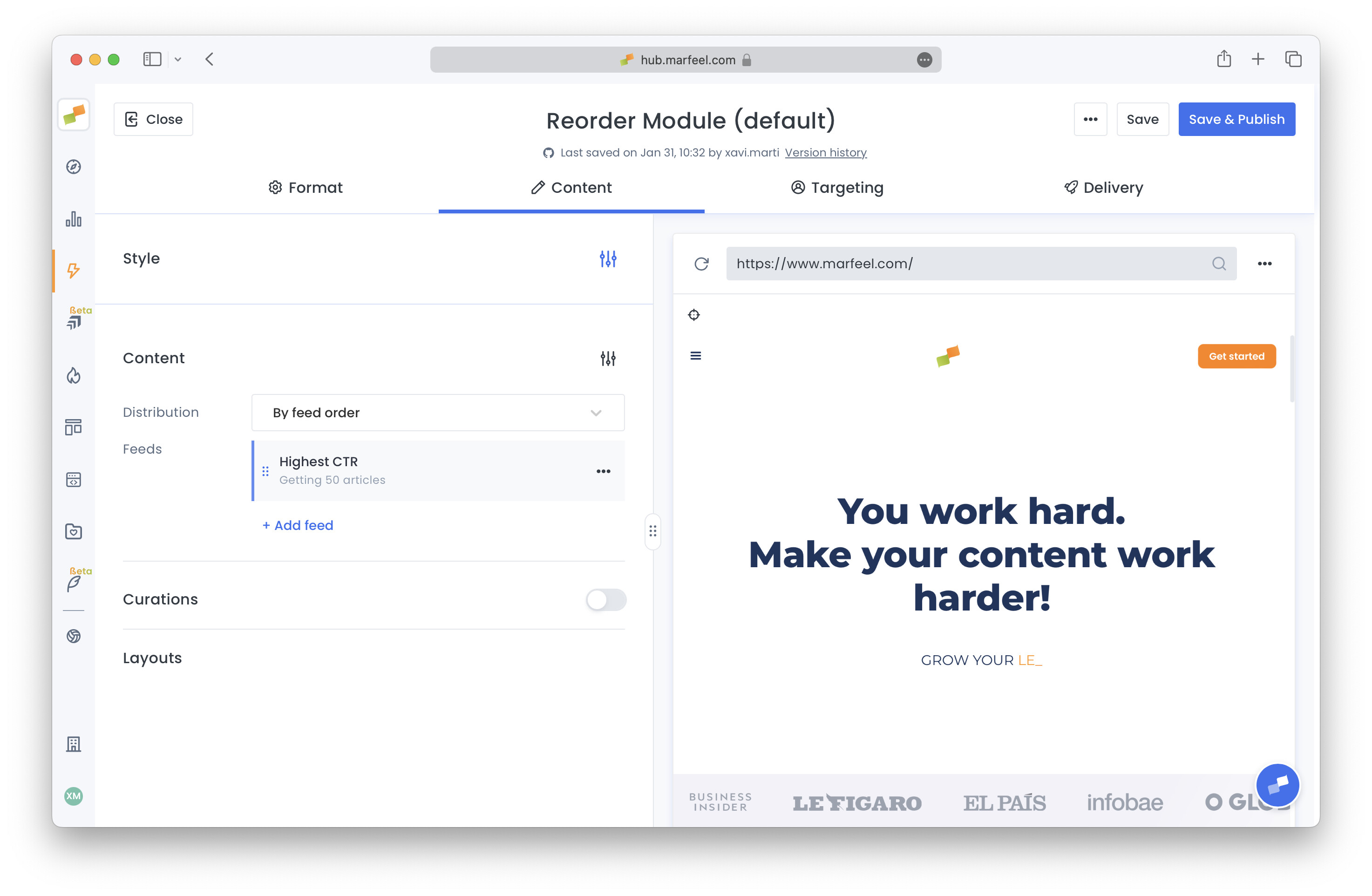
- Switch to Content tab, and click on the recommender feed, you should see it named Highest CTR.
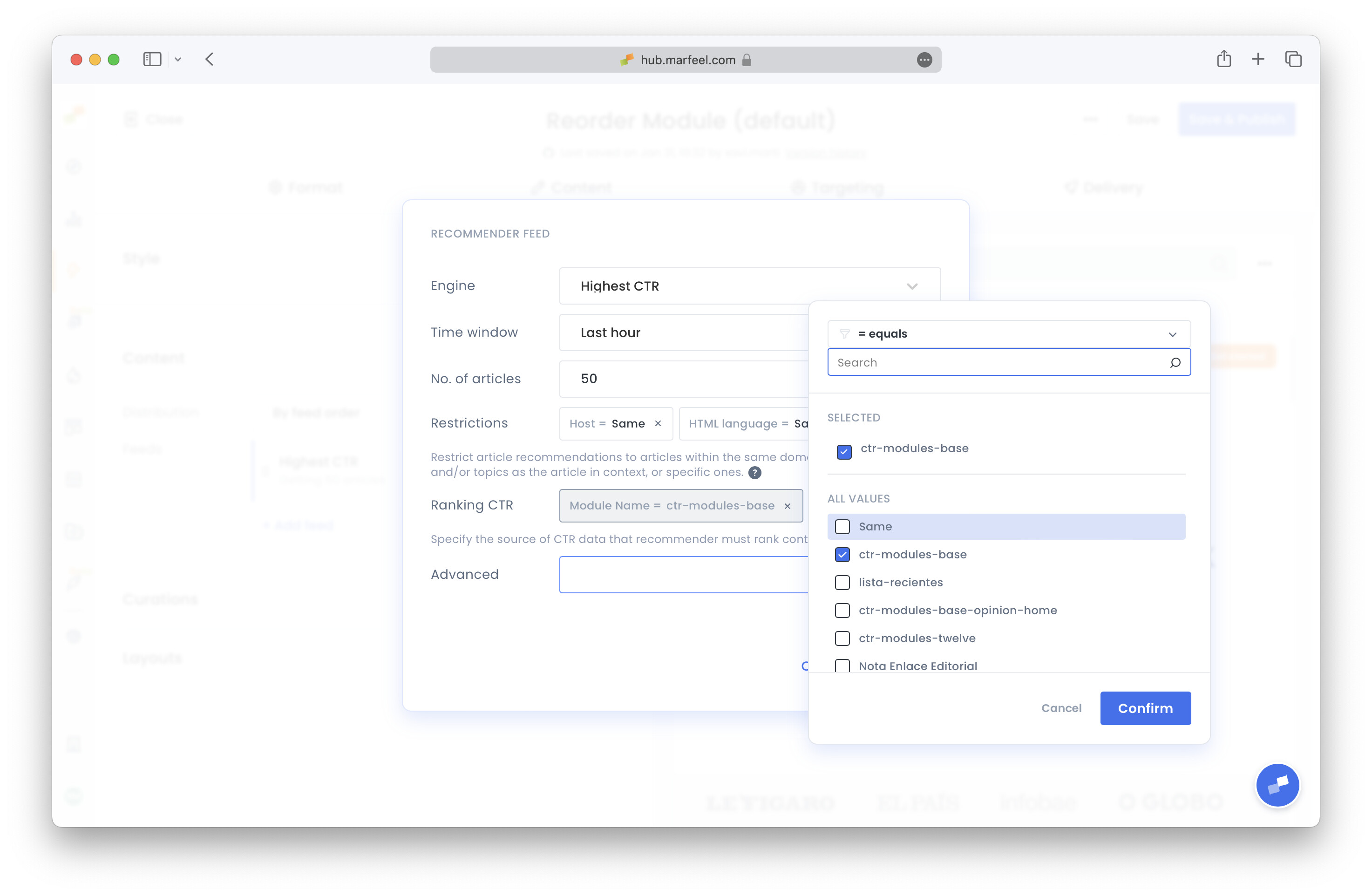
- Click on the Ranking CTR config Module Name and use the dropdown to select the module name you want to reorder. Confirm.
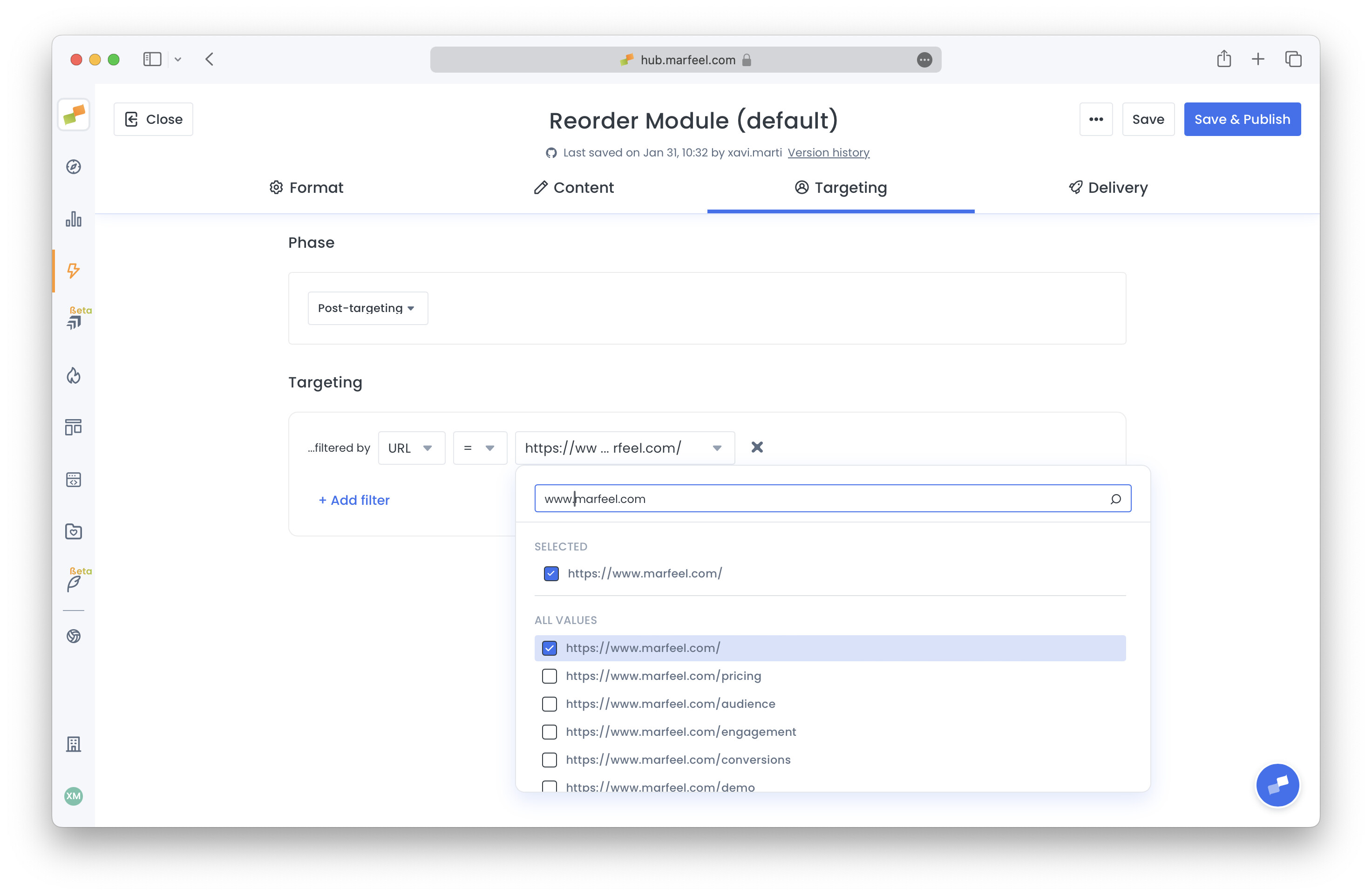
- Switch to Targeting tab and add the conditions that define when and where the experience should reorder the module. For instance, only on homepage URL.
Experience should be ready to be published. However, once the experience is created, Ranking CTR data takes some minutes to get updated. You should check in time to make sure that the module is getting reordered accurately.
Check Reordering Modules documentation for more information on its configuration options.
How does CTR-based article reordering work?
The Marfeel Reorder Module dynamically rearranges articles within any module based on the ranking provided by Marfeel’s Recommender. Articles with higher real-time click-through rates are placed in more prominent positions, without altering the articles themselves or requiring a re-render.
Why is CTR-based reordering important on mobile?
On mobile devices, screen real estate is limited. A module that fits entirely on desktop may extend across several viewports or become a carousel on mobile. Reordering ensures the most engaging content appears first, increasing the likelihood that mobile users see and interact with it.
How do I set up the Reorder Module?
Create a new experience using the Reorder Module template, navigate to a page with the target module, use the CSS selector tool to select it, configure the Highest CTR feed in the Content tab, and set targeting conditions in the Targeting tab to control when and where reordering applies.