

How to manage workspaces in Marfeel Analytics
Workspaces in Marfeel let you organize reports, control access, and deliver data to the right stakeholders. This guide covers every management action available: creating, sharing, cloning, and pinning workspaces, along with user roles and data permissions.
Creating workspaces
Section titled “Creating workspaces”Creating directly
Section titled “Creating directly”- Go to the Workspace Overview and click on
New workspace.
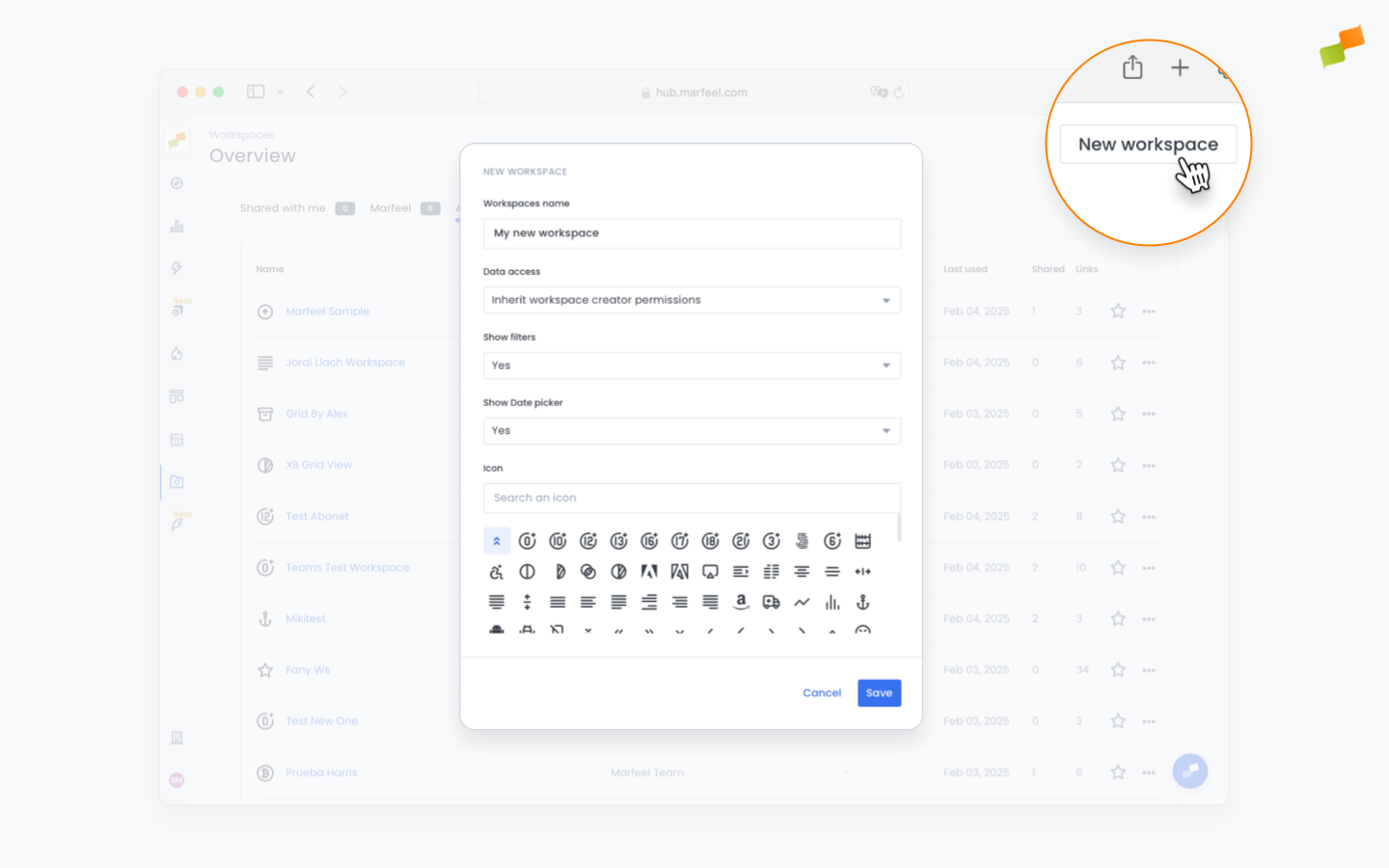
- Enter a name, choose the level of access and editing capabilities you want your workspace to have, and click
Save.
When saving a report
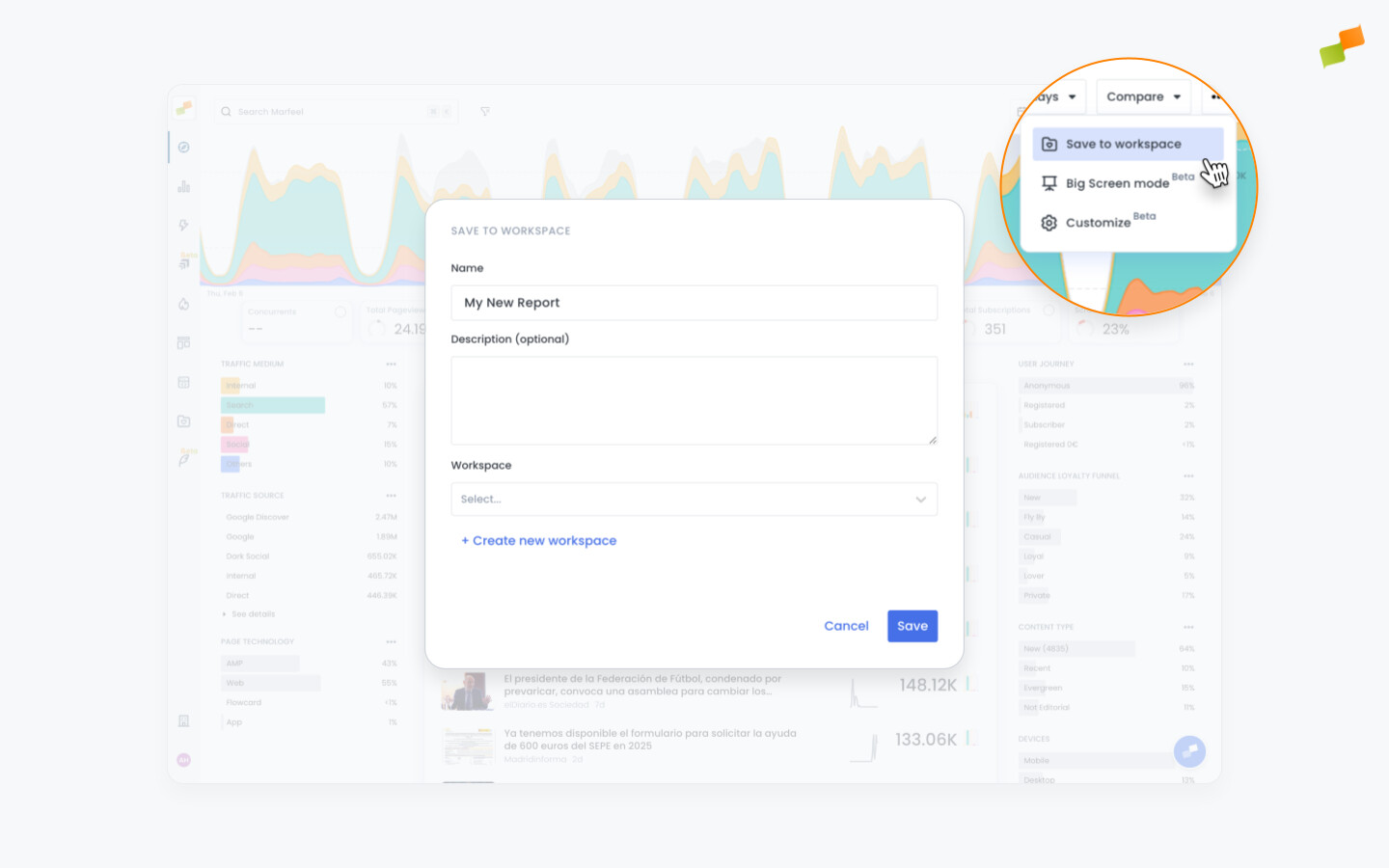
Section titled “When saving a report”- You can also create a new workspace when you save a report. You will be prompted to do so and will follow the same process described above.
🎓 Become a Marfeel Dashboards expert 📊 Learn how to build, customize, and share data-rich dashboards that drive real editorial impact with our Dashboard Fundamentals Course.
✅ Self-paced video lessons ✅ Real-world use cases ✅ Certificate of completion included

🧠 Start now on Marfeel Academy.
Sharing workspaces
Section titled “Sharing workspaces”Sharing workspaces keeps everyone organized and increases productivity by giving teams and stakeholders access to the data they need. For a broader look at how workspaces fit into your analytics setup, see Workspaces Overview.
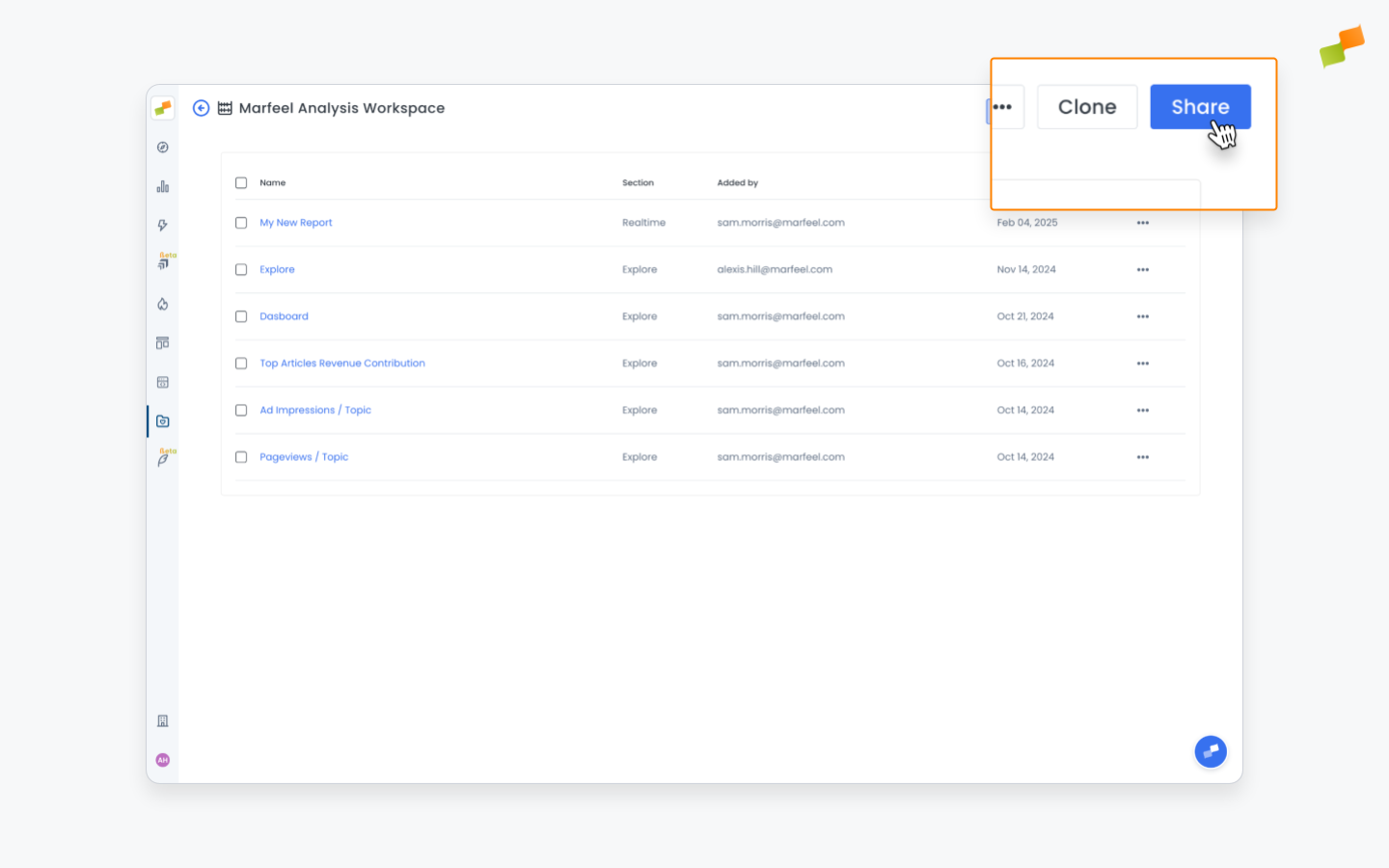
- To share a workspace, click on the
Sharebutton in the top right.
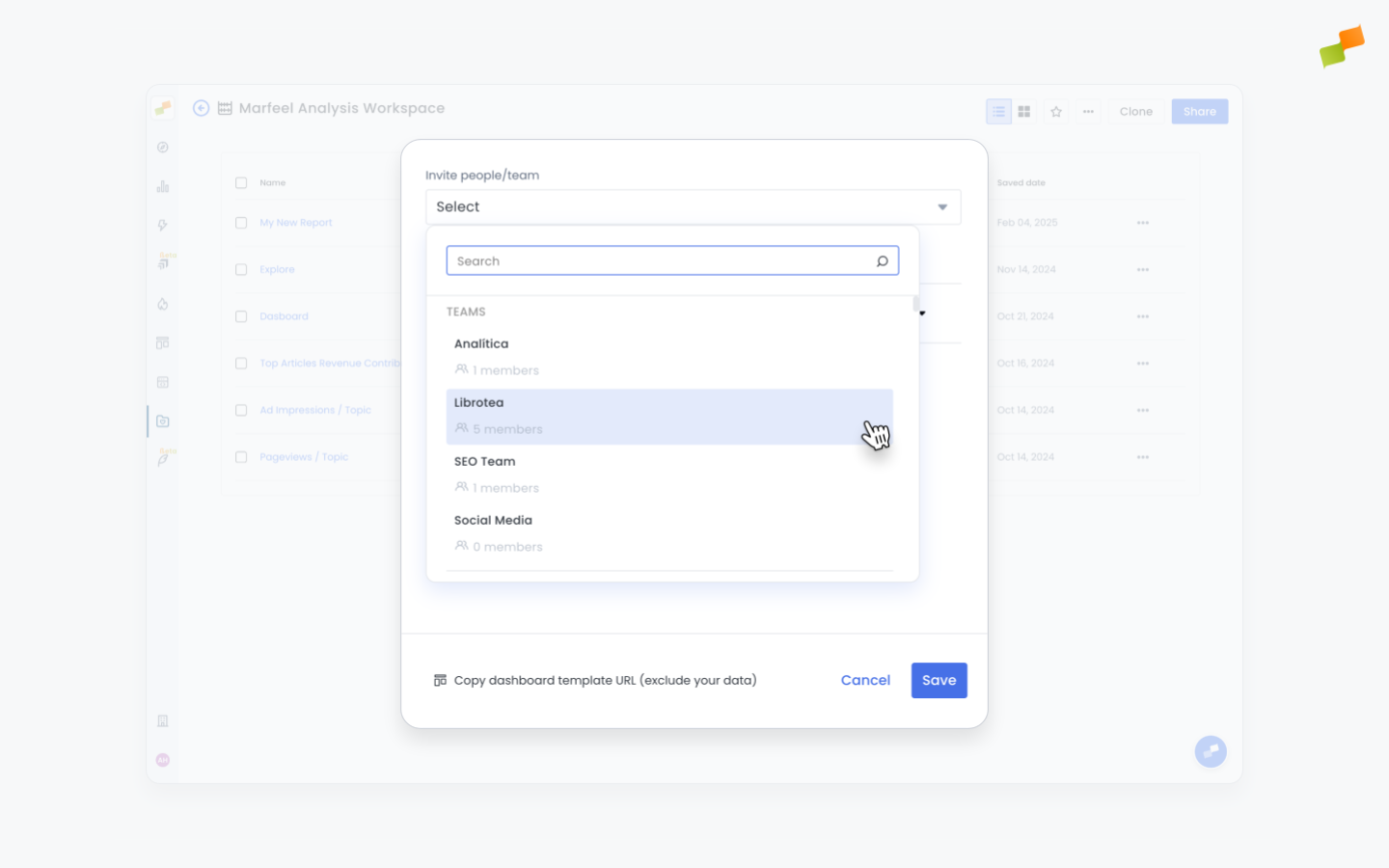
- You will be prompted to choose who you wish to share the workspace with. You can search for any colleague or team that has a profile in Marfeel.
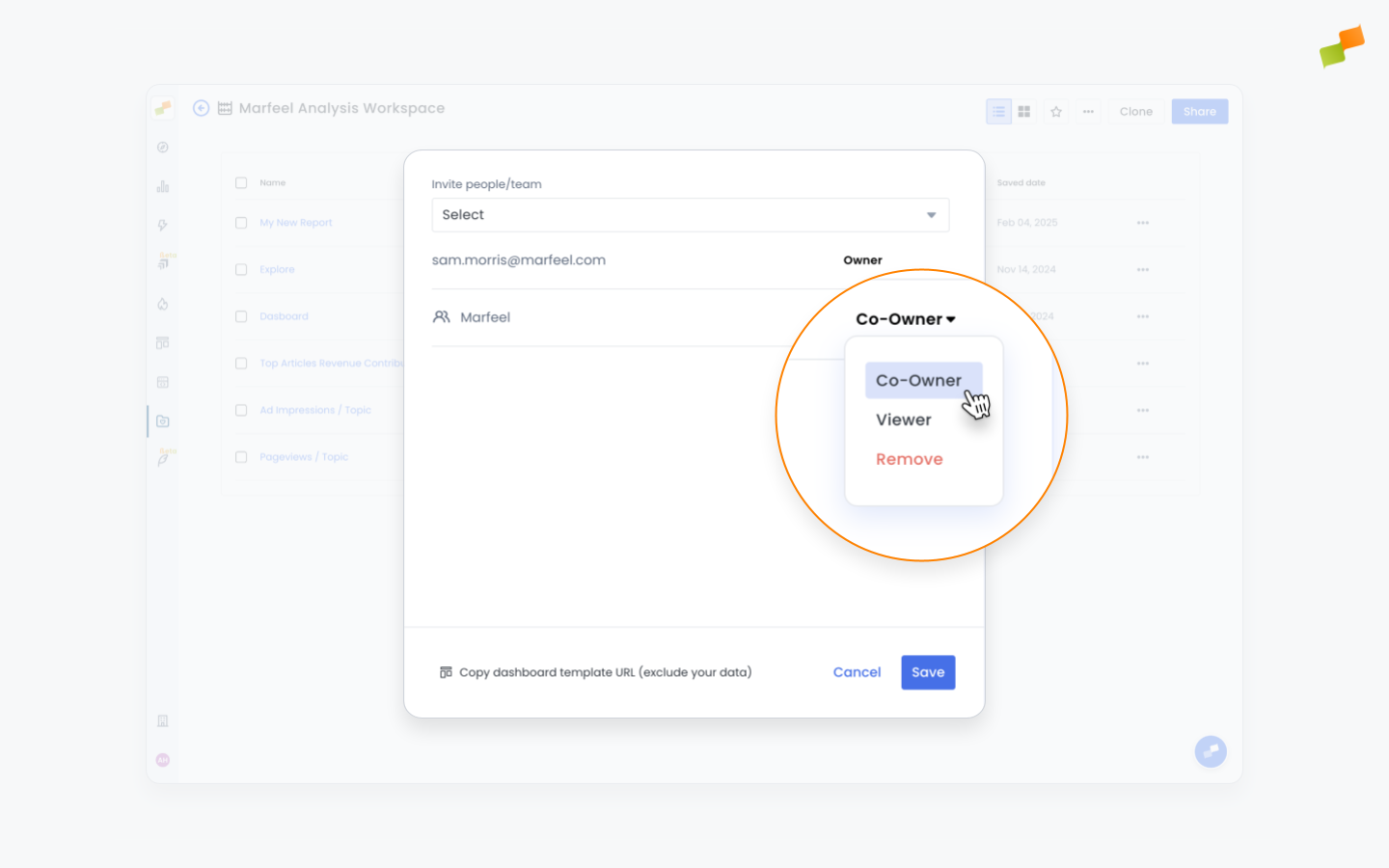
- Finally, you will be asked to choose what level of access you wish to give the people with whom you share the workspace.
User roles
Section titled “User roles”There are three roles users can have in relation to a workspace:
-
Owner: Full control over the workspace. Owners can change workspace parameters, share it with other users, clone it, and delete it. They can also add, change, and remove reports, as well as resize reports and change visualization modes on dashboards.
-
Co-owner: Identical permissions to the Owner. This role exists to give users other than the creator the ability to manage and edit a workspace without transferring ownership.
-
Viewer: Read-only access. Viewers can see the workspace and its reports, including the dashboard view, but cannot edit the configuration.
Permissions
Section titled “Permissions”When setting up a workspace, owners can select whether users inherit data access permissions:
- Inherit workspace creator permissions: Users with access to the workspace will see the data as it appears, without restrictions imposed by their role or data restrictions.
- Restrict to user permissions: Users with access to the workspace will only see the data they are allowed to see by their role and data restrictions.
For example, if you select Inherit, a Viewer who is given access to a dashboard by an Analyst will be able to view all the data in that dashboard, regardless of whether they could not view that data elsewhere in Marfeel.
Conversely, if the workspace is set to Restrict, that user would only be able to view the data they could normally view, and any reports containing restricted data would not render for them.
Visit our documentation to learn more about data restrictions.
Sharing workspace templates with other Marfeel accounts
Section titled “Sharing workspace templates with other Marfeel accounts”Marfeel makes it possible to share your workspaces across different Marfeel accounts. This allows analysts to spread their knowledge and know-how to colleagues working at other publications, or for consultants to transfer their analytical frameworks between accounts.
- To share a workspace template with another account, open the sharing menu and click on
Copy dashboard template URLat the bottom.
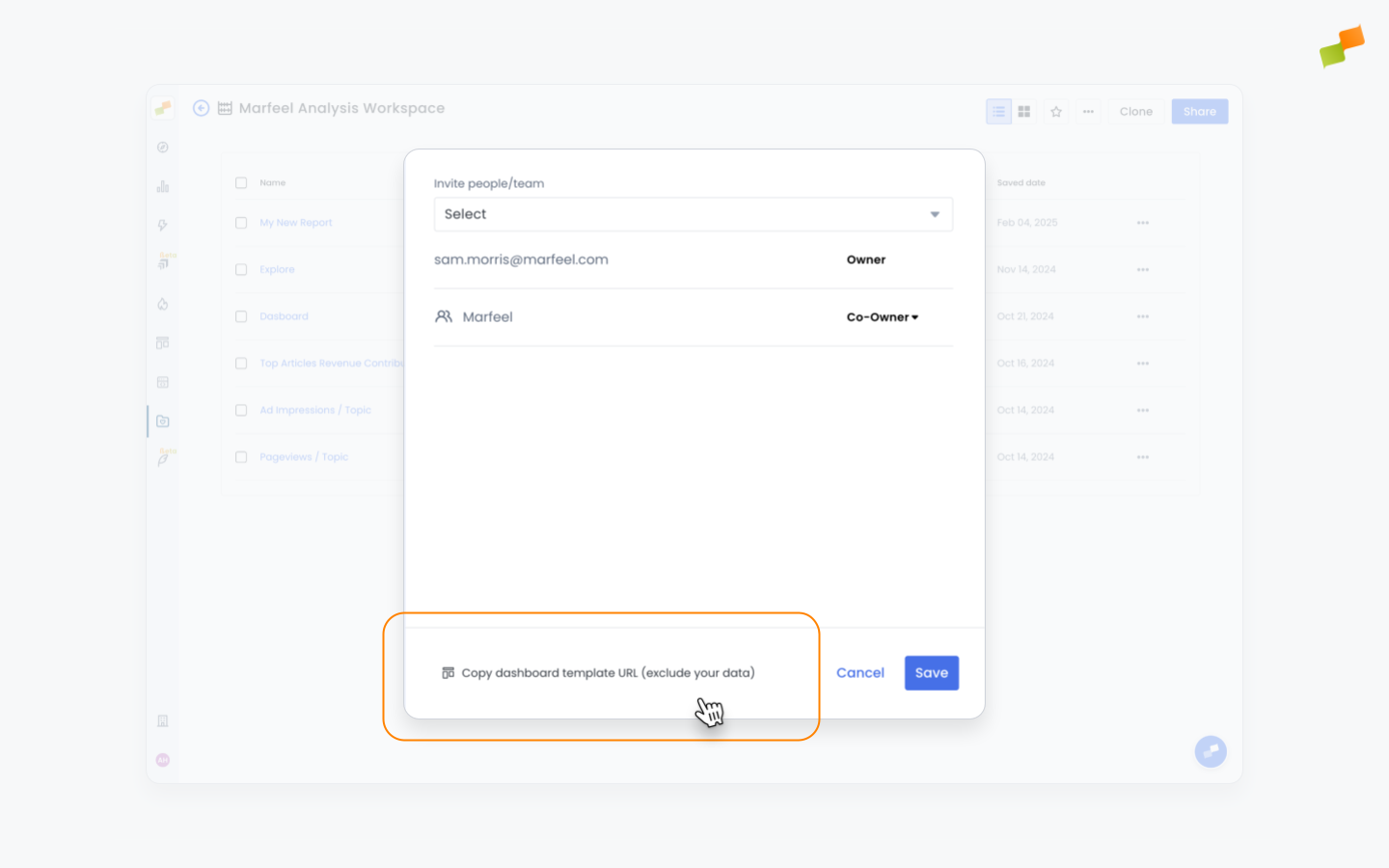
- A special template URL will be copied to your clipboard. You can share this link with anyone who wants to replicate your dashboards.
Pinning workspaces
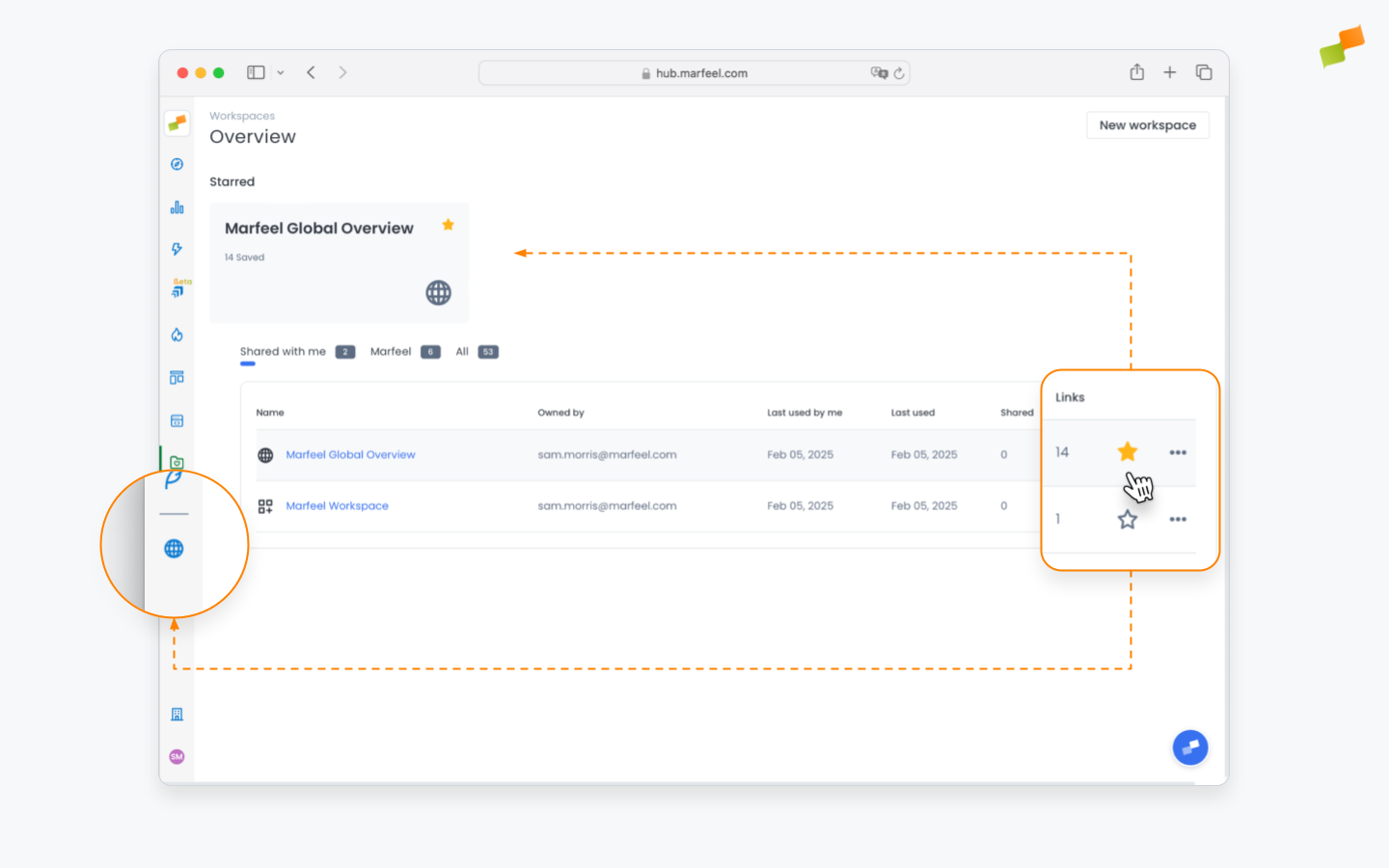
Section titled “Pinning workspaces”Pinning a workspace to the menu bar gives you quick access to the workspaces you use most often.
- Head to the main workspaces panel and click on the ☆ icon on the right of the table to mark the workspace as a favorite and pin it to the menu bar on the left.
Cloning workspaces
Section titled “Cloning workspaces”Cloning is useful when different stakeholders or teams need their own editable copy of a workspace without risk of disrupting others. You can then manage dashboards independently in each clone.
- To clone a workspace, click on the
Clonebutton in the top right of the workspace screen and confirm.
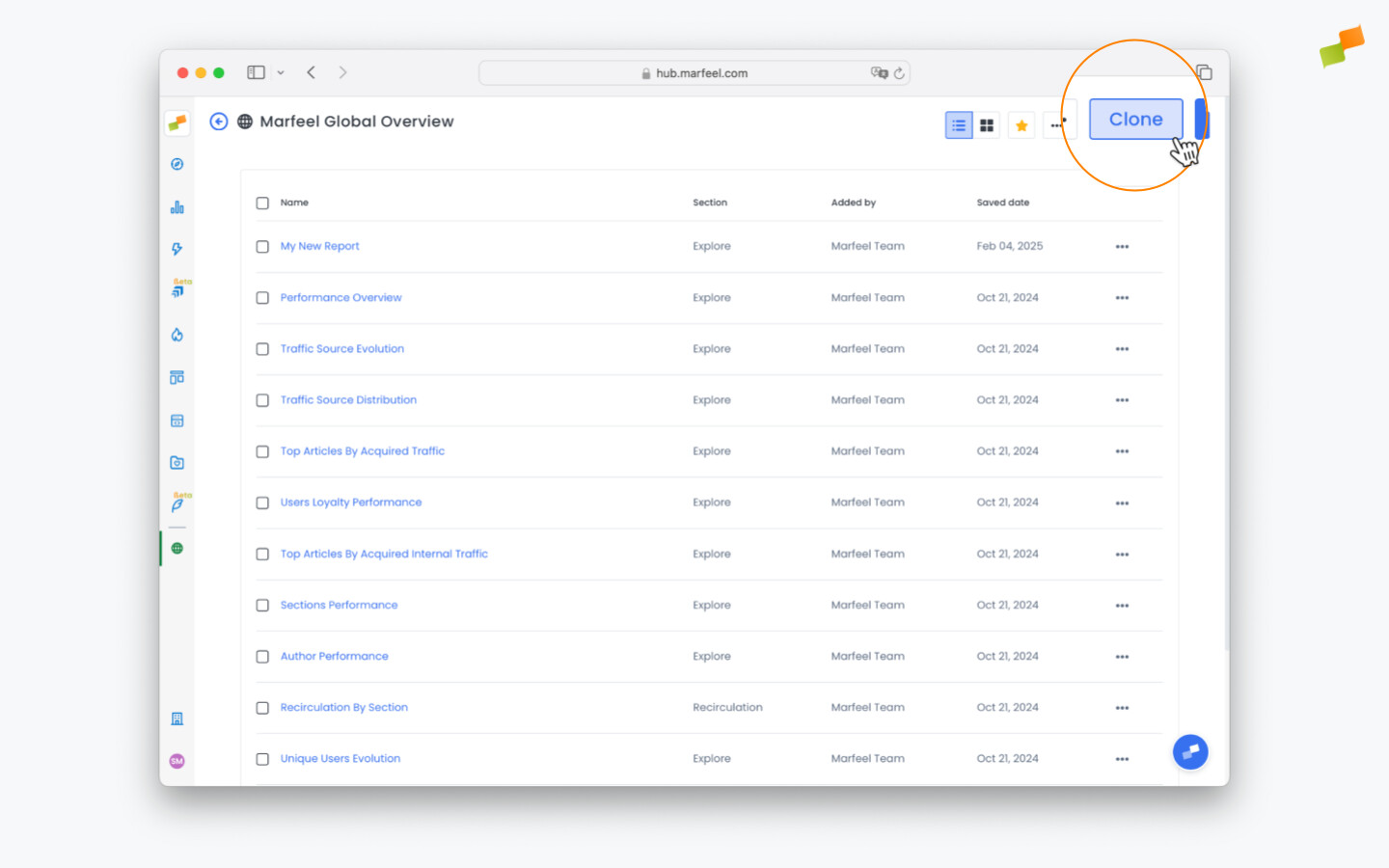
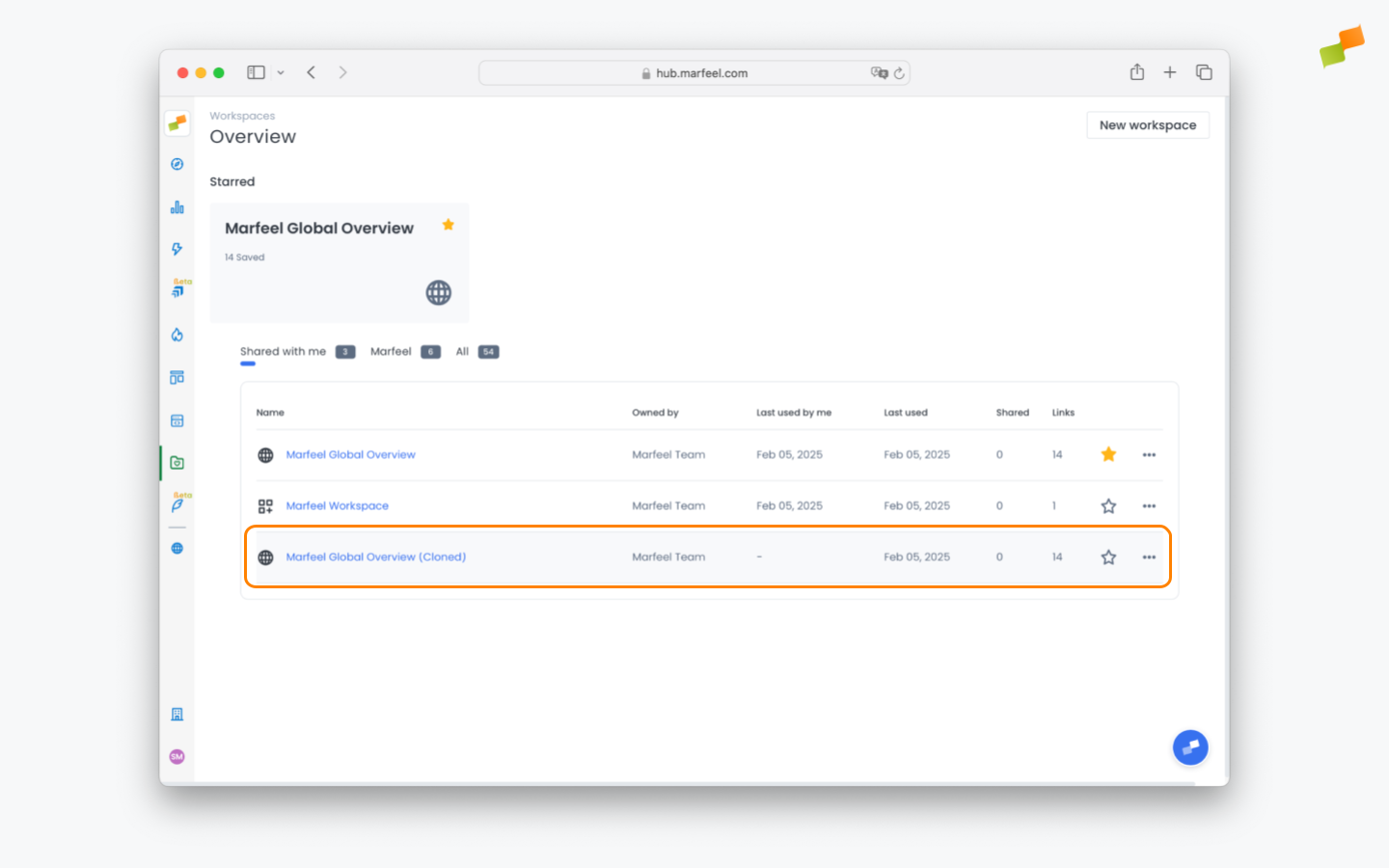
- Your cloned workspace will appear in the main screen along with the rest of your workspaces, from which you can edit it, pin it, and share it with others as you please.
🎓 Master dashboards, step by step 📊 The video below is an excerpt from the Dashboards Fundamentals course.
🧠 Discover more learning paths on Marfeel Academy.
What are the workspace user roles in Marfeel?
There are three roles: Owner (full control including sharing, cloning, and deleting), Co-owner (same permissions as Owner, designed for shared administration), and Viewer (read-only access to the workspace and its reports).
Can I share a workspace template with another Marfeel account?
Yes. Open the sharing menu and click Copy dashboard template URL. The link shares the workspace structure and configuration as a template, not your publication’s data.
What is the difference between Inherit and Restrict data permissions?
Inherit lets users see all data in the workspace regardless of their own role restrictions. Restrict limits users to only the data their role and data restrictions allow them to view.