

How to set up Data Stream to Amazon S3
The Data Stream to Amazon S3 integration lets you store raw data exports directly in your own Amazon S3 bucket. This gives your organization full ownership of raw analytics data for custom analysis, historical archiving, and integration with external tools.
If you prefer Google Cloud Storage, follow the Google Cloud Storage setup guide instead.
How to set up Data Stream to Amazon S3
Section titled “How to set up Data Stream to Amazon S3”-
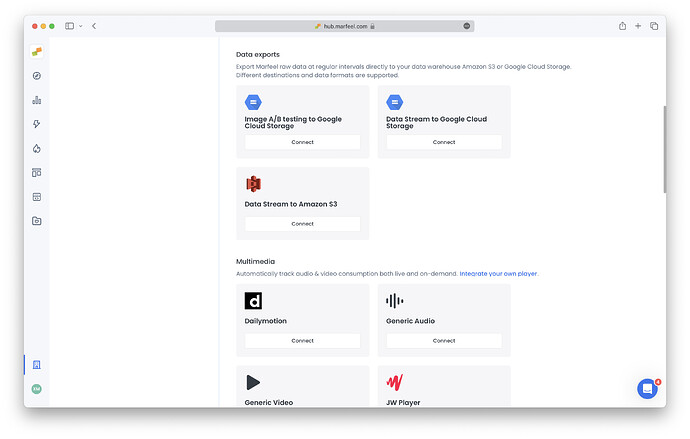
Go to Organization settings > Integrations. Scroll to the Data exports section.
-
Select
Connectin the Data Stream to Amazon S3 integration card.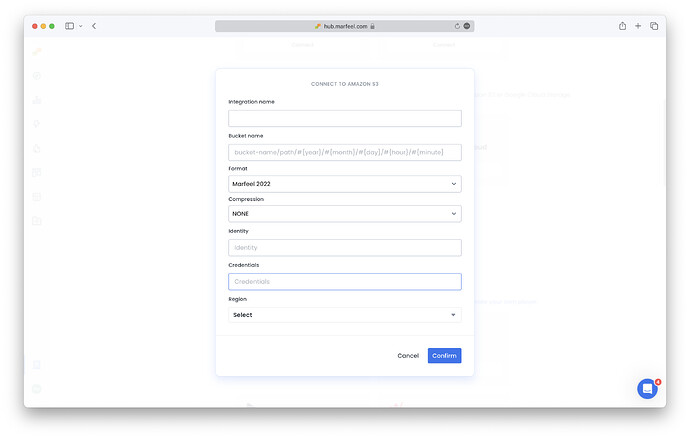
-
Fill in integration name: enter any name here (this is for internal purposes only).
-
Fill in bucket name: this is the name of the bucket in the Amazon S3 service where the data will be stored. More on buckets here.
- You can use a folder structure:
<bucket_name>/folder1/folder2/ - You can configure dynamic date folders:
<bucket_name>/folder/#{year}/#{month}/#{day}/#{hour}/#{minute} - If you have multiple export types (page views, conversions, recirculation), configure a separate folder for each one to prevent collisions.
- You can use a folder structure:
-
Choose format:
- Choose
Marfeel 2024to get the most out of your raw data exports. - Choose
Chartbeat Compatibleif you need data exported in the same format as Chartbeat data streams. - Choose
Google Analytics 360 Compatibleif you need data in the GA360 format. Take a look at how to configure custom dimensions.
- Choose
-
Select export with or without compression.
-
Enter Identity and Credentials with write access on your Amazon S3 bucket. More details on how to configure them here.
-
Enter the AWS region your bucket is in. More on AWS regions.
-
Click Confirm to complete the setup. Monitor usage in the Logs tab. For troubleshooting, check the raw data exports troubleshooting guide.