

How to specify custom tags and taxonomies of an article
Article tags in Marfeel let you organize, search, filter, and analyze your content using custom labels. Each tag classifies articles by subject, theme, or any criteria you define, and you can apply one or more tags to any article.
Tags can be used to group articles for things like:
- Article type: Categorize as article, longform, branded, gallery, and more.
- User needs: Tag articles as per user requirements, such as “update me,” “keep me on trend,” “give me perspective,” “educate me,” or “inspire me.”
- Editorial categories: Assign tags based on content description or keywords.
- Embeds: Tag articles based on the elements they have like
Embed:Poll,Embed:TwitterBox,Embed:TikTok
All tags applied to an article are discoverable via any of the article’s nested tags.
How to declare tags
Section titled “How to declare tags”Declare custom tags and taxonomies using the mrf:tags meta tag. Both the property and name attributes are supported interchangeably.
<meta property="mrf:tags" content="tagGroup1:tag_name;tagGroup2:another_tag_name" />Separate multiple tags with a semicolon ;.
Tags and tag groups
Section titled “Tags and tag groups”Tag groups (also called nested tags) use a colon-separated format like contentType:infography or contentType:blogPost. They add an extra layer of precision to your content classification by creating subcategories within a broader tag category.
The part before the colon is the Tag Group and the part after is the Tag Name. Working examples:
<meta property="mrf:tags" content="contentType:infography;userNeed:inspire" /><meta property="mrf:tags" content="category:ukraine;userNeed:update" />Both tag names and tag groups can include spaces, upper or lower cases, and any character except :. An article tagged with Ticker Symbol:AMZ generates a tag group named Ticker Symbol and a tag name AMZ.
To add multiple tags under the same tag group, repeat the full pair for each tag:
<meta property="mrf:tags" content="Ticker Symbol:AMZ;Ticker Symbol:GOOGL" />Where are tags extracted from?
Section titled “Where are tags extracted from?”Marfeel auto-tracks tags through a heuristics waterfall, checked in the following order:
-
Meta tag
mrf:tags. Added under each specific tag group.<meta property="mrf:tags" content="tagGroup1:tag_name;tagGroup2:another_tag_name" /> -
From keywords in structured data. Added under keyword tag group.
<script type="application/ld+json">{"@context": "https://schema.org","@type": "NewsArticle","keywords": "tag1, tag2, tag3"}</script> -
From data in
og:article:tag(supports both property and name attributes). Added under keyword tag group.<meta property="og:article:tag" content="tag1" /><meta property="og:article:tag" content="tag2" /> -
From meta keywords. Added under keyword tag group.
<meta name="keywords" content="tag1, tag2, tag3">- Note: According to the HTML specification, keywords must be comma-separated values in a single meta tag, not multiple separate tags
-
Marfeel has an automatic system based on Tagging rules
These tag sources feed into content taxonomies dimensions that you can use for reporting and analysis.
How to add tags manually to an article
Section titled “How to add tags manually to an article”You can also tag articles directly from the platform without modifying your site’s HTML. This is useful in situations like:
+ Create option. If you need a new tag created, ask an Admin in your organization.To manually tag an article:
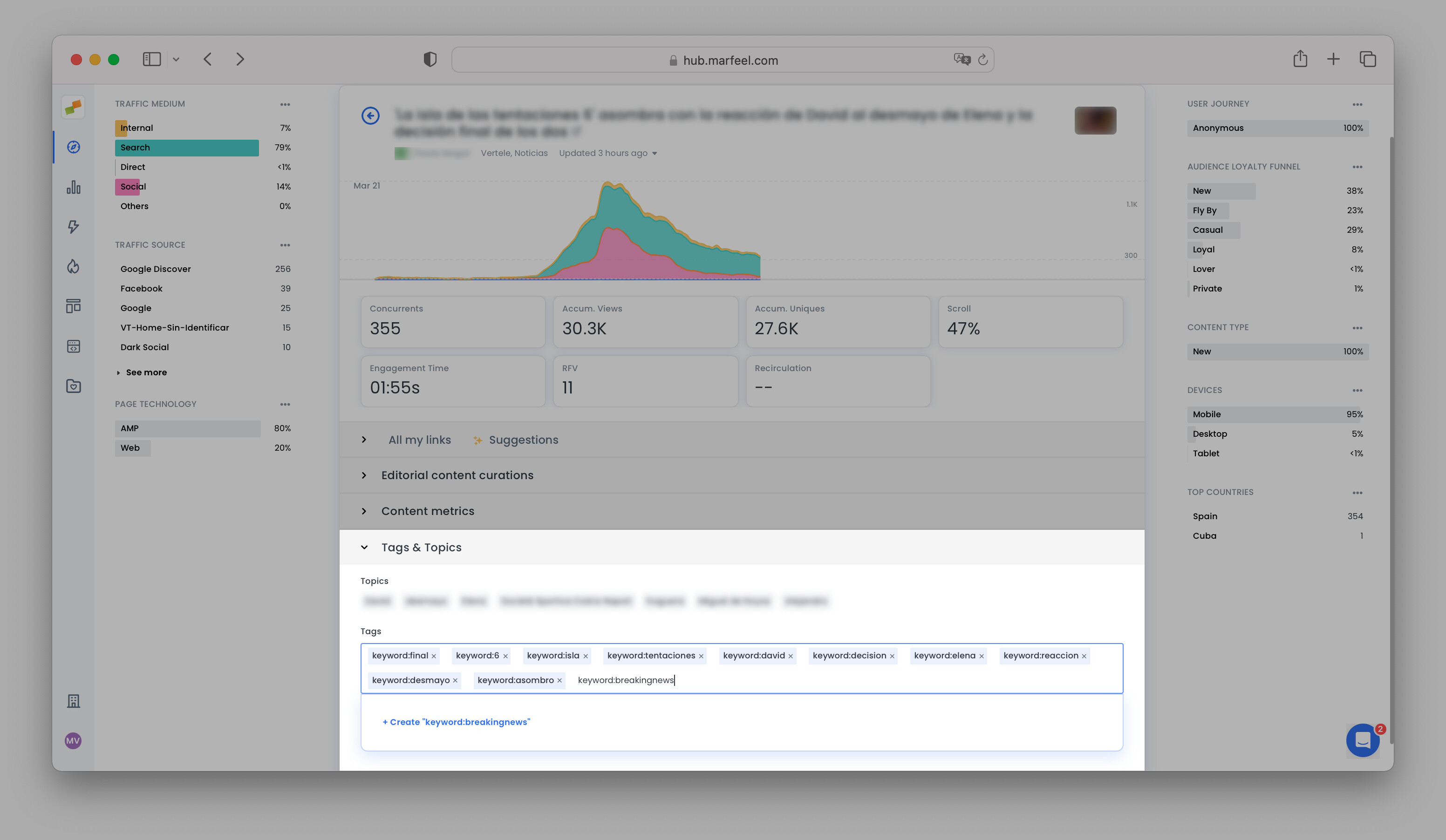
- Open the Compass View
- Click on the article you want to tag
- Scroll down until you see Tags & Topics.
- Click on
Addand start typing your keyword. For example, when it’s ‘breaking news’, insertkeyword:breakingnewsand click on+ Create 'keyword:breakingnews'.The tag applies instantly, so you can switch to the real-time Compass view and start filtering on it right away.
Formatting considerations
Section titled “Formatting considerations”Repeating tag categories
Section titled “Repeating tag categories”You must repeat the tag category for each tag value, using ; as the separator.
- This is correct:
<meta property="mrf:tags" content="category:sports;category:football;topic:world_cup;topic:finals" />- This is incorrect (missing repeated category):
<meta property="mrf:tags" content="category:sports, football;topic:world_cup, finals" />Avoid using commas as separators
Section titled “Avoid using commas as separators”Commas can cause conflicts with certain meta tags that Google and other platforms expect to use commas for their own purposes. Always use the semicolon ; separator to break tags into distinct values instead of comma-separated lists.
Escaping special characters
Section titled “Escaping special characters”You cannot use ;, ,, and : as literal characters in tag names. You also need to escape " or ' to produce valid HTML, depending on how you encapsulate the attribute values.
Case sensitivity
Section titled “Case sensitivity”Tags are case-sensitive. Zara and zara are treated as two separate tags. If your CMS has historically used different capitalizations for the same tag, both variants will appear as separate entries in Marfeel.
Encrypting tags
Section titled “Encrypting tags”For situations where you need to track tag values in Marfeel without exposing them publicly, you can use encrypted tags. When tags are declared as encrypted, the real values are visible only within Marfeel.
Learn more about encrypting tags, authors, and sections
Where does Marfeel extract article tags from?
Marfeel auto-tracks tags through a heuristics waterfall: first from the mrf:tags meta tag, then from keywords in JSON-LD structured data, then from og:article:tag meta tags, then from meta keywords, and finally through automatic tagging rules.
How do tag groups work in Marfeel?
Tag groups use a colon-separated format like contentType:infography. The part before the colon is the Tag Group and the part after is the Tag Name. Both can include spaces and any character except colons. To add multiple tags under the same group, repeat the full group:name pair separated by semicolons.
Can I add tags to articles manually in Marfeel?
Yes. Open the Compass View, click the article, scroll to Tags & Topics, click Add, type your keyword in group:name format, and create it. The tag applies instantly and is available for filtering in real-time Compass views.