

Editorial Crawler inspector for article body detection
The Marfeel Editorial Crawler crawls a URL and builds the editorial profile of a page using its metadata and article body. It performs a two-phase crawling process:
- Metadata crawler: Crawls a URL and follows a chain process to extract metadata from:
- Custom Marfeel tagging
- Structure Data
- Microdata
- Open Graph og:*
- RDFa
- Article body crawler: Identifies the content of a URL, removing all navigation and boilerplate elements, to extract content metrics like word count, paragraph count, and image count, as well as entities for the Marfeel knowledge graph.
Crawler location to prevent geo-blocking
Section titled “Crawler location to prevent geo-blocking”Marfeel crawlers can execute from multiple locations. By default, they run from the location closest to the account’s specified timezone country. You can change the location manually:
- Go to Organization > Crawler settings
- Choose your preferred location: United States, Europe
Article body crawler
Section titled “Article body crawler”Marfeel needs to detect the body of an article to compute content metrics like the number of words, paragraphs, or flesh index, detect entities, connect them to the Marfeel knowledge graph, and power AI-based content recommendations.
Out of the box, the Marfeel crawler detects the article body using a Reader View kind of browser extension. This extension uses heuristics to differentiate content from UI elements like sidebars, footers, or related articles modules.
Depending on the HTML markup, the Reader View may incorrectly keep or remove text from an article. It may detect modules as content or vice versa, resulting in wrongly computed metrics and poorly detected entities.
To ensure accurate article body detection and correct metric and entity computation, provide hints to the crawler to fine-tune how it processes your site.
Configure the Editorial Crawler inspector:
-
Go to
Organization>Crawler> Inspector -
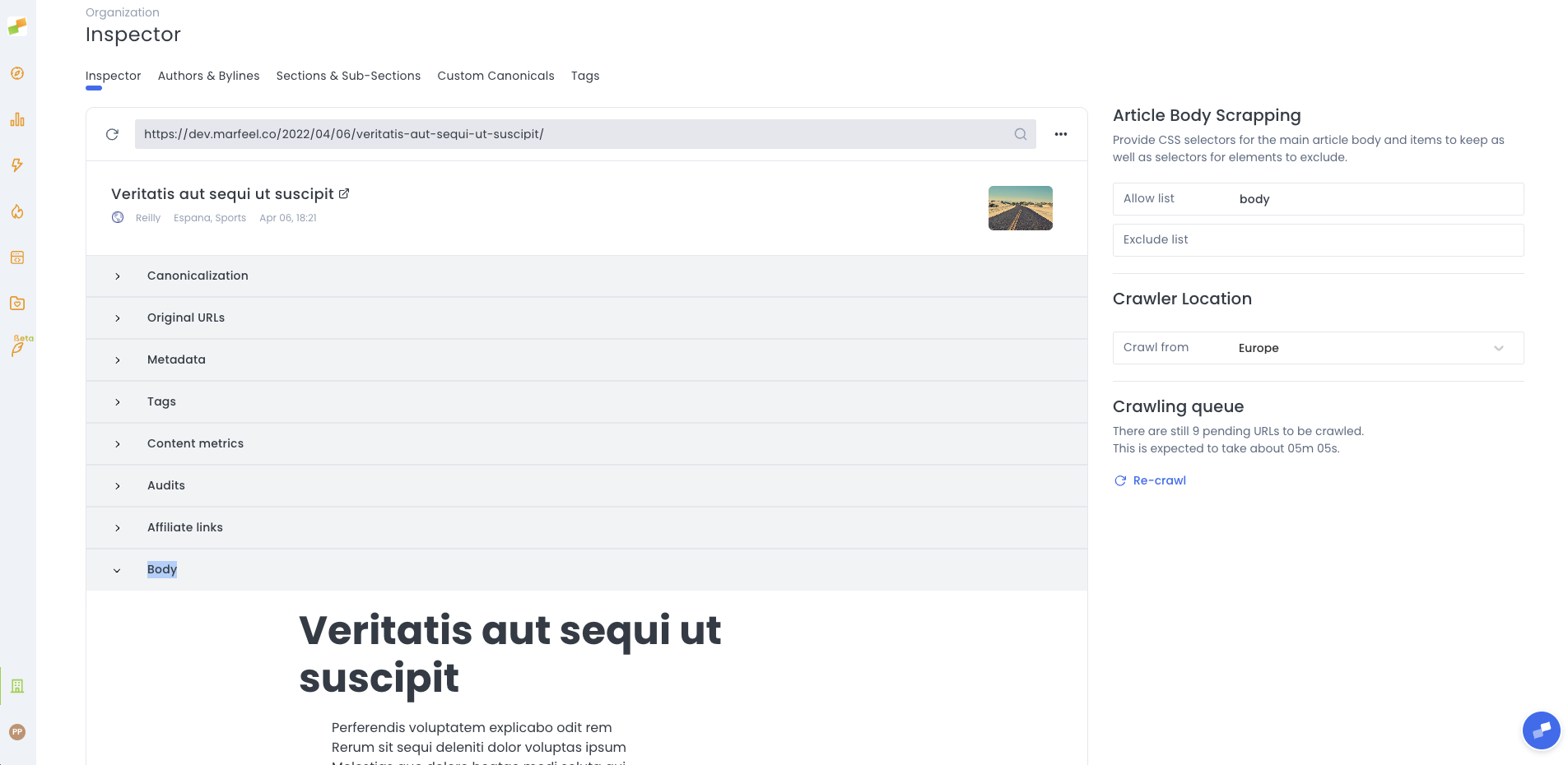
Select a URL on the top left corner to preview the text that the Editorial Crawler detects
-
Define the main article body CSS selector as the
parent node. The default setting isbody, but a selector with higher specificity is recommended. -
Add CSS selectors of modules to remove from the
parent nodeelement.Blacklist modulesare useful to remove in-article modules like recommendations
If the crawler still produces unexpected results after configuration, check the editorial crawling troubleshooting guide for common issues and solutions.
Recrawl articles in bulk
Section titled “Recrawl articles in bulk”From the inspector, you can see how many articles are being processed,
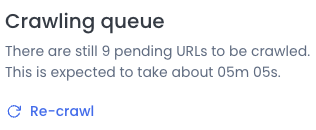
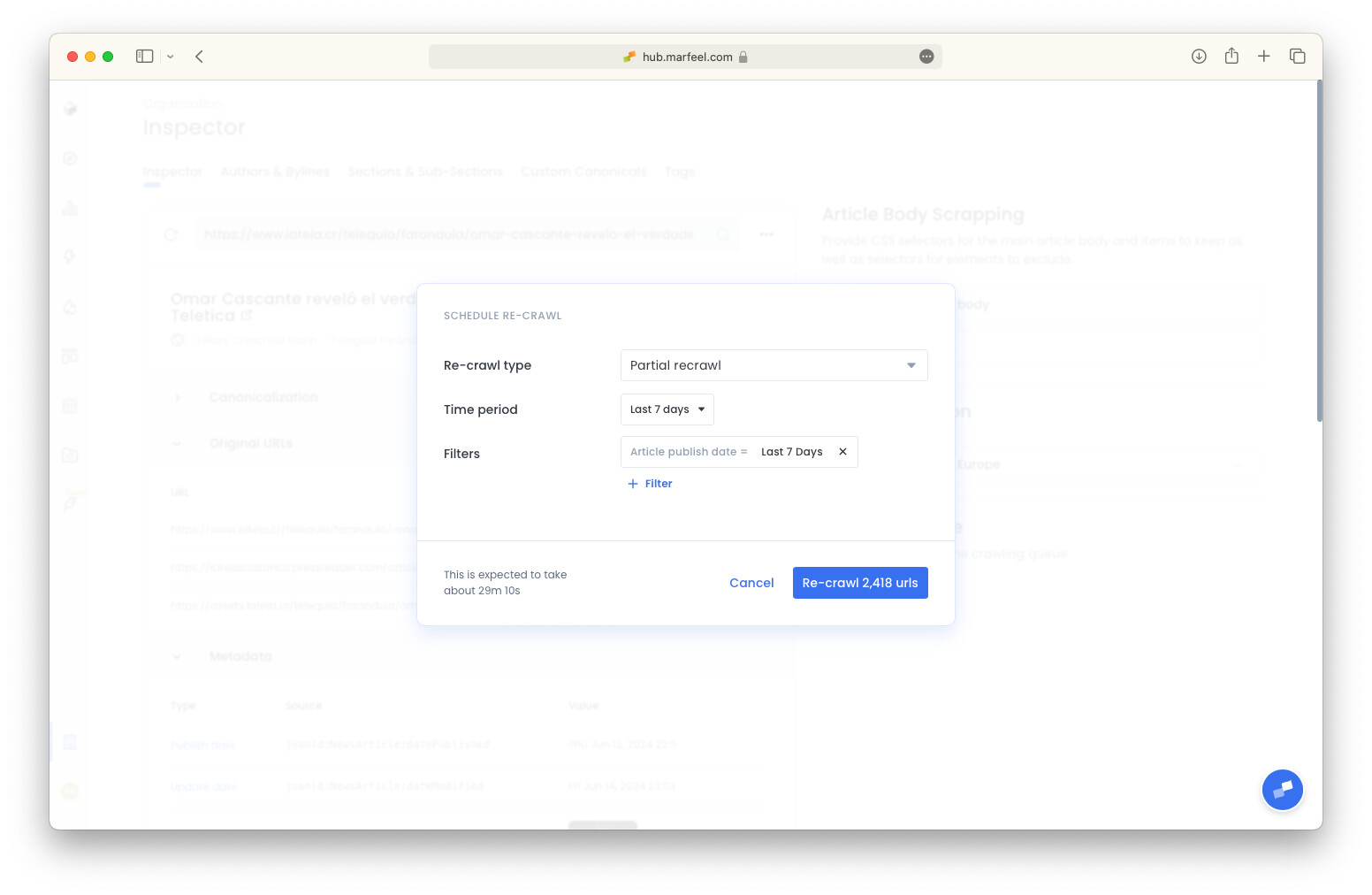
and trigger a recrawl for all articles that match your query.
What does the Marfeel Editorial Crawler do?
The Marfeel Editorial Crawler performs two-phase crawling. The metadata crawler extracts editorial metadata from Custom Marfeel tagging, Structured Data, Microdata, Open Graph, and RDFa. The article body crawler identifies the content of a URL, removing navigation and boilerplate elements, to compute content metrics and detect entities.
How do I configure the article body CSS selector in the Editorial Crawler inspector?
Go to Organization > Crawler > Inspector in Marfeel Hub. Select a URL to preview the detected text. Define the main article body CSS selector as the parent node (default is body, but a more specific selector is recommended). Then add blacklist module selectors to remove in-article elements like recommendation widgets.
How do I change the Marfeel crawler location to prevent geo-blocking?
Go to Organization > Crawler settings and choose your preferred location: United States or Europe. By default, crawlers execute from the location closest to the account’s specified timezone country.