

Marfeel Google Sheets Add-On setup and usage guide
The Marfeel Google Sheets Add-On lets you view Explore data in spreadsheet form for custom analysis and visualizations. You can build charts, perform custom analysis, and schedule regular data updates directly from within the sheet.
As part of Marfeel’s data exports offerings, the Google Sheets extension exports data via the JSON API from Explore so you can:
- Build charts and perform custom analysis with Marfeel Explore data in spreadsheet form
- Schedule reports right from the Sheets extension
Set up the Marfeel for Google Sheets Add-On
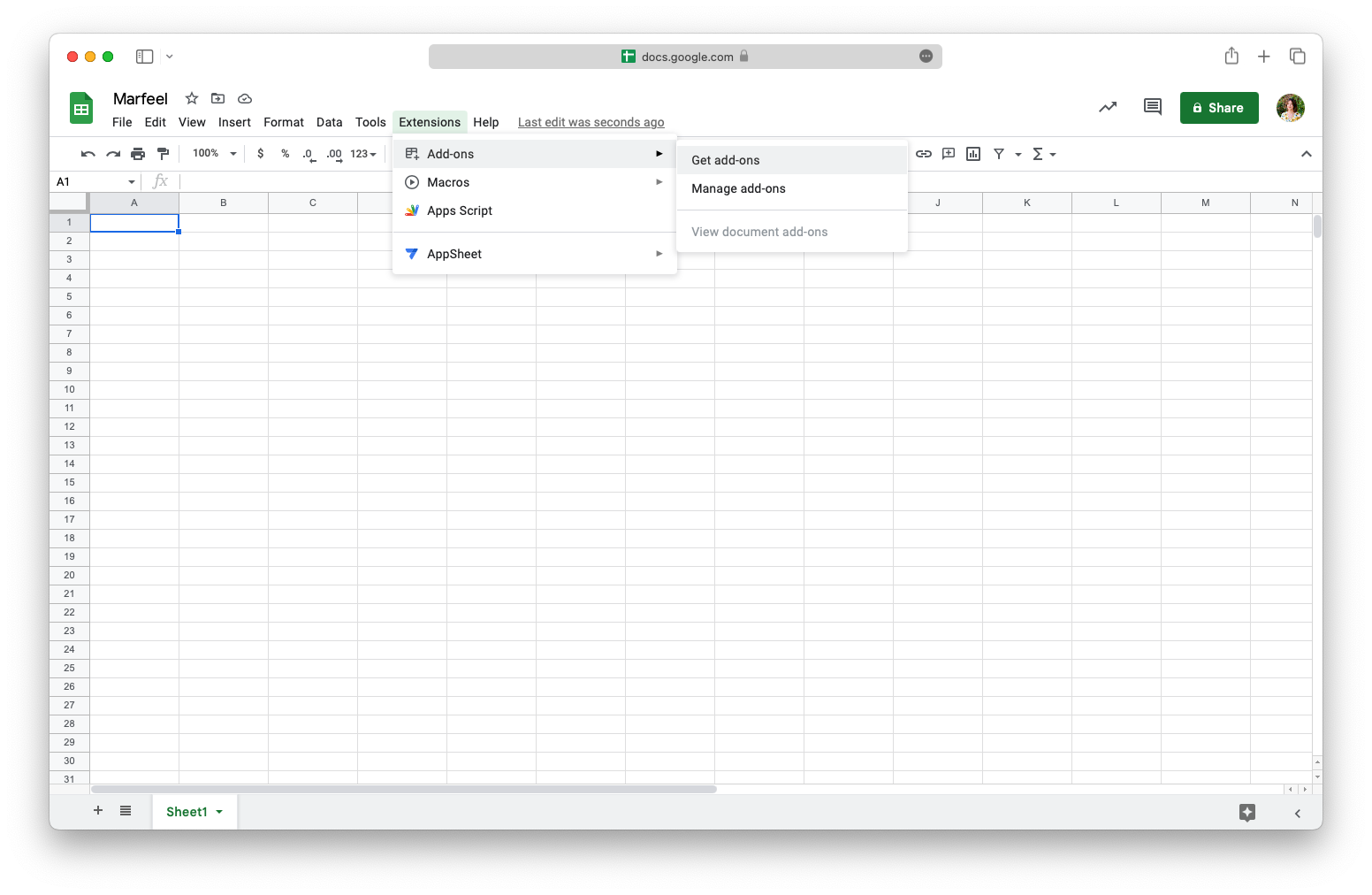
Section titled “Set up the Marfeel for Google Sheets Add-On”- In Google Sheets, go to Extensions > Add-ons > Get Add Ons
- Search for “Marfeel” or “Marfeel for Google Sheets”
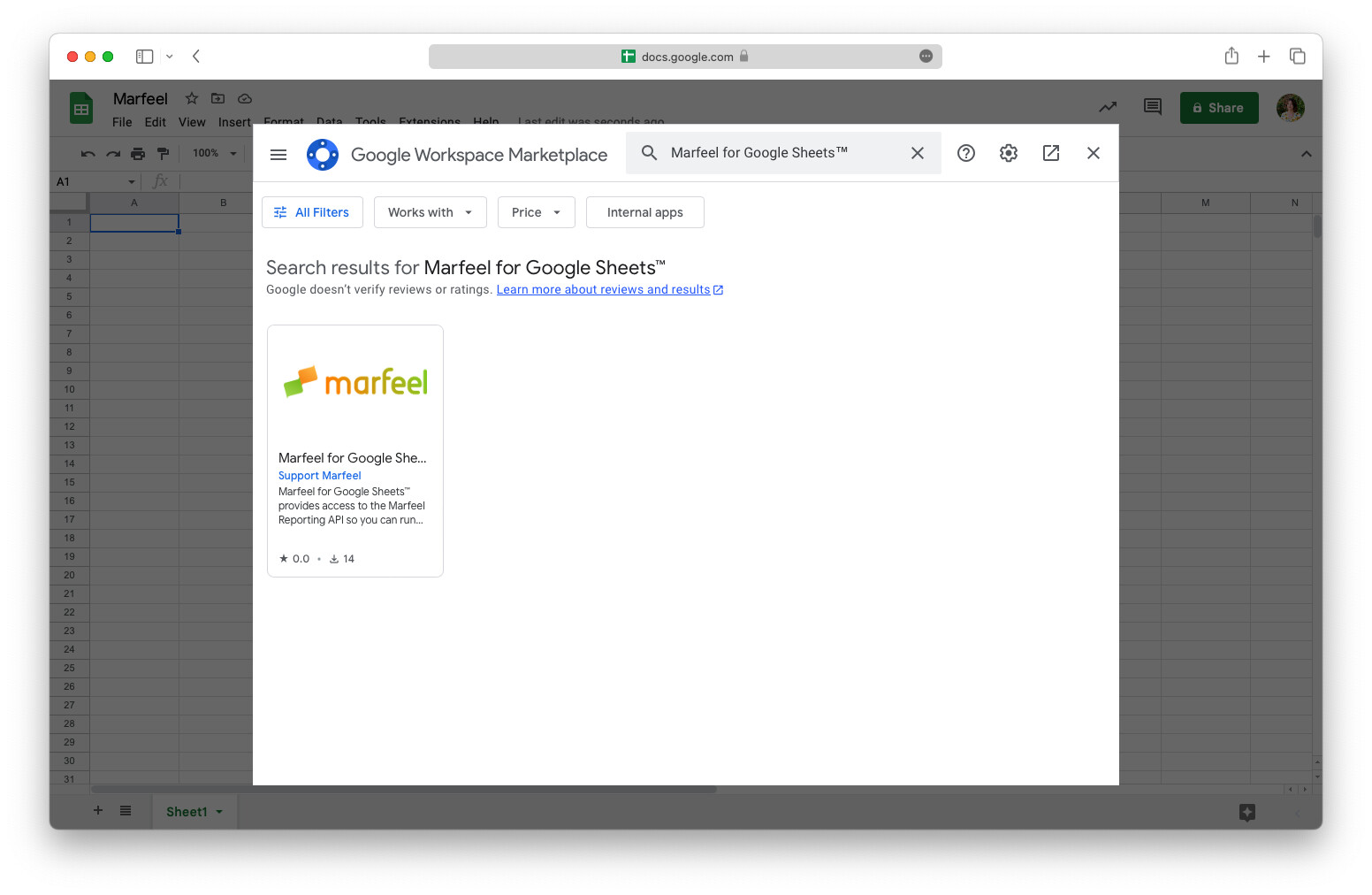
- Select the Marfeel extension and click
Install - Click
Continue - Log into your Google account
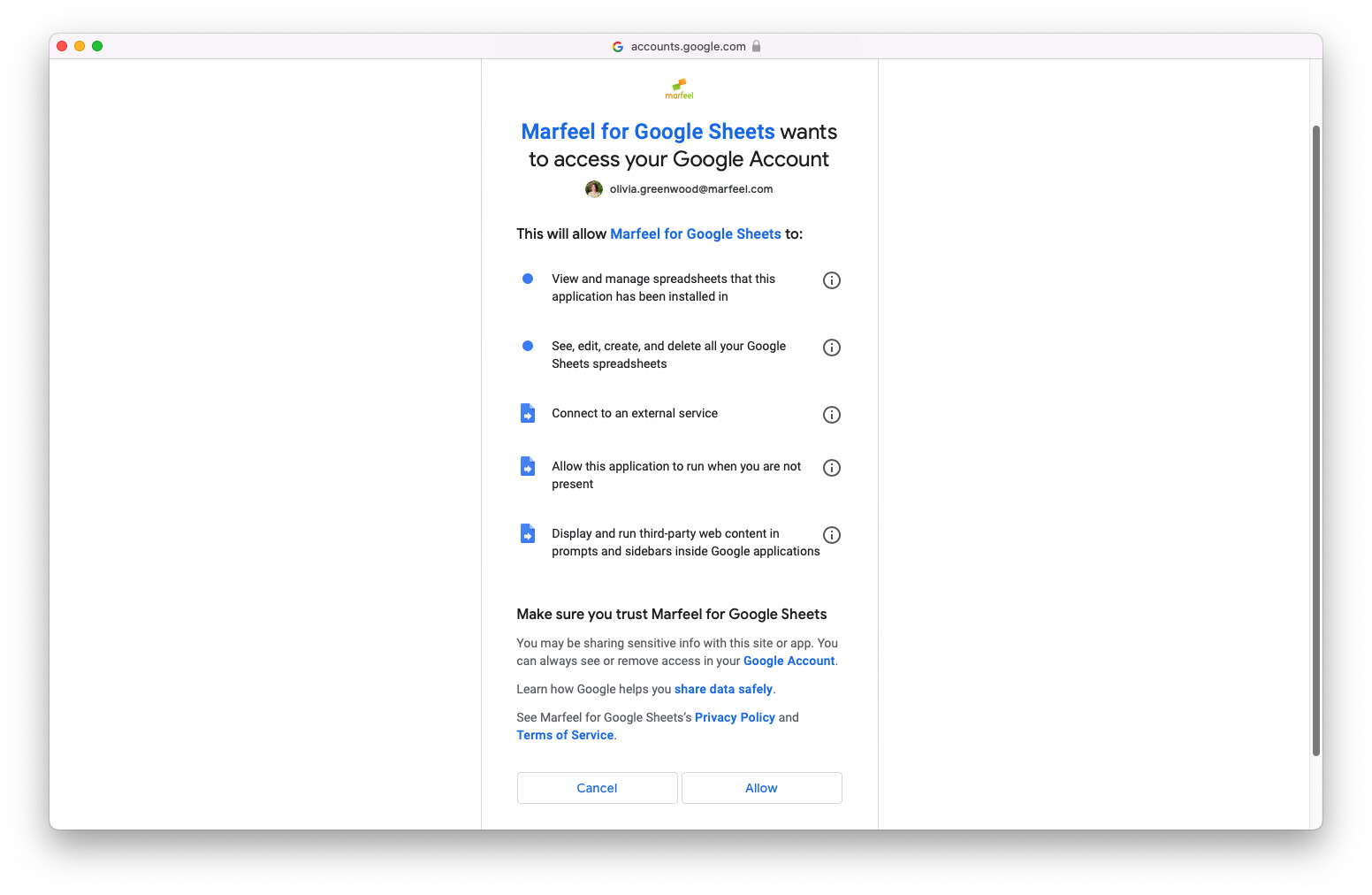
- The following screen will display all the permissions you need to enable to run the application. Click
Allow.
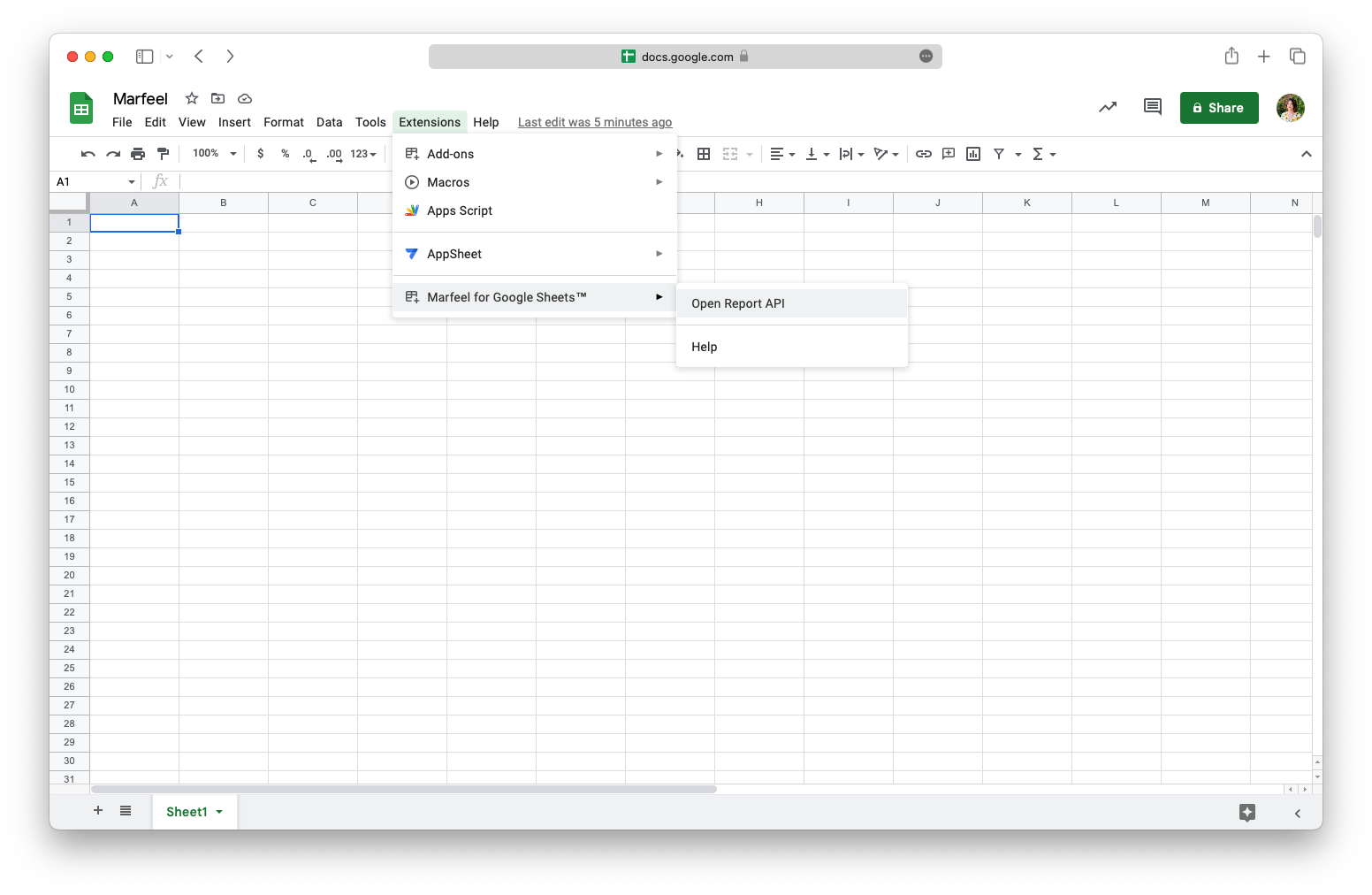
- Marfeel for Sheets will now appear under the Extensions menu. To enable it, go to Extensions >
Open Report API
- Enter your Marfeel-associated email and password in the sidebar
- Once your user is verified, click
Create sheetin the sidebar to create the following sheet:
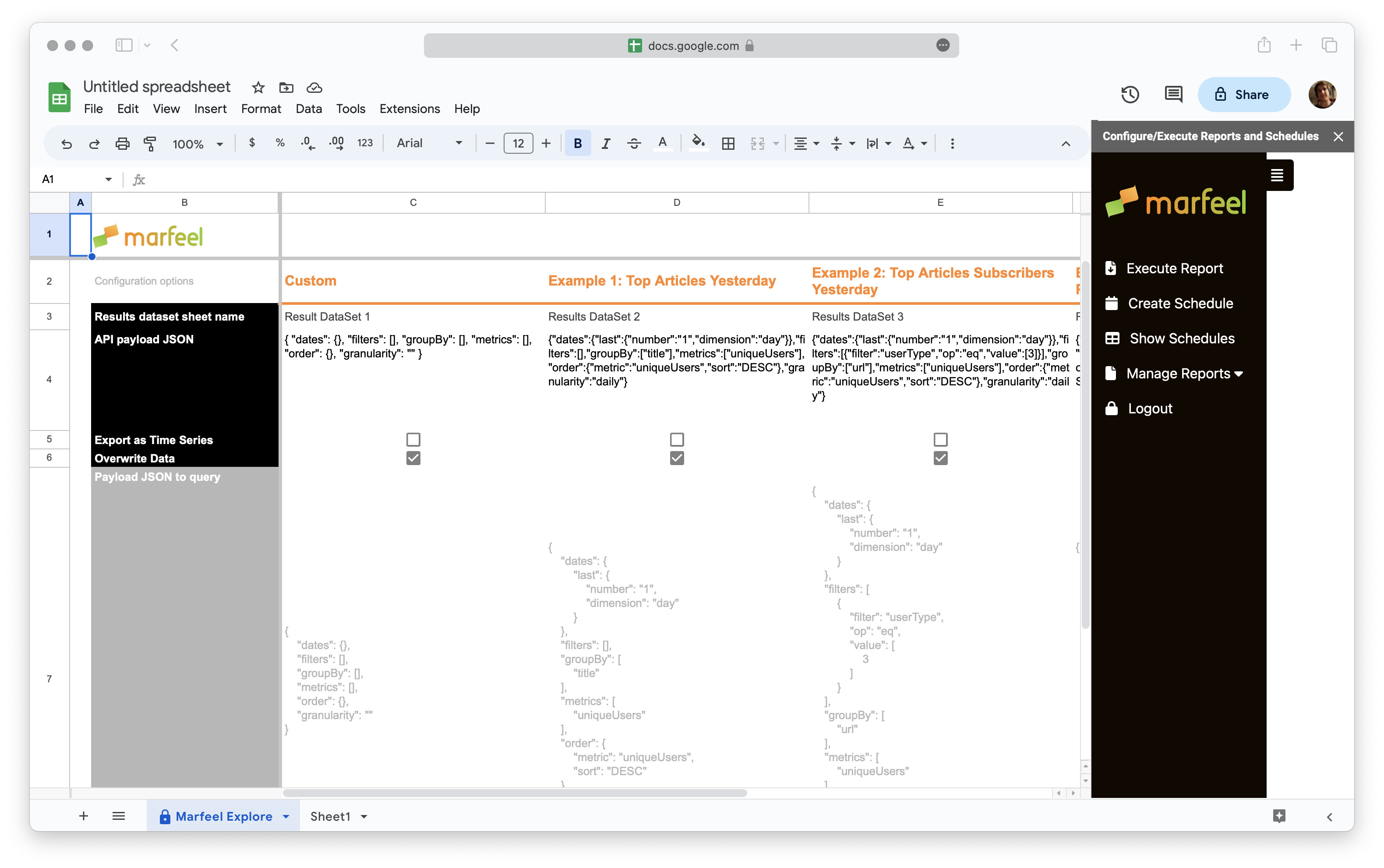
You’re all set up! Learn more about how to use the Marfeel Google Sheets extension below.
How to use Marfeel for Google Sheets
Section titled “How to use Marfeel for Google Sheets”Once the add-on is enabled, open a new Sheet and go to Extensions > Marfeel for Google Sheets > Open Report API any time to create a new sheet or access saved sheets in your Google Drive.
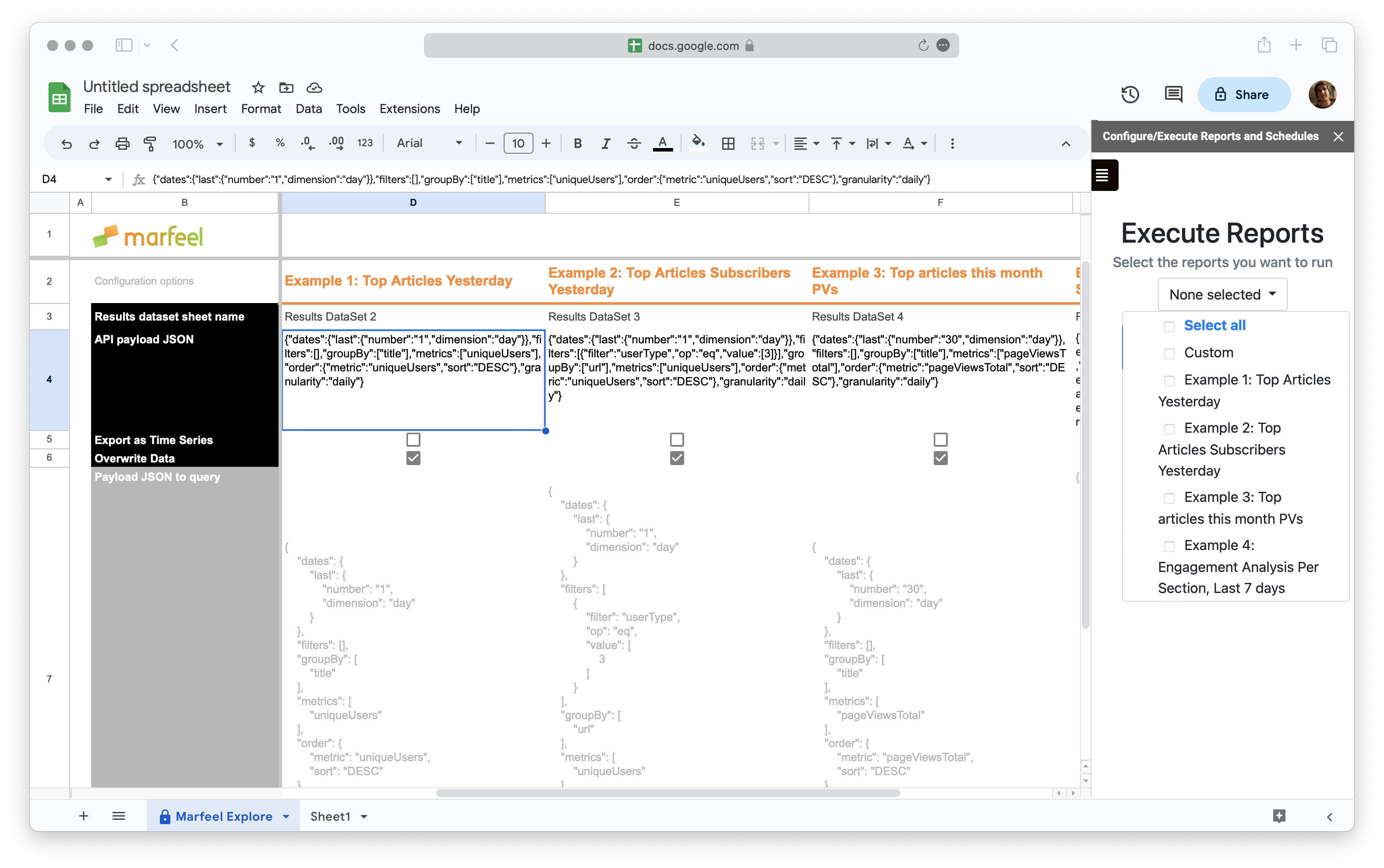
The Marfeel Explore sheet has 5 columns. Each column represents a different report (scroll to the right to see the rest of the columns):
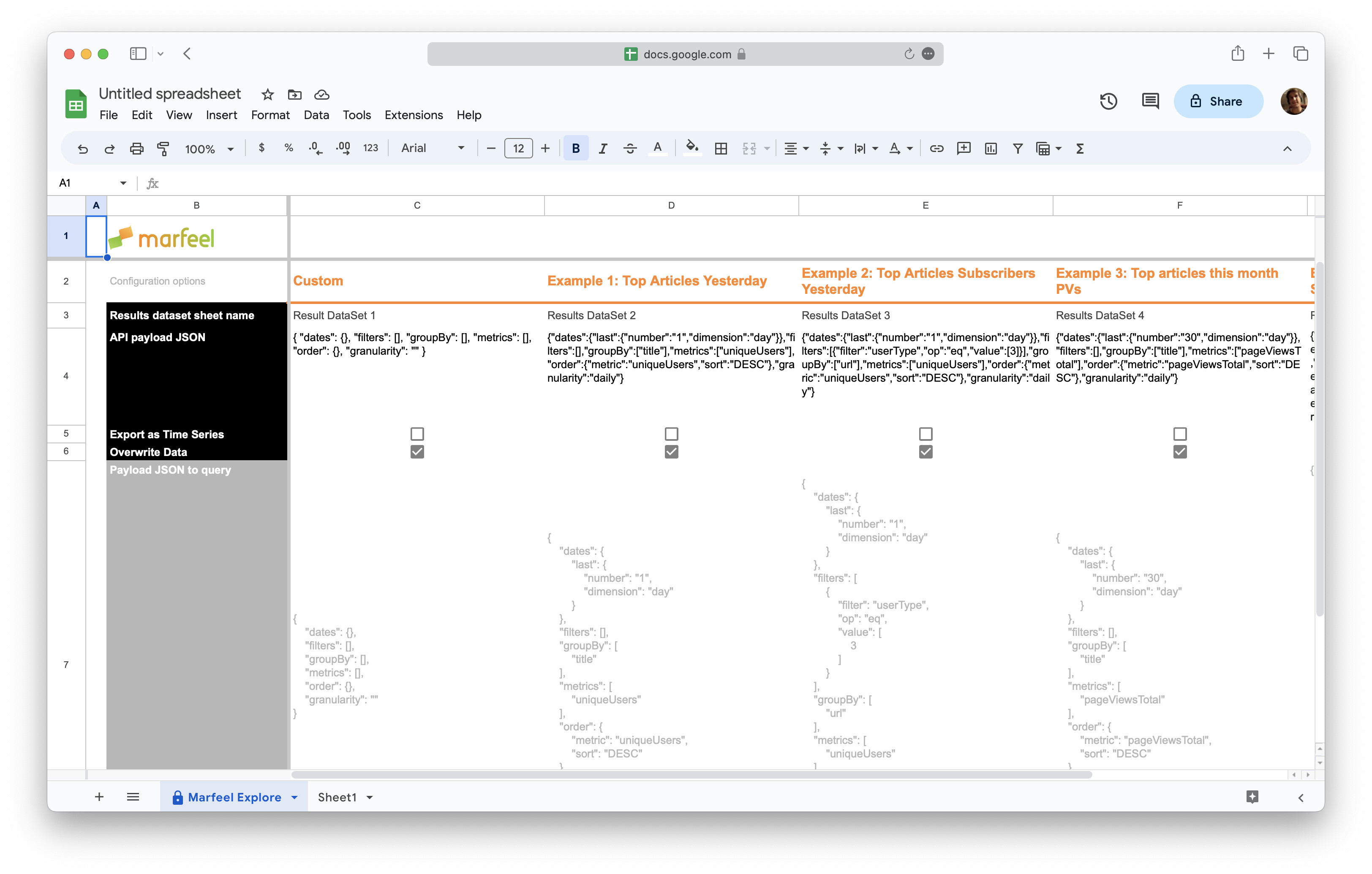
The first report starts empty, and the other four are prefilled with examples. All are editable to adapt to any individual needs.
- Custom: empty example, mostly for one-time execution queries.
- Example 1: Top articles yesterday: the top performing articles from the previous day
- Example 2: Top articles subscribers yesterday: the articles that were the last editorial hit for the most subscribers
- Example 3: Top articles this month PVs: the articles with the most pageviews during the current month
- Example 4: Engagement Analysis Per Section, Last 7 days: Average engagement time and ads per page, per section
There are 5 rows:
- Report name: remember which report is in each column
- Results dataset sheet name: the name of the sheet where your results will appear for that report when it has been executed
- API payload JSON: the query you want to run, in JSON format
- Export as Time Series: check this box if you want data to be split by hour, day or week, as shown in Explore view when expanding rows
- Overwrite data: keep this box checked if you wish to have old data overwritten when you execute a fresh report
Get JSON API for query
Section titled “Get JSON API for query”To import a query into your sheet, go to Explore and run the query you want.
- Click the three dots in the top-right corner
- Click
Get JSON API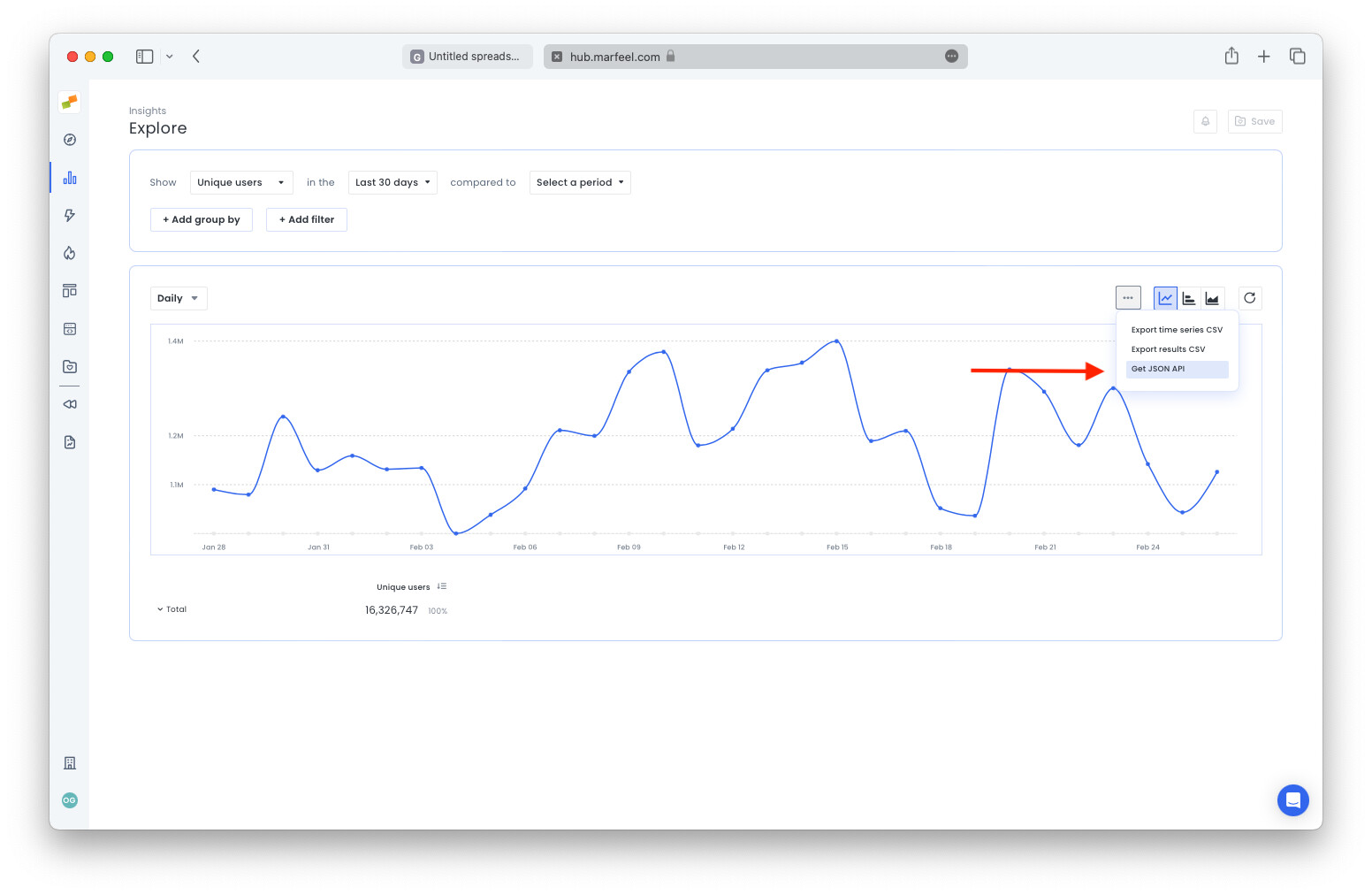
- The query will copy to the clipboard
- Go back to your sheet and paste the query in the API payload JSON row, in the column you want to edit the report for
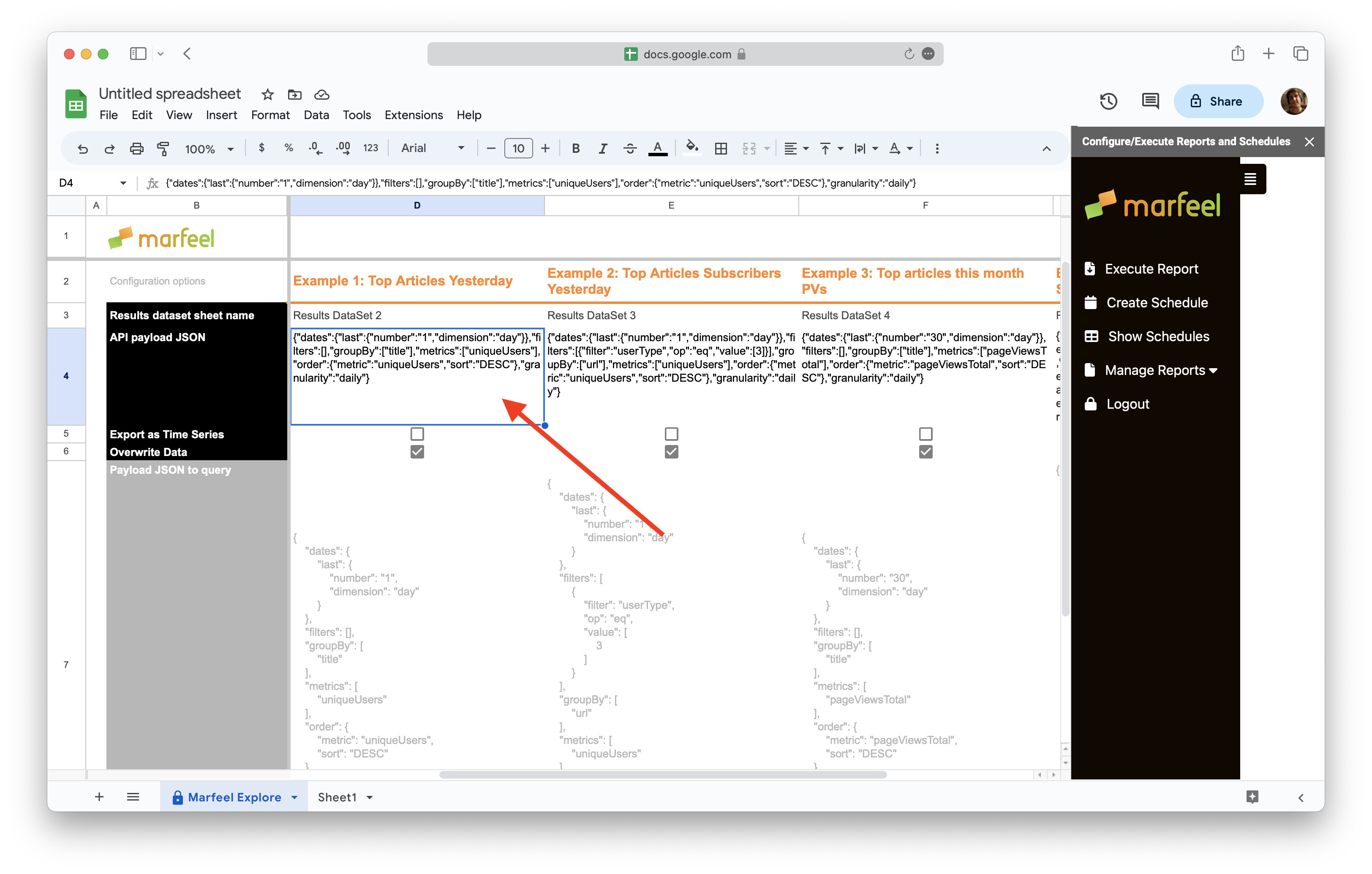
- Optional: Rename the report name on the second row to better describe the query
- Optional: Rename the Results data sheet name row with the name you want to give to the sheet where the data will populate once the report has been executed.
Execute report
Section titled “Execute report”To generate any Explore report in sheet form, select Execute report from the sidebar.
Note: if at any time the sidebar disappears, go to Extensions > Marfeel for Google Sheets > Open Report API
- Click on
Execute reportin the sidebar - Select the report from the dropdown menu and click outside the menu to collapse it
- Click the green
Execute reportbutton - If you have the Overwrite data option checked, you will be prompted to confirm that you wish to delete existing data. Click
Yesto proceed. - It might take some seconds for the process to be completed.
- The data will populate in a sheet with the name provided in the second row of the Custom column.
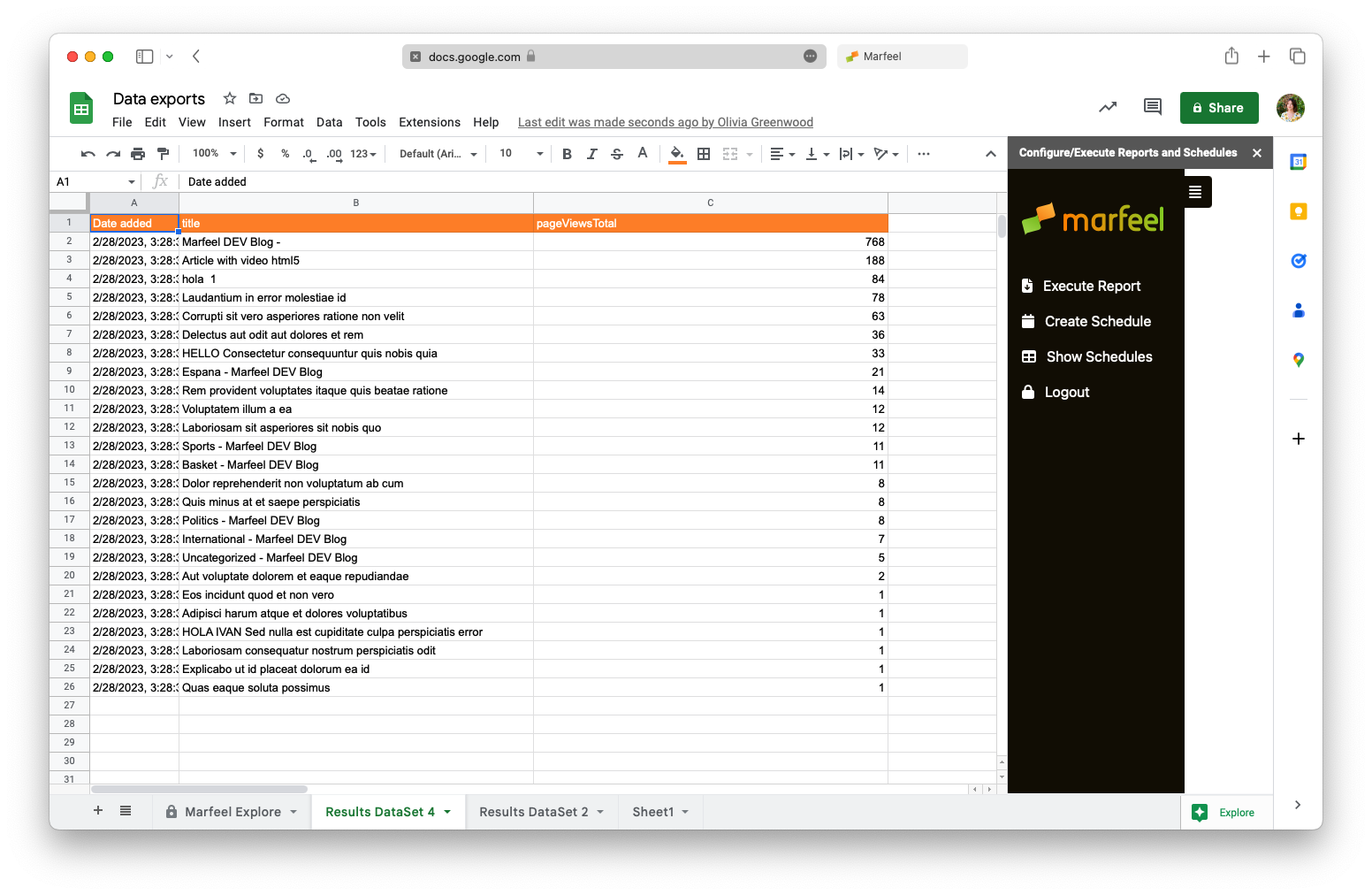
- If you have opted NOT to overwrite historical data, i.e. the checkmark on the main sheet is unchecked for that dataset, then the data from previous reports will appear below the more recent data.
Schedule reports
Section titled “Schedule reports”Schedule reports to have them delivered right to the sheet automatically at regular intervals, keeping you in possession of the freshest data.
- Select
Create Schedulein the side panel. - Select the report you want to schedule from the
Reportsdrop-down menu - Choose how often and when you want to receive reports. You can set a recurrence daily, weekly or monthly, and setting the exact execution time is also available.
Alternatively, select the date and time you’d like to schedule a one-off report on.
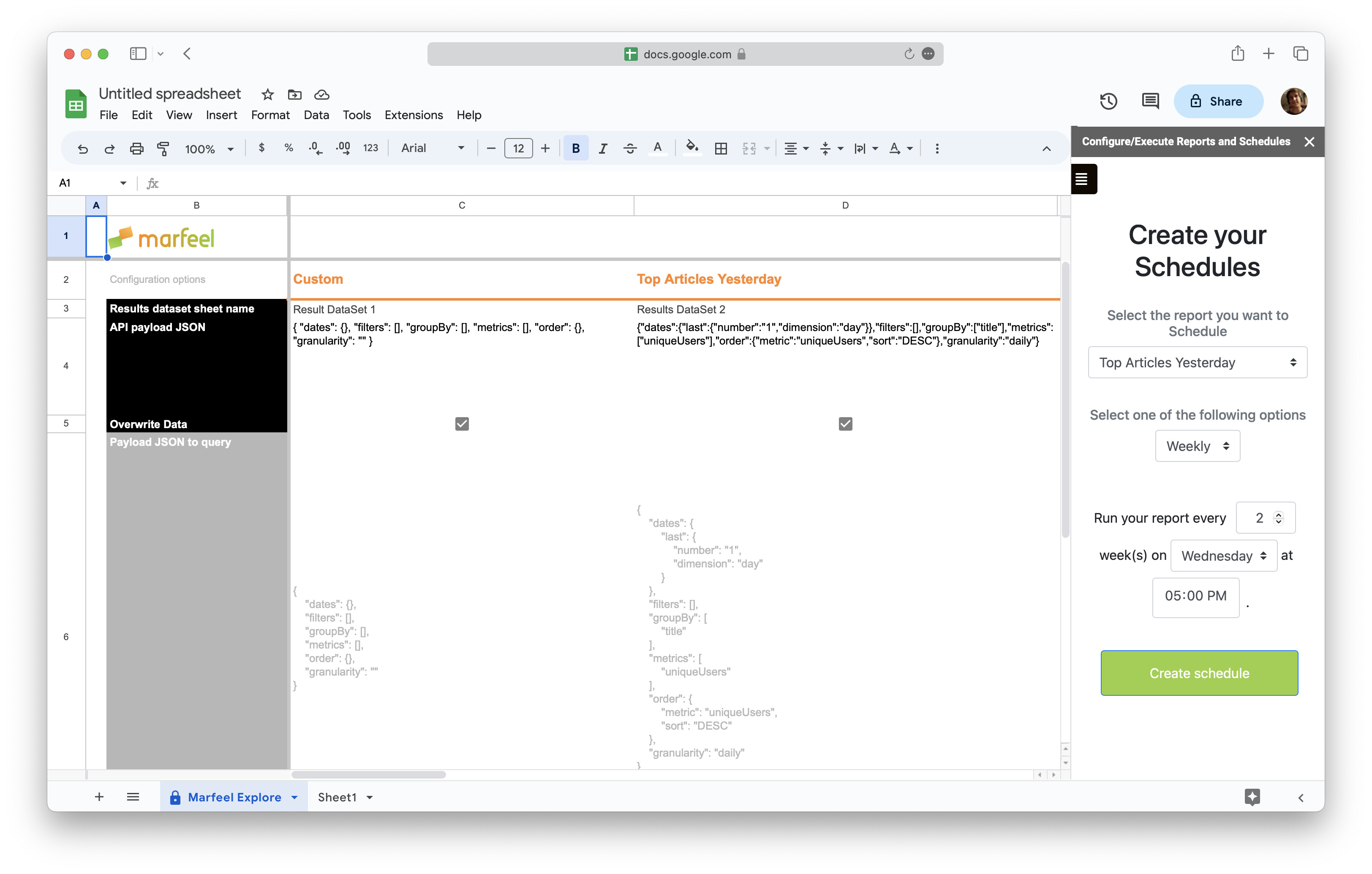
- Click on
Create schedule
View scheduled reports
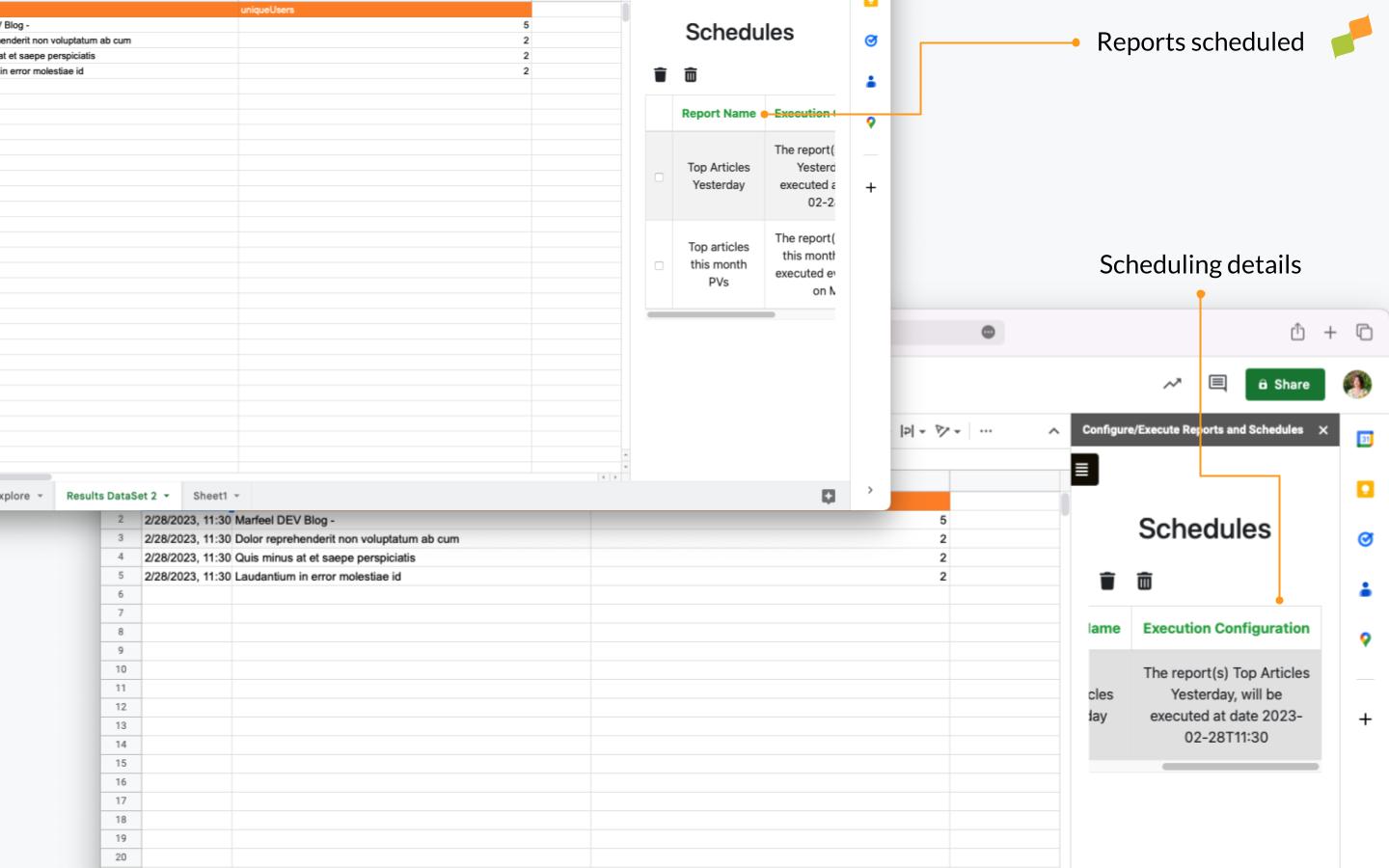
Section titled “View scheduled reports”Select Show Schedules from the sidebar menu to see the reports that you have scheduled previously and the scheduling information. Select any report to delete it or select the trash icon on the right-hand side to cancel all subscriptions.
Troubleshooting
Section titled “Troubleshooting”Session or credential errors
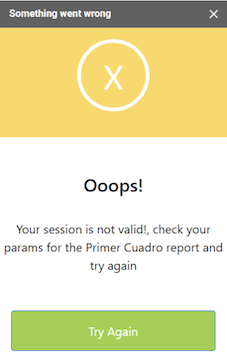
Section titled “Session or credential errors”If you receive an error Your session is not valid, it typically indicates an issue with user credentials or an expired token. To resolve it, log out of your account and log back in to refresh your session and update your token.
Row limit in reports
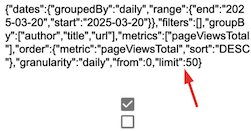
Section titled “Row limit in reports”By default, reports are limited to 50 rows. If you need to retrieve more data, manually increase the row limit in the JSON configuration of your report.
Pivot table export not supported
Section titled “Pivot table export not supported”Direct export of reports as pivot tables is not supported. To create a pivot table, first export the unpivoted report, then use Google Sheets to convert it into a pivot table.
Incorrect cell formatting in exported data
Section titled “Incorrect cell formatting in exported data”Before exporting data, make sure the target sheet has the default cell format applied. If cells in your sheet have been previously formatted (e.g., as dates, currency, etc.), they will retain those formats after the export.
How do I install the Marfeel Google Sheets Add-On?
In Google Sheets, go to Extensions > Add-ons > Get Add Ons, search for “Marfeel”, select the extension, click Install, then allow the required permissions. Marfeel for Sheets will appear under the Extensions menu.
How do I import an Explore query into a Google Sheets report?
In Explore, run your query, click the three dots in the top-right corner, and select Get JSON API. The query copies to your clipboard. Paste it into the API payload JSON row of your Marfeel Explore sheet.
Can I schedule automated reports in the Marfeel Google Sheets Add-On?
Yes. Select Create Schedule in the sidebar, choose the report, and set a daily, weekly, or monthly recurrence with a specific execution time. Reports use the query that exists at execution time, not at scheduling time.