

Export Explore reports to Google Sheets and Excel
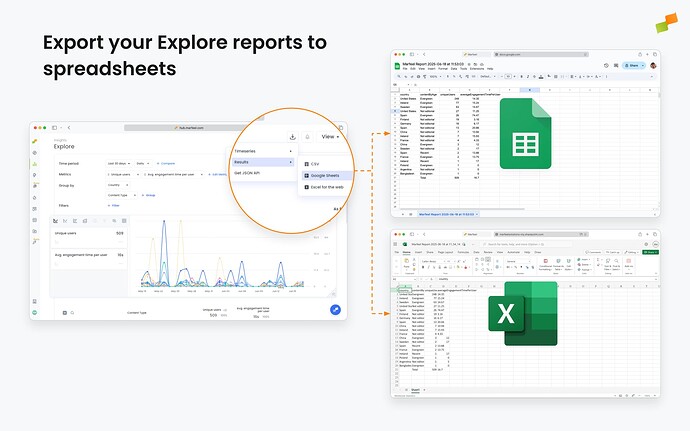
Any Explore report can be exported directly to Google Sheets or Microsoft Excel for the Web, giving you instant access to your data in a spreadsheet format without the need for CSV downloads.
- Google Sheets
- Microsoft Excel for the Web
How to export
Section titled “How to export”- Click the Download menu at the top-right of any Explore report.
- Choose one of the following:
- Results: a summary table for the full selected period.
- Timeseries: detailed rows for each time interval based on the selected granularity.
- Select the export destination: Google Sheets or Excel for the Web. The file will open in a new browser tab once ready.
First-time setup
Section titled “First-time setup”The first time you export to either platform, you will be prompted to authenticate via OAuth. Once access is granted, the export continues automatically.
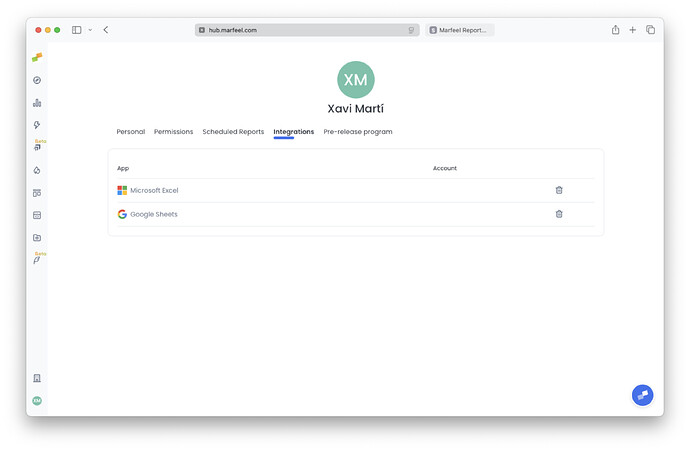
These integrations are personal and not shared with others in your organization. If you are part of multiple Marfeel Organizations, your spreadsheet connections will be available across all of them.
You can manage and remove integrations anytime from My Profile > Integrations.
Export duration and large reports
Section titled “Export duration and large reports”Report generation usually takes a few seconds. For larger reports, if the export takes too long, you will be notified. In such cases, check your cloud drive (Google Drive or OneDrive) after a short wait, typically within a minute, to find your report.
Allow pop-ups
Section titled “Allow pop-ups”If the generated report does not appear in a pop-up after receiving a success prompt in the platform, your browser is likely blocking pop-ups.

Each browser differs slightly on how this is managed. Here are some references on how to allow pop-ups in popular browsers.
Scheduled reports
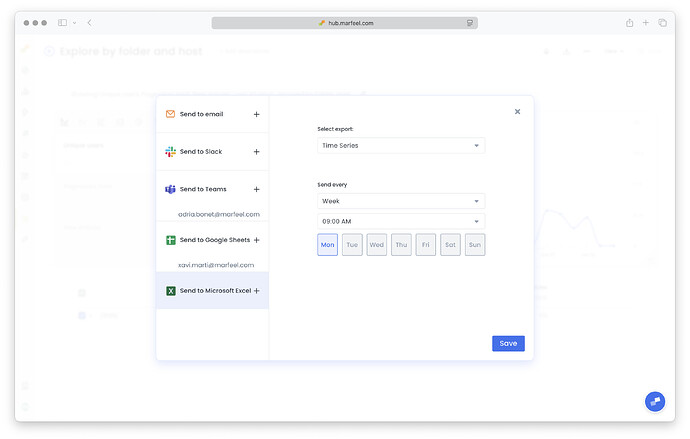
Section titled “Scheduled reports”You can automate report exports to Google Sheets or Microsoft Excel for the Web using the Scheduled Reports feature, accessible via the bell icon in the top-right corner.
Choose:
- The report type, either Summary or Time Series
- The delivery schedule, including the day of the week or month and the exact delivery time
Once configured, reports will be automatically generated and sent according to your selected schedule.
How do I export an Explore report to Google Sheets or Excel?
Click the Download menu at the top-right of any Explore report, choose Results or Timeseries, then select Google Sheets or Excel for the Web. The file opens in a new browser tab once ready.
Are export integrations shared across my organization?
No. Export integrations are personal and not shared with others in your organization. However, if you belong to multiple Marfeel Organizations, your spreadsheet connections are available across all of them.
What should I do if the exported report does not appear?
Your browser may be blocking pop-ups. Allow pop-ups for the Marfeel platform in your browser settings. For large reports that take too long, check your Google Drive or OneDrive after about a minute.