

Tagging rules: Apply tags automatically to articles
Tagging rules automate the process of labeling articles based on defined criteria, ensuring content is accurately tagged and organized without manual intervention or HTML modifications. This no-code system in Marfeel streamlines editorial workflows by applying custom tags and taxonomies consistently across your entire content library.
With custom tags, publishers can fully customize the benchmarks they use to analyze content performance.
Here are some use cases:
- Articles written by Author A, Author B or Author C set the tag
team:SEO - Tag articles published on a certain group of hosts within your overall account as
Host Group:A,Host Group:B, etc. - In a multi-property account with different domains, assign
BizUnit:BusinessorBizUnit:Newsarticles from different sections and hosts - In a multi-property account with different domains, assign the vertical that an article belongs to
Vertical:Tech,Vertical:Lifestyle,Vertical:traveldespite the host or section. - Tag articles that have not been published on Social Networks
- Tag articles that appear on the home page
- Tag articles with certain amounts of traffic from Google Discover as
Google Discover Spike - Tag articles with certain amounts of traffic from high-conversion audiences as
Potential Converter - Tag articles with high amounts of Social and Dark Social traffic as
Newsletter Candidate
Tagging rules
Section titled “Tagging rules”Start setting up your tags through Organization > Rules. In this module you can create your own customized tags with a no-code solution based on rules you define. The rules are structured as follows:
- Tag articles with: Specify the tag and the tag group you want to apply. i.e.
Vertical: Tech - When: Set the criteria when the tag will apply. You can specify a combination of criteria based on metrics. Some examples:
- When “Unique Users > 1000”
- When “Social posts < 1” to easily spot non posted articles on social networks
- When “RPM > 1”
- When “Scroll < 20”
- On: Filter criteria based on any supported dimensions. Some examples:
- “Traffic Source = Google Discover”
- “Traffic Source with Internal = any of your home page modules” to tag articles that generate traffic on the home page
- During the last: the timeframe in which the previous criteria must be met
How to create a new tag rule
Section titled “How to create a new tag rule”Here is an example of setting up a tag rule to label articles with alert:discovergrowth when they acquire more than 1000 users from Google Discover in 1 hour:
- Go to Organization > Editorial > Tagging Rules
- Click on
New rule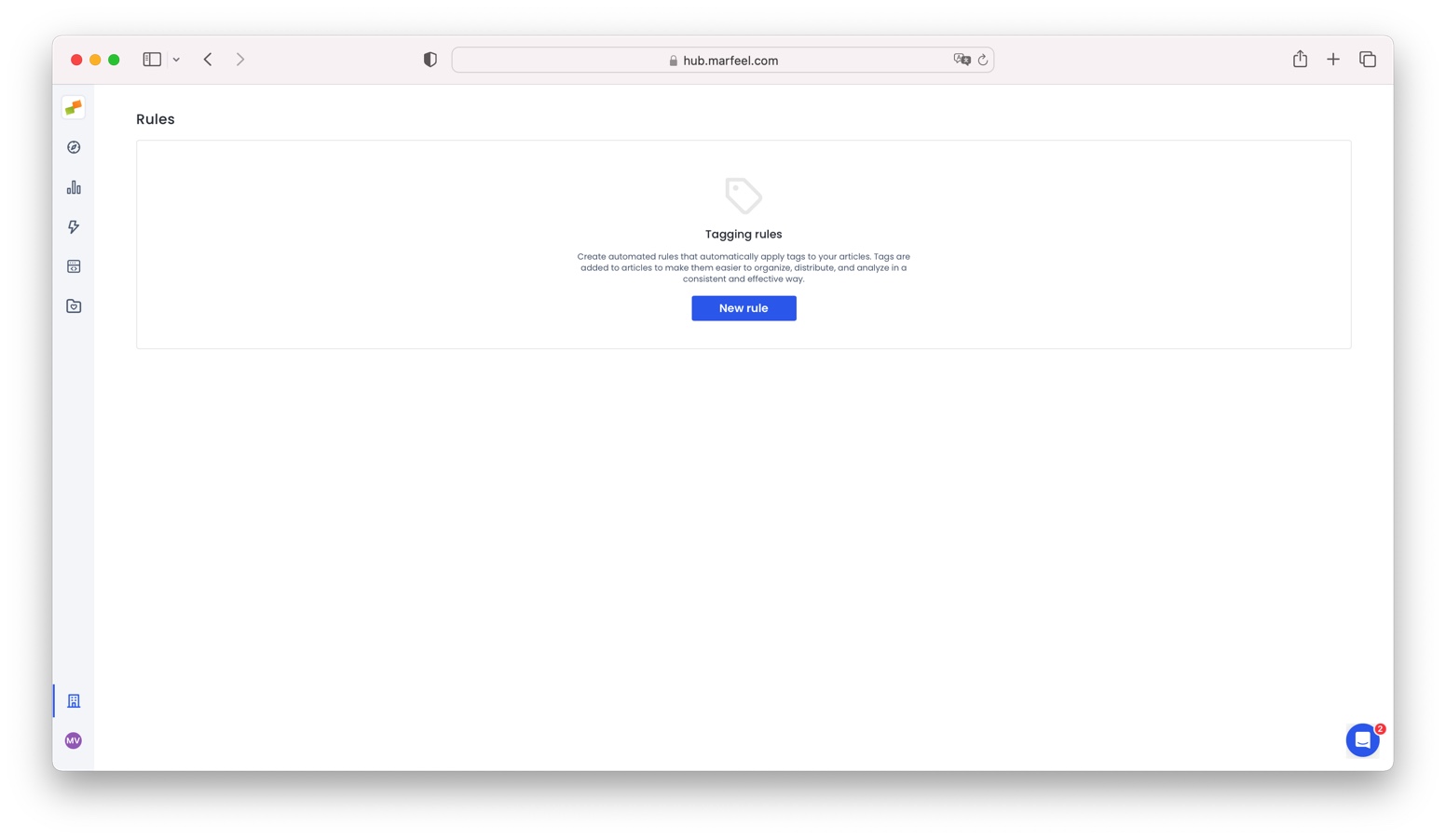
- Set the tag
alert:discovergrowthin order to identify articles with Google Discover traffic.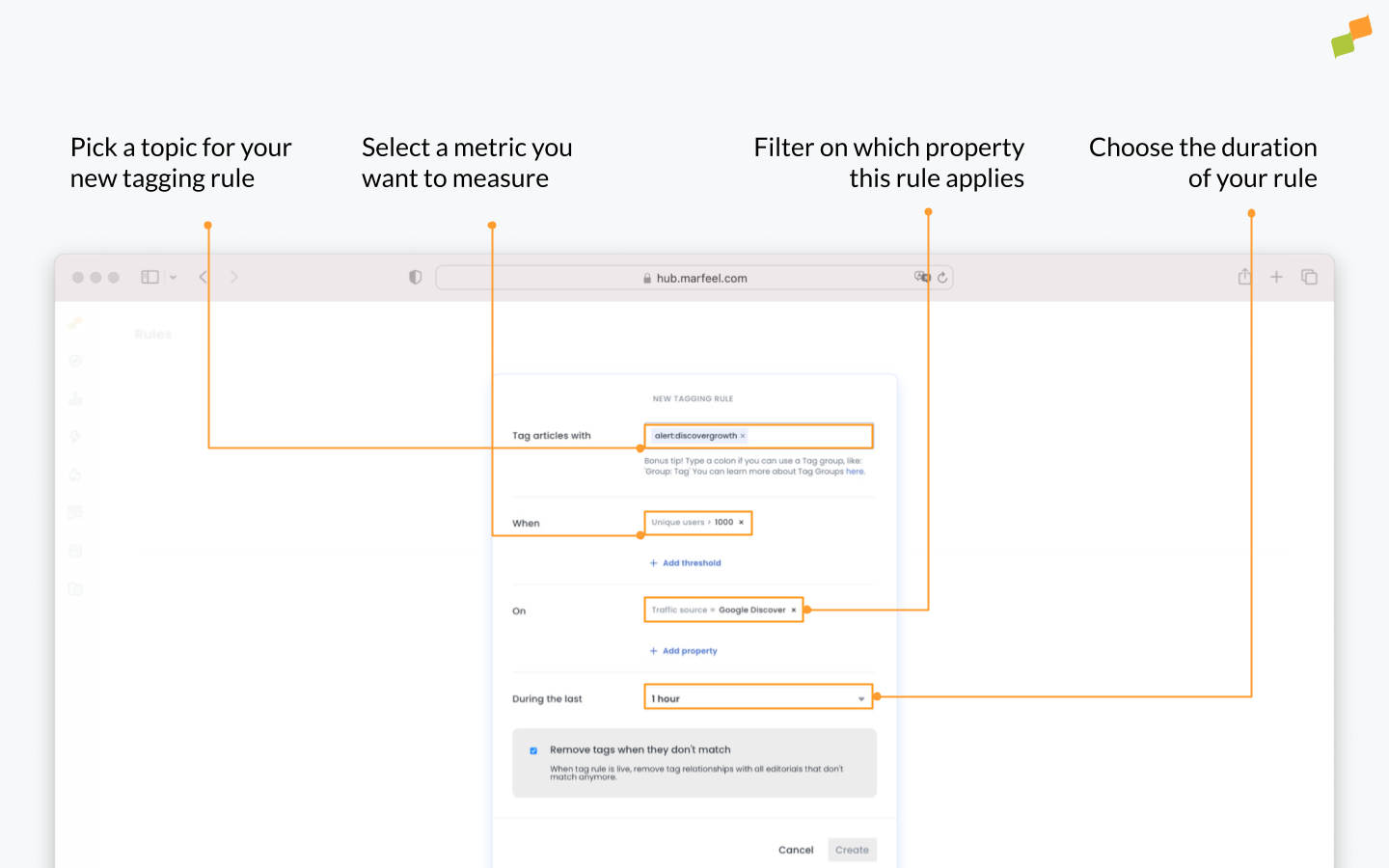
- Apply the tag to articles with
Unique users > 1000 - Filter by
Traffic sourceequalsGoogle Discover - Choose the duration: select
1 houror1 day - If you tick the box
Remove tags when they don't match, tag relationships with all editorials that don’t match anymore will be removed when the tag rule is live.
When an article acquires more than 1000 users on Google Discover in 1 hour, the system automatically tags the article with alert:discovergrowth.
What are tagging rules in Marfeel?
Tagging rules are a no-code system that automatically applies custom tags to articles based on defined criteria such as metrics (unique users, RPM, scroll depth), traffic sources (Google Discover, social networks), and dimensions (host, section). They eliminate manual tagging and ensure consistent content labeling.
What happens when you enable 'Remove tags when they don't match'?
When this option is enabled, tag relationships with all editorials that no longer meet the rule criteria are automatically removed once the tag rule is live. This keeps your tagging accurate over time as article metrics change.
Can tagging rules be based on traffic source and time window?
Yes. You can filter by traffic source (such as Google Discover or home page modules) and set a time window (1 hour or 1 day) during which the metric criteria must be met before the tag is applied.