

HubSpot integration for page tracking and conversions
The Marfeel HubSpot integration lets marketers track page performance, measure form conversions, and map HubSpot user journey stages directly inside Compass. This out-of-the-box connection covers three core capabilities:
- Track the performance of sites or blogs built with HubSpot
- Understand which stories drive the most conversions
- Map HubSpot user journey stages to Marfeel user journey stages, revealing which stories your leads and prospects consume
Track HubSpot pages
Section titled “Track HubSpot pages”To start measuring HubSpot page data with Compass, add the Marfeel JavaScript SDK to your site header.
Go to Settings > Tools > Website > Pages > Templates > HTML > Site header
Add this code into the Site Header HTML text area, replacing /accountId/ with your Marfeel AccountId:
<script type="text/javascript">function e(e){var t=!(arguments.length>1&&void 0!==arguments[1])||arguments[1],c=document.createElement("script");c.src=e,t?c.type="module":(c.async=!0,c.type="text/javascript",c.setAttribute("nomodule",""));var n=document.getElementsByTagName("script")[0];n.parentNode.insertBefore(c,n)}function t(t,c,n){var a,o,r;null!==(a=t.marfeel)&&void 0!==a||(t.marfeel={}),null!==(o=(r=t.marfeel).cmd)&&void 0!==o||(r.cmd=[]),t.marfeel.config=n,t.marfeel.config.accountId=c;var i="https://sdk.mrf.io/statics";e("".concat(i,"/marfeel-sdk.js?id=").concat(c),!0),e("".concat(i,"/marfeel-sdk.es5.js?id=").concat(c),!1)}!function(e,c){var n=arguments.length>2&&void 0!==arguments[2]?arguments[2]:{};t(e,c,n)}(window, /*accountId*/,{} /*config*/);</script>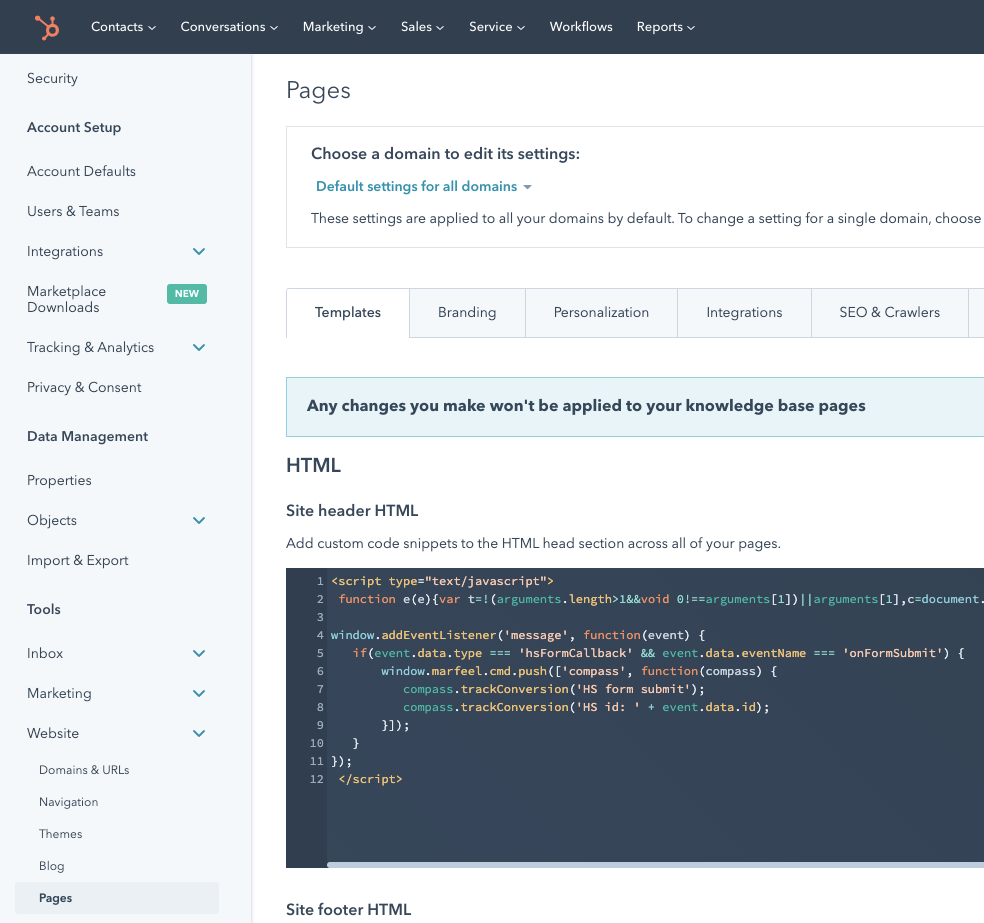
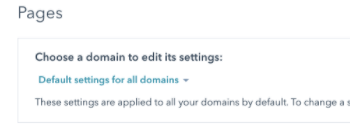
Review that the option "Default settings for all domains" is selected, and verify that subdomains don't have a "custom" script. If a subdomain contains a script, that script is going to overwrite the "Default script" with the Marfeel tracking code.
Track HubSpot form conversions
Section titled “Track HubSpot form conversions”To track conversions from HubSpot forms, add the following event listener after the Compass tracking script.
Update the tag created in the previous step and add this code before the closing tag:
window.addEventListener('message', function(event) { if(event.data.type === 'hsFormCallback' && event.data.eventName === 'onFormSubmit') { window.marfeel.cmd.push(['compass', function(compass) { compass.trackConversion('HS form submit'); compass.trackConversion('HS id: ' + event.data.id); }]); }});The combined script should look like this:
<script type="text/javascript">function e(e){var t=!(arguments.length>1&&void 0!==arguments[1])||arguments[1],c=document.createElement("script");c.src=e,t?c.type="module":(c.async=!0,c.type="text/javascript",c.setAttribute("nomodule",""));var n=document.getElementsByTagName("script")[0];n.parentNode.insertBefore(c,n)}function t(t,c,n){var a,o,r;null!==(a=t.marfeel)&&void 0!==a||(t.marfeel={}),null!==(o=(r=t.marfeel).cmd)&&void 0!==o||(r.cmd=[]),t.marfeel.config=n,t.marfeel.config.accountId=c;var i="https://sdk.mrf.io/statics";e("".concat(i,"/marfeel-sdk.js?id=").concat(c),!0),e("".concat(i,"/marfeel-sdk.es5.js?id=").concat(c),!1)}!function(e,c){var n=arguments.length>2&&void 0!==arguments[2]?arguments[2]:{};t(e,c,n)}(window, /*accountId*/,{} /*config*/);
  window.addEventListener('message', function(event) {   if(event.data.type === 'hsFormCallback' && event.data.eventName === 'onFormSubmit') {       window.marfeel.cmd.push(['compass', function(compass) {        compass.trackConversion('HS form submit');          compass.trackConversion('HS id: ' + event.data.id);       }]);   }});</script>
Install the HubSpot application
Section titled “Install the HubSpot application”To connect the Marfeel HubSpot application to your account, follow these steps:
-
Open the following URL in your browser, replacing <site_id> with your Marfeel account ID:
-
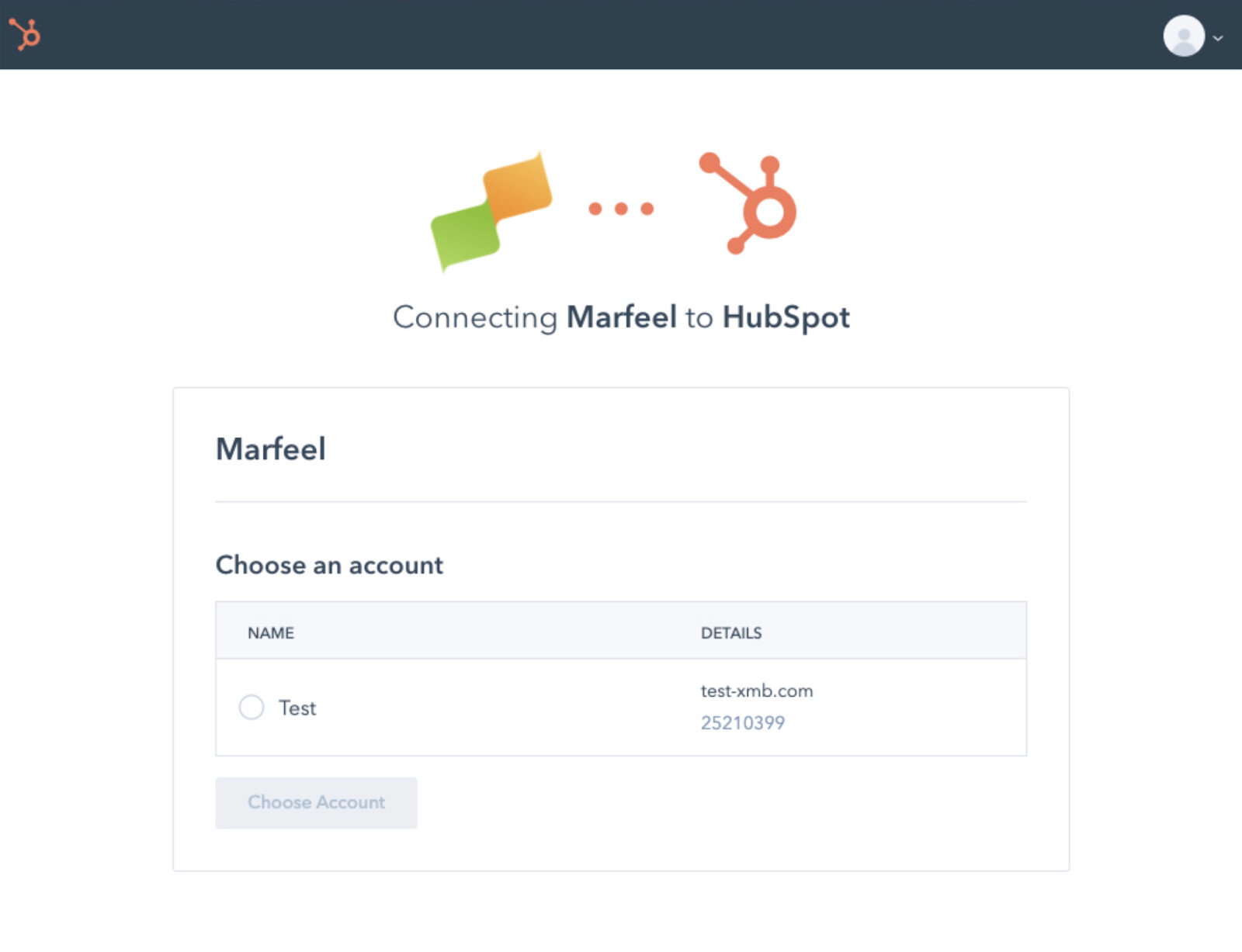
Select the account to link:
-
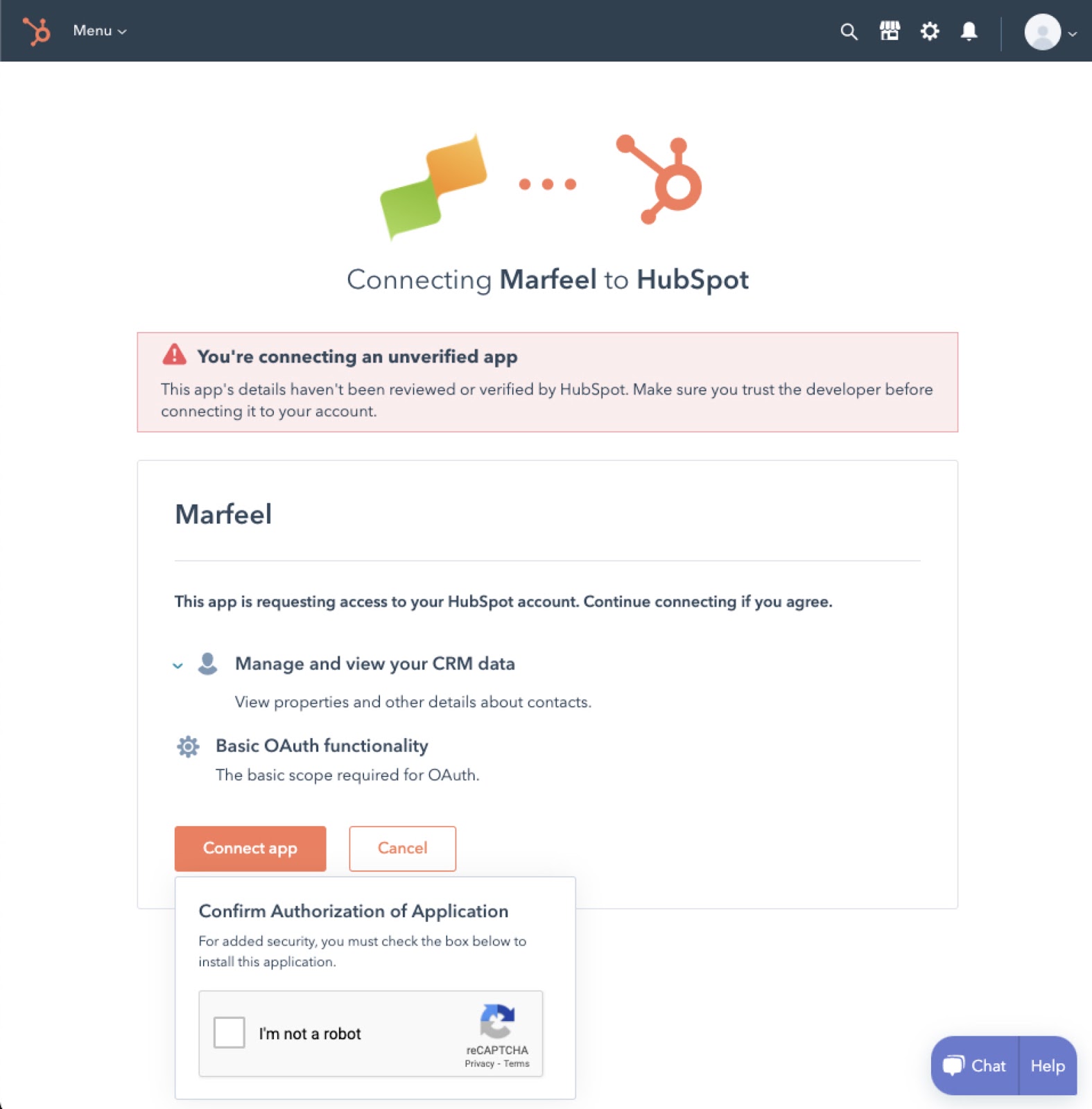
The Marfeel application is still an unverified app. When choosing to connect, you will be prompted with a captcha.
-
Once the process completes you will be redirected to a page showing a JSON response similar to this:
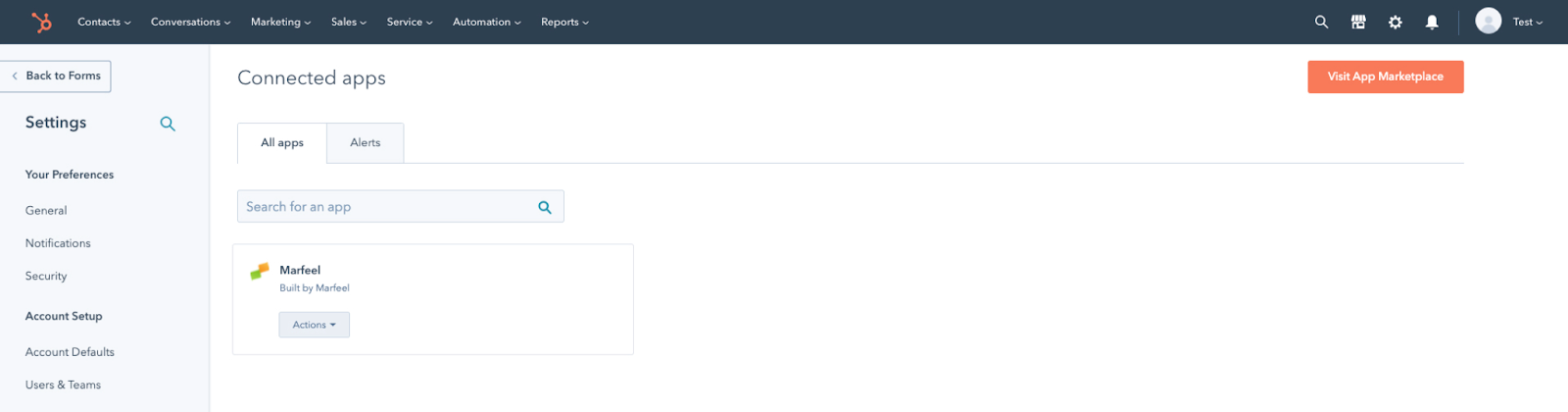
{"token_type":"bearer","hub_id":"25210399","refresh_token":"eu1-98e1-9214-4b43-bda6-502b97216d04","access_token":"CNn904rPLxIEAAEAQBif3IIMIJzz7AwozsocMhRy9vT1fydAOPESphGClJH_evHcWpM8jljoasdfbaswAAAAQQAAAAAAAAAAAAAAAACAAAAAAAAAAAAAAAAAAAAAYAAAAAAAAAAAAAAAAAACQhS8WQwlWpR0m2GNiM6XjleL871DLEoDZXUxUgBaXX","expires_in":21600,"expiration_time":1636136452341,"site_id":1234}Verify the installation was successful from Hubspot account > settings > integrations > connected apps:
Create HubSpot user journey stages
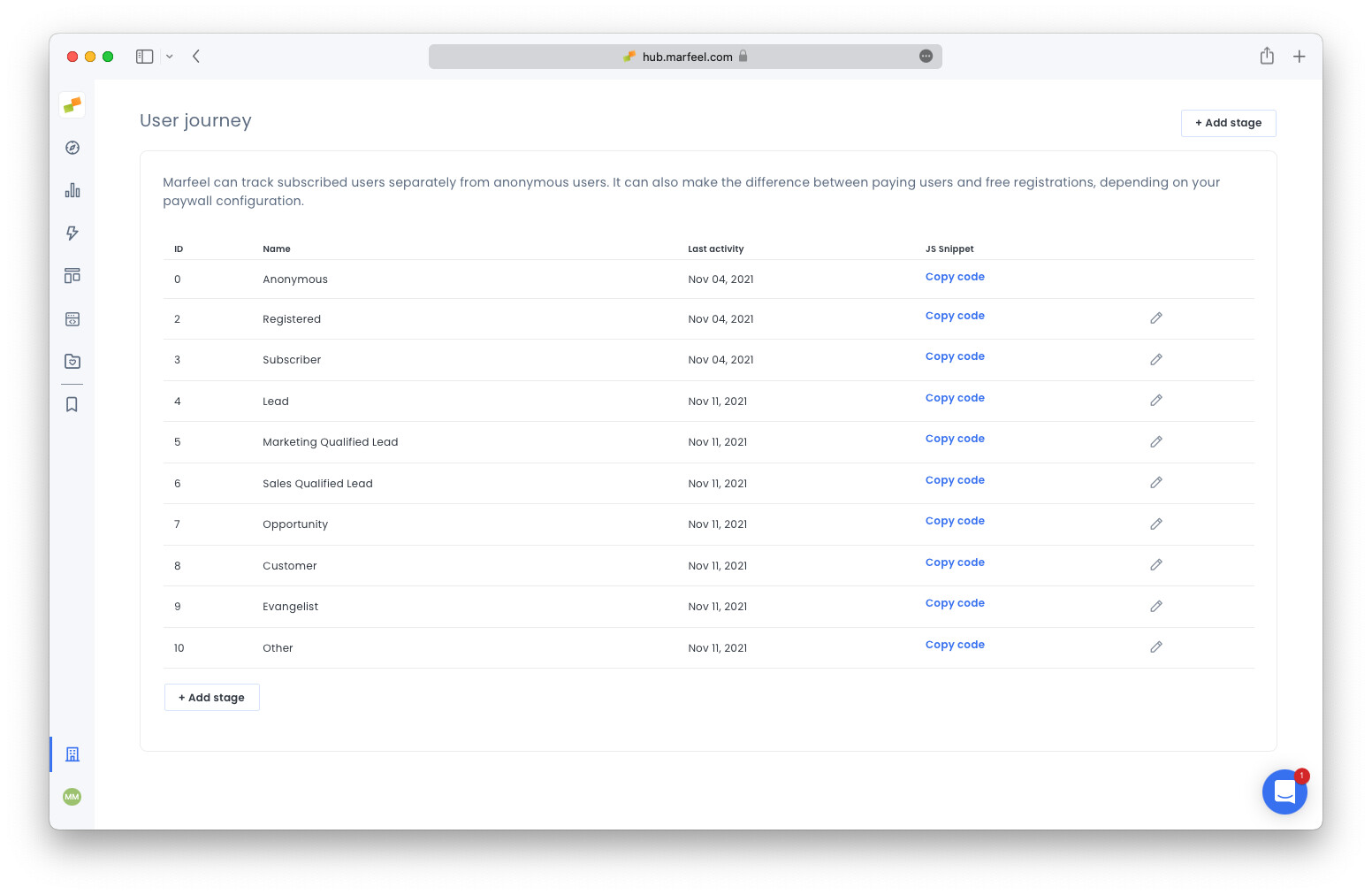
Section titled “Create HubSpot user journey stages”Go to Organization Settings > User Journey and create the HubSpot stages: Lead, Marketing Qualified Lead, Sales Qualified Lead, Opportunity, Customer, Evangelist, Other.
Report based on HubSpot user journey
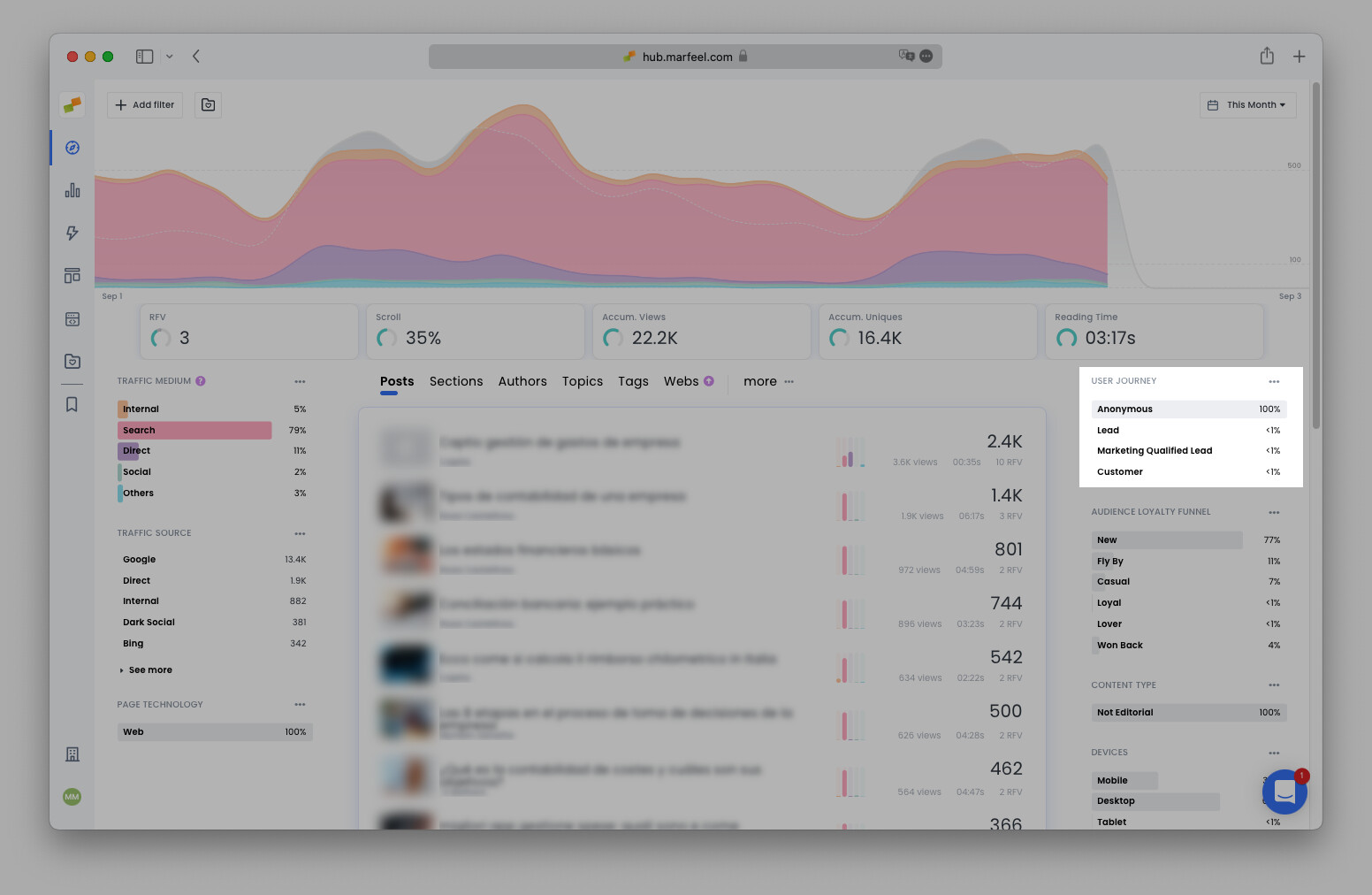
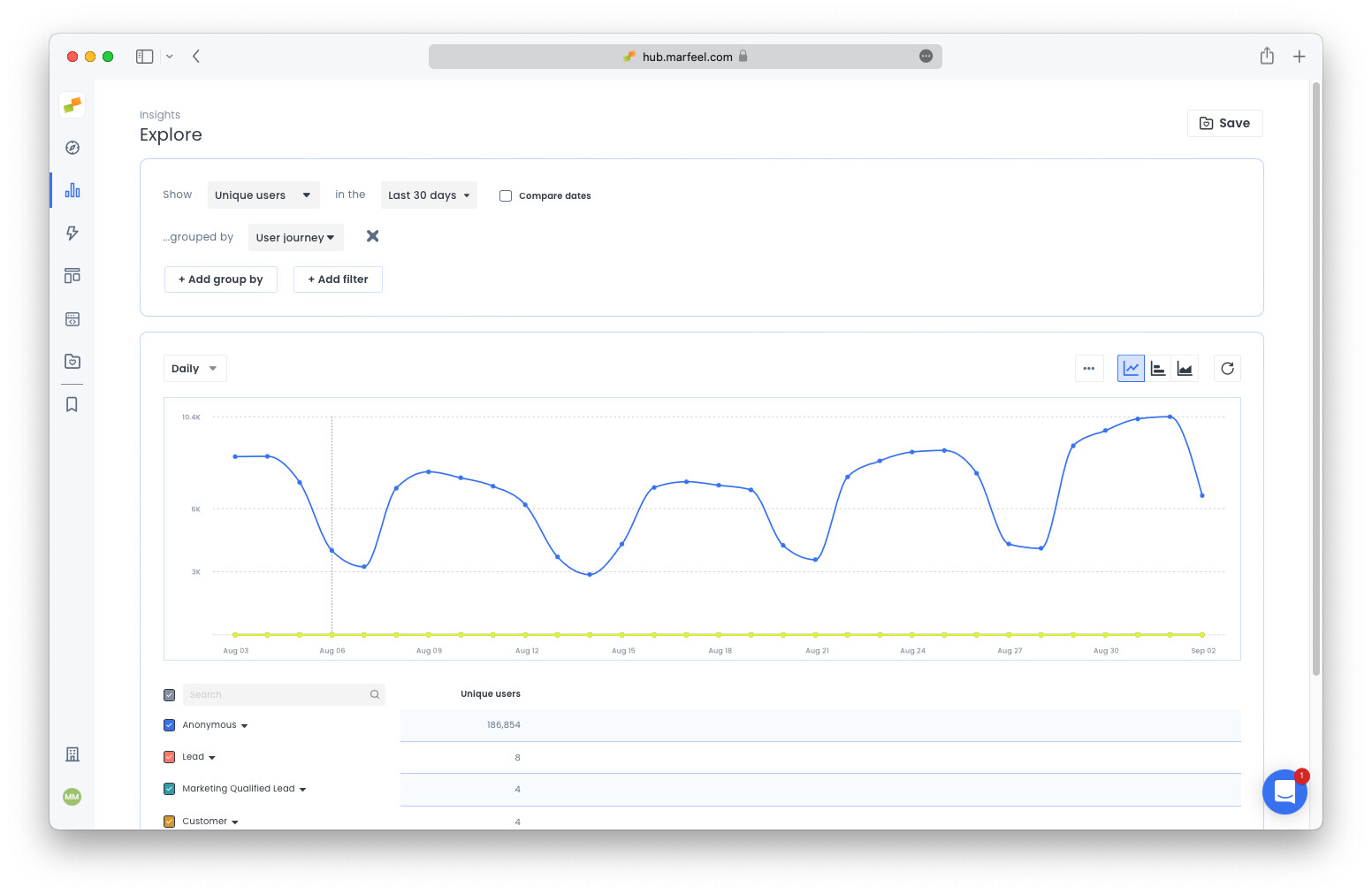
Section titled “Report based on HubSpot user journey”After completing the setup, Compass shows in real time which stories your readers consume based on their HubSpot qualification. This user journey data is available across all modules.
How do I track HubSpot pages with Marfeel Compass?
Add the Marfeel SDK script to your HubSpot site header at Settings > Tools > Website > Pages > Templates > HTML > Site header. Replace the accountId placeholder with your Marfeel AccountId. Make sure “Default settings for all domains” is selected so subdomain scripts do not overwrite the tracking code.
How do I track HubSpot form conversions in Marfeel?
Add a message event listener after the Compass tracking script that listens for the hsFormCallback event with an onFormSubmit action. The listener calls compass.trackConversion with both a generic label and the specific form ID.
How do I set up HubSpot user journey stages in Marfeel?
Go to Organization Settings > User Journey and create the HubSpot stages: Lead, Marketing Qualified Lead, Sales Qualified Lead, Opportunity, Customer, Evangelist, and Other. After setup, real-time reports show reader interests based on their HubSpot qualification across all modules.