

How to save, clone, move, and delete reports in workspaces
Any report in Marfeel can be saved, whether it comes from the main Compass dashboard, Explore, Optimize, Recirculation, Site Technology, or any other view you access.
Saving a report stores a snapshot of your query configuration: metrics, dimensions, filters, and timeframe. You can revisit any view of your data in the future without configuring it again. Reports live inside workspaces, keeping related queries organized in one place.
Timeframes are dynamic. If yours is set to Last 7 days, the next time you open that report it will show data for the most recent 7 days relative to the present date, not the days you were viewing when you saved the report.
🎓 Become a Marfeel Dashboards expert 📊 Learn how to build, customize, and share data-rich dashboards that drive real editorial impact with our Dashboard Fundamentals Course.
✅ Self-paced video lessons ✅ Real-world use cases ✅ Certificate of completion included

🧠 Start now on Marfeel Academy.
Saving reports
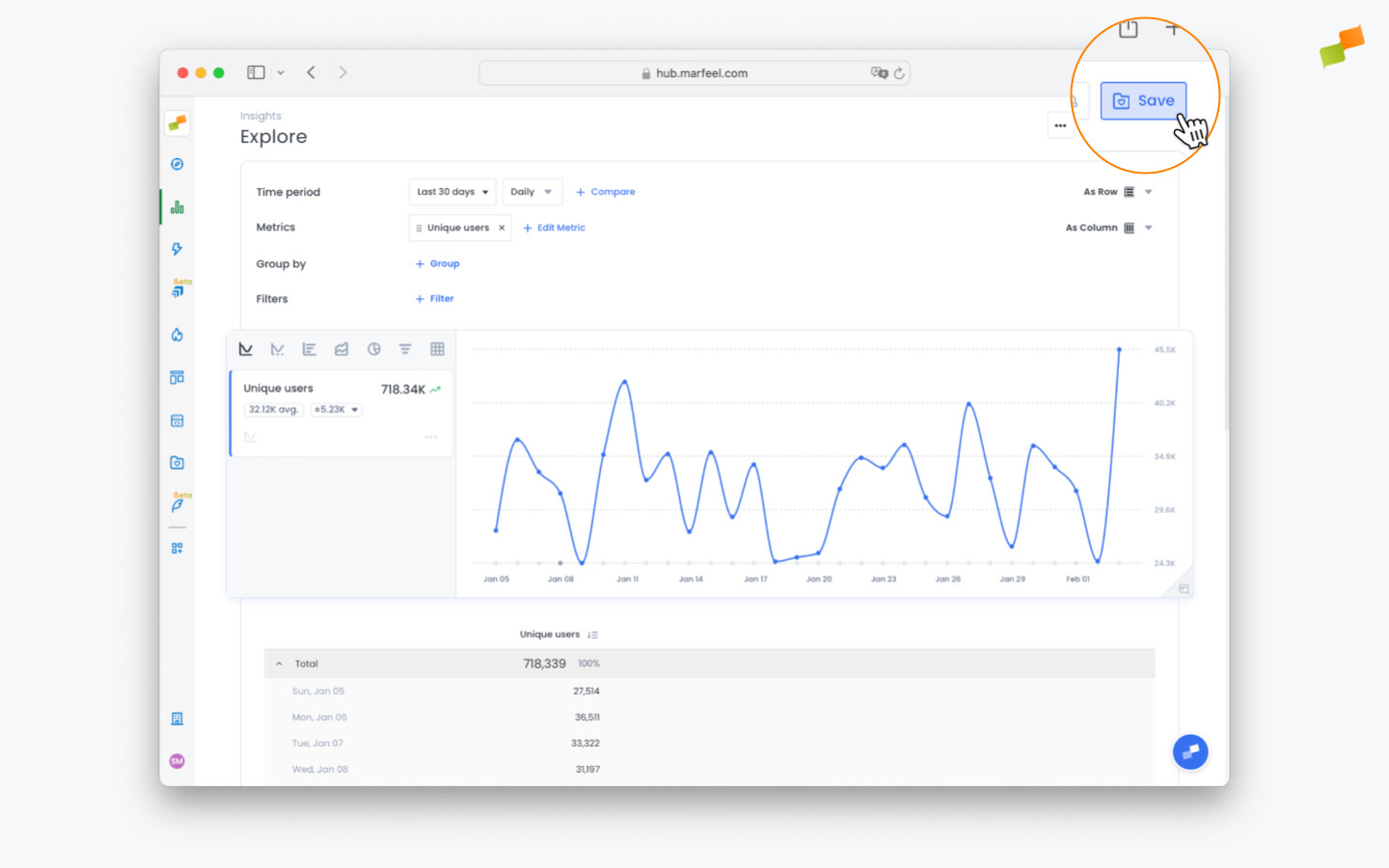
Section titled “Saving reports”- Click the
Savebutton in the top right corner. In some views, the Save function is located inside the...menu.
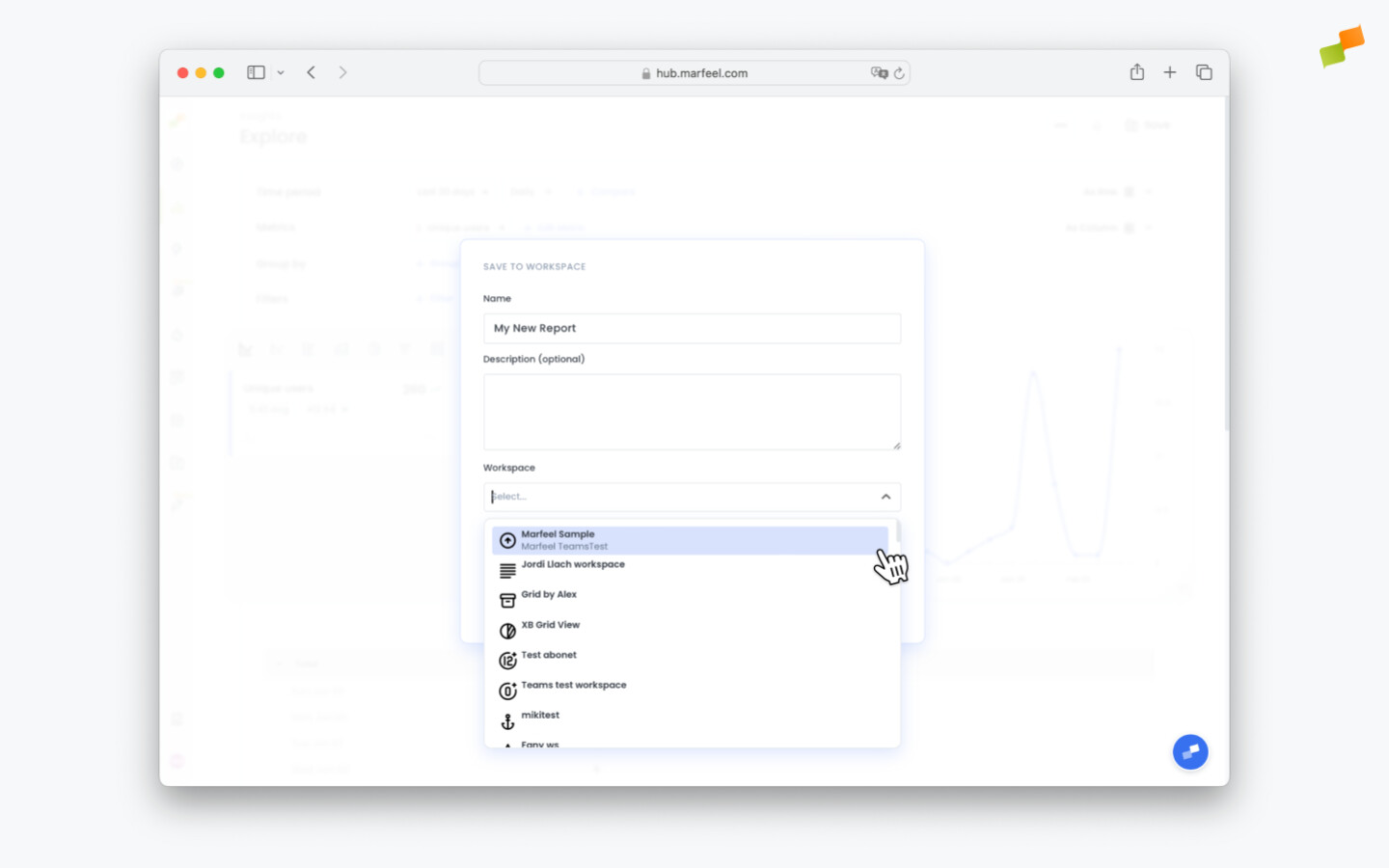
- Give your report a name, a description, and select a workspace from the searchable list. You can also create a new workspace at this step.
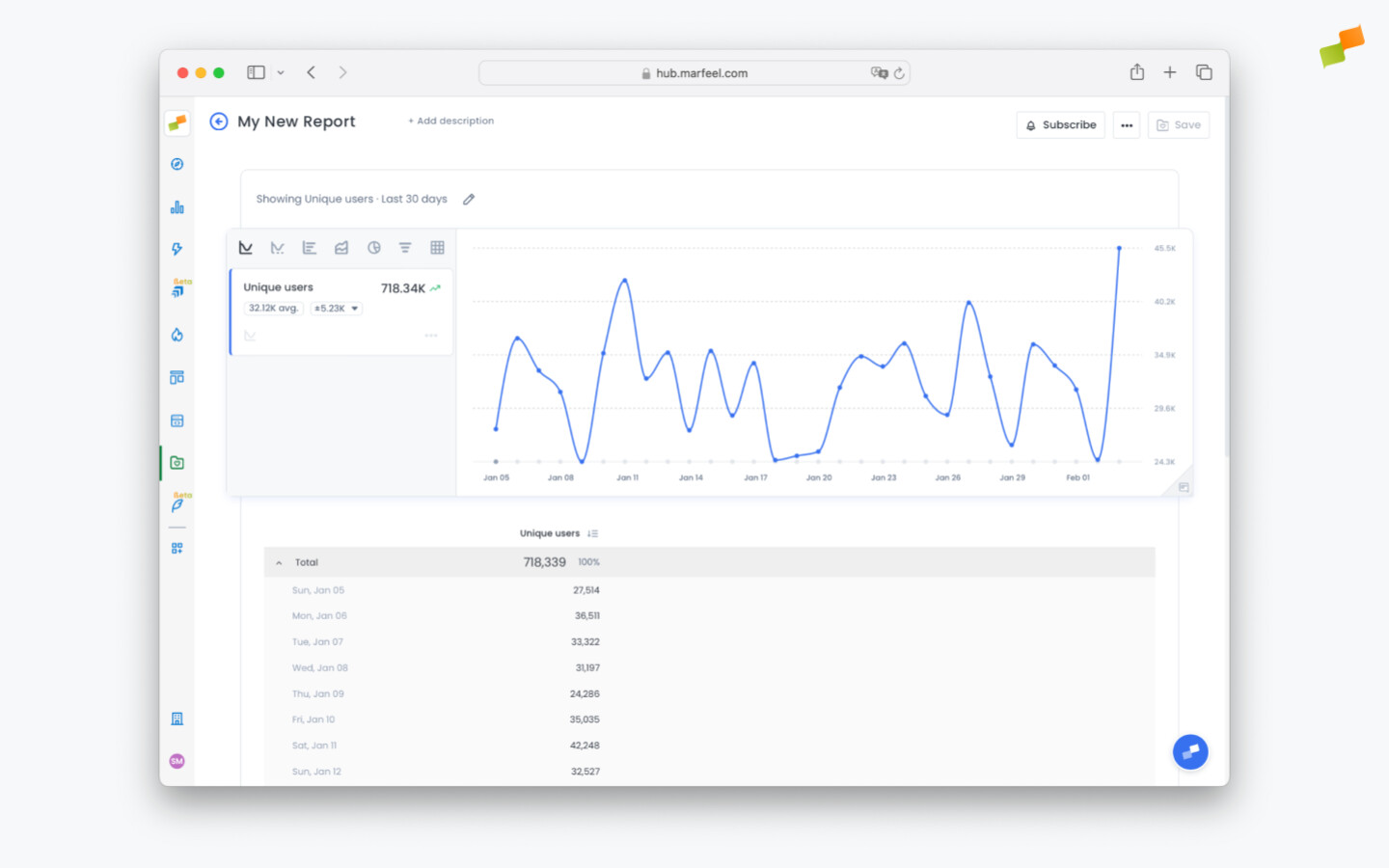
- The saved query opens as a report inside the chosen workspace.
- Reports are private by default unless they are shared with someone else.
- In the event that it is shared, the report will not be editable unless they are granted permission.
- Reports can be scheduled to be delivered at regular intervals by clicking the
Subscribebutton in the top-right corner.
Managing the reports in your workspaces
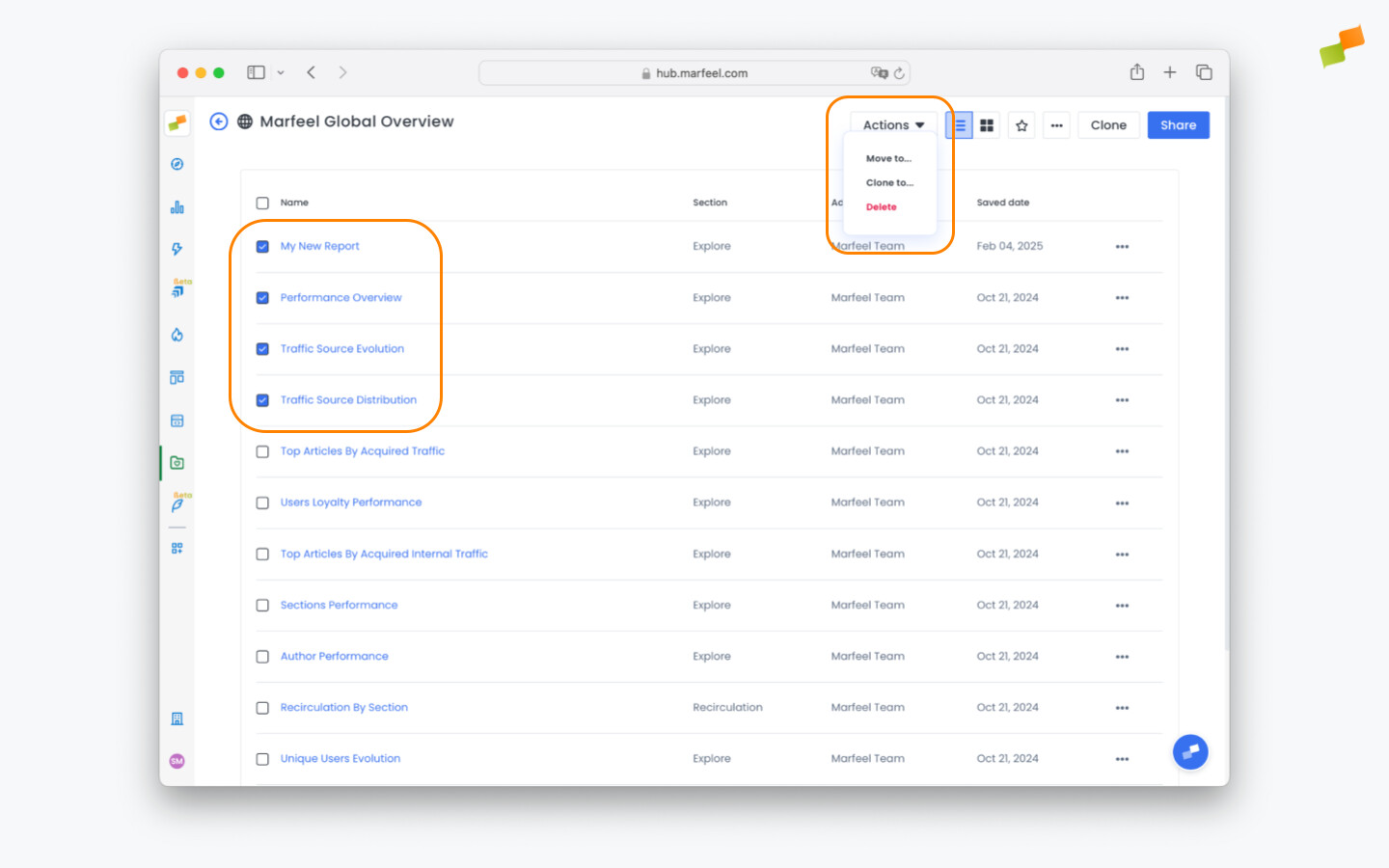
Section titled “Managing the reports in your workspaces”Reports can be cloned, moved to other workspaces, or deleted. Select the reports you want to manage using the tick boxes, then choose an action from the Actions menu.
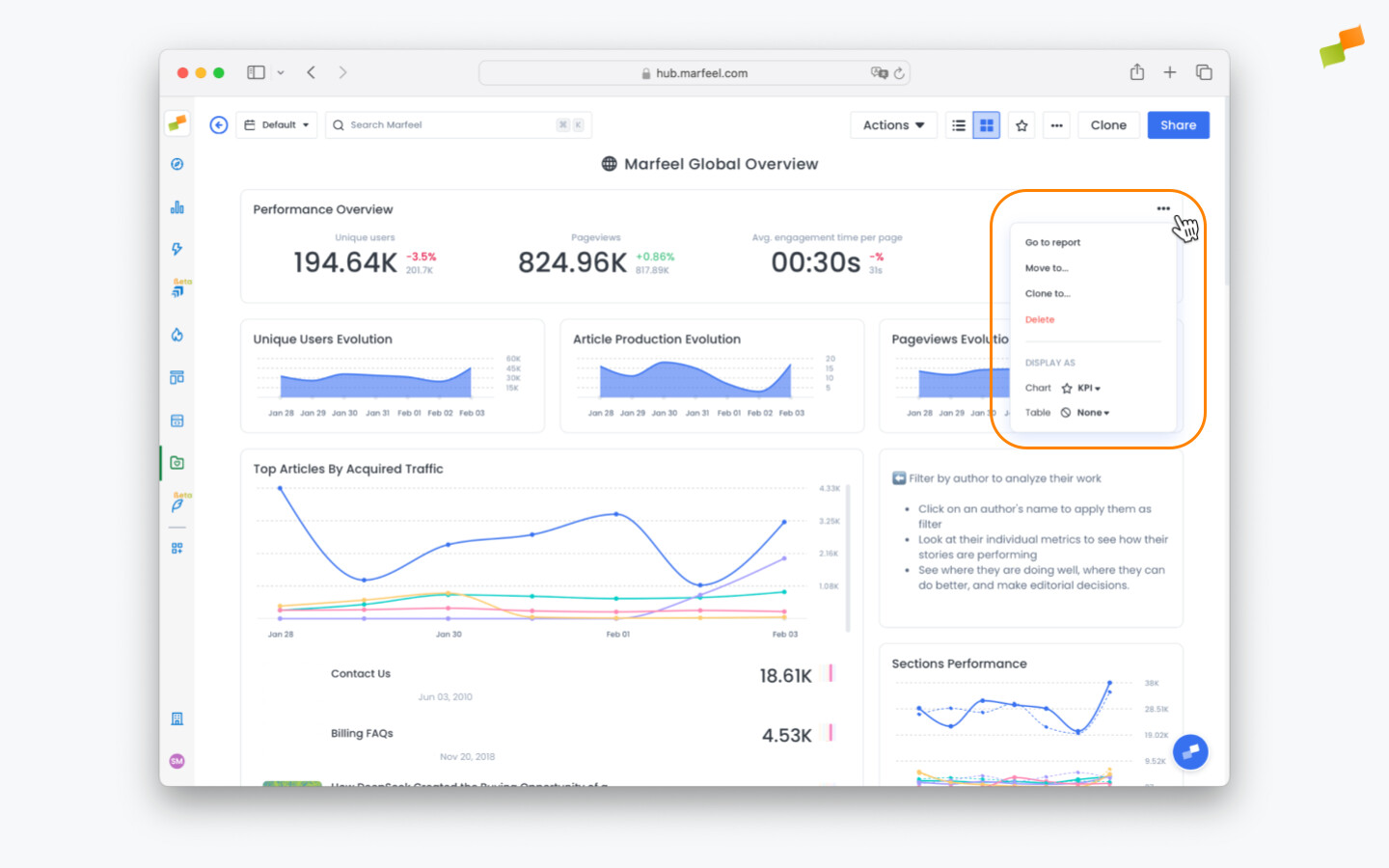
You can also manage reports from within the dashboard view of any workspace. Click the three dots in the top right corner of any report card and choose Delete, Move, or Clone.
Cloning and moving reports
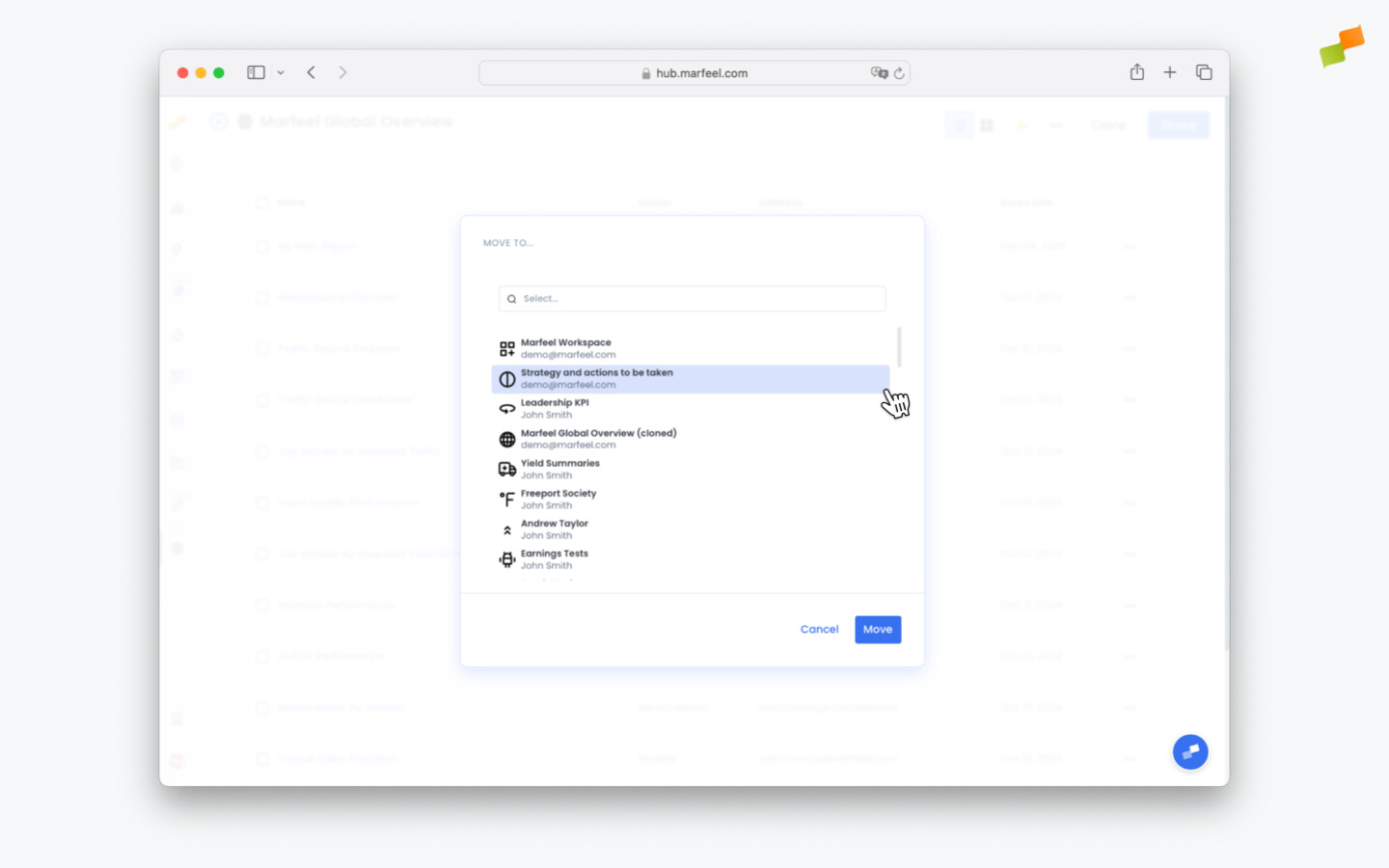
Section titled “Cloning and moving reports”When cloning or moving a report, you select the destination workspace from a searchable list.
Deleting reports
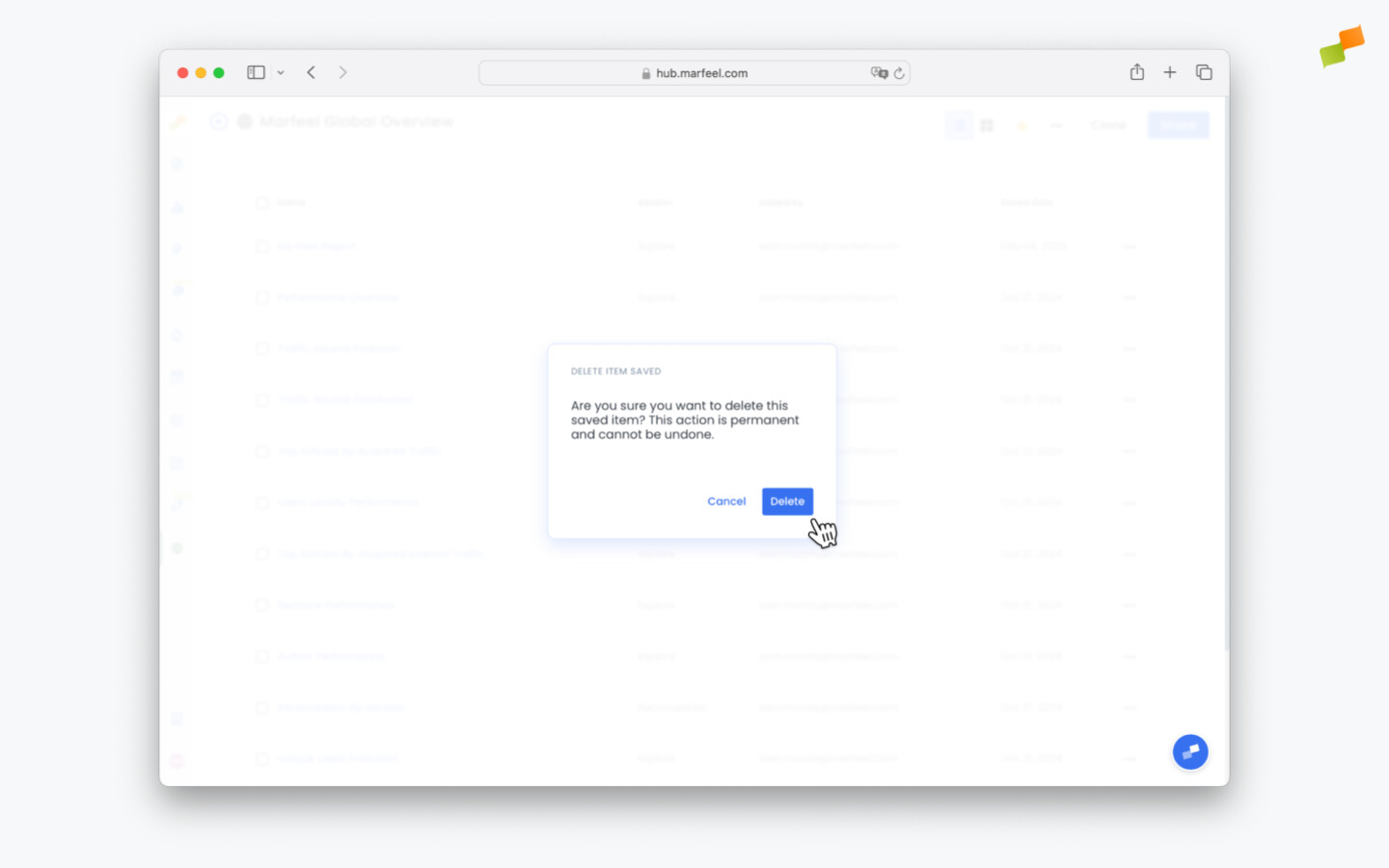
Section titled “Deleting reports”Deleting a report is final. You will receive a confirmation warning before the action completes. Make sure you are 100% certain before confirming.
A good safety practice is to create a repository workspace to store old reports before you delete them, in case you need to recover them later.
What happens to a saved report's timeframe over time?
Timeframes are dynamic. If a report is set to “Last 7 days,” it will always show the most recent 7 days relative to the current date, not the dates that were active when the report was saved.
Can I recover a deleted report in Marfeel?
No. Deleting a report is final and cannot be undone. A recommended safety practice is to create a repository workspace where you move old reports before deleting them, so you can recover them if needed.
Are saved reports private or shared by default?
Reports are private by default. They are only visible to others if you explicitly share the workspace, and even then, recipients cannot edit the report unless granted permission.