

Schedule and share reports via email, Slack, or Teams
Any report in Marfeel can be delivered on a recurring schedule to the inbox or channel where it will have the most impact. Schedule reports for anyone in a shared workspace to have them sent by email or via the Slack and Microsoft Teams integrations. The Teams option is particularly effective, as the right report in the right channel can foster discussion among key stakeholders.
Each user can create a custom reporting schedule that enhances productivity based on habit-forming routines.
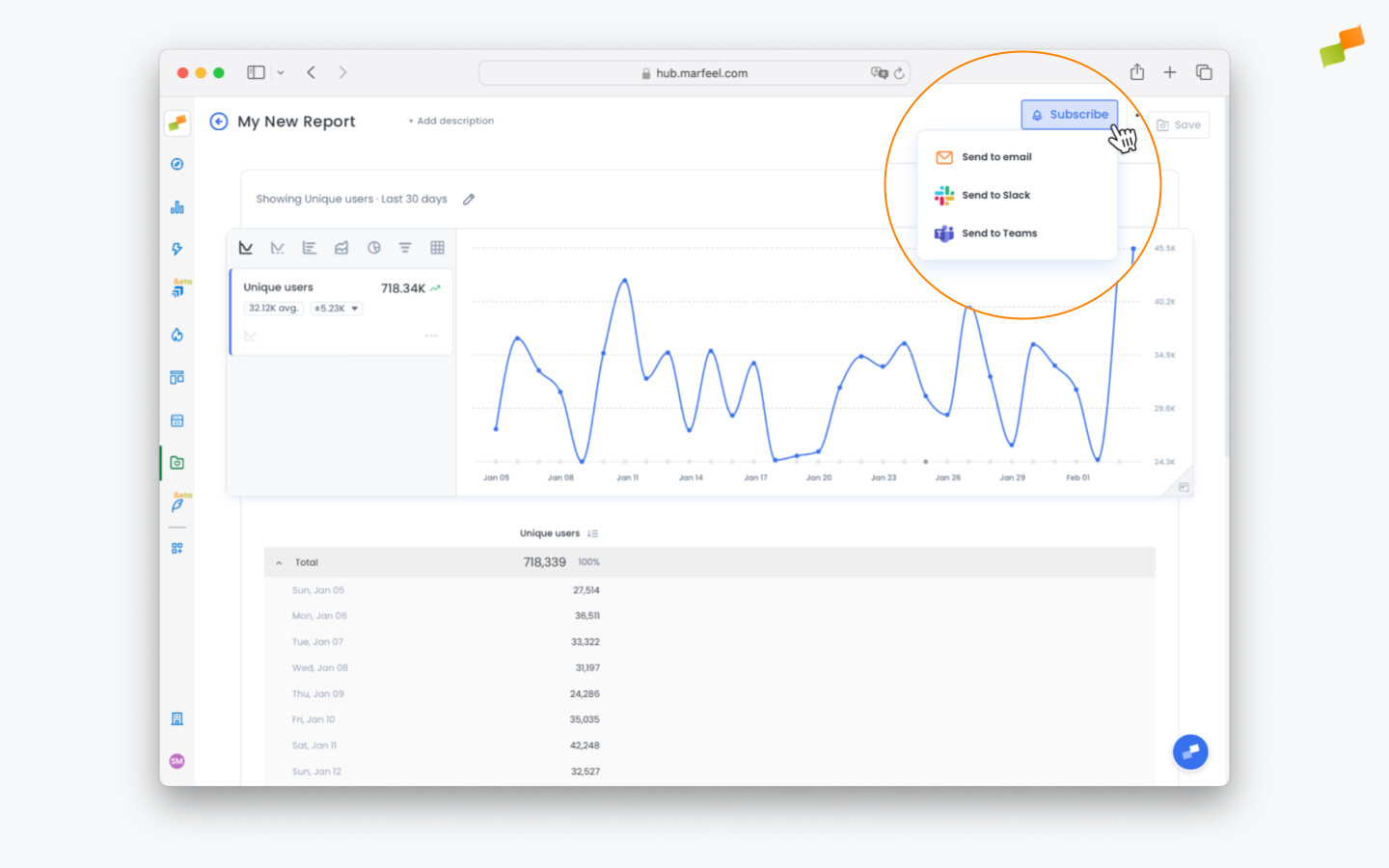
- When viewing one of your reports, click on the
Subscribebutton in the top right corner and select the delivery channel:Email,Slack, orMicrosoft Teams.
Scheduling via Email
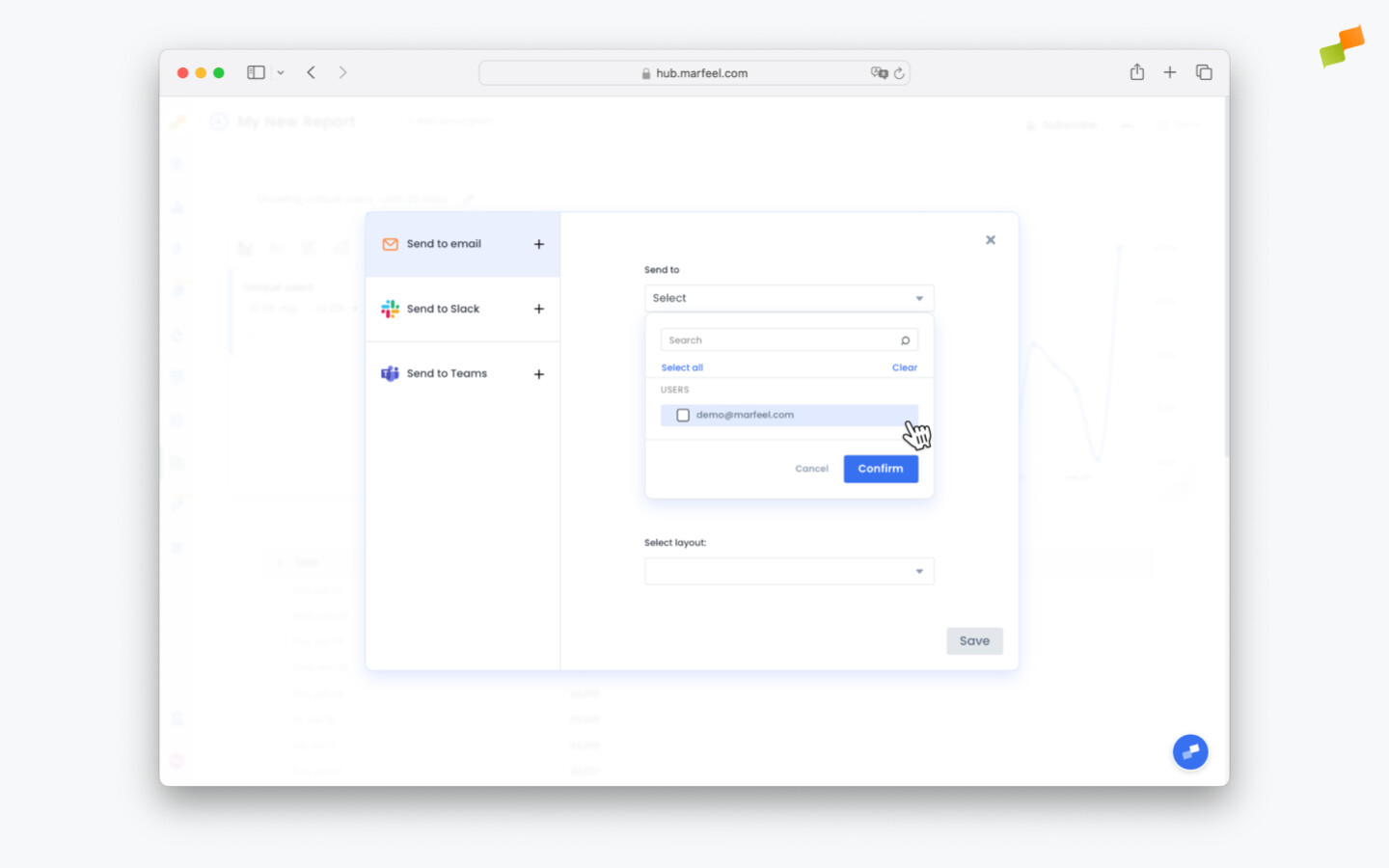
Section titled “Scheduling via Email”- Select the person or people you would like to share the report with. You will only be able to choose people who have access to the workspace to which the report belongs.
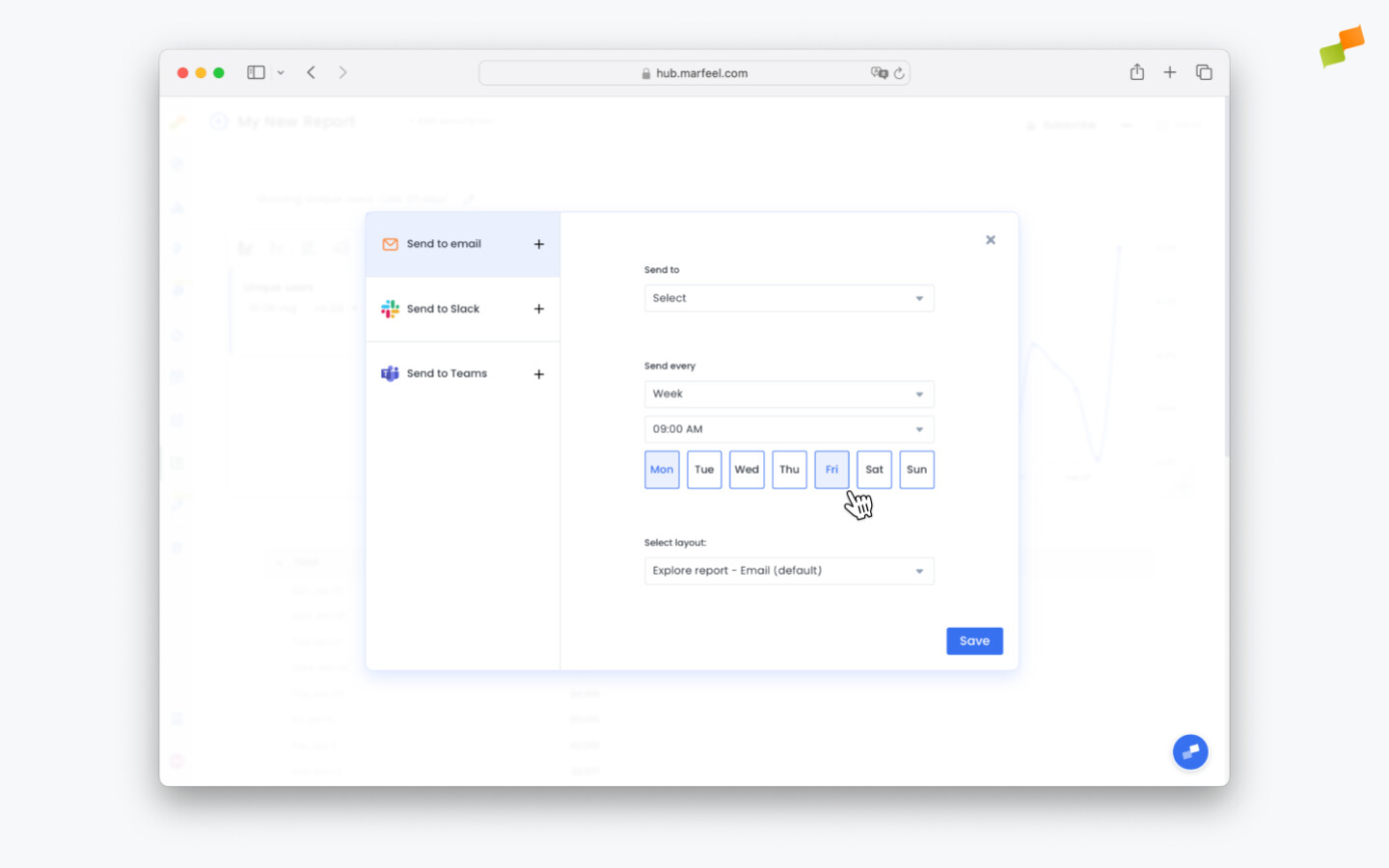
- Choose the schedule on which you want to share the report. In this case, we are going with a weekly schedule and sending the report to our chosen colleagues every Monday and Friday at 9:00 am.
- Hit
Saveand you’re done. Your report will be delivered to your colleagues on schedule.
🎓 Master dashboards, step by step 📊 The video below is an excerpt from the Dashboards Fundamentals course.
🧠 Discover more learning paths on Marfeel Academy.
Scheduling via Slack
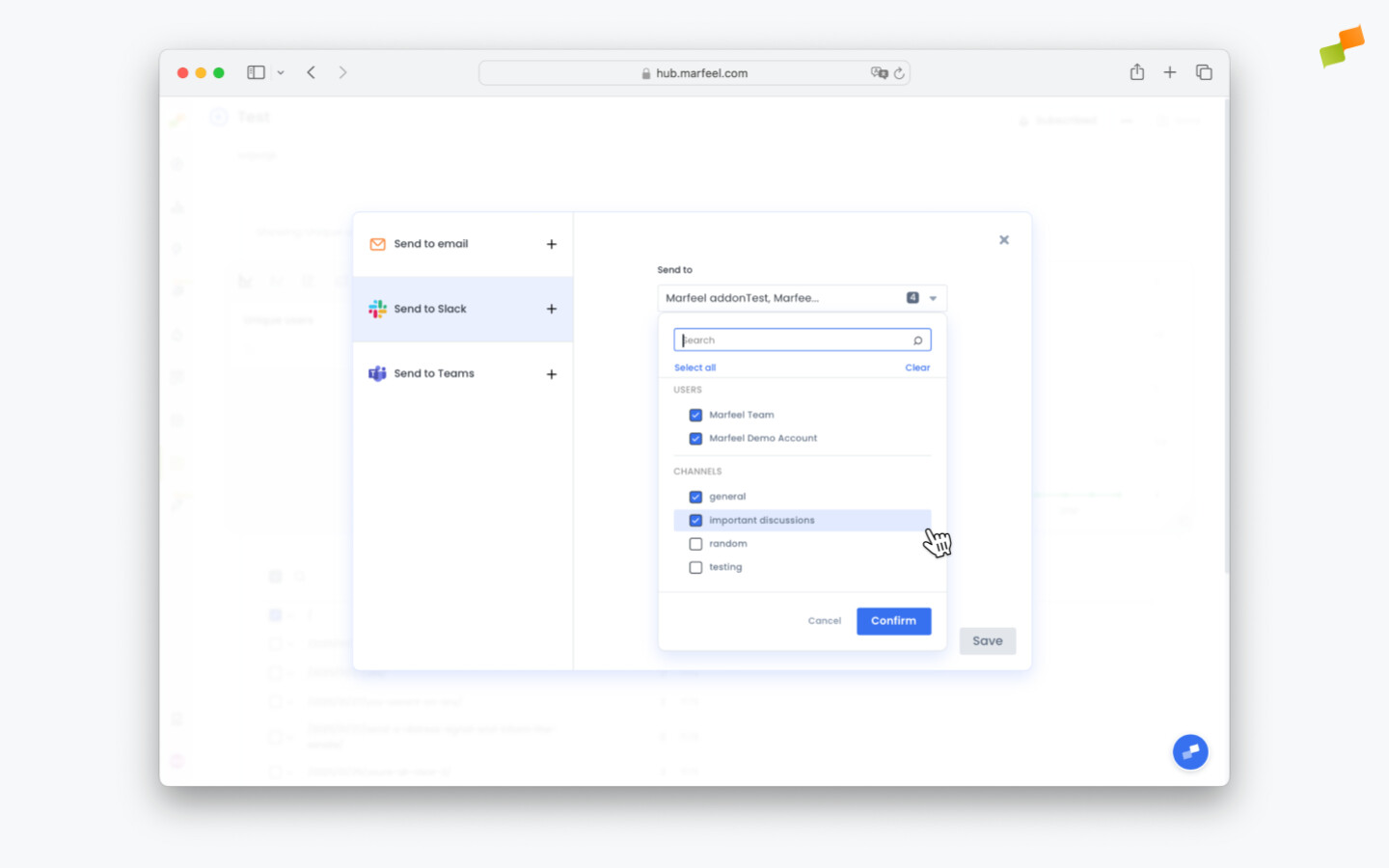
Section titled “Scheduling via Slack”- Select the people and Slack channels you want to share the report in.
- Choose the schedule on which you want to share the report, exactly the same as described above in the Email section.
Scheduling via Microsoft Teams
Section titled “Scheduling via Microsoft Teams”- Select the people and Microsoft Teams channels you want to share the report in.
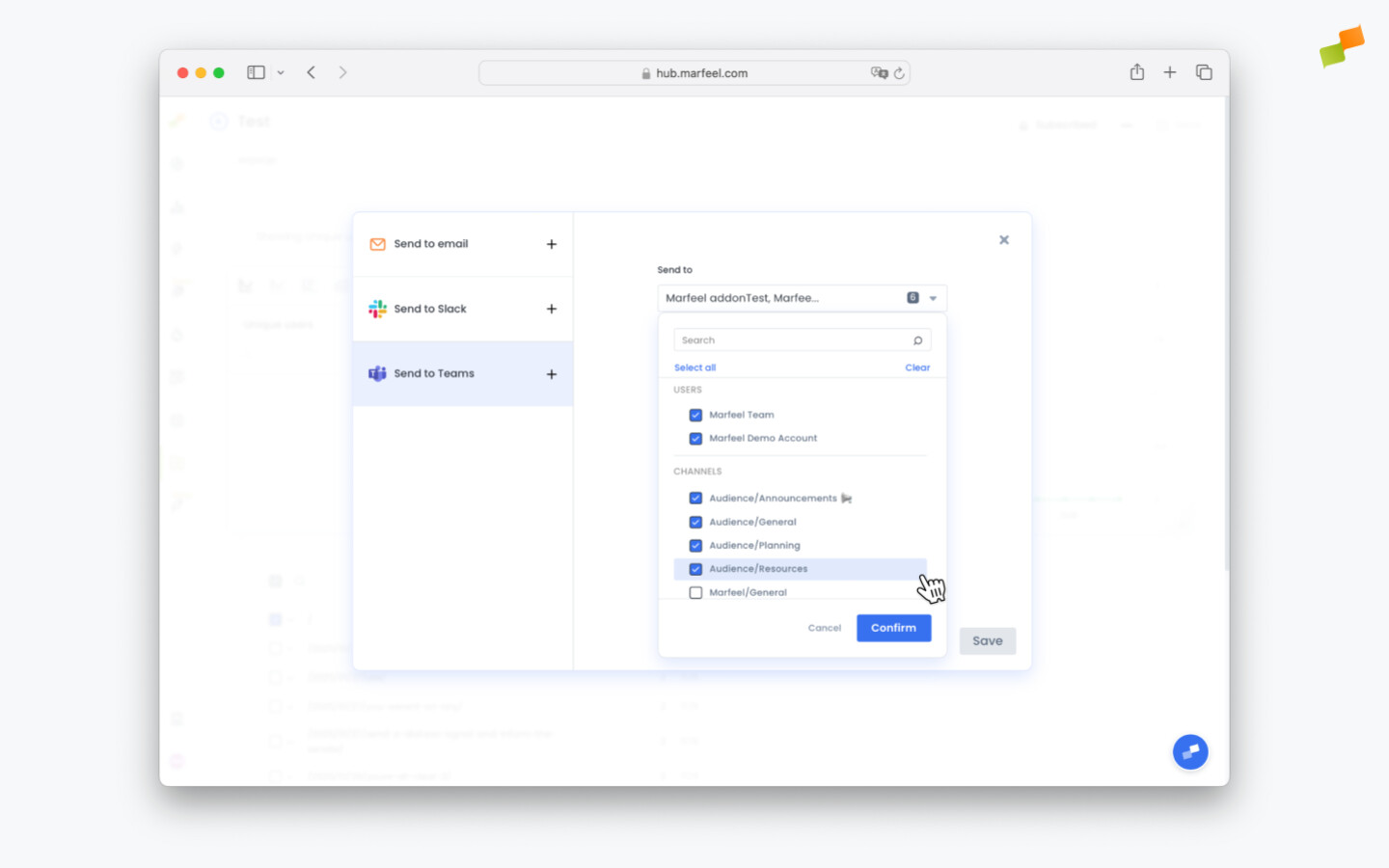
- Choose the schedule on which you want to share the report, as described above.
Editing scheduled reports
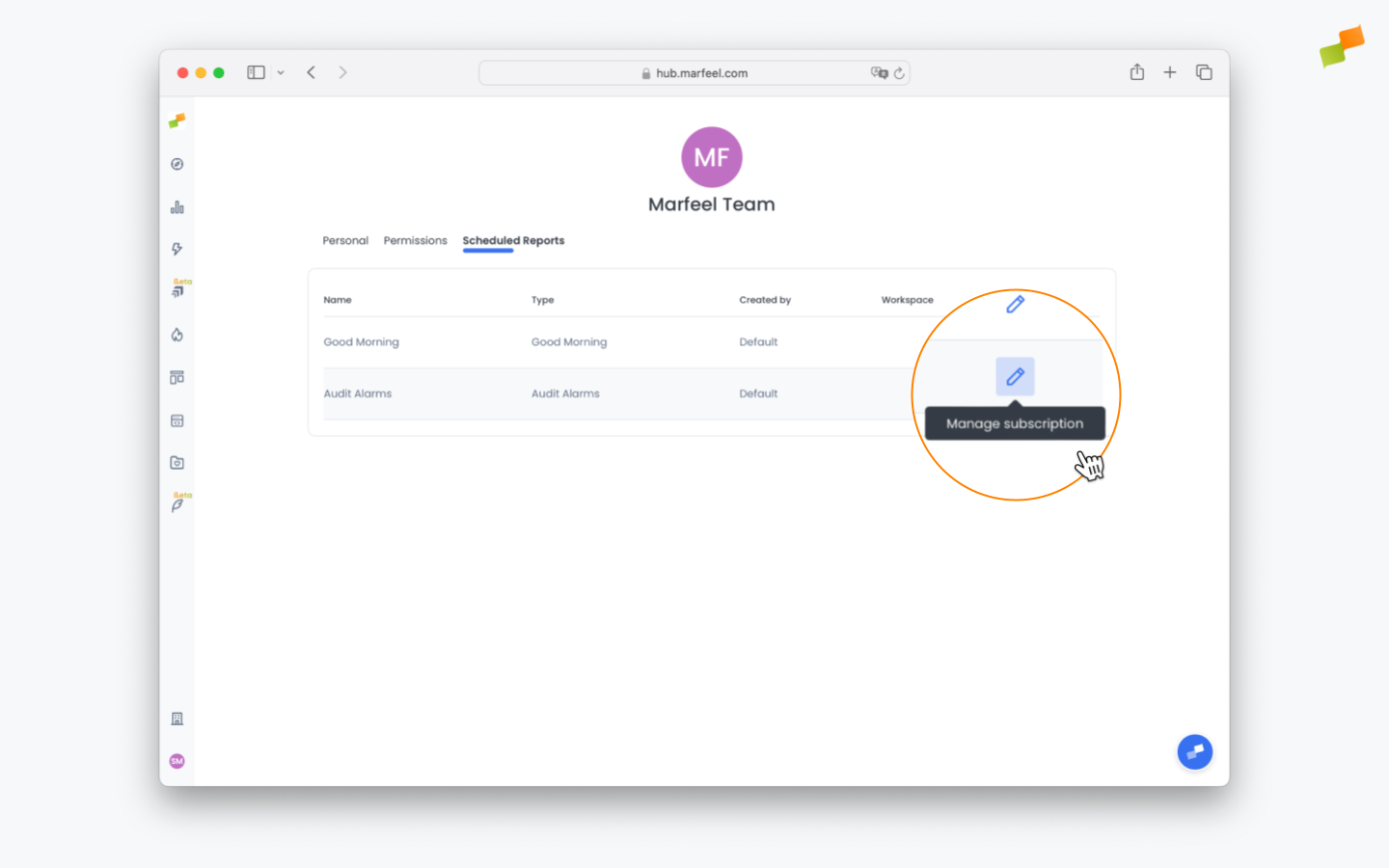
Section titled “Editing scheduled reports”You can find and manage your scheduled reports in My profile > Scheduled Reports.
Unsubscribe from reports
Section titled “Unsubscribe from reports”Click the edit button to manage your subscriptions. You can Unsubscribe from your reports or delete them entirely if you choose.
Manage users’ subscriptions to reports
Section titled “Manage users’ subscriptions to reports”Admins can access scheduling and subscription information for other users in order to provide support by going to Users > Edit user > Scheduled reports.
Troubleshooting scheduled reports
Section titled “Troubleshooting scheduled reports”The scheduled email does not arrive
Section titled “The scheduled email does not arrive”Two common causes:
- The email landed in spam or was filtered by your mail provider. Check the spam folder and add
report@marfeel.infoto your safe sender list. - Verify the subscription is still active in My profile > Scheduled Reports. Admins can check subscriptions on behalf of other users from Organization > Users > Edit user > Scheduled reports.
If neither applies, the email address may be blocked or unsubscribed in Marfeel. If the address previously bounced or the user clicked an unsubscribe link in a past email, the platform stops delivering to it. Contact Marfeel Support with the affected email to re-enable delivery.
The report content is not what you expected
Section titled “The report content is not what you expected”The scheduled email delivers whatever the saved report shows at the time of sending. If filters, dimensions, or the time range in the saved report are not what the recipient expects, update the report itself — the next delivery picks up the change automatically.
What channels can I use to share scheduled reports in Marfeel?
You can share scheduled reports through three channels: email, Slack, and Microsoft Teams. For Slack and Teams, you can deliver reports to specific channels or individual users.
How do I edit or unsubscribe from a scheduled report?
Go to My profile > Scheduled Reports to view and manage all your subscriptions. From there you can edit the schedule, unsubscribe from specific reports, or delete them entirely.
Can admins manage report subscriptions for other users?
Yes. Admins can access scheduling and subscription information for other users by going to Users > Edit user > Scheduled reports.